
Greenhouse gas inventory
Manual — Energy Management · chapter 9 of 13
The inventory is the account of the company’s greenhouse gas emissions in a year, following the GHG Protocol. It splits the emissions into three scopes and reports each gas.| Scope | What goes in | Where it comes from in H2O |
|---|---|---|
| 1 | direct emissions: fuels burned, fleet, processes, gas leaks | fuels: from the activity data; the rest, entered in the inventory |
| 2 | purchased electricity, heat and steam | from the activity data |
| 3 | indirect emissions in the value chain: purchases, transport, travel, waste and the rest of the 15 categories | entered in the inventory |
You do not retype the energy consumption: scopes 1 and 2 from energy come by themselves from the activity data (chapter 3).
Creating the inventory and setting the boundaries
Section titled “Creating the inventory and setting the boundaries”- In GHG inventory, click New inventory.
- Enter the Name and the Year.
- Choose the Consolidation approach: operational control, financial control or equity share.
- On the Boundaries tab, tick the facilities that are included and the share of each one.
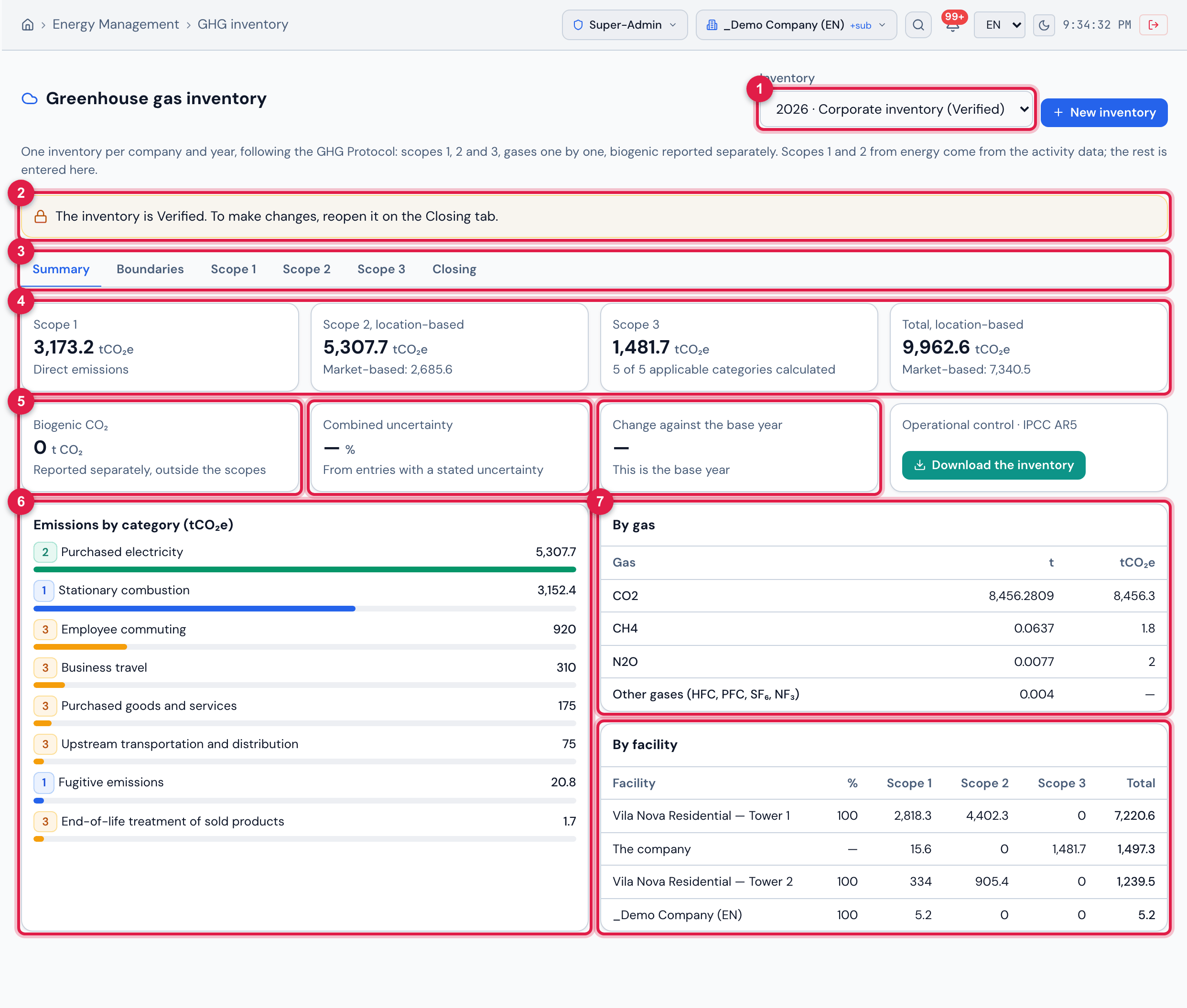
Figure 22. The Summary tab of the inventory.
- 1The chosen Inventory and its status.
- 2The closed-inventory notice: to make changes, it has to be reopened.
- 3The tabs: Summary, Boundaries, one per scope and Closing.
- 4The totals: scope 1, scope 2 by the two methods, scope 3 and the total.
- 5Biogenic CO₂ (reported separately), uncertainty and the change against the base year.
- 6Emissions by category, with the scope number.
- 7The emissions By gas and By facility.
Entering what does not come from energy
Section titled “Entering what does not come from energy”On the Scope 1 and Scope 3 tabs, each category has its own list of entries. With the inventory open, each category has the button that sets its status, and the list has Import spreadsheet and New entry; in a closed inventory, like the one in the figure, these buttons do not appear.
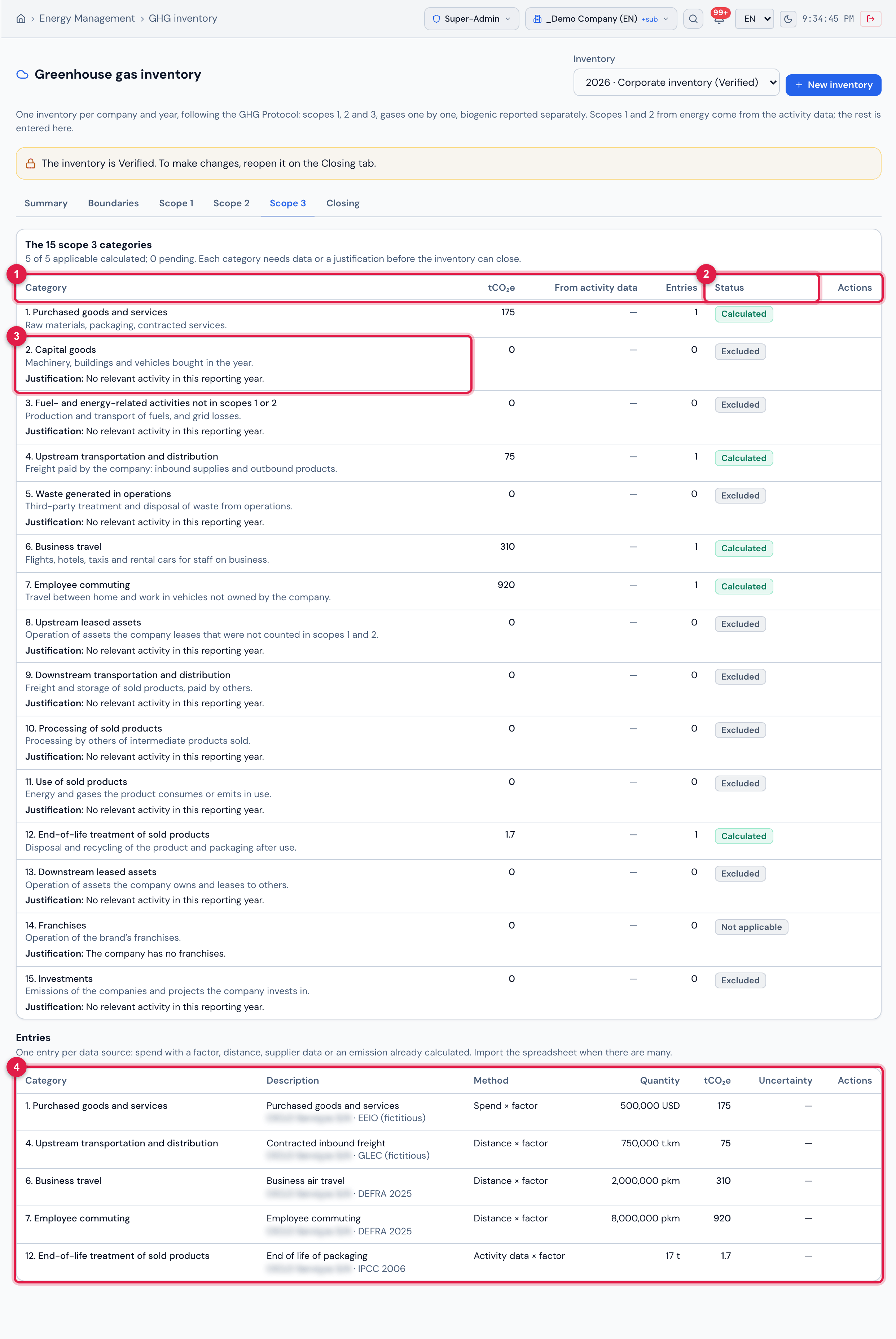
Figure 23. The Scope 3 tab, with the 15 categories.
- 1The 15 categories, with the emissions and the number of entries of each one.
- 2The Status: calculated, no data, excluded or not applicable.
- 3The Justification of a category that is excluded or not applicable.
- 4The Entries, with the method, the quantity and the emissions.
| Entry method | What you enter |
|---|---|
| Activity data × factor | the quantity (tonnes, litres) and the factor per unit |
| Spend × factor | the amount spent and the factor per unit of currency |
| Distance × factor | tonne-kilometres or passenger-kilometres and the factor |
| Supplier data | the emission reported by the supplier |
| Reported emission | the total in tCO₂e, when the calculation was done elsewhere |
The Scope 2 tab holds the instruments of the market-based method: renewable energy certificates, contracts and the supplier-specific rate, with the kWh covered.
Closing and verifying
Section titled “Closing and verifying”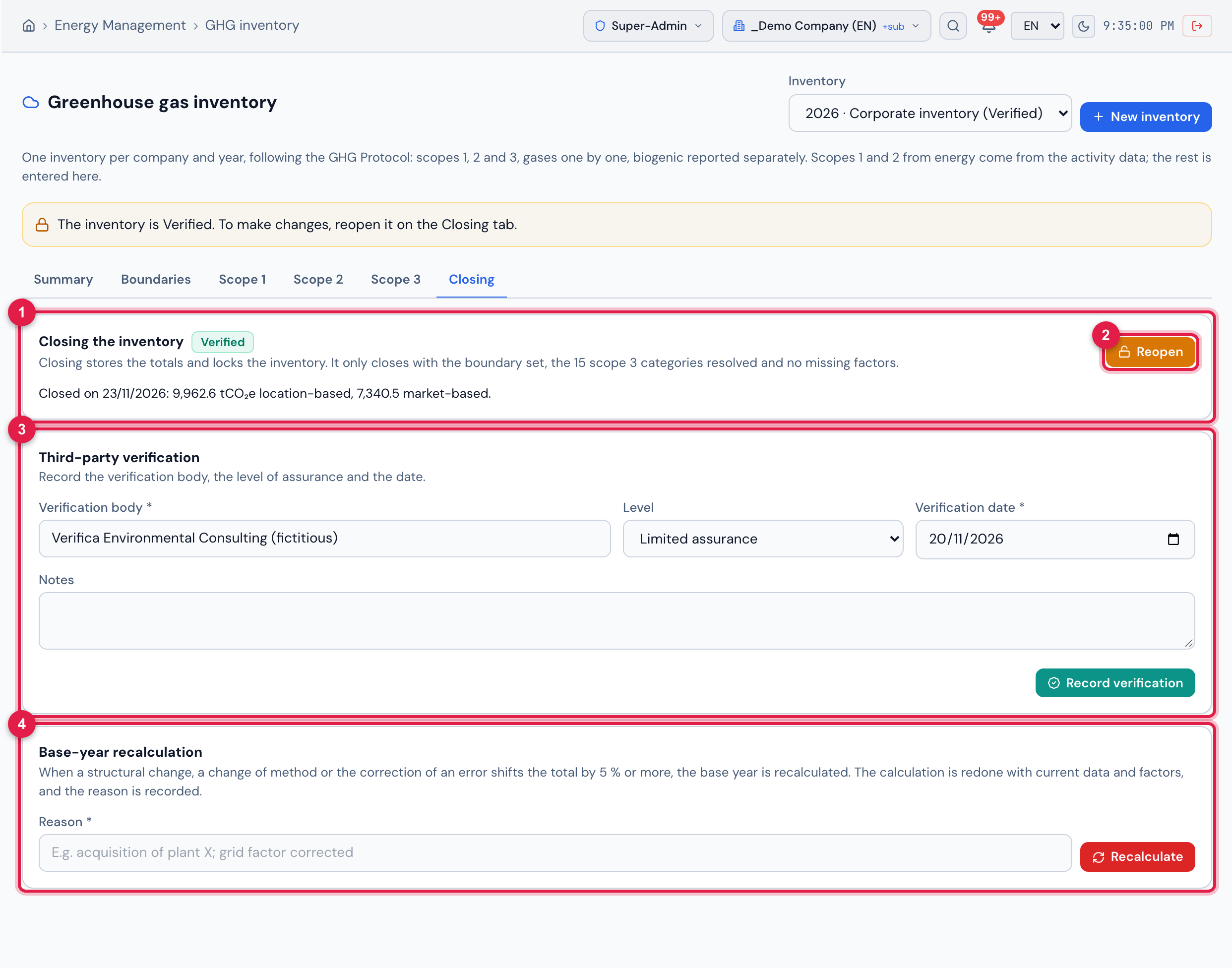
Figure 24. The Closing tab.
- 1The status of the inventory and the totals stored at closing.
- 2Reopen allows corrections. In an open inventory, the button is Close inventory.
- 3The Third-party verification: who verified, the level of assurance and the date.
- 4The Base-year recalculation: the reason and the Recalculate button.
- Check on the Summary that there is no pending category and no energy carrier without a factor.
- On the Closing tab, click Close inventory. The numbers are stored as they were.
- After the external verification, record the Verification body, the Level and the Verification date: the inventory becomes Verified.
A closed inventory does not change by itself. If a piece of data changes later (a corrected factor, a month that was missing), use Recalculate, with the reason: H2O records the total before and after. When the difference exceeds the threshold in the policy, the base year has to be recalculated too.
Was this page helpful?
Thanks for the feedback!
Got it — we will improve this page.