
Where the template is used
Manual — Task templates and checklists · chapter 6 of 10
The Template type decides on which screen the template is offered. Once chosen, the checklist is always the same and is answered the same way (chapter 7) — what changes is the document it lives in and the PDF it produces.| Template type | Where it is chosen | Where it is answered | More in the manual |
|---|---|---|---|
| Task | ticket task (ticket opening, Tasks tab, task record); Automatic Scheduling; Commissioning routines; Patrols; Maintenance Plans; PMOC activities | in the ticket task, on the web and in the app | below; Automatic Scheduling; Commissioning |
| Audit | Operations › Audits › New Audit and the project’s Audits tab — Audit Template ∗ field | in the audit, on the web and in the app | Projects, chapter 9 |
| Equipment | the project’s Equipment tab — Checklist templates for Mobilization, Daily and Demobilization (with no template of the Equipment type, the list shows those of all types) | in the project equipment, on the web and in the app | Projects, chapter 10 |
| APR | Occupational Safety › APR › new — APR template ∗ | in the APR, on the web and in the app | Occupational Safety, chapter 5 |
| PT (Work Permit) | Occupational Safety › PT › new — PT template ∗ | in the PT, on the web and in the app | same |
| Safety inspection | Occupational Safety › Inspections › new — Inspection Template ∗ | in the inspection, on the web and in the app | same |
In the ticket task
Section titled “In the ticket task”The checklist of a ticket lives in a task. There are three ways to put a template on the task:
- When opening the ticket (Operations › Tickets › new, Tasks tab): Template with the Search template… search — only Task templates of the ticket’s site. The task receives the description (Content), the category, the technician, the duration and the Private setting of the template.
- On an open ticket (the ticket’s Tasks tab, New Task): the Template (N) field with — Select template — — also only Task templates of the ticket’s site. The task receives the description, the technician, the group, the duration and the Private setting; the template’s category is stored along with it on saving.
- On the task record (Edit › Checklist Template): choose or change the template — here the search brings templates of all types of the ticket’s site; choose a Task one.
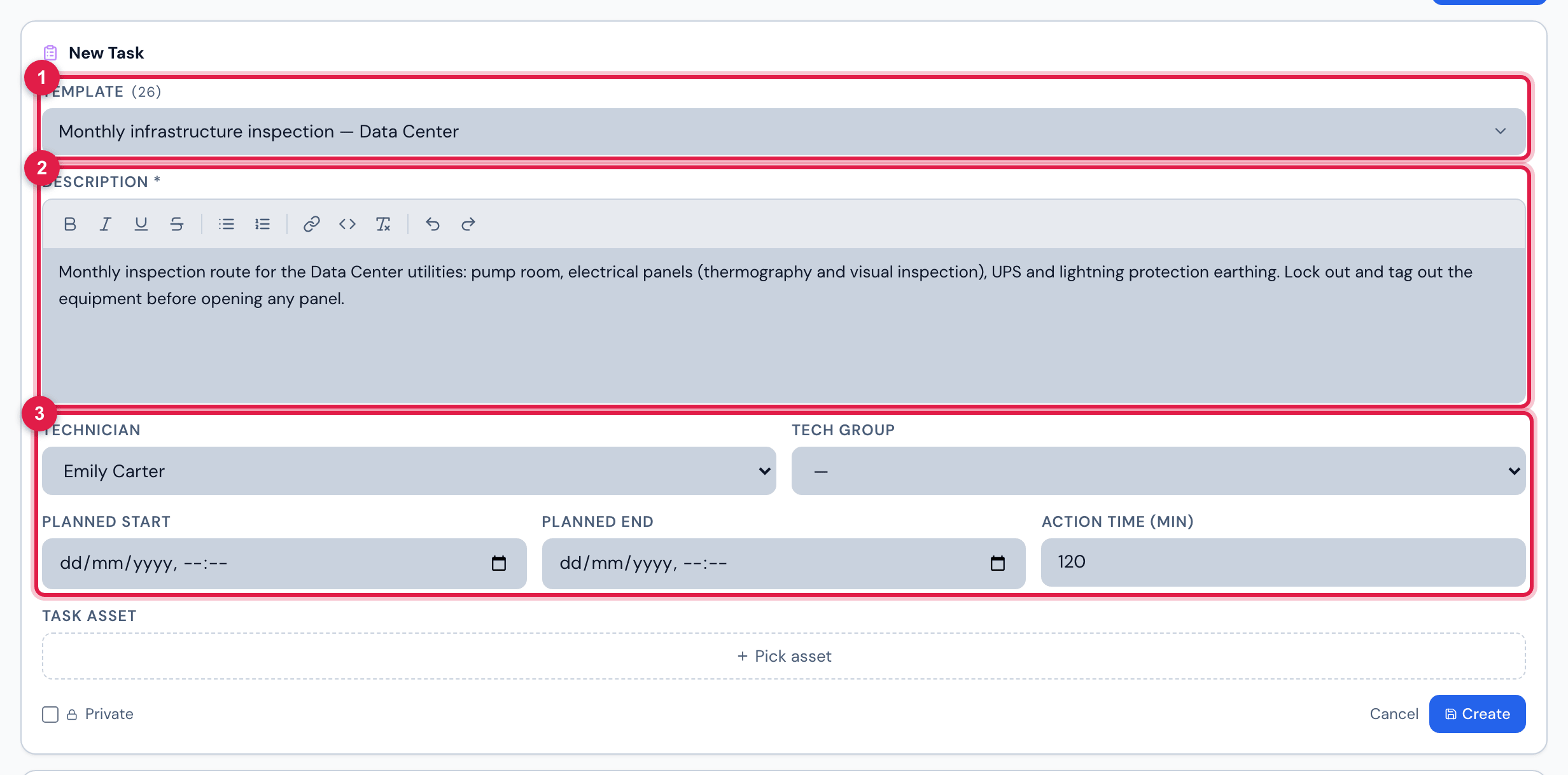
Figure 16. Tasks tab of the ticket Monthly infrastructure inspection — October 2026: a new task with the template Monthly infrastructure inspection — Data Center chosen in Template — the description, the technician and the duration came from the template.
- 1Template (N) — the search among the templates of the ticket’s site.
- 2The description copied from the template’s Content.
- 3The template’s technician and duration.
In the app, the technician adds a task with a checklist through the ticket’s Checklists card (+ Add task, only Task templates of the site) or when opening the ticket (Task with checklist (optional)). The app does not change the template of a task.
Periodicity and Automatic Scheduling
Section titled “Periodicity and Automatic Scheduling”A Task template with a Periodicity filled in is a maintenance plan: Automatic Scheduling (Planning › Automatic Scheduling) generates at once the year’s tickets for the chosen assets, one ticket per date, each with a task using the template (manual Automatic Scheduling). The Plans step lists the templates with a periodicity of the header site and the recursive ones of the sites above.
| From the template | In Automatic Scheduling |
|---|---|
| Periodicity | the interval between the dates: Daily, Weekly, Biweekly, Monthly, Bimonthly, Quarterly, Semi-annual, Annual or Custom (every N days). Without periodicity, the template does not appear in the Plans step |
| Name | the ticket name: “<template> - <asset>” |
| Content | the ticket description |
| Duration | the task time and the planned hours (30 min when empty) |
| Technician | the task technician |
| Task Category | the task category |
| the items | the checklist the technician answers — read from the template at execution time |
Commissioning, patrols, maintenance plans and PMOC
Section titled “Commissioning, patrols, maintenance plans and PMOC”- Commissioning: the Routines by level say which template to use at each level for each asset type — for example, L3 × UPS → L3 — UPS start-up and energization. The batch tickets are created with a task using that template, and when finishing the checklist the technician gives the Test result (manual Commissioning, chapters 2 and 5).
- Patrols (Planning › Patrols): each patrol uses a checklist template (field Template de Checklist ∗, still in Portuguese on this screen), usually with assets linked to the items and the planned readings (chapter 4).
- Maintenance Plans (Planning › Maintenance Plans): the plan chooses the task template (field Template de tarefa ∗, still in Portuguese) that goes on the tasks it generates.
- PMOC (Operations › PMOC): each activity of the air-conditioning plan has a Task template. An activity saved without a template gets a template created by the PMOC itself, named PMOC · <code> · <name>, with the activity periodicity, the comment Criado pelo PMOC (<legal reference>). (always in Portuguese) and Recursive on, on the PMOC site. From these templates, the PMOC builds the PMOC · <PMOC name> schedule in Automatic Scheduling (manual Automatic Scheduling).
These selectors, like the Automatic Scheduling one, show the templates of the header site and the recursive ones of the sites above, of all types — choose a Task one. In the Commissioning routines grid, a cell already saved with a template outside that scope keeps showing the template.
Electrical test templates that come with H2O
Section titled “Electrical test templates that come with H2O”Three electrical test reports come ready-made with H2O. Each one is a ticket modality, a task template with the sheets (chapter 4) and a report template (Configuration › Report Templates) with the report texts. The three templates are on the root site, recursive: they appear on every site. Their names and the modality names are in Portuguese on screen.
| Report | Ticket modality | Task template | Sheets in the task |
|---|---|---|---|
| Pit Stop (low-voltage breakers) | Ensaio de Disjuntores BT | Ensaio de Disjuntores BT — Pit Stop | one LV Breaker Test Sheet per breaker |
| RMUs and MV panels | Manutenção Preventiva MT (RMU/MV) | Manutenção Preventiva MT — RMU e MV | one RMU / MV Panel Sheet per RMU + transformer or per MV panel |
| Electrical shutdown | Parada Elétrica | Parada Elétrica — Transformadores e Painéis | one Transformer Sheet per transformer and one MV/LV Panel Sheet per panel, plus the item with the photos of the procedures (one photo per step, with a caption) |
- Open the ticket on the customer’s site with the report modality (for example, Ensaio de Disjuntores BT). One ticket per day and per system: each ticket generates its own report.
- On the Tasks tab, create the task with the report template and assign the technician.
- The technician fills in one sheet per piece of equipment, on the web or in the app, and completes the task (chapter 7).
- On the ticket’s Report tab, review the conclusion and download the report as PDF.
Audit, equipment and Occupational Safety
Section titled “Audit, equipment and Occupational Safety”- Audit: the audit is created from a project and an Audit Template and is answered in the audit itself (Finish button, with signature). Use the Compliant / Partial / NC / NA type with Classification: — the audit’s Statistics tab groups by it.
- Equipment: the entry (Mobilization), each-use (Daily) and exit (Demobilization) checklists of machines rented for the project.
- APR, PT and Safety inspection: the field documents of Occupational Safety. In the APR, use a Table / Grid item for the risk grid. The Inspection offers Report deviation on non-compliant items.
Was this page helpful?
Thanks for the feedback!
Got it — we will improve this page.