
Importing assets by spreadsheet
Manual — Assets · chapter 12 of 13
To register or update many assets at once — the inventory spreadsheet, the list that came from the previous system, the equipment of a new site — use System › Import (administrator, Configuration right). The path is always the same: download the template, fill it in, upload and review row by row on screen, fixing whatever is wrong, before importing. Nothing is saved until you click Import.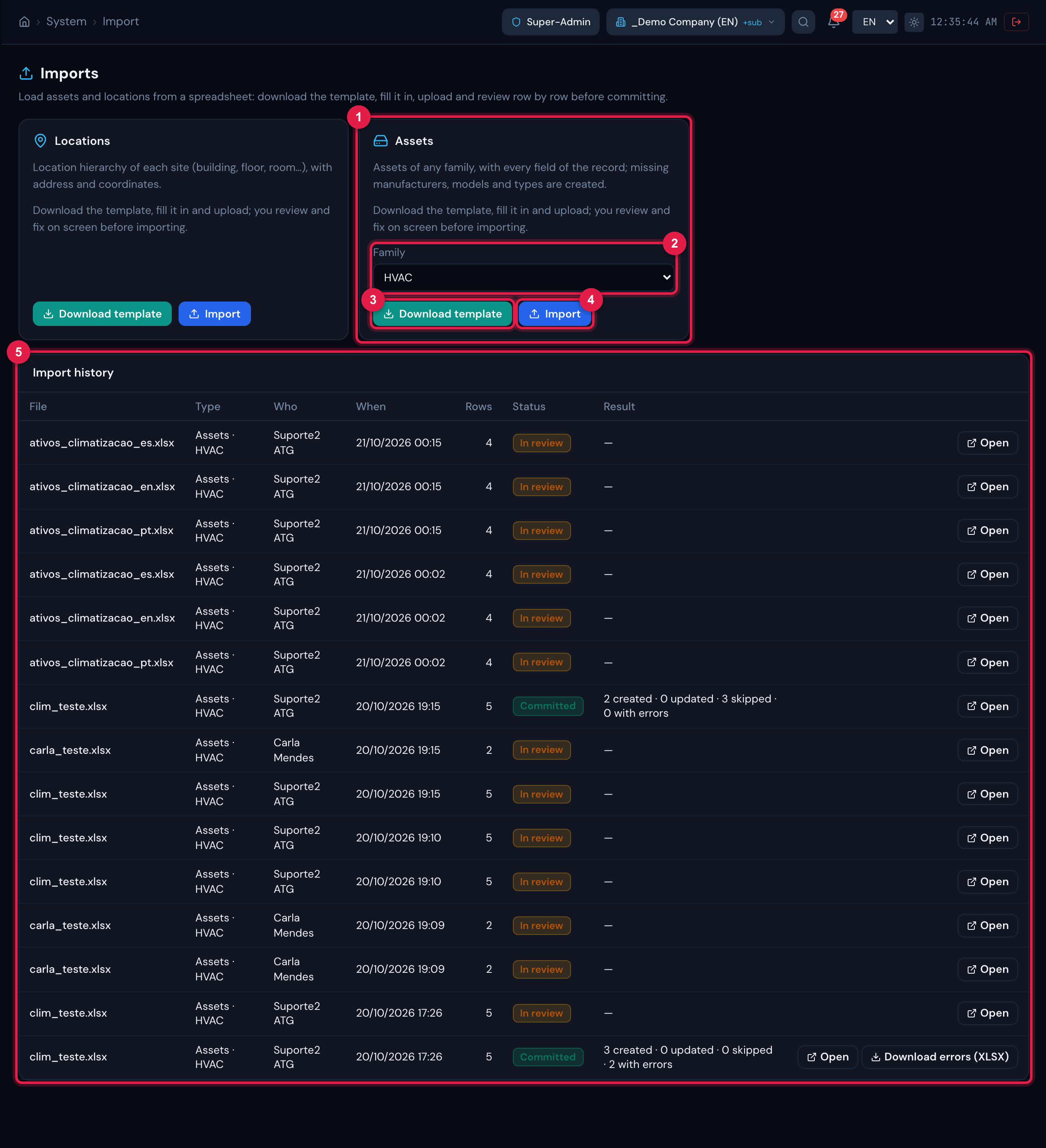
Figure 40. The Imports page: one card per type — Locations and Assets (with the Family selector) —, each with Download template and Import; below, the Import history.
- 1Assets card — one import per asset family.
- 2Family — the family of the template and of the spreadsheet (HVAC, Generator Sets…).
- 3Download template — the XLSX with the family’s columns.
- 4Import — chooses the file (.xlsx or .csv) and opens the review screen.
- 5Import history: file, type, who, when, rows, status and result; Open goes back to the review or to the result.
The template
Section titled “The template”Choose the Family in the Assets card and click Download template. The file modelo_ativos_<family>.xlsx has three sheets:
- Data (Dados) — one column per field of the record, in order: the common fields (Name, Site, TAG / Inventory number, Serial number, Location (path), Manufacturer, Model, Type, Status, Technician in charge, Group in charge, SLA level, Criticality, Manufacturing date, Installation date, Visible in child sites) and then the family’s additional fields (Capacity (TR), Refrigerant, Voltage…). The dark-blue header marks the essential columns; the light-blue one, the optional technical data. Row 2 is hidden and holds the technical key of each column — do not delete it. Fill in from row 3.
- Lists — the valid values of the references, taken from the site selected in the header when you downloaded the template: sites, locations (full path), manufacturers, types, statuses, technicians, groups, SLA levels, criticality, Yes / No and the lists of the additional fields (the refrigerants, for example).
- Instructions — the rules in short and the description of each column (type, required or not, accepted values).
| Template rule | How it works |
|---|---|
| Required | Only Name and Site. An empty Site uses the active site on screen. Everything else may be left blank. |
| References by name | Site, location, manufacturer, model, type, status, technician, group and SLA level are given by name (case-insensitive); the location by its full path “Building A > 2nd floor > Room 201” (the name alone is enough when it is unique in the site); the technician by login or “First Last”. |
| Formats | Dates as dd/mm/yyyy or yyyy-mm-dd; decimals with a comma or a dot; Yes/No in logical fields; in lists, one of the values of the Lists sheet (list fields with free text, such as the refrigerant, accept another value). |
| Created on the way | Manufacturer, Model and Type that do not exist are created (option adjustable under Advanced). A Location that does not exist is an error, unless you turn on “create what does not exist” — then the path hierarchy is created. |
| CSV | The spreadsheet can be saved as CSV (UTF-8, separator ; or ,). What matters is the header; the column order is free, and a column H2O does not recognize can be linked to a field or ignored under Adjust columns. |
Uploading and reviewing the spreadsheet
Section titled “Uploading and reviewing the spreadsheet”- In the Assets card, check the Family, click Import and choose the file (.xlsx or .csv). H2O reads the spreadsheet and opens the Import review screen — nothing has been saved yet.
- Read the numbers at the top: Rows, Ready to create, To update and With errors (with the go to the first shortcut). The rows with errors come first in the list; the Only errors button hides the rest.
- Fix things on the screen itself: click a cell to edit it (text, date, Yes/No or a searchable list, depending on the column); when you leave the cell the row is revalidated immediately and the error disappears or changes. An edited cell gets a blue dot and its tooltip shows the original value; the arrow next to the row number undoes its corrections.
- If a column of the spreadsheet was not recognized, click Adjust columns and link each column to the right field (or — ignore —); the spreadsheet is revalidated. With everything recognized, the screen says All spreadsheet columns were recognized and hides that panel.
- Under Advanced (collapsed by default) are the options: what to do with a Row that already exists (Update (filled columns only) or Skip), Create what does not exist (Manufacturer, Model, Type, Location) and All or nothing.
- Click Import (or, if errors remain, Import only the valid rows) and confirm. The Result screen shows Created, Updated, Skipped and With errors, what was created on the way (manufacturers, models, types, locations) and the Errors by row, with Download errors (XLSX) — the original rows plus the Error column, to fix and upload again.
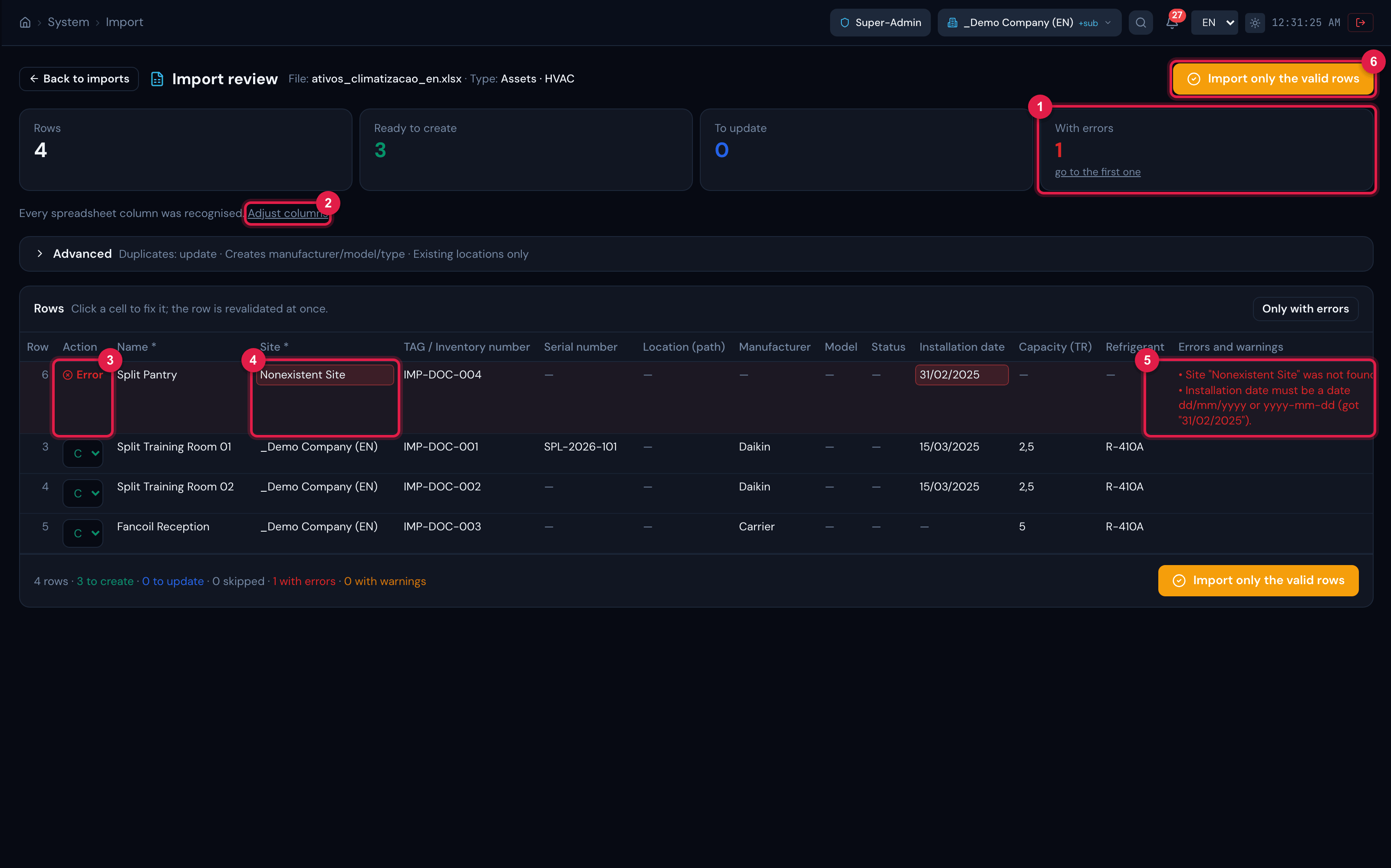
Figure 41. The Import review screen of an HVAC spreadsheet with four rows: the row with errors at the top (nonexistent site and invalid date), the Site cell open for correction and the Import only the valid rows button.
- 1Numbers at the top: With errors, with the go to the first shortcut.
- 2Adjust columns — the mapping stays hidden when every column was recognized; Advanced likewise.
- 3Row with Error in the Action column (rows with errors come first).
- 4Cell being edited — the searchable list offers Keep as is, the valid values and Use “…”.
- 5Errors and warnings column of the row.
- 6Import only the valid rows (or Import, when there is no error).
| Duplicate detection | How H2O decides |
|---|---|
| Key | The TAG / Inventory number identifies the asset; without a TAG, the Serial number; without both, Name + Site. A row that matches an existing asset appears as Update (with “already exists: #id name”) and writes only the filled columns — empty does not erase anything. |
| Repeated in the spreadsheet | A TAG repeated inside the file itself is an error (“repeats row N of this spreadsheet”). |
| Outside your scope | A TAG already used in a site you do not reach is an error; the import only creates and updates in the sites you have access to, with the Create and Edit rights of the type in each site. |
| All or nothing | Off (default), the valid rows go in and the ones with errors go to the report. On, nothing is saved while there is a row with an error. |
Was this page helpful?
Thanks for the feedback!
Got it — we will improve this page.