
Purchasing: overview
Manual — Purchasing: orders, quotations and accounts payable · chapter 1 of 9
H2O follows a purchase from the price request to the payment. There are three screens that talk to each other and to what you already use in the warehouse — the material request, the invoice and the stock.| Step | Where | What happens |
|---|---|---|
| 1. Prepare the supplier | People › Suppliers | you mark who is Eligible for quotation and which material families they supply (chapter 2) |
| 2. Quote | Warehouse › Quotations | you build the quotation and send it; each supplier answers through their own link, without logging in; you compare and choose the winner of each item (chapters 6 and 7) |
| 3. Order | Warehouse › Purchase orders | the order comes from the quotation, from a material request, from an ERP spreadsheet or is typed in; once you Issue it, it is in force (chapters 3 and 4) |
| 4. Receive | Warehouse › NFe Invoices and the app | the invoice is matched against the order, item by item (chapter 5) |
| 5. Pay | Finance › Accounts payable | the issued order generates the forecast of the installments; you confirm the payable when the document arrives and record the payment when you pay (chapter 8) |
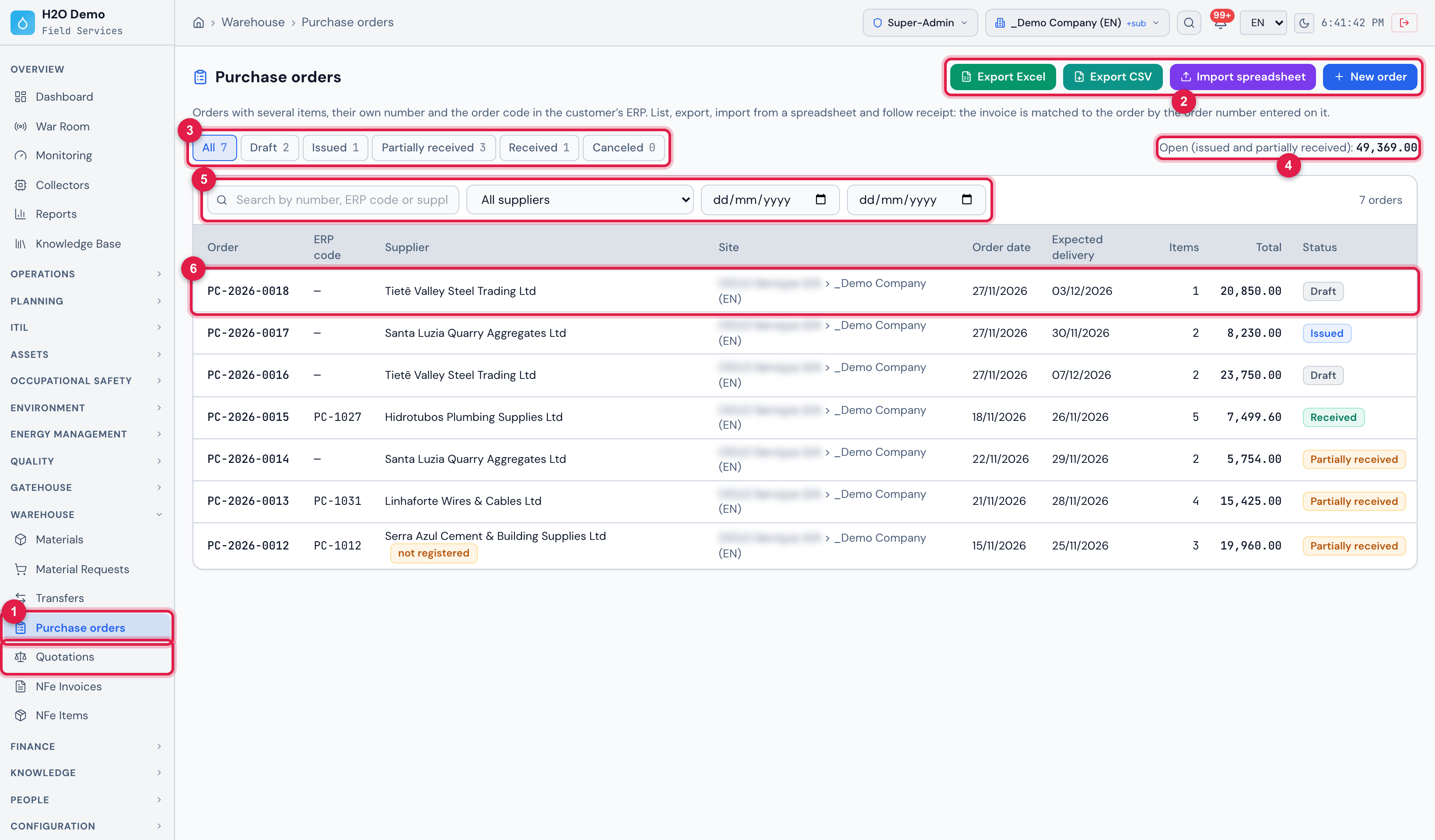
Figure 1. The Purchase orders list, in the Warehouse menu.
- 1Purchase orders and Quotations, in the Warehouse menu.
- 2Export Excel, Export CSV, Import spreadsheet and New order.
- 3The tabs by status, with the number of orders in each one.
- 4Open (issued and partially received): the sum of what has been ordered and has not fully arrived yet.
- 5The search by number, ERP code or supplier, the supplier filter and the period (order date).
- 6An order: number, ERP code, supplier, site, dates, items, total and status.
Who can use it
Section titled “Who can use it”Each screen has its own right in the profile, in People › Profiles, Permissions tab: Purchase orders and Quotations are in the Warehouse group; Accounts payable, in the Finance group. When the module is installed, only the Super-Admin profile has these rights: grant them to the buyer and to the finance team.
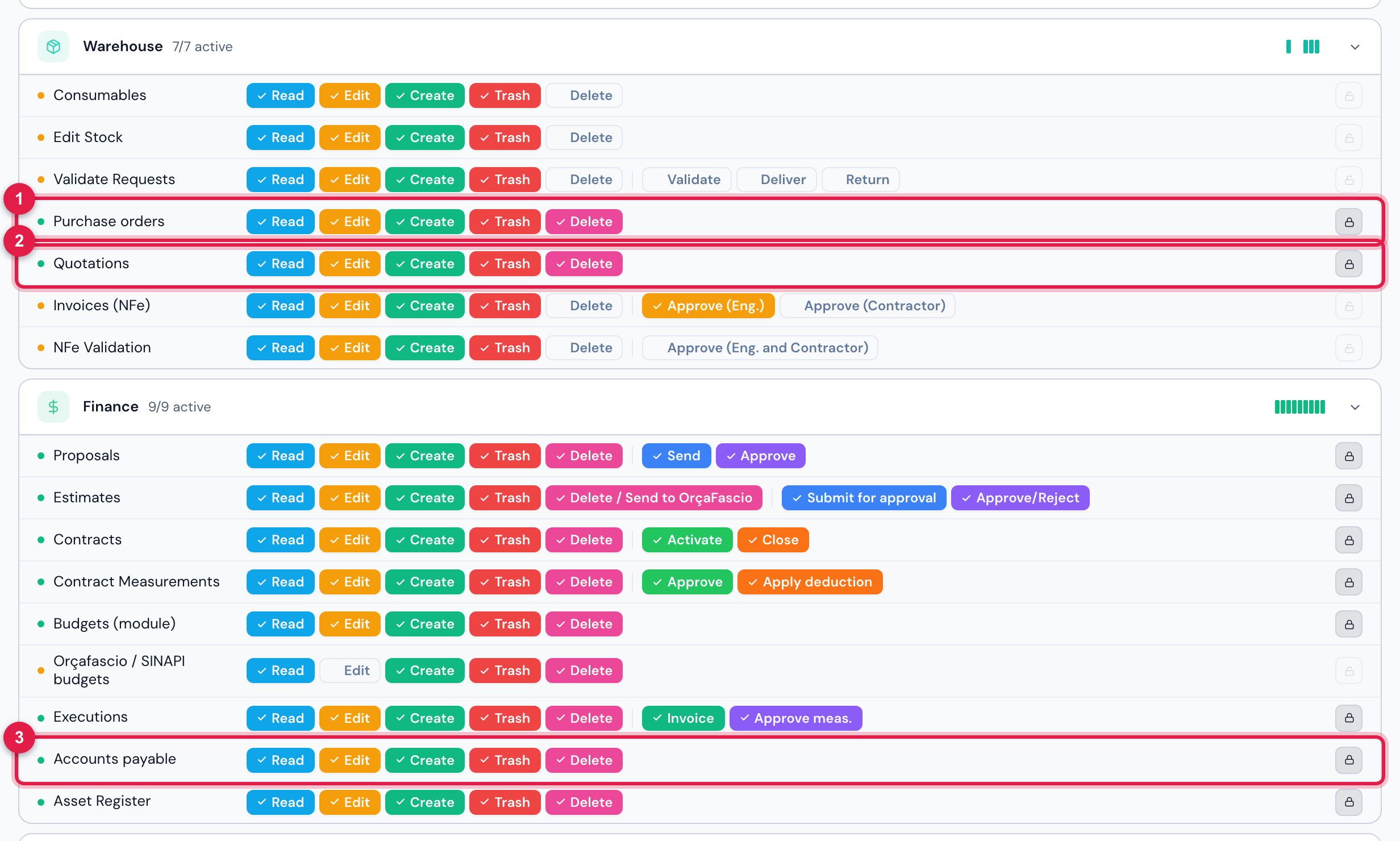
Figure 2. The purchasing rights in the profile permissions.
- 1Purchase orders, in the Warehouse group.
- 2Quotations, in the same group.
- 3Accounts payable, in the Finance group.
| Right | What it allows |
|---|---|
| Read | see the list and the record, generate the order PDF and export |
| Create | create an order, a quotation or a payable, and import orders from a spreadsheet |
| Edit | change, issue, reopen, close the receipt of and cancel the order; send the quotation, mark winners and generate the orders; confirm the payable, record a payment and reverse it |
| Trash | delete a draft |
A menu that does not appear is a right missing from the profile. Matching the order against the invoice uses the rights of the invoice: whoever reads the invoice sees its order, and whoever can change it can link or remove the order.
As on the other screens, you see the orders, quotations and payables of the sites you reach — see Who sees each site.
The numbers
Section titled “The numbers”Each document gets its own number, which never repeats: PC-YYYY-NNNN for the purchase order, CT-YYYY-NNNN for the quotation and CP-YYYY-NNNN for the payable. The order also has the ERP code — the order number in the customer’s system —, which you type in or bring in the spreadsheet.
Was this page helpful?
Thanks for the feedback!
Got it — we will improve this page.