
The supplier record
Manual — Suppliers, contacts and workforce · chapter 4 of 8
Clicking the supplier opens its record. The header shows the number, the Tax ID (CNPJ), the type, the site it belongs to, Active or Inactive and, if applicable, 🔒 Inherited (read-only); on the right, Edit and Delete. Below, cards with phone, e-mail, city, website (click to open) and fax, and the tabs — each with its count.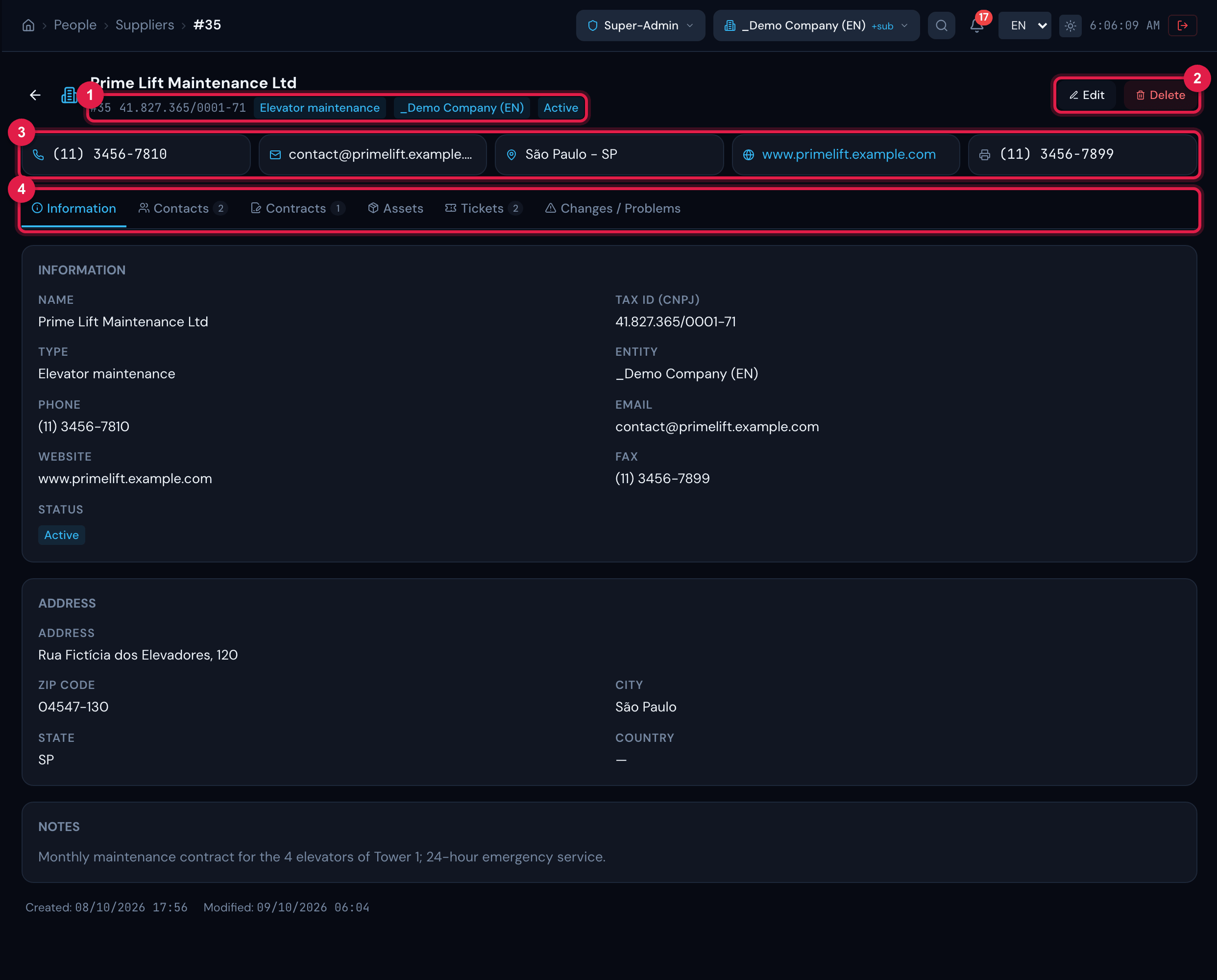
Figure 4. A supplier record, Information tab: the registration data, the address, the notes and the creation and modification dates.
- 1Header badges: number, Tax ID, type, site and status.
- 2Edit and Delete.
- 3Contact cards (phone, e-mail, city, website, fax).
- 4Tabs with count.
| Tab | What it shows |
|---|---|
| Information | The full registration, the address, the notes and when it was created and modified. |
| Contacts | The people linked to the supplier, with phone, mobile and e-mail. Link contact and unlink (below). |
| Contracts | The linked contracts, with the number, the start and the duration in months; click to open the contract. Link contract and unlink work as for contacts. |
| Assets | The asset management records in which this supplier appears: the assets bought from it and the material entries of the invoices, grouped by material (click the group to see each entry, with invoice or order, value and date). In the footer, the total of entries, of items and the value. |
| Tickets | The tickets in which the supplier is requester, technician or watcher, from the sites you reach, newest first. The title shows the total; the tab brings 20 at a time — when there are more, “Showing N of M” and the Load more button appear. |
| Changes / Problems | The changes and problems linked to the supplier. |
Linking contacts and contracts
Section titled “Linking contacts and contracts”- In the Contacts tab, click Link contact.
- In the – Select contact – selector, choose the person. The list shows the contacts of the site (and those of the sites above marked as recursive) that are not yet linked to this supplier.
- Click the ✓ to link (the X cancels). The person appears as a card in the tab.
- To unlink, hover over the card and click the X in the corner (Unlink this contact?). The contact stays registered.
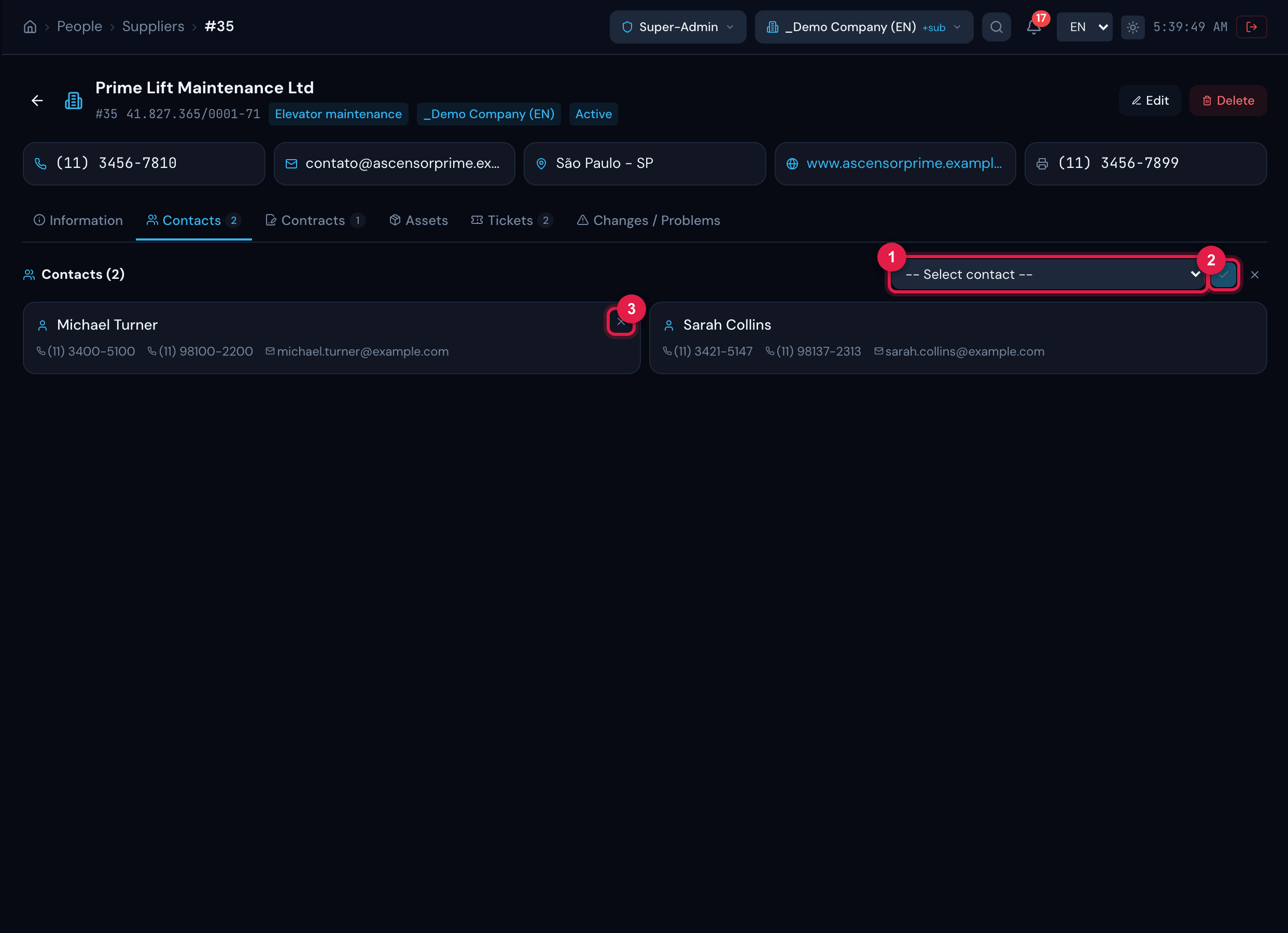
Figure 5. Contacts tab with two linked contacts and the Link contact selector shown.
- 1Selector that Link contact opens: choose the person among the available contacts.
- 2✓ confirms the link (the X next to it cancels).
- 3X that unlinks (appears on hover).
The Assets tab
Section titled “The Assets tab”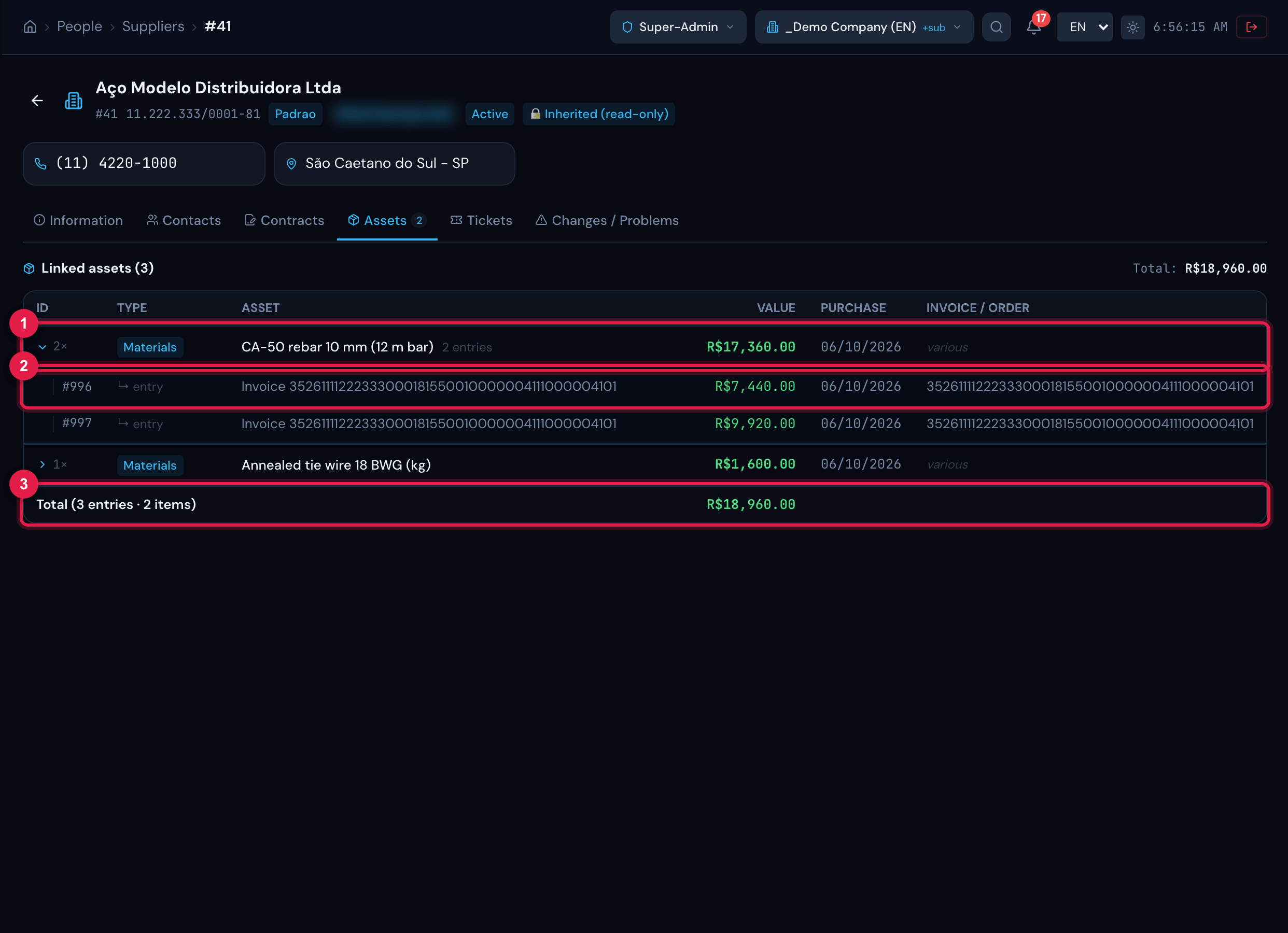
Figure 6. Assets tab of a materials supplier: one material with several invoice entries, expanded, and the total in the footer.
- 1Grouped row (N× entries of the same material) — click to expand.
- 2Single entry: invoice or order, value and date; click to open the asset management record.
- 3Total of entries, items and value.
Was this page helpful?
Thanks for the feedback!
Got it — we will improve this page.