
List and filters
Manual — Daily report · chapter 2 of 9
There are two lists of daily reports: the general one, in Operations › Daily Reports, with the daily reports of all the projects you can see, and the Daily Reports tab of each project. Clicking a row, in both, opens the daily report page (chapter 4).Operations › Daily Reports
Section titled “Operations › Daily Reports”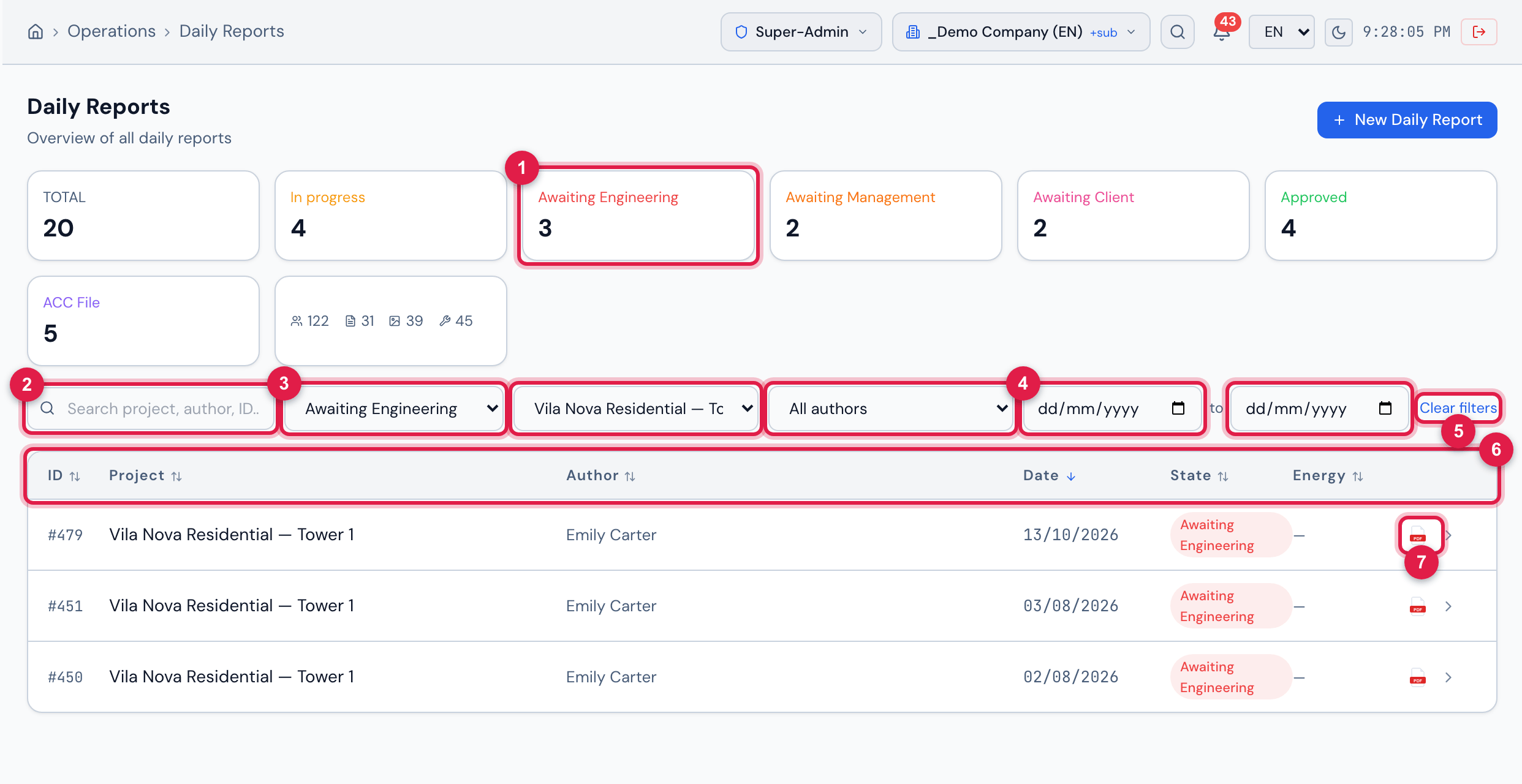
Figure 3. The general list filtered by the project Vila Nova Residential — Tower 1 and by the state Awaiting Engineering (click on the card).
- 1State card clicked — it becomes the state filter.
- 2Search Search project, author, ID….
- 3Filters All states, All projects and All authors.
- 4Period: start date to end date.
- 5Clear filters — appears when a filter is active.
- 6Sortable headers: ID, Project, Author, Date, State, Energy.
- 7PDF icon of the row (chapter 6).
- Cards: Total and one card per state, with the count. Clicking a state filters the list. The last card adds up, over the company’s daily reports, the workforce entries, the activities, the media and the equipment.
- Filters: state, project, author and period (by the date of the daily report). They are kept while the session is open — you open a daily report, come back and find the list as you left it.
- Search: searches all daily reports by project name, author, daily report name, date (in the YYYY-MM-DD format, whole or in part — 2026-10 brings October) and number (472 or #472). It adds to the filters.
- Sorting: click the column header; click again to reverse. The order is kept in the browser. The initial order is by the date of the daily report, from the most recent to the oldest.
- Energy: ⚡ Yes when the daily report marked an energized area (chapter 4).
- The list shows 20 daily reports per page; the footer says N daily reports • Page X of Y.
- The page and the PDF belong to the Projects right: without Read in Projects, the row does not open, the PDF icon does not appear and the list warns You can see the list of daily reports; opening a report and its PDF requires the Projects (Read) right in your profile.
The project’s Daily Reports tab
Section titled “The project’s Daily Reports tab”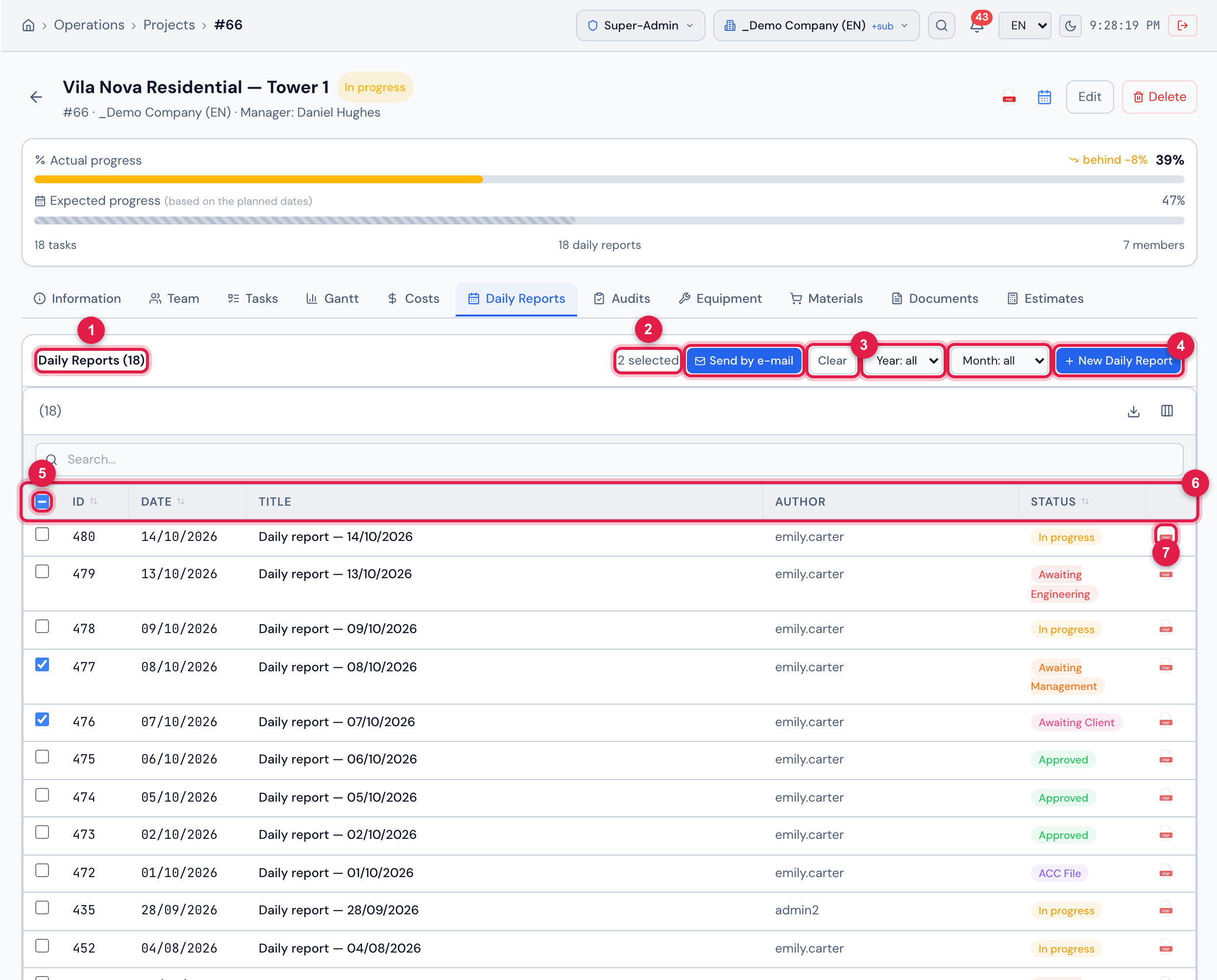
Figure 4. The Daily Reports tab of Vila Nova Residential — Tower 1, with two daily reports checked to be sent by e-mail.
- 1Daily Reports (N) — the project total.
- 2With daily reports checked: N selected, Send by e-mail and Clear (chapter 6).
- 3Filters Year: all and Month: all.
- 4New Daily Report — requires Create in Projects.
- 5Checkboxes — they appear with Read in Daily Reports; the one in the header checks the whole page.
- 6Columns ID, Date, Title, Author and Status.
- 7Generate daily report PDF icon.
- Title: the name given to the daily report (for example, “Daily report — 01/10/2026”); without a name, the date appears.
- The table search looks in the title, the General observations and the Client observations, across all the project’s daily reports.
- The initial order is by the last change: the daily report changed last comes first. Click Date to sort by the date of the daily report.
- The years of the Year filter are only those with a daily report in the project.
Was this page helpful?
Thanks for the feedback!
Got it — we will improve this page.