
Daily report: concepts
Manual — Daily report · chapter 1 of 9
The daily report (the site diary) is the record of one day of a construction job: the weather in the morning, afternoon and night, the activities and occurrences with photos, the workforce present and idle per job role and per company, the equipment, the energized area and the observations. Once filled in, the daily report goes through the approval of engineering, management and the client, each with their own signature, and becomes a PDF that can be sent by e-mail.In H2O, every daily report belongs to a project (the Projects manual). The project gives the place for the weather, the workforce companies (the project team) and the client approval rule.
Where it is
Section titled “Where it is”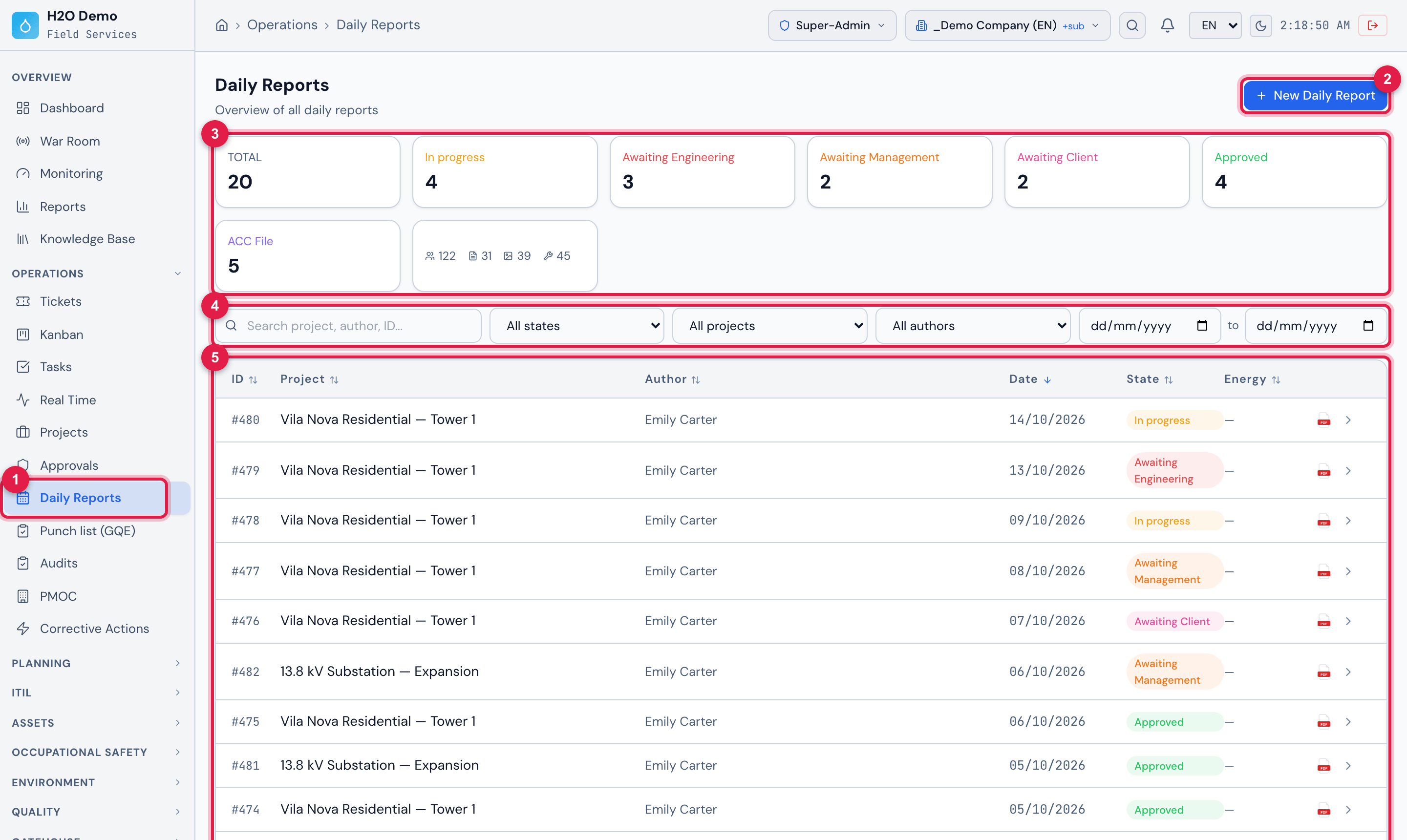
Figure 1. Operations › Daily Reports: the cards per state, the filters and the list with the daily reports of Vila Nova Residential — Tower 1 and of the company’s other projects.
- 1The Operations › Daily Reports menu.
- 2New Daily Report — creates a daily report in any project (chapter 3).
- 3The cards: Total and one per state. Click a state to filter.
- 4The filters (chapter 2).
- 5The list: project, author, date, state, energy and the PDF of each daily report.
| Where | What is done there | Chapter |
|---|---|---|
| Operations › Daily Reports | all the company’s daily reports, with filters and the PDF of each one | 2 |
| Operations › Projects › project › Daily Reports tab | the project’s daily reports, New Daily Report and sending several PDFs by e-mail | 2, 3 and 6 |
| daily report page | fill in, submit, approve, reject, archive, the PDF and the history | 4 to 7 |
| People › Workforce | the workforce job roles (Bricklayer, Labourer, Foreman…) | 4 |
| Operations › Projects › project › Edit | the Daily report without client approval switch | 5 |
| My Profile › Digital Signature | the signature used in approvals | 5 |
| H2O app — Daily report on the home screen and the project’s Daily report tab | today’s daily report, offline, with photos, workforce and approval | 8 |
The states
Section titled “The states”The daily report goes through six states. The badge appears in the list, on the page and in the PDF:
| State | Means | In the PDF |
|---|---|---|
| In progress | the daily report is being filled in. It is the state of every new daily report, and where it returns when rejected or reopened. | IN PROGRESS |
| Awaiting Engineering | submitted; waiting for engineering approval. | AWAIT. ENG. |
| Awaiting Management | approved by engineering; waiting for management. | AWAIT. MGMT. |
| Awaiting Client | approved by management; waiting for the client. Does not happen in a project with Daily report without client approval. | AWAIT. CLIENT |
| Approved | flow completed. | APPROVED |
| ACC File | archived after approval. | ARCHIVED |
The full path, with who approves each step, is in chapter 5.
Access rights
Section titled “Access rights”The daily report uses two rows of the profile (People › Profiles › profile › Permissions tab, Operations group): Daily Reports, which controls the menu and the approval flow, and Projects, which controls the content of the daily report — open, create, fill in and delete.

Figure 2. People › Profiles › Super-Admin › Permissions, Operations group: the Projects and Daily Reports rows, the latter with the three approval marks.
- 1Projects row — open, create, fill in and delete daily reports.
- 2Daily Reports row — Read shows the menu; Edit submits, archives and reopens.
- 3Approve (Eng.), Approve (Mgmt.) and Approve (Client) — who approves each step.
| To… | You need |
|---|---|
| see the Operations › Daily Reports menu and the general list | Read in Daily Reports |
| open a daily report, see the project’s Daily Reports tab and generate the PDF | Read in Projects |
| New Daily Report (blank or copy), in the general list or in the project tab | Create in Projects |
| add an activity or equipment | Create in Projects |
| add a photo, video or PDF to an activity | Create in Projects and Create in Documents |
| Edit the information, change an activity, enter the workforce and Copy Workforce | Edit in Projects |
| remove an activity, photo or equipment | Trash in Projects |
| Submit for Approval | Edit in Daily Reports |
| Approve (Engineering) | Edit and Approve (Eng.) in Daily Reports |
| Approve (Management) or Approve (Final) | Edit and Approve (Mgmt.) in Daily Reports |
| Approve (Client) | Edit and Approve (Client) in Daily Reports |
| Reject | the same approval as the step the daily report is in (and Edit) |
| Archive and Reopen | Edit in Daily Reports |
| delete the daily report | Trash in Projects |
| Send by e-mail (several PDFs) | Read in Daily Reports |
Web and app
Section titled “Web and app”| I do this… | Web | App |
|---|---|---|
| create the daily report blank or copying a previous day | yes, on any date | yes, up to today (never a future date) |
| automatic weather (morning, afternoon, night) | yes, at creation | yes, at creation; and it fetches the weather of a daily report created without it |
| activities with photos, videos and PDF | yes | yes, also offline |
| workforce and equipment | yes | yes |
| energized area | Energized area? (Yes/No) and fields | Energized site? switch and fields |
| submit, approve and reject | yes | yes, also offline |
| archive and reopen | yes | no |
| daily report PDF | yes | yes (the server’s, when online; a PDF made on the device, when offline) |
| send several PDFs by e-mail | yes | no |
| change history | yes (only what is done on the web) | no |
Was this page helpful?
Thanks for the feedback!
Got it — we will improve this page.