
Importing the invoice
Manual — NF-e and material receiving · chapter 3 of 11
The invoice enters H2O through the 44-digit access key printed on the DANFE (the printed copy that travels with the load). H2O looks up the invoice at SEFAZ (the Brazilian tax authority), through the Serpro service, and brings in the supplier, the values and all the items — nobody types product by product.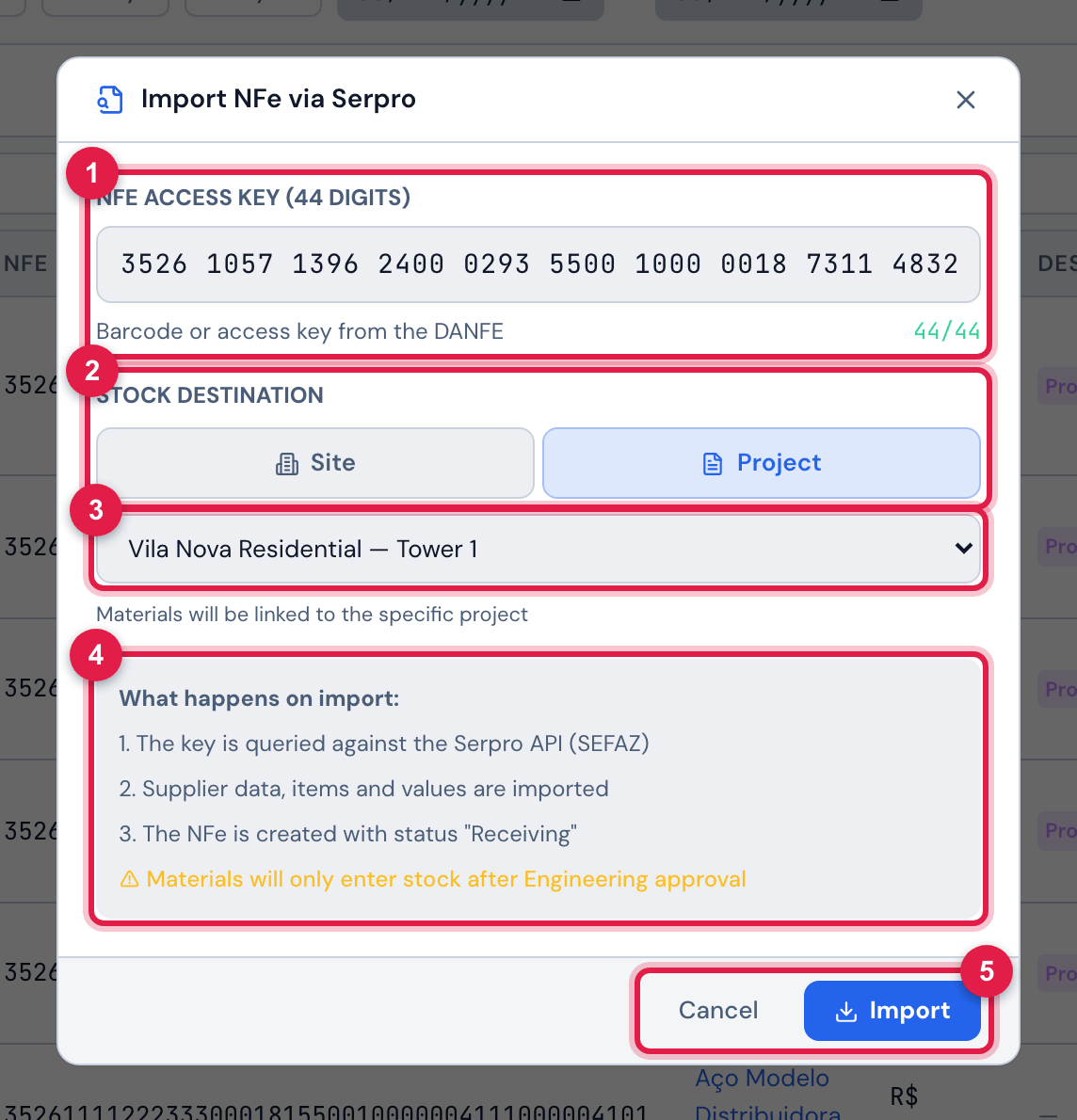
Figure 4. Import NFe via Serpro with the key typed in and the project Vila Nova Residential — Tower 1 as destination.
- 1NFe Access Key (44 digits) and the counter — it turns green at 44/44.
- 2Stock Destination: Site or Project.
- 3The destination site or project.
- 4What happens on import: — the steps and the stock warning.
- 5Import and Cancel.
- In Warehouse › NFe Invoices, click Import NFe (it appears for whoever has Create in Invoices (NFe)).
- Type or paste the access key. The spaces are added automatically, every 4 digits.
- In Stock Destination, choose Project and the job’s project — or Site and the site, when the material does not belong to a project.
- Click Import (or press Enter). While SEFAZ answers, the button shows Querying Serpro….
- Done: NFe imported successfully! appears and the invoice record opens, in the Receiving state.
The destination
Section titled “The destination”| Destination | The invoice belongs to the site… | Use when |
|---|---|---|
| Project | of the project (the site registered in the project) | the material is for a job — the common case |
| Site | chosen | the material goes to a warehouse or a site without a project |
- The invoice’s site decides who sees the invoice (chapter 1) and where the material enters the stock when engineering approves (chapter 8).
- The project appears in the list’s Destination and in the inspection PDF, with the manager and the job’s progress (manual Projects, chapter 4).
- The destination does not change after the import: check it before importing.
What comes from the invoice
Section titled “What comes from the invoice”| Part | Fields |
|---|---|
| header | number, issue date, status at SEFAZ (NFe Status), total value, purchase order number and additional information |
| supplier | name, CNPJ (tax ID), address, city and state, postal code and phone |
| each item | product code, GTIN (barcode), description, quantity, unit, unit and total value, NCM, CEST and CFOP |
- The record’s Approval Workflow gets the Receiving step, with who imported it and when.
- In the following minutes, H2O looks up the reference image of each product by itself (chapter 5). There is no need to wait to start checking.
- There is no manual entry of an invoice and no import of the XML file: it enters only by its access key. In the app, the key can also be read with the camera (chapter 10).
The invoice already exists
Section titled “The invoice already exists”The same key does not enter twice. If the invoice is already in H2O:
| Situation | What appears |
|---|---|
| you can see the invoice | NFe already exists — opening… and its record opens |
| it is in a site you cannot see | the 🏢 Restricted access banner, with This NF-e already exists, but it was loaded in the site “…”, which you cannot access. and the site name |
| your profile cannot see invoices | the 🔒 No permission banner, with This NF-e already exists, but you are not allowed to view it. |
| it is in the trash | This invoice (NF-e no. …) was already imported and is in the trash. To use it again, restore it in NF-e › Trash (Restore button). — or, if the invoice belongs to a site you cannot see, This invoice (NF-e) was already imported and is in the trash, on a site you cannot access. Ask someone with access to that site to restore it in NF-e › Trash. |
In the restricted-access cases, look for whoever looks after the invoice’s site: the import done by another team already counts for the receiving. The invoice in the trash comes back with Restore on the 🗑 Trash tab (chapter 2), with everything it already had.
Was this page helpful?
Thanks for the feedback!
Got it — we will improve this page.