
Locations in the app
Manual — Locations and calendars · chapter 7 of 9
The H2O app has no locations screen: they appear in the Location field of the asset record and of the new ticket. The list comes from the data stored on the device, from the last sync.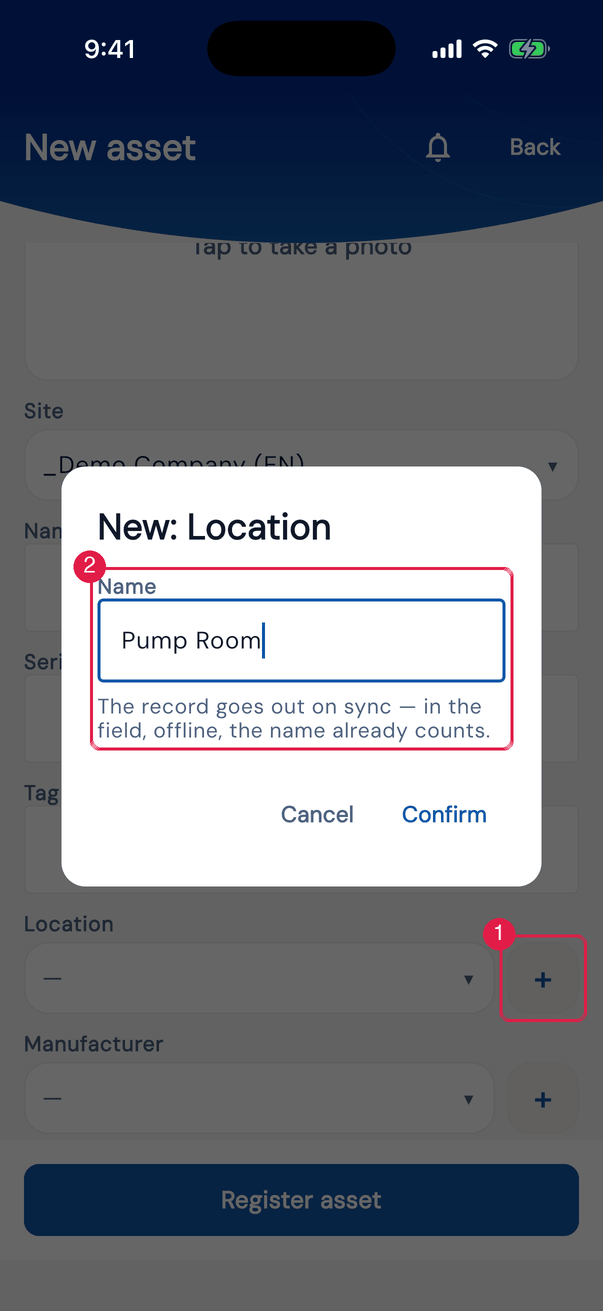
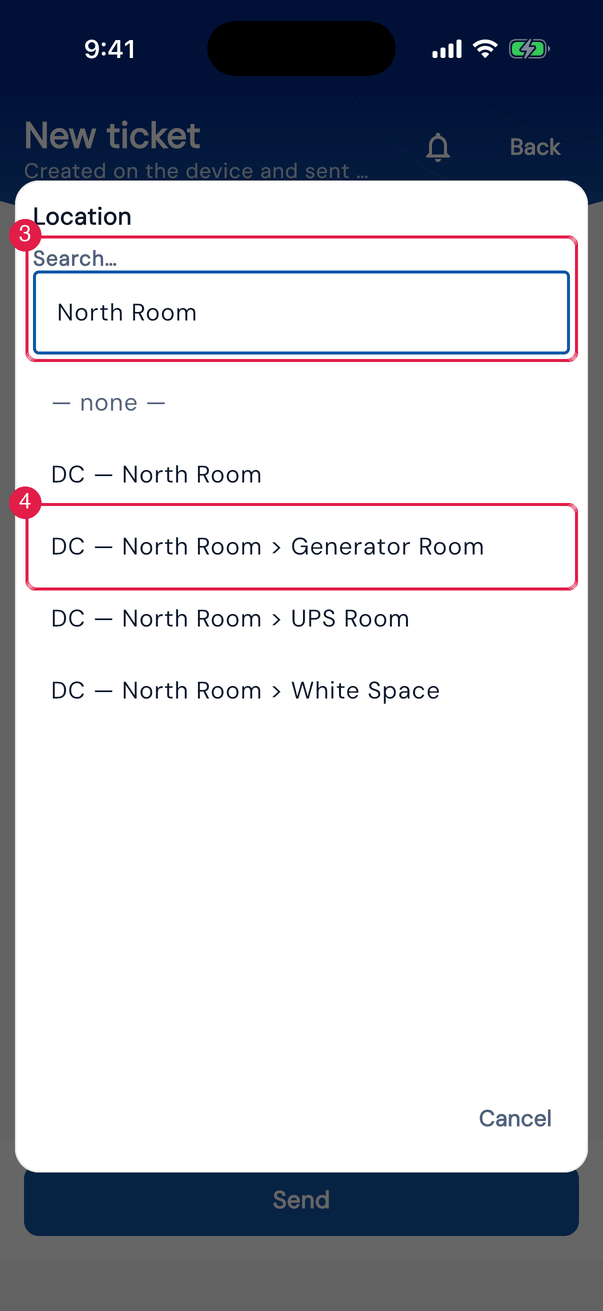
App H2OFigure 10. On the left, the asset record with the New: Location window opened by the + next to the Location field, with the notice that the record goes out on sync. On the right, the new ticket with the Location list open, the search at the top (here, filtering by “North Room”) and the full paths of the locations found.
- 1+ button next to Location (asset record only).
- 2Name of the new location and the notice The record goes out on sync — in the field, offline, the name already counts.
- 3Search of the Location list (new ticket).
- 4A location, by its full path.
How the Location field works
Section titled “How the Location field works”- The list shows the locations of the site chosen in the form itself, by full path and in alphabetical order. When the site changes, the chosen location is cleared.
- Besides the locations of the site itself, the list brings the recursive ones of the sites above it, up to the Root — the same ones the web offers for the same site. Locations of neighboring (sibling) sites are not included.
- In the new ticket, tapping Location opens a wide list with Search… at the top. In the asset record, the list is a simple menu, without search.
- — none — leaves the field without a location.
Registering a location in the app
Section titled “Registering a location in the app”The asset record has the + next to Location:
- Tap the + next to Location. New: Location opens.
- Type the name and tap Confirm. The field now shows the name with (new).
- Save the asset. The location is created on the server when the asset goes up in the sync — it also works without internet.
- The location created by the app is born without a parent (top level, level 1), in the asset’s site, with the name only. To put it inside another one, or to complete building, room or address, use the web (chapters 4 and 6).
- Choosing a location from the list after typing a new name undoes the new name.
- If there is already, at the top of the asset’s site, a location with that same name, H2O uses the existing one instead of creating another. A different name (“Room 1” × “Room 01”) becomes a new location: check the list first.
Was this page helpful?
Thanks for the feedback!
Got it — we will improve this page.