
The project page
Manual — Projects · chapter 4 of 13
The project page opens when you click a project in the list. At the top are the header and the progress card; below, the tabs: Information, Team, Tasks, Gantt, Commissioning (only when the project has a commissioning phase), Costs, Daily Reports, Audits, Equipment, Materials, Documents and Estimates.Links from other screens that point to a tab — for example, the Phase on the page of a commissioning ticket or of a GQE punch item — open the project page directly on that tab.
Header and progress
Section titled “Header and progress”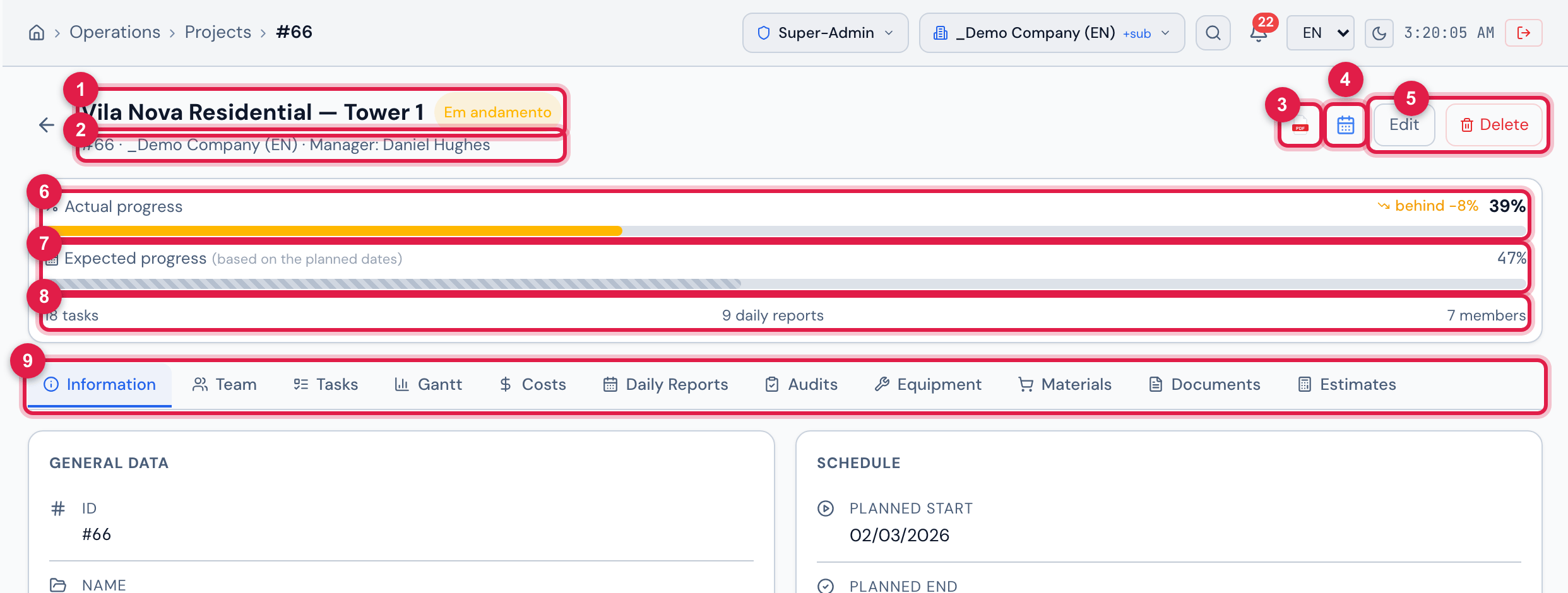
Figure 6. The header of the Vila Nova Residential — Tower 1 page (manager Daniel Hughes), the progress card — 39% actual progress, below what the planned dates expect — and the tab bar.
- 1Project name, state badge and, when applicable, Overdue.
- 2Number, site and Manager.
- 3PDF icon — Generate Gantt PDF.
- 4Calendar icon — Export to MS Project (XML).
- 5Edit and Delete.
- 6Actual progress, with the comparison (on pace, ahead or behind).
- 7Expected progress (based on the planned dates).
- 8How many tasks, daily reports and members the project has.
- 9The tabs.
| Element | How it works |
|---|---|
| Overdue (header) | appears when the Planned End has passed and the project state is not a finished one. Note: here the state counts; in the list’s Overdue filter the % counts (chapter 2). |
| Actual progress | the project %, according to the progress mode (chapter 3). |
| Expected progress | where the project should be today, in a straight line between the planned start and end: 0% before the start, 100% after the end. It disappears when one of the dates is missing or the state is a finished one. |
| on pace / ahead +x% / behind x% | the difference between actual and expected. Up to 5 points above or below counts as on pace. |
Information tab
Section titled “Information tab”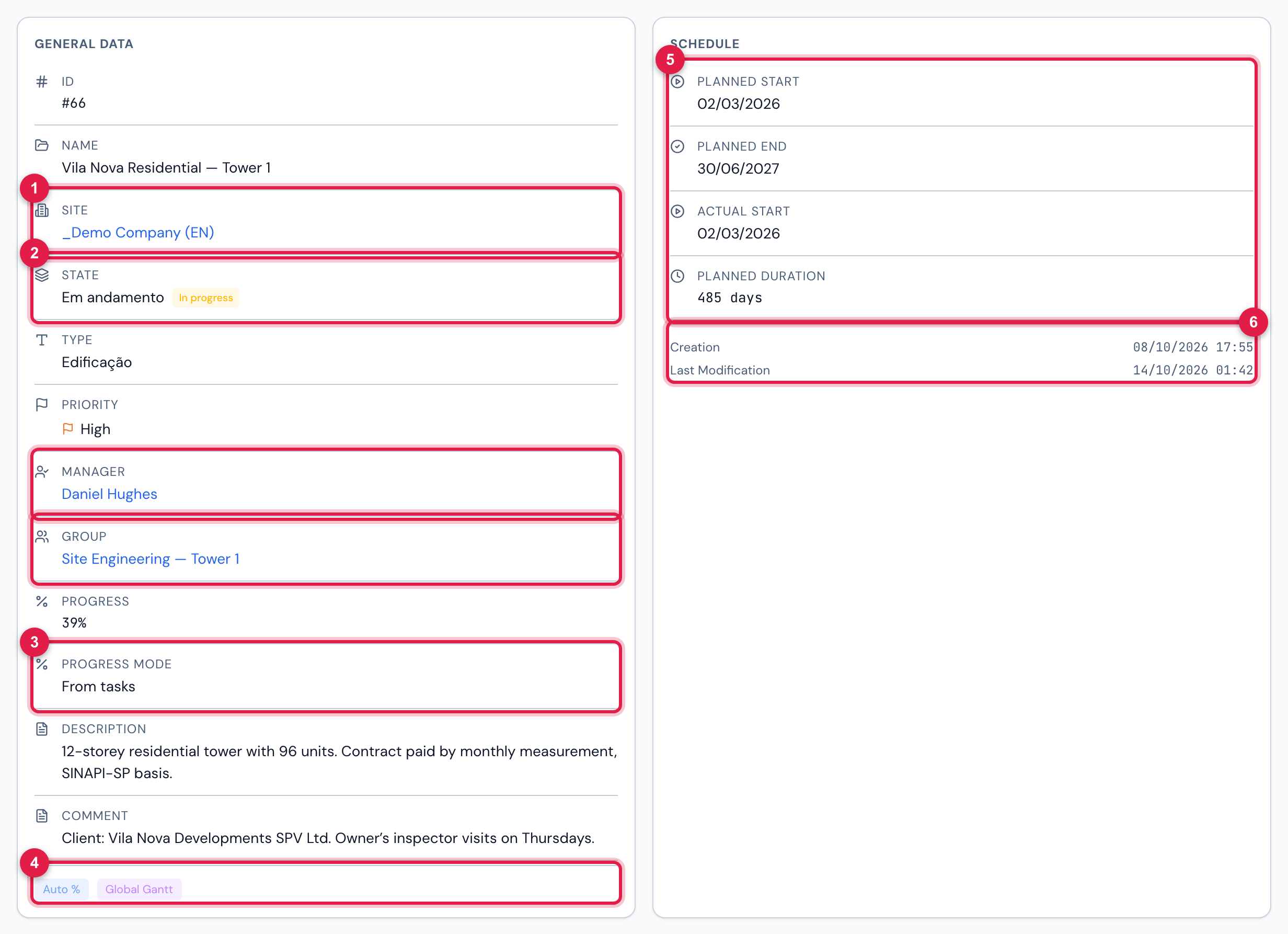
Figure 7. Information tab of the Vila Nova Residential — Tower 1 project: General Data on the left (state Em andamento and type Edificação, names from the demo environment catalog; group Site Engineering — Tower 1) and Schedule on the right (planned from 02/03/2026 to 30/06/2027).
- 1Site, Manager and Group are links to the records.
- 2State, with the In progress or Finished badge.
- 3Progress mode.
- 4Project marks — in the example, Auto % and Global Gantt; depending on the record, Recursive and Daily report without client approval also appear, or No special flags.
- 5Planned and actual dates and the Planned Duration in days. The Actual Duration only appears when the project has an actual start and end.
- 6Creation and Last Modification.
Click Edit in the header, from any tab: the page goes to the Information tab, which becomes a form, and the header swaps Edit and Delete for Cancel and Save. Editing has everything creating has, plus three things that only exist here.
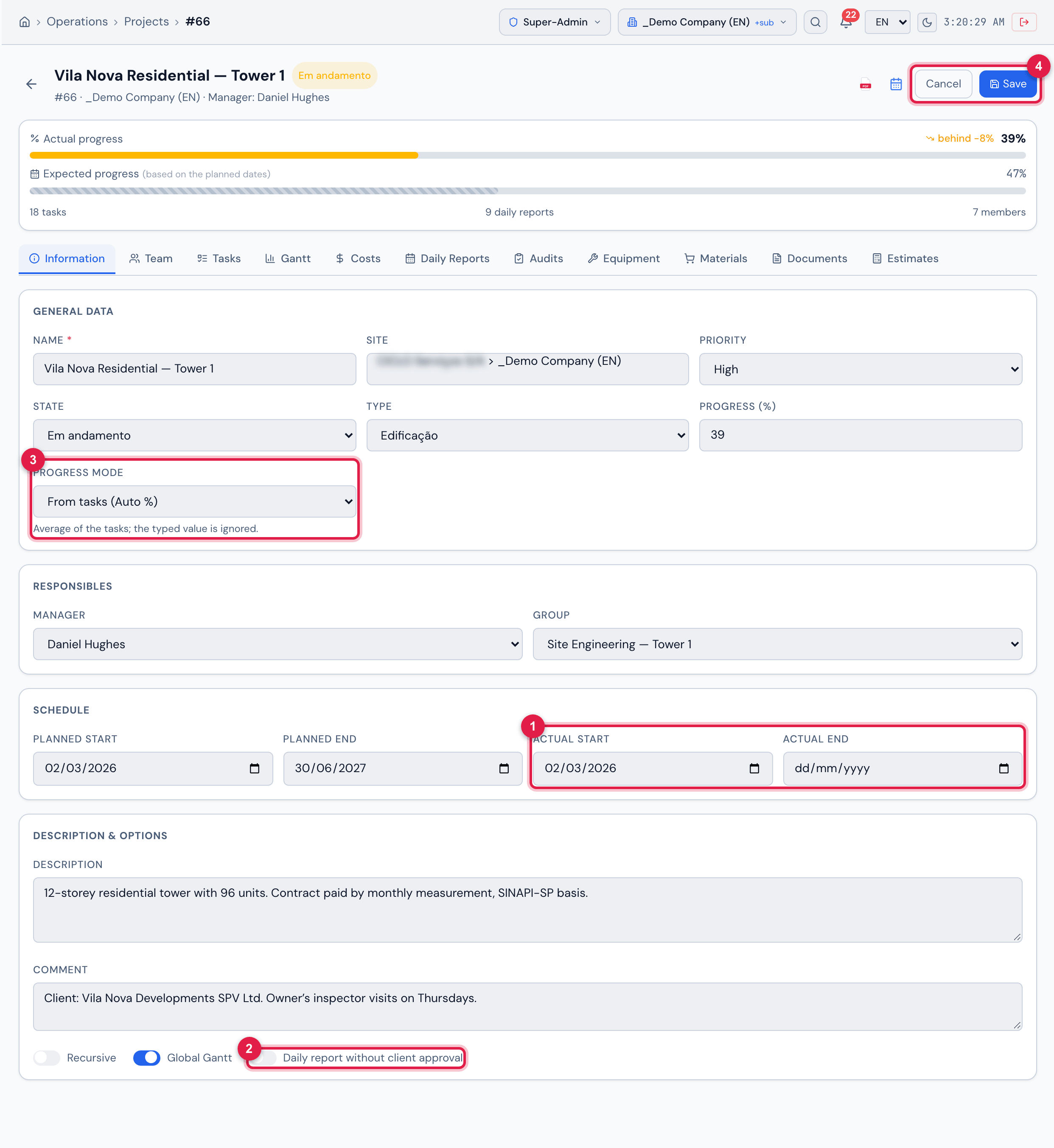
Figure 8. The project page being edited: General Data, Responsibles, Schedule (with the actual dates) and Description & Options (with Daily report without client approval).
- 1Actual Start and Actual End — only when editing.
- 2Daily report without client approval — only when editing.
- 3Progress mode.
- 4Save saves; Cancel discards.
| Only when editing | What it is for |
|---|---|
| Actual Start / Actual End | when the project actually started and finished. They go to the project page (Actual Duration) and to the MS Project XML. They do not change the % or the “overdue”. |
| Daily report without client approval | the daily reports of this project stop waiting for the client: the Management approval records the report directly as Approved. It applies to approvals made after it is turned on — a report already Awaiting Client keeps waiting. Details in the Daily report manual. |
| Changing the site | possible, as long as the new site is within your reach with the Edit right in Projects. |
Delete
Section titled “Delete”- Delete asks for confirmation (Delete this project? Data will be marked as deleted.) and only works with the project without tasks. With tasks, H2O answers Cannot delete: the project has N task(s). — delete the tasks first (chapter 6).
- Deletion is logical: the project disappears from the list, the reports and the app, and its team is undone. There is no screen to restore it.
- To close a completed project, do not delete it: change the State to a finished state and keep the history.
Gantt PDF
Section titled “Gantt PDF”The PDF icon (or Gantt PDF in the list) generates, on the spot, an A4 landscape report with the complete schedule, in the screen language, and opens it in a new browser tab. There are no options on the screen: the report always comes out complete.
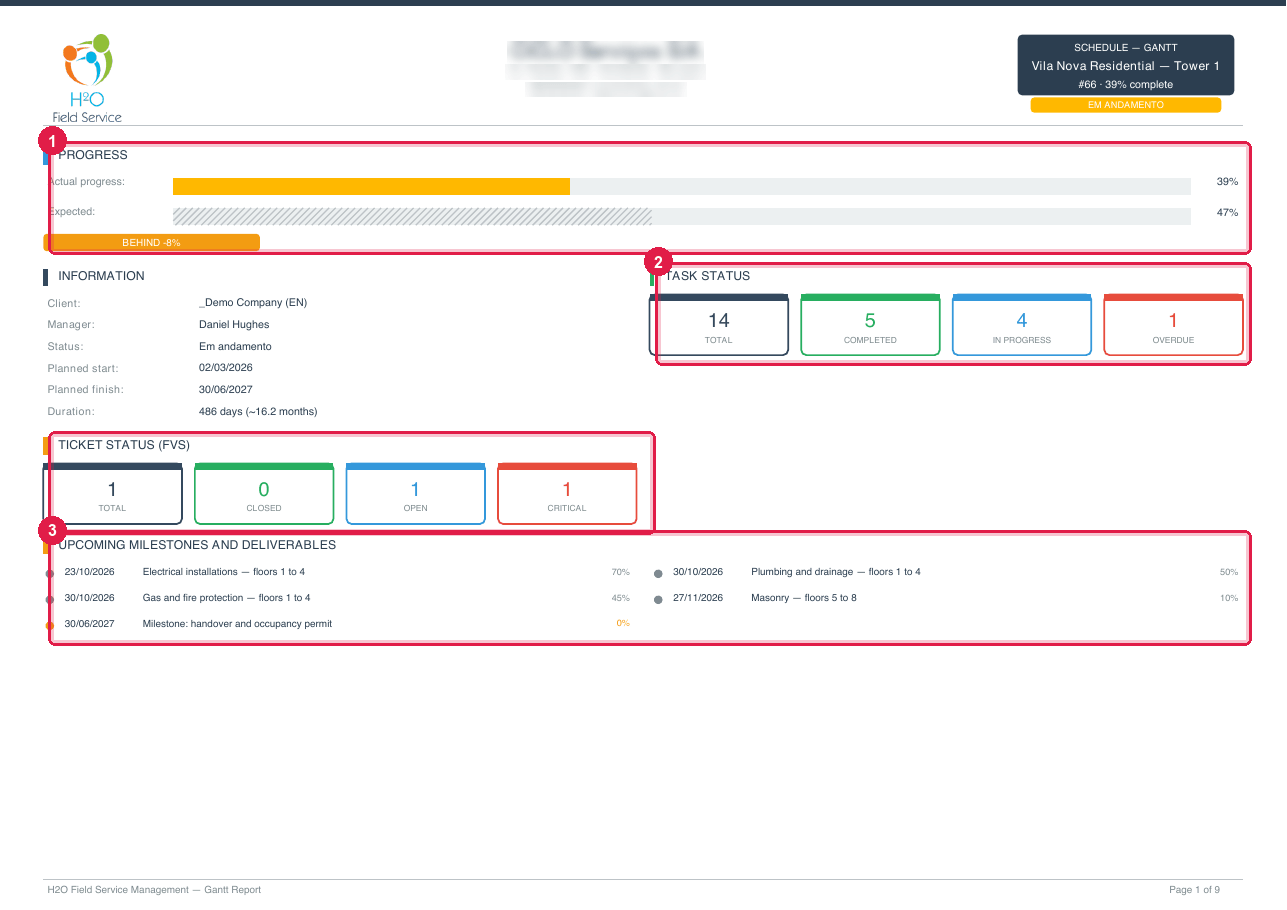
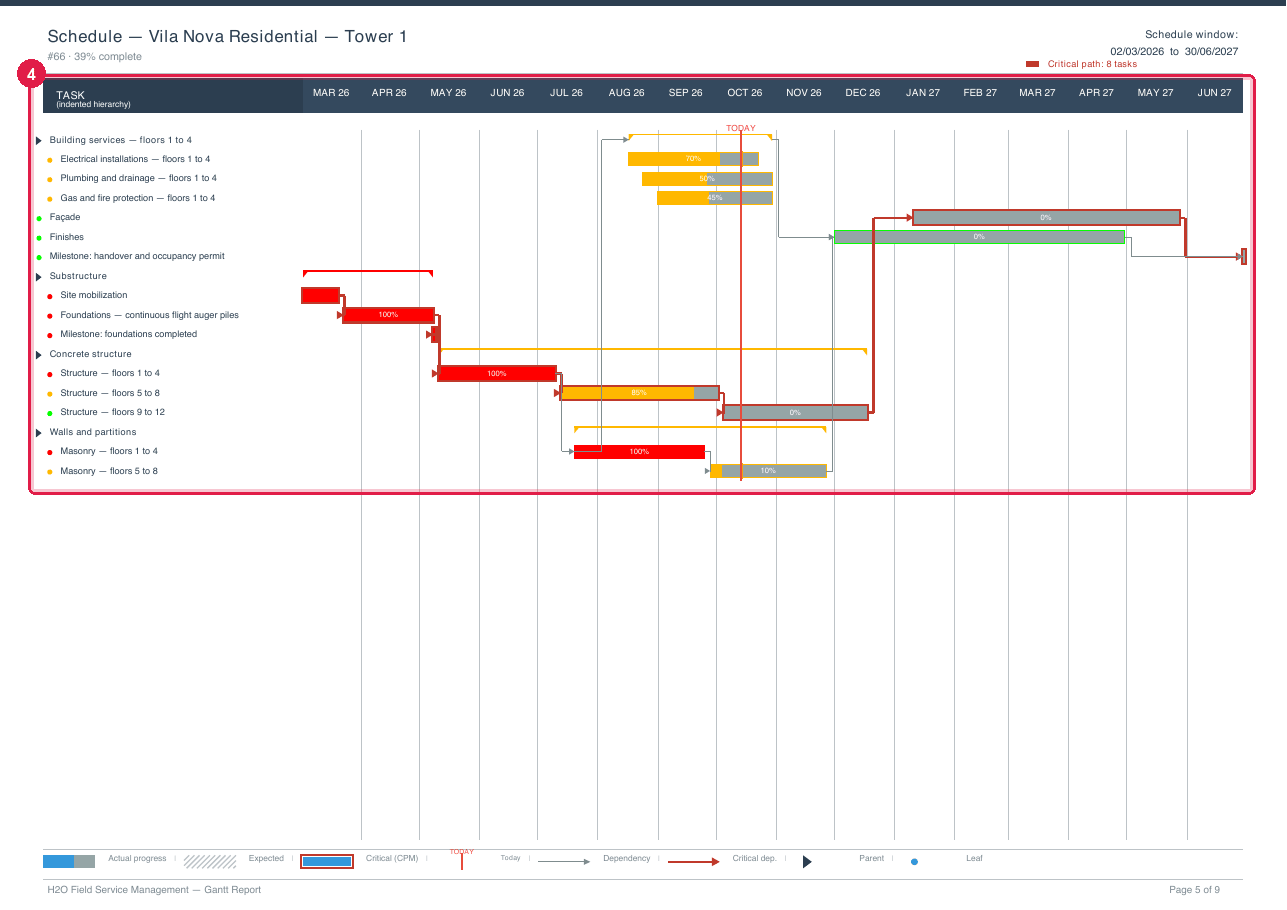
Figure 9. Two pages of the Gantt PDF of Vila Nova Residential — Tower 1: the executive summary (actual × expected progress, information, task and ticket status, upcoming milestones) and the visual schedule.
- 1PROGRESS — actual and expected.
- 2TASK STATUS and TICKET STATUS (FVS).
- 3UPCOMING MILESTONES AND DELIVERABLES.
- 4The schedule: bars, dependencies, today’s line and the critical path.
| PDF section | What it contains |
|---|---|
| Executive summary (cover) | actual × expected progress, project information, task status, status of the linked tickets (FVS) and the upcoming milestones. |
| Map of report sections | the table of contents, with the page of each section. |
| Legends and conventions | the meaning of the bars, colors and symbols and the formulas used. |
| Focus — next 4 weeks | what starts or ends in the next four weeks. |
| Visual schedule | the complete Gantt, with hierarchy, dependencies and critical path. |
| Slack analysis | the tasks by slack (how much each one can slip without delaying the project). |
| S-curve — PV vs EV | cumulative planned against cumulative earned. |
| Detailed task table | all the tasks, with dates, %, responsible person and slack. |
| Statistics by assignee | the distribution of the tasks by team member. |
| Commissioning — assets × phases | only when the project has a commissioning phase. |
Export to MS Project
Section titled “Export to MS Project”The calendar icon downloads project_N.xml in the Microsoft Project interchange format (MSPDI). Project opens the file directly; save it as .mpp if you need to.
- It carries the task hierarchy, the %, the milestones, the dependencies (with their type) and the responsible person of each task as a resource.
- The dates of each task are the actual ones when they exist and the planned ones when they do not; the planned dates also go as the baseline, so Project shows the variance.
- The file carries a Monday-to-Friday calendar, 8 hours a day. Adjust it in Project if the site works on Saturdays.
- It is a one-way export: changes made in Project do not come back to H2O.
Was this page helpful?
Thanks for the feedback!
Got it — we will improve this page.