
Scheduling the tickets
Manual — Lubrication · chapter 7 of 12
Scheduling means saying from when and until when the tickets must be opened. On the Task templates tab, click Schedule on the template’s row: Automatic Scheduling opens with the template already chosen. There are four screens — three to fill in and one to confirm. The complete step-by-step for scheduling is in the manual Automatic Scheduling.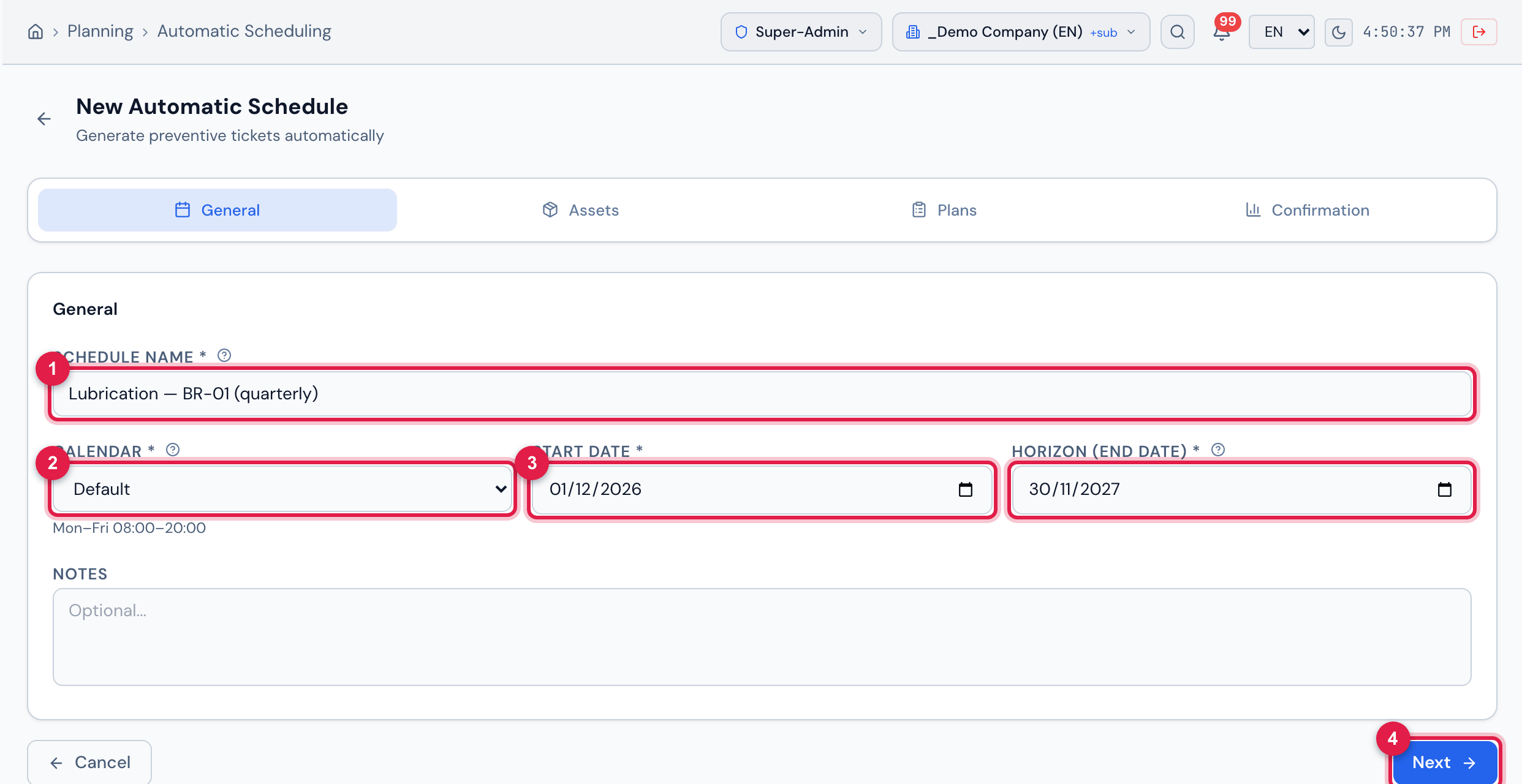
Figure 9. Automatic Scheduling, General screen.
- 1The name of the schedule.
- 2The calendar — tickets fall only on its working days.
- 3The start date and the horizon (until when to generate).
- 4Next.
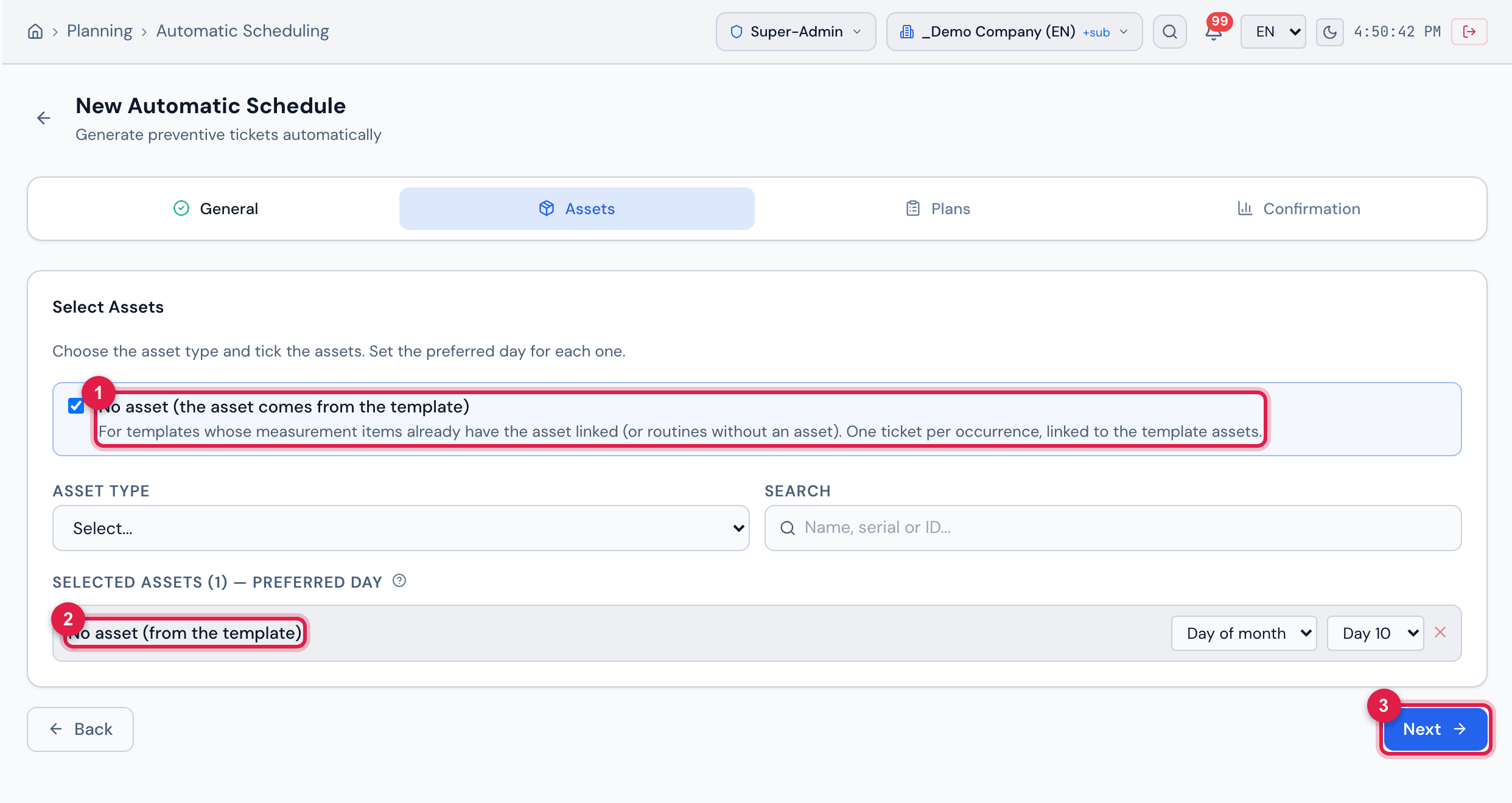
Figure 10. Assets screen: No asset (the asset comes from the template) is already ticked.
- 1There is no need to choose the equipment: the lubrication template is already linked to it.
- 2The No asset (from the template) row and, on the right, the preferred day.
- 3Next.
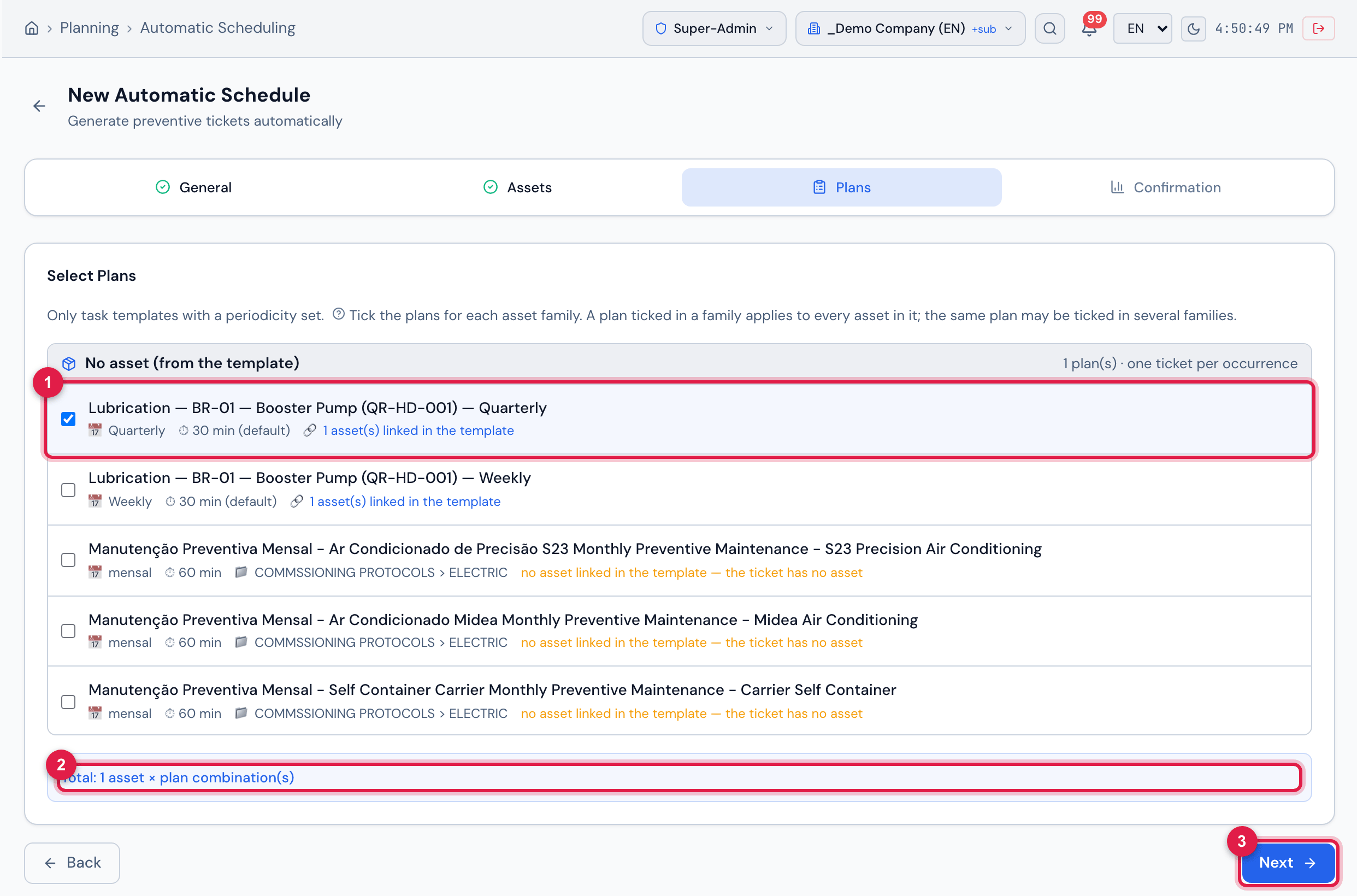
Figure 11. Plans screen: the lubrication template is already ticked.
- 1The chosen template, with the periodicity and the notice that the asset is linked to it. You can tick other lubrication templates in the same schedule.
- 2The total number of combinations that will be scheduled.
- 3Next.
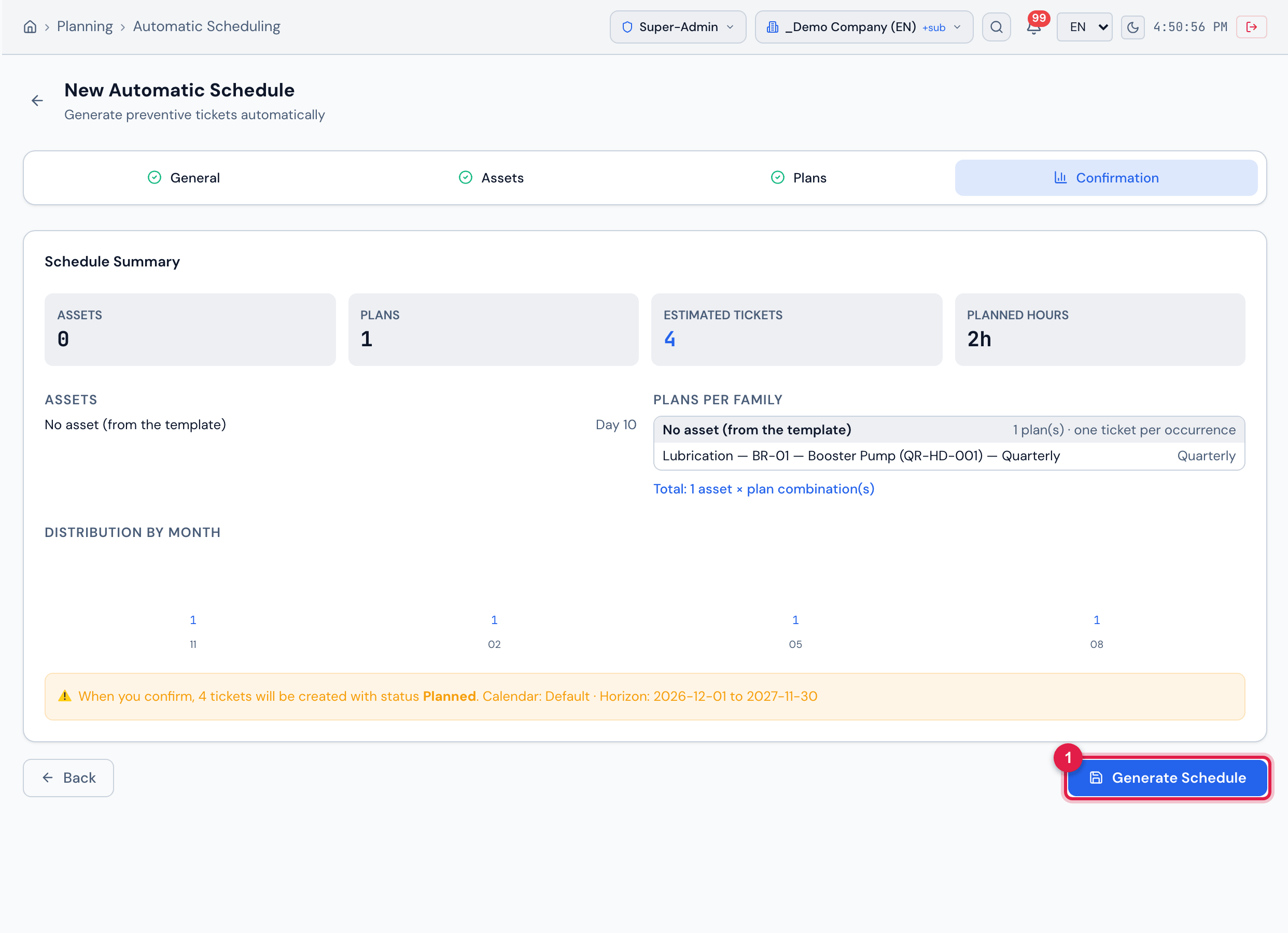
Figure 12. Confirmation screen: the summary and the distribution of tickets per month.
- 1Generate Schedule creates the tickets, with the Planned status.
What comes out of the schedule
Section titled “What comes out of the schedule”- One ticket per occurrence, with the Lubrication modality, already linked to the equipment.
- The tickets appear in the ticket list and in the Maintenance Calendar.
- In the reports and dashboards that separate preventive from corrective, lubrication counts as preventive.
Templates by meter usage
Section titled “Templates by meter usage”A template with a frequency by usage (every so many hours, for example) has no fixed date. Instead of Schedule, the button is Create plan: it opens Planning › Maintenance Plans, where you create a plan with this template and the trigger by the asset’s meter. The ticket is opened when the usage reaches the interval.
Was this page helpful?
Thanks for the feedback!
Got it — we will improve this page.