
Preview, history and changes to a template in use
Manual — Task templates and checklists · chapter 9 of 10
Before releasing a template to the team, see how it reaches whoever executes it. Once released, be careful when changing it: the tasks’ checklist is read from the template.The Preview tab
Section titled “The Preview tab”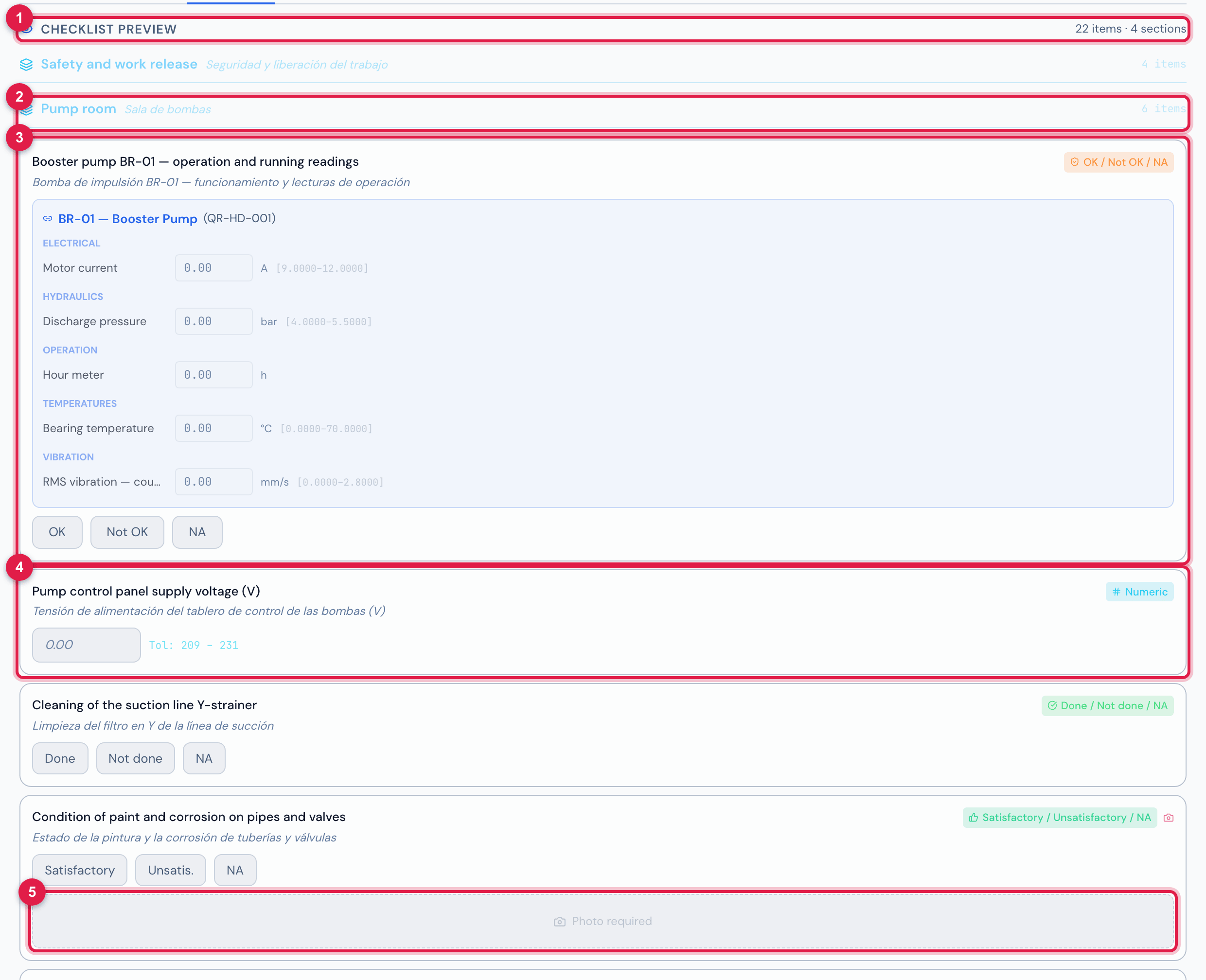
Figure 27. Preview tab of Monthly infrastructure inspection — Data Center: each item with the control the technician will use, the sections and the camera on the items with a required photo.
- 1Checklist Preview — N items · N sections.
- 2The title of a section.
- 3An item with the type badge and the simulated control.
- 4The Numeric with the range (Tol:).
- 5The Photo required area.
The Preview saves nothing: it is just a simulation. The row-based types appear as a sample card (1 row per object — the technician adds them in the field), with the fields each row will have. A choice item without options shows Define options in the template.
PDF preview
Section titled “PDF preview”PDF preview (at the top of the record) opens, in a new tab, the blank PDF of the template, in your language — good for reviewing on paper, sending to the client for approval or attaching to a procedure. The PDF cuts nothing: a long description continues on the next page, and section titles, options and badges wrap.
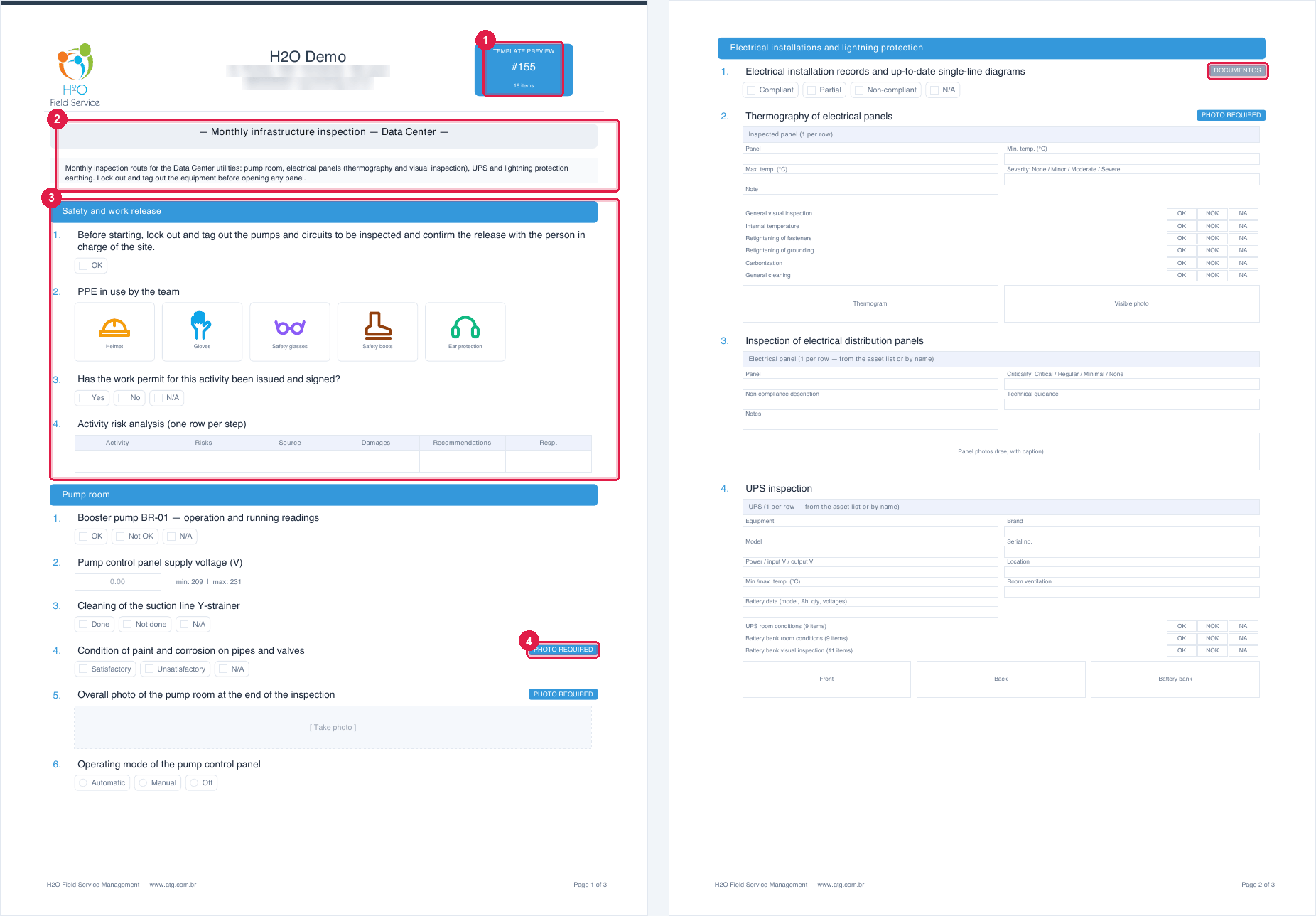
Figure 28. Pages 1 and 2 of the PDF preview: the header with the company name and logo, TEMPLATE PREVIEW with the number and the total of items, the name, the description and the items by section.
- 1TEMPLATE PREVIEW, #id and N items.
- 2The template name and the Description (the Content).
- 3A section and its items, each with its control drawn.
- 4The PHOTO REQUIRED badge (page 1) and the classification DOCUMENTOS (page 2).
The preview shows the structure only — no client, asset, answers, photos or signatures; in the footer, Page X of Y. The PDF with the answers is the task one (chapter 7).
History
Section titled “History”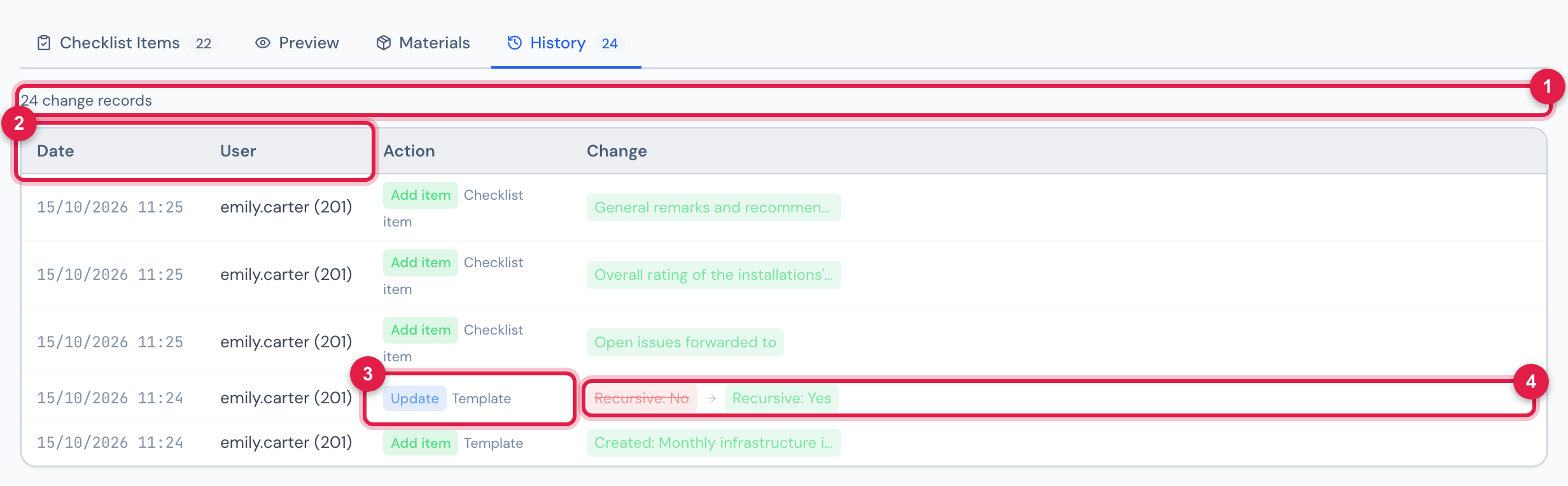
Figure 29. History tab (cropped): the newest records — items added — and the first ones — the creation and the change of Recursive in the header —, with who did it and when.
- 1N change records.
- 2Date and User.
- 3Action — Update, Add item, Component updated, Delete item — and where: Template, Checklist item, Material or Asset linked to item.
- 4Change — the old value struck through → the new one, with the field name (for example, Recursive: No → Recursive: Yes).
| What you did | How it appears |
|---|---|
| created the template | Add item — Created: <name> (by the assistant, Created by the AI assistant: <name> (N items); cloned, Cloned from #N (<name>) — N items, N materials) |
| changed a header field | Update · Template — <field>: <before> → <field>: <after>, with yes/no, type, periodicity and state in your language |
| added an item | Add item · Checklist item — the item text |
| changed an item | Component updated · Checklist item — the old text → the new one (other fields with the field name in front) |
| deleted an item | Delete item · Checklist item — the item text |
| reordered | Update — N items reordered |
| added, changed the quantity of or removed a material | Add item / Component updated / Delete item · Material — <material> (Qty: N) |
| linked or unlinked an asset | Add item / Delete item · Asset linked to item — <asset> → <question> |
The item texts and the names appear as they were recorded.
Changing a template already in use
Section titled “Changing a template already in use”The task does not keep a copy of the checklist: it points to the template, and the answers are stored by the item position. Therefore:
| Change to the template | Effect on tasks not yet answered | Effect on tasks already answered (and on their PDF) |
|---|---|---|
| fix the text of an item | they get the new text | they show the new text next to the old answer |
| add an item at the end | they get the item | the item appears unanswered |
| add in the middle, drag or delete an item | they get the new order | the answers move to another question: each answer stays at the position where it was given |
| change type, range, options or required photo | apply from now on | the old answer is shown with the new rule |
Small text fixes (a typo, an updated standard) can be made on the template itself: they apply to all tasks.
Was this page helpful?
Thanks for the feedback!
Got it — we will improve this page.