
What is generated
Manual — Automatic Scheduling · chapter 4 of 8
Each planned visit becomes one ticket, an ordinary H2O ticket. There is no “special type”: the generated ticket is opened, assigned, executed and closed like any other — on the web and in the app.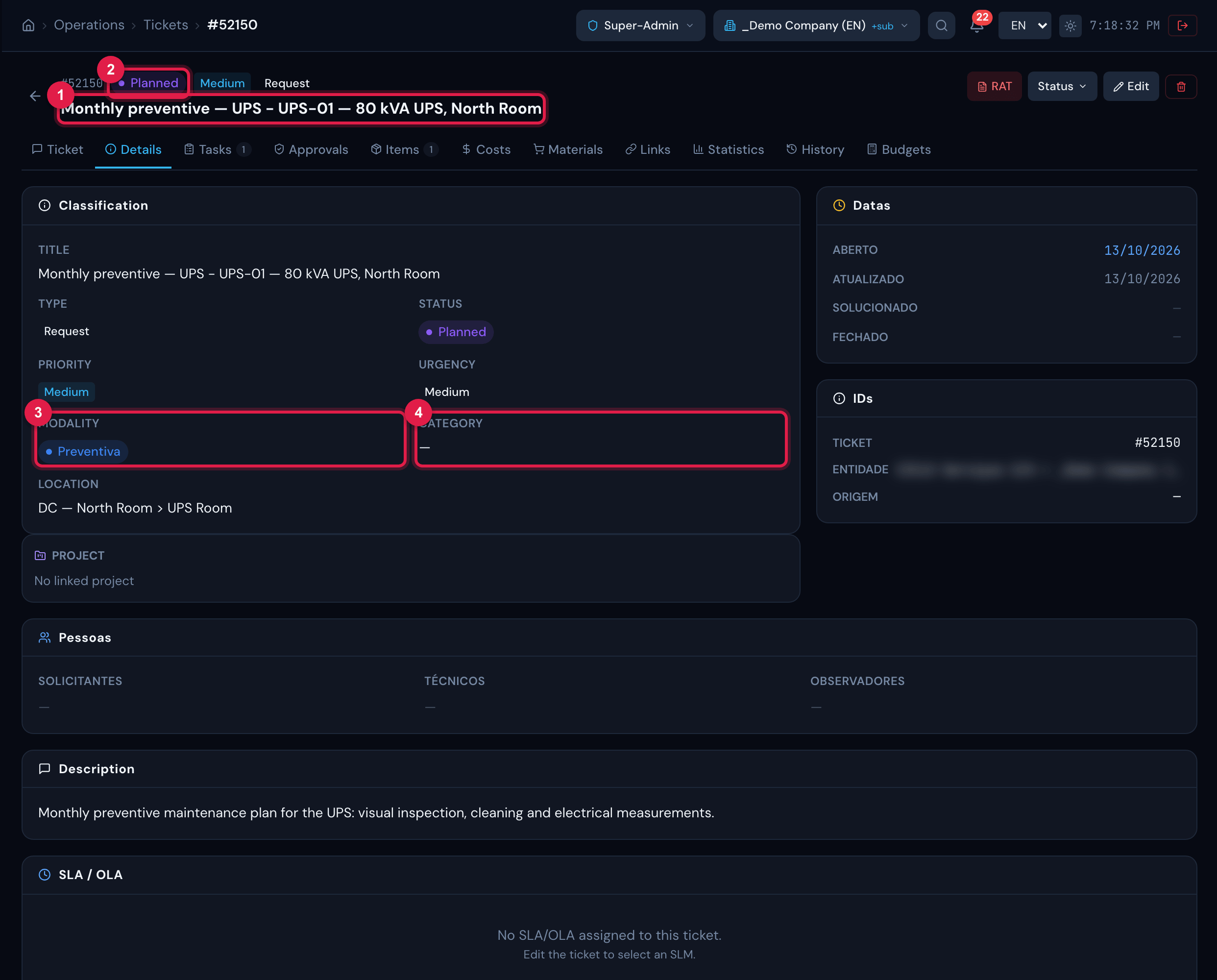
Figure 8. A generated ticket, opened from the Tickets list: title “plan - asset”, status Planned, preventive modality and the asset’s location.
- 1Title “{plan} - {asset}” — e.g. “Monthly preventive — UPS - UPS-01 — 80 kVA UPS, North Room”.
- 2Status Planned.
- 3Modality preventive — counts as preventive in the indicators (MTBF/MTTR), not as corrective.
- 4Location — the location registered on the asset.
| Ticket field | Where it comes from |
|---|---|
| Title | “{plan name} - {asset name}”. |
| Description | the template content; if empty, “Preventive maintenance scheduled automatically.” |
| Status | Planned. |
| Modality | preventive. |
| Site | the schedule’s site. |
| Category | empty: the ticket is born without a category. The template’s task category goes to the task. |
| Location | the location registered on the asset. |
| Priority | the asset’s priority (medium if the asset has none). Medium urgency and impact. |
| Requester | whoever generated the schedule. No watcher; no technician assigned on the ticket. |
| Ticket date | the adjusted date of the visit (after the working-day adjustment). |
The task and the checklist
Section titled “The task and the checklist”Along with the ticket, one task is born, and that is where the date, the time, the technician and the checklist are.
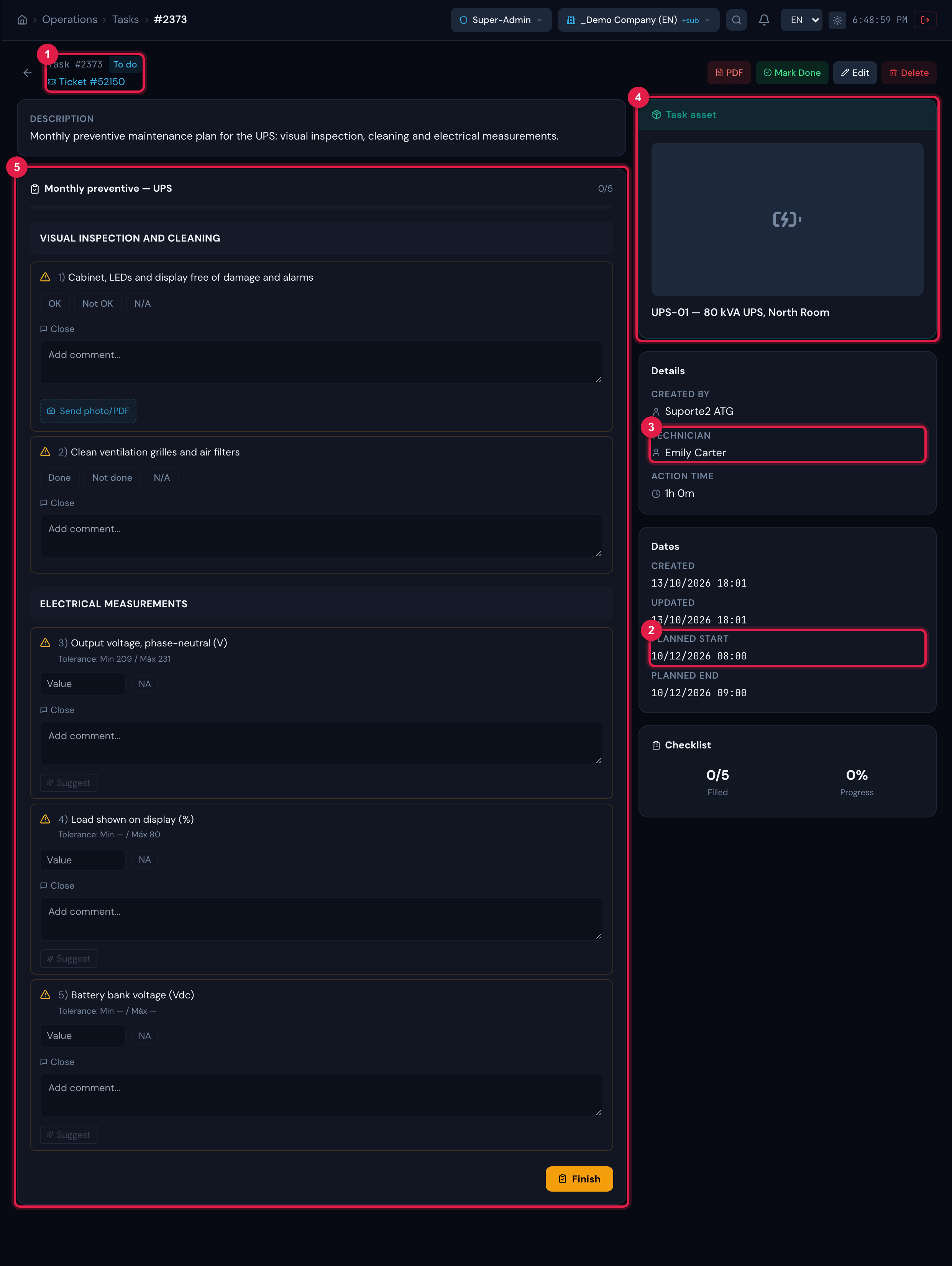
Figure 9. The task of the generated ticket, opened from the ticket’s Tasks tab: the planned start at 08:00, the plan’s technician, the Task asset and the template’s checklist.
- 1The task (Task #number) and the link to the ticket (Ticket #number).
- 2Planned start at 08:00 of the adjusted date; Planned end = start + plan duration (Action time).
- 3Technician — the technician registered in the template. It is here, not on the ticket, that they appear.
- 4Task asset — the item’s asset, already linked to the task: the task’s report and the RAT find the asset.
- 5The plan’s checklist, headed by the template name, read from the template at execution time — the technician answers it here or in the app.
- The ticket is born with no technician assigned: whoever receives the task is the template’s technician. For the ticket to appear in someone’s queue, assign the technician on the ticket as usual (or let the manager distribute it on the Kanban — chapter 7).
- The asset stays linked to the ticket and to the task. That link feeds the asset’s maintenance history and the report by modality.
- The checklist is read from the template: changes in the template apply to the tickets not yet executed.
In the H2O app
Section titled “In the H2O app”In the app, the generated ticket appears like any other ticket of the site, with status Planned and the task with the plan’s checklist. The technician opens the task, answers the checklist (measurements, OK/not OK, required photos), records the report and closes it — exactly like a preventive opened by hand.
- The task’s date and time (08:00 of the planned day) guide the technician’s agenda in the app.
- Whatever is answered in the app goes up to the web and marks the ticket as “execution started” — which changes the deletion rule (chapter 6).
Was this page helpful?
Thanks for the feedback!
Got it — we will improve this page.