
Stock: links and entry
Manual — NF-e and material receiving · chapter 8 of 11
When engineering approves the invoice, each item enters the stock as a warehouse material (Warehouse › Materials), in the invoice’s site. Before that, someone needs to say which material each item is: one that already exists in the catalog, or a new one. That is the stock link, done on the Items tab.Analyzing and deciding the links
Section titled “Analyzing and deciding the links”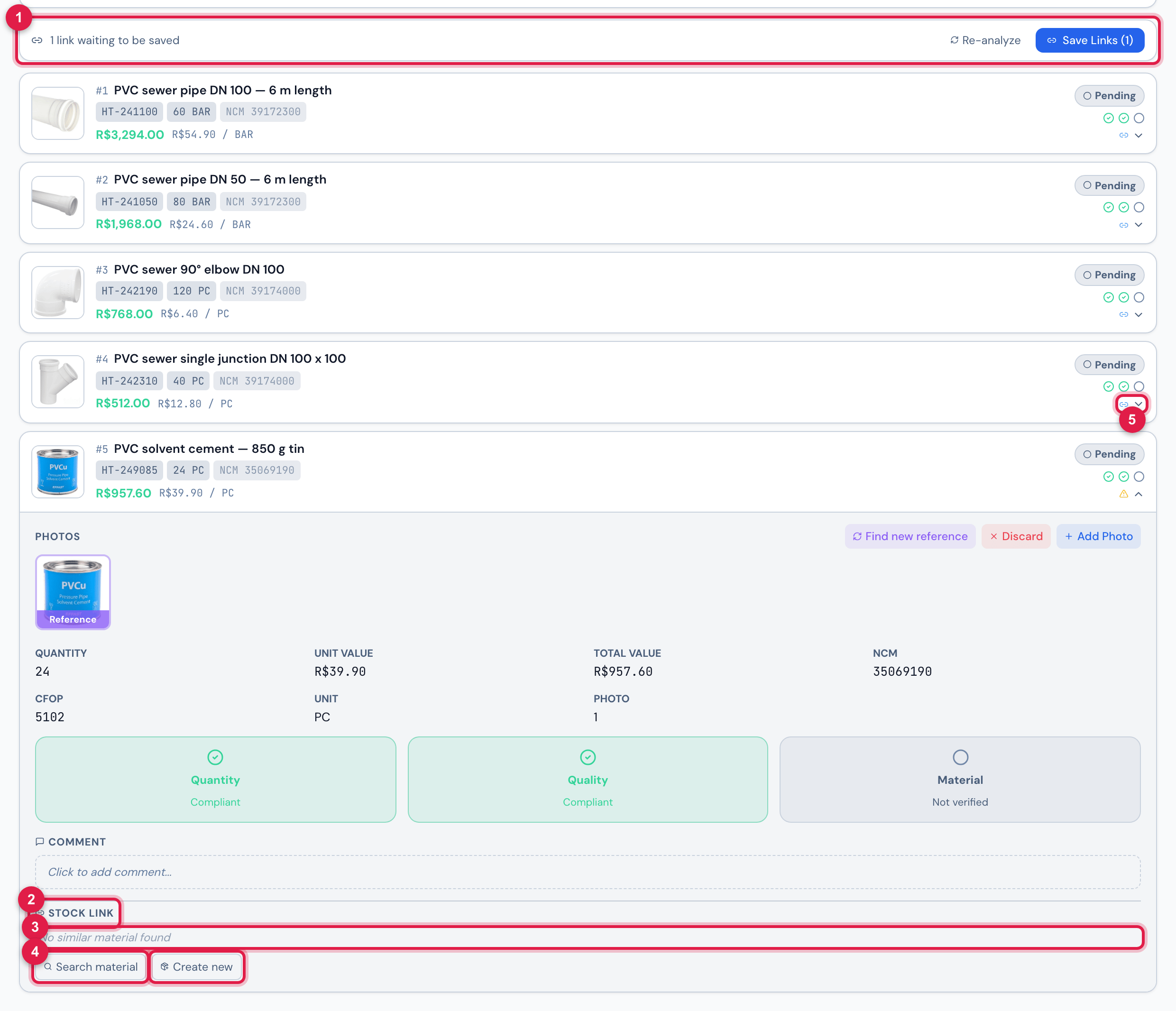
Figure 16. Invoice 22410 from Hidrotubos after Analyze Similarity: an item open, with what the analysis found for it.
- 1The stock strip, with Re-analyze and Save Links (N).
- 2Stock Link and, when the analysis found a similar material, the badge of how it was found.
- 3The candidates, with the similarity in % — or No similar material found.
- 4Search material and Create new.
- 5The link icon on the item card.
- On the Items tab, click Analyze Similarity. H2O compares each item with the materials catalog and shows the summary: Analysis complete: N items — N auto, N review, N new.
- Open each item that does not have the auto badge and decide in Stock Link: click a candidate (Link to item #N), look for another one in Search material (3 letters or more; Load more brings the rest) or click Create new (Create new material). The X undoes the choice.
- Click Save Links (N). Links saved — awaiting engineer approval appears, and the strip shows how many items are linked.
| How the material was found | Badge | Similarity | Decision |
|---|---|---|---|
| the item’s GTIN is the material’s | GTIN | 100% | automatic (auto) |
| the product code on the invoice is the material’s Reference | Code | 90% | automatic (auto) |
| similar name and same NCM | N% similar | 70% to 89% | you choose |
| only a similar name | N% similar | 50% to 69% | you choose |
| nothing similar | No match | — | H2O already leaves Create new material marked, with the suggestion — not saved yet tag |
- Anyone who opens the invoice can analyze and save links — usually the storekeeper, who knows the material. The real decision is engineering’s: the entry only happens at its approval.
- Re-analyze runs the comparison again — useful after registering a material in the catalog. The saved decisions remain. The comparison goes through the whole catalog.
- The strip counts what is left: N links waiting to be saved (choices made on screen, including the suggestions), N links pending a decision (items without a choice) or N/N links saved — awaiting approval.
- On each item card, an icon tells the state of the link: blue chain (Link configured), yellow alert (Link pending) or the green check (Integrated into stock).
At engineering’s approval
Section titled “At engineering’s approval”| How the links are | What happens on Approve (Engineering) |
|---|---|
| all decided and saved (or auto) | the stock is loaded right away: Approved! N items loaded into stock |
| none saved and none auto | the Material Review window opens (below) |
| some undecided | the invoice goes to Awaiting Client, but the stock is left for later: Approved, but stock error: There are items awaiting review (N). |
- Material Review — Confirm the stock link for each item before loading: the automatic items come already confirmed; for the others, choose the candidate, Search other (Search existing material…) or Create new (Create new material in stock). Confirm and Load Stock (N items) saves the choices and loads the stock.
- When the stock was left for later, the Items tab shows Materials not loaded into stock yet. Decide the remaining items, click Save Links and, with Approve (Eng.), Approve stock entry — the button only appears when there is nothing to save: Stock loaded! N items appears.
What engineering’s approval creates
Section titled “What engineering’s approval creates”On Approve (Engineering) (chapter 7), for each item:
| What | How |
|---|---|
| supplier | looked up by the invoice’s CNPJ (digits only); if it does not exist, it is created at the root of the company, for all sites (Suppliers, contacts and workforce manual, chapter 3) |
| unit | the invoice’s (PC, M, KG…); created if it does not exist |
| material | the linked one, which gets the GTIN and the NCM if it did not have them; or a new one, with the invoice name without the leading codes, Reference = product code, GTIN and NCM, created in the invoice’s site and valid for it and for the sites below. If a material with the same Reference already exists, it is used instead of creating another |
| material photo | the item’s reference image (or an item photo), if the material has no photo yet |
| stock entry | in the invoice’s site, with the quantity and the approval date |
| asset record of the entry | purchase date = invoice issue date, supplier, purchase order number, value (quantity × unit price) and the invoice key |
The invoice record then shows Stock: ✅ Integrated, the Materials already integrated into stock strip and, on the Items tab, All items integrated into stock.
Where to see the material
Section titled “Where to see the material”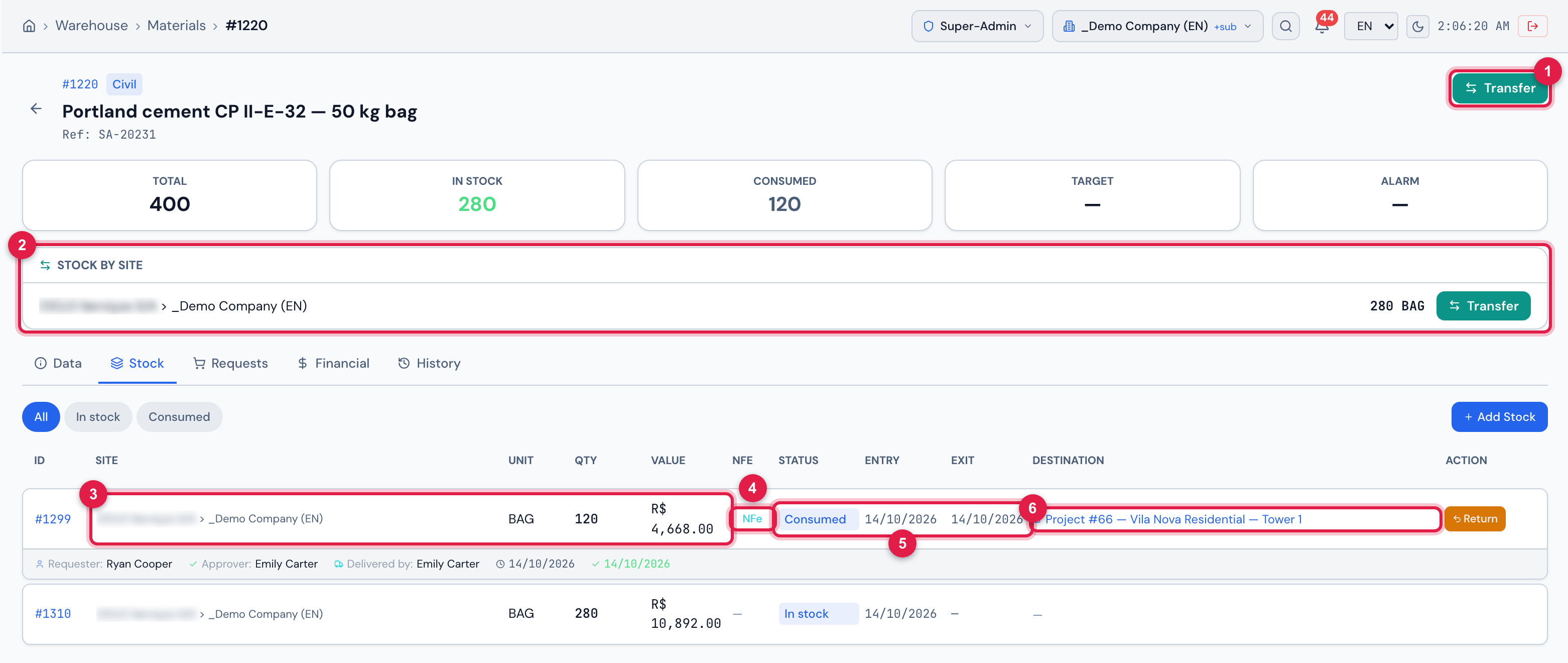
Figure 17. The material Portland cement CP II-E-32 — 50 kg bag in Warehouse › Materials: the Stock by site and, on the Stock tab, the entry that came from invoice 31507.
- 1Transfer — moves the material to another site (warehouse). It appears with Edit in Consumables in the profile.
- 2Stock by site — how much is in stock at each site, with Transfer from that site.
- 3The entry: site, unit, quantity and value.
- 4NFe — opens the invoice that brought the material.
- 5In stock or Consumed, and the Entry and Exit dates.
- 6Destination — the ticket, the project or the person who received the material; in a transfer, the TR-… document.
- In Warehouse › Materials, open the material: on the Stock tab, each invoice entry appears with the NFe link to the invoice.
- In the figure, 120 bags were issued to the project and 280 stayed in stock. In a partial issue, the invoice’s line becomes the issued part (Consumed), and the remainder goes to a new line, In stock — the second line in the figure.
- In the supplier record, the Assets tab gathers the material entries of its invoices (Suppliers, contacts and workforce manual, chapter 4).
- The material leaves the stock through Warehouse › Material Requests: New Request, with the Destination (a Ticket or a Project), the material and the quantity. The stock balance appears right away; whatever is missing goes on to purchasing.
Transferring between warehouses
Section titled “Transferring between warehouses”The material the invoice brought can move from one site (warehouse) to another. The transfer happens in a single step: the balance leaves the origin and enters the destination in the same operation, with a numbered document.
- On the material page, click Transfer — at the top or on the site’s line, in Stock by site. You can also start from Warehouse › Transfers › New transfer.
- Choose the Origin and the Destination (different sites), the material and the Quantity — at most the balance at the origin.
- Confirm with Transfer now. The TR-… document opens, with the PDF to collect the signatures of who handed over and who received.
- On the material’s Stock tab, the line that left shows Transfer TR-… → site in Destination, and the new line at the destination site, Transfer TR-… ← site. Click to open the document.
- The issue follows the entry order (oldest lines first). If only part of a line leaves, the line keeps the transferred part, and the remainder goes to a new line, at the same site.
- That is why the stock that came from an invoice may no longer be at the invoice’s site: check Stock by site.
- A transfer is never edited or deleted: Reverse, on the document, creates an inverse document, as long as the destination still has the balance.
When the entry is undone
Section titled “When the entry is undone”| Action | What happens to the stock |
|---|---|
| the client Rejects (on the web or in the app) | the stock line linked to the invoice is deleted, with its asset record (table below) |
| Return for adjustment | the same; at the new engineering approval, the invoice enters the stock again, with the full quantity |
| moving the invoice to the trash | nothing: the stock stays |
Undoing deletes only the stock line that the approval created for each item. What that line stands for depends on what happened to the material afterwards:
| What happened to the invoice’s line | What is deleted | What stays |
|---|---|---|
| nothing: all in stock | the whole line | — |
| issued in full to a ticket, a project or a person | the line, and with it the record of the issue | — |
| partly issued | the issued part (it is the one still linked to the invoice), with the record of the issue | the remainder, which became a new line not linked to the invoice: it stays in stock |
| transferred to another site, in full or in part | the transferred part, at the origin site | the line created at the destination site and, in a partial transfer, the remainder at the origin site |
Was this page helpful?
Thanks for the feedback!
Got it — we will improve this page.