
Projects in the app
Manual — Projects · chapter 11 of 13
In the H2O app, the Projects module of the home screen shows the projects in whose team you are — directly or through one of your groups (chapter 5). The app is for following and recording the field: task progress, daily report, equipment, materials, attendance and audit. Everything works without internet and goes up at the sync — see chapter 6 of the Getting started — H2O app manual.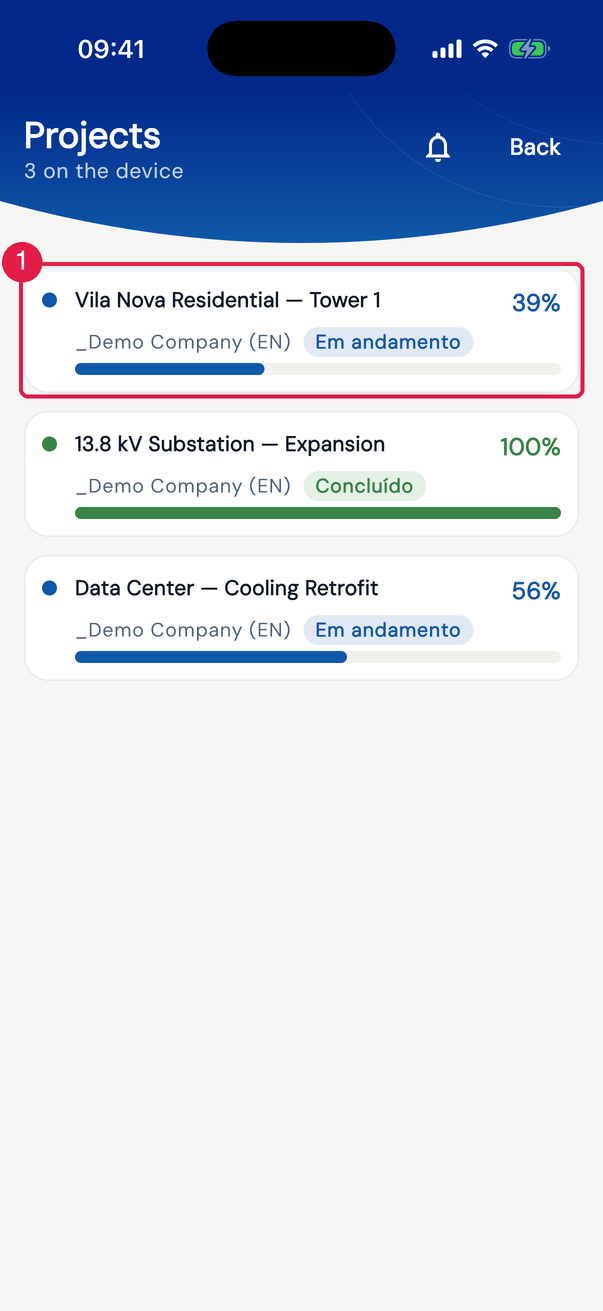
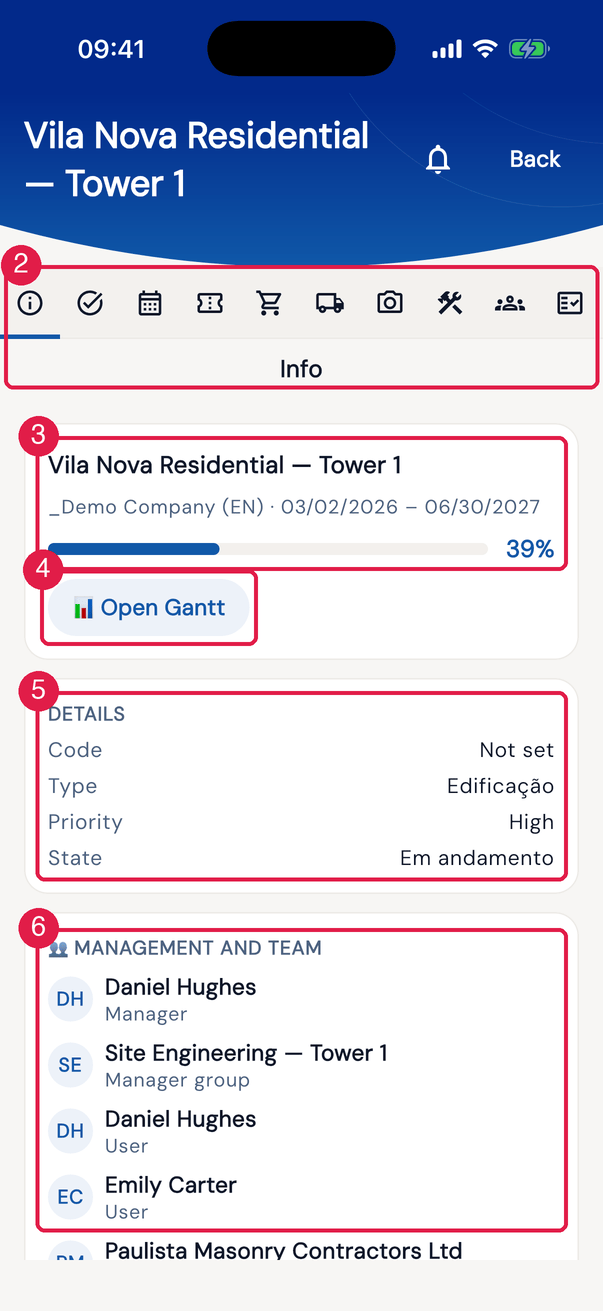
App H2OFigure 24. On the left, the list of the projects of Emily Carter’s team; on the right, the panel of Vila Nova Residential — Tower 1 open on the Info tab (manager Daniel Hughes, manager group Site Engineering — Tower 1).
- 1A project: name, %, site and state, with the progress bar.
- 2The tabs, icon only; the name of the open tab appears right below.
- 3Name, site and planned dates, with the bar and the %.
- 4Open Gantt.
- 5Details — Code, Type, Priority and State.
- 6Management and team — Manager, Manager group and the members.
The project tabs
Section titled “The project tabs”| Tab | What it does in the app |
|---|---|
| Info | the project summary, the team and the Open Gantt button. |
| Tasks | all the tasks of the project, or only yours with the Mine switch (the tasks in whose Task Team you are). Tap a task to record progress (below). |
| Daily report | Open today’s daily report and the list of previous reports. |
| Tickets | the tickets linked to the project tasks (chapter 6). Tap to open the ticket. |
| Materials | the material requests of the project. Request material appears for profiles with the central interface. Tapping a request allows Cancel request. |
| Mobilization | the company’s assets taken to the project site. + Add assets opens the search by site and category; check the assets and tap Mobilize N asset(s). Each asset goes through Mobilization requested, Mobilized, Demobilization requested and Demobilized — tap it to confirm the next step. |
| Reports | the photo reports of the project and the New report button. |
| Equipment | the rented equipment of chapter 10, each one with the badge of its stage (Mobilization, Active or Demobilization): Entry, Pickup (with the driver’s name), Return (only with an open pickup) and Exit, with the checklists. Once demobilized, the equipment is for viewing only: the four actions appear dimmed. |
| Attendance | a calendar: choose the day and see the tasks planned for it, with the team of each one. Each person shows as Present; a tap on the person switches to Absent (and another tap undoes it). |
| Audit | only for the project manager and the members of its Group: New audit, Choose the template and answer the checklist. Badges In progress and Finished. |
Recording the progress of a task
Section titled “Recording the progress of a task”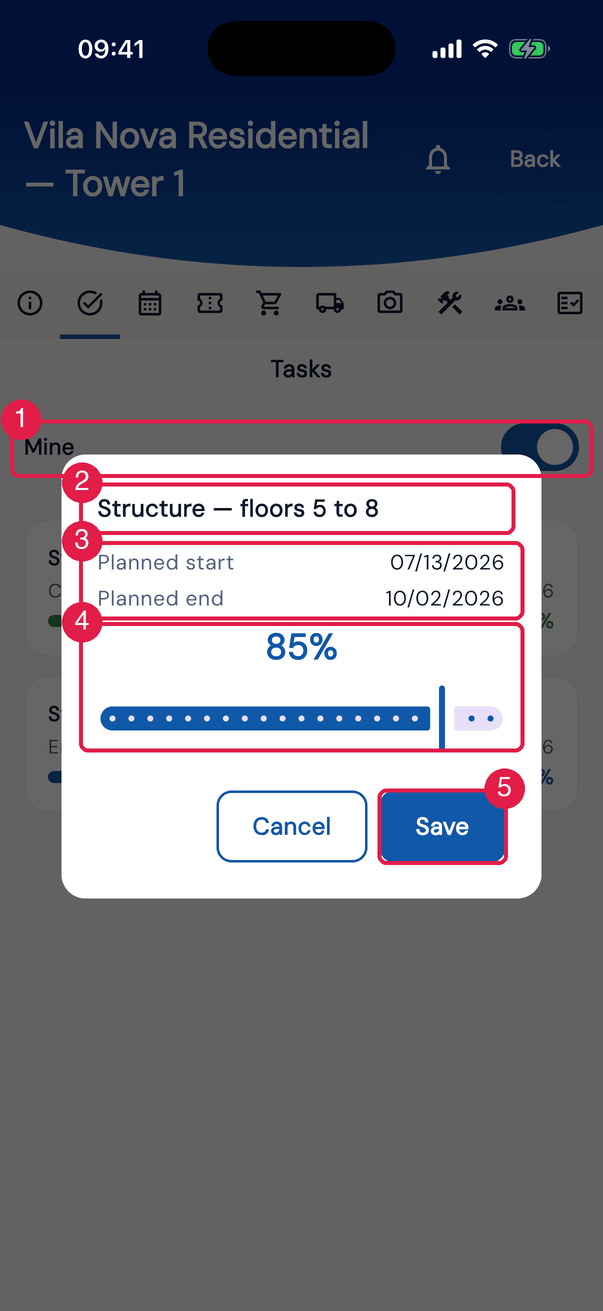
App H2OFigure 25. Tasks tab with the Mine switch and the progress dialog of Structure — floors 5 to 8 open.
- 1The Mine switch.
- 2The name of the task tapped in the list. In the list, each row shows name, type (when the task has one), state, dates and %.
- 3The dialog: the task’s Planned start and Planned end.
- 4The % control, in steps of 5.
- 5Save.
- After Save, Progress saved — uploads on next send appears; the task shows the waiting to be sent sign until the sync.
- With the project From tasks, the project % is adjusted on the server when the progress arrives.
- In a commissioning phase the % is shown read-only, without the control: it comes from the linked tickets (chapter 6).
- In the app only the % is changed; dates, responsible person and state of the task are changed on the web.
Gantt in the app
Section titled “Gantt in the app”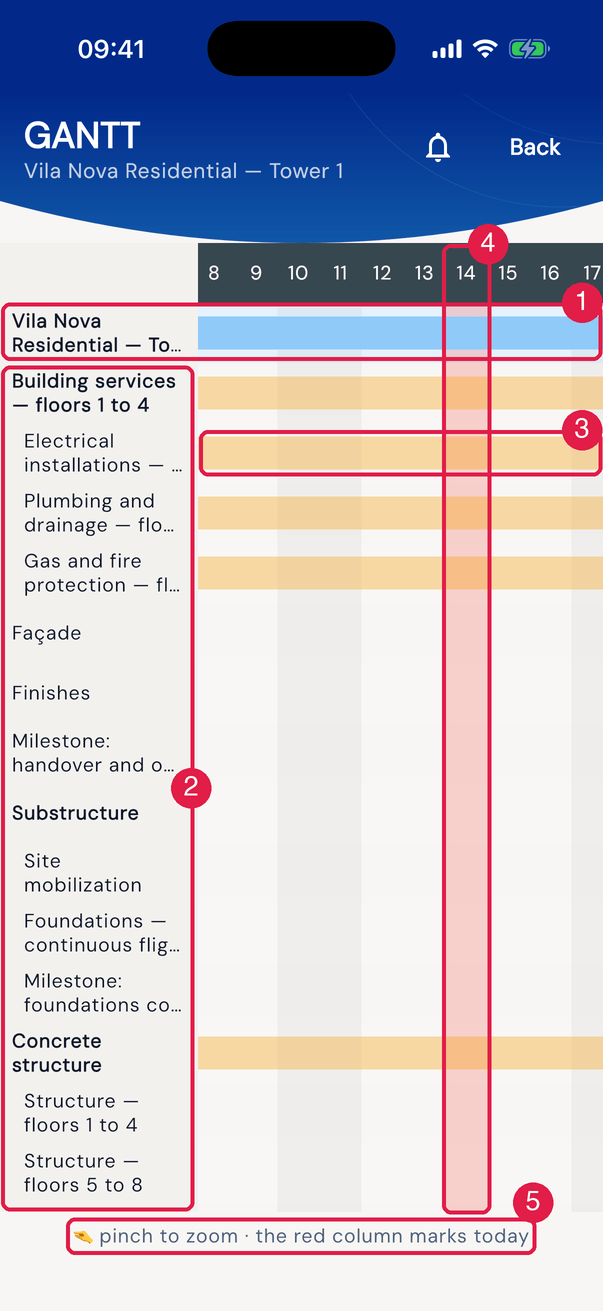
App H2OFigure 26. The Gantt of Vila Nova Residential — Tower 1 in the app: the project row at the top, one row per task, the weekends shaded and today’s red column.
- 1The project summary row.
- 2The column with the task names, fixed on the left and shown as a tree: the parent task in bold and its children indented right below it.
- 3A bar, in the color of its progress (green done, amber in progress, red not started); the % sits in the middle of it.
- 4The red column — today.
- 5The hint: pinch to zoom · the red column marks today.
The app Gantt is read-only: no dependencies, no critical path and no dragging. Zoom out or in with a pinch and scroll in both directions; vertically, names and bars scroll together. The Gantt opens at the start of the project: scroll right to today’s red column. Tasks without planned dates do not appear (No tasks with planned dates when none has them).
Equipment and attendance
Section titled “Equipment and attendance”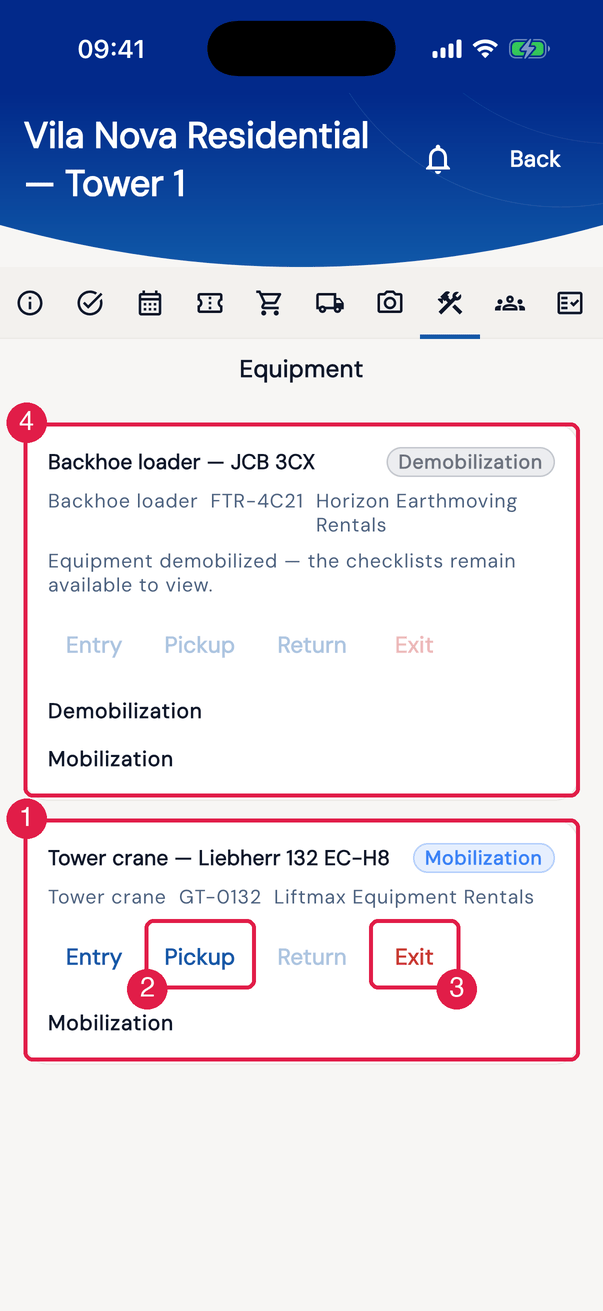
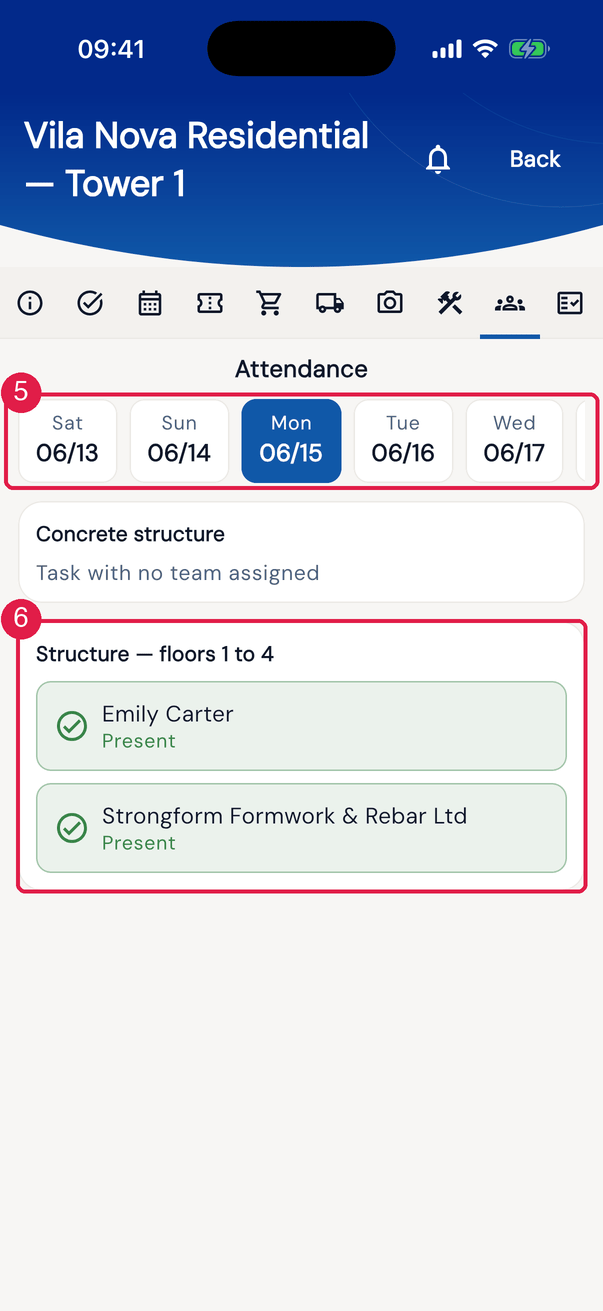
App H2OFigure 27. On the left, the Tower crane — Liebherr 132 EC-H8, in the Mobilization stage, with Entry, Pickup, Return and Exit, and a backhoe loader already demobilized; on the right, the attendance of 06/15/2026, by task.
- 1A piece of equipment — type, plate and rental company —, the badge of its stage (Mobilization, Active or Demobilization) and, below it, the checklists already done (here, the Mobilization one). Return stays dimmed until there is an open pickup.
- 2Pickup — asks for the Driver name and opens the daily checklist.
- 3Exit — demobilizes the equipment.
- 4A demobilized piece of equipment: Demobilization badge, the four actions dimmed and the checklists kept for viewing.
- 5The Attendance calendar: each day with the weekday and the date (month/day). The strip covers the whole project schedule — swipe it sideways and tap a day.
- 6A task of the day and its team; a tap on the person switches between Present and Absent.
App only, web only
Section titled “App only, web only”| App only | Web only |
|---|---|
| Mobilization of company assets | creating, editing and deleting project, team and tasks |
| Team Attendance by task | editing the Gantt, Progress, Auto-Calc, critical path |
| Photo Reports | Costs, Documents and Estimates |
| the project’s Tickets tab (on the web, the tickets are in each task) | Commissioning tab (assets × phases matrix) |
| Gantt PDF, MS Project XML, Excel/CSV export and the projects report |
Was this page helpful?
Thanks for the feedback!
Got it — we will improve this page.