
Labels and QR code
Manual — Assets · chapter 10 of 12
Each asset has a QR code that points to a public H2O page. The printed label carries that QR with the logo, the tag, the name, the serial and the location. Whoever scans the QR with the phone camera — the technician or anyone on site — sees the asset and can open a ticket without logging in.Printing the label of one asset
Section titled “Printing the label of one asset”On the record, click Label (top right). The QR Code Label window shows the preview exactly as it will be printed.
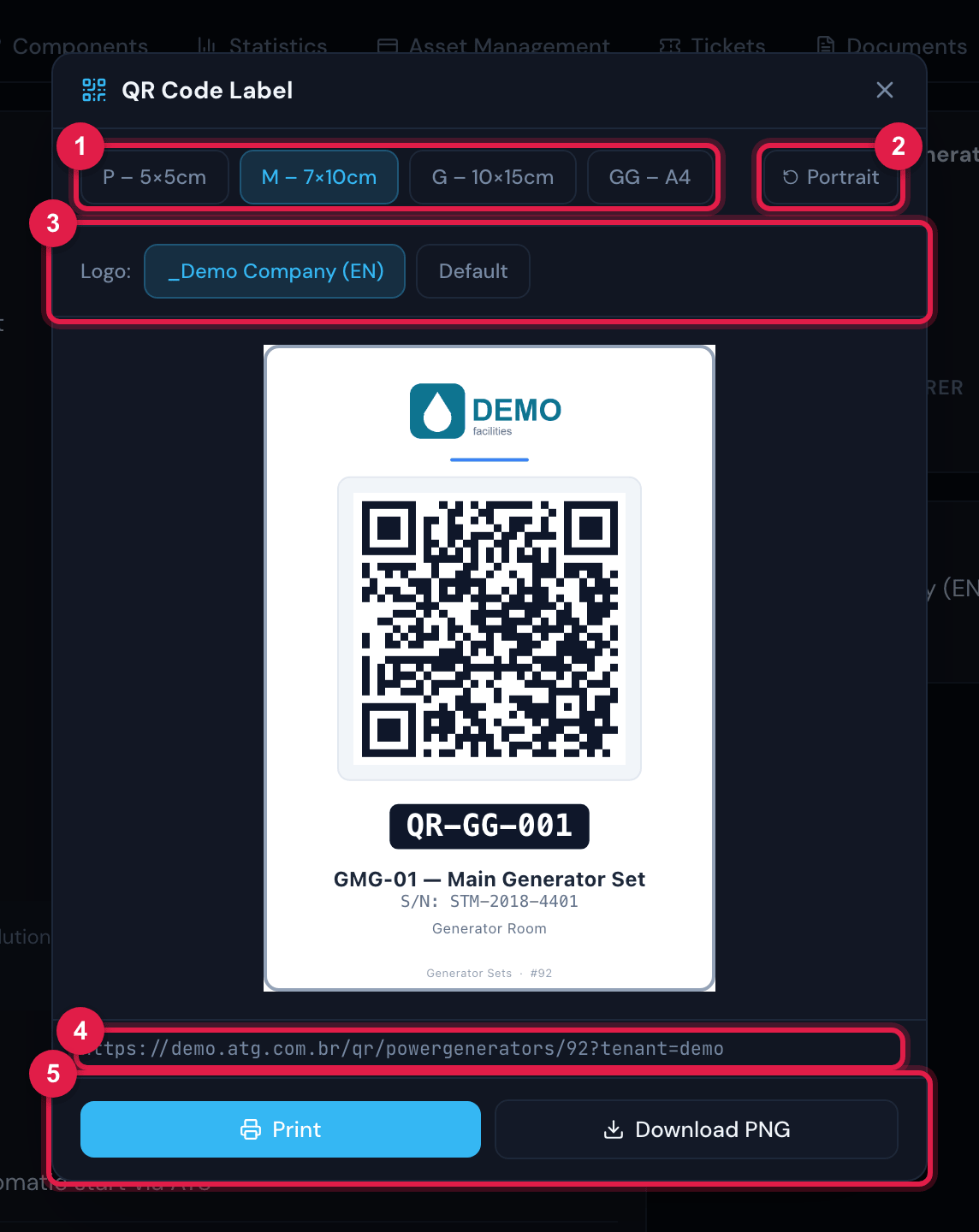
Figure 23. The QR Code Label window in size M – 7×10cm, portrait: logo, QR, highlighted tag, name, serial, location and, in the footer, the type and the asset number. Below the preview, the address the QR opens.
- 1Sizes P – 5×5cm, M – 7×10cm, G – 10×15cm and GG – A4.
- 2Portrait / Landscape (not available for P).
- 3Logo: of the asset’s site or Default (only appears when the site has its own logo).
- 4Address encoded in the QR.
- 5Print and Download PNG.
| Size | How it comes out |
|---|---|
| P – 5×5cm | Square, no landscape: large QR with the logo in the center, tag, name and location. |
| M – 7×10cm and G – 10×15cm | Portrait or landscape: logo at the top, QR, highlighted tag, name, S/N, location and the footer “type · #number”. |
| GG – A4 | The same design, larger. Note: printed from here it comes out at 15.7 × 22.3 cm — the full A4 (21 × 29.7 cm) only in the batch by e-mail. |
Print opens the browser’s print dialog already with the label’s page size (no margin); choose the label printer or a sheet printer. Download PNG saves the image to send to a print shop or to use in another program.
Labels in batches
Section titled “Labels in batches”- In the type’s list, tick the assets (or use Select the N in this filter — up to 200 at a time) and click Generate labels (chapter 2).
- Choose the size, the orientation and the logo. The preview shows the first label; the settings apply to all of them.
- Leave Cut marks ticked if you are going to cut them out.
- In Send to, check the e-mail (yours comes pre-filled) and add others, separated by commas.
- Click Generate and send by email. H2O replies that the PDF was queued; within a few minutes the e-mail with the download link arrives.
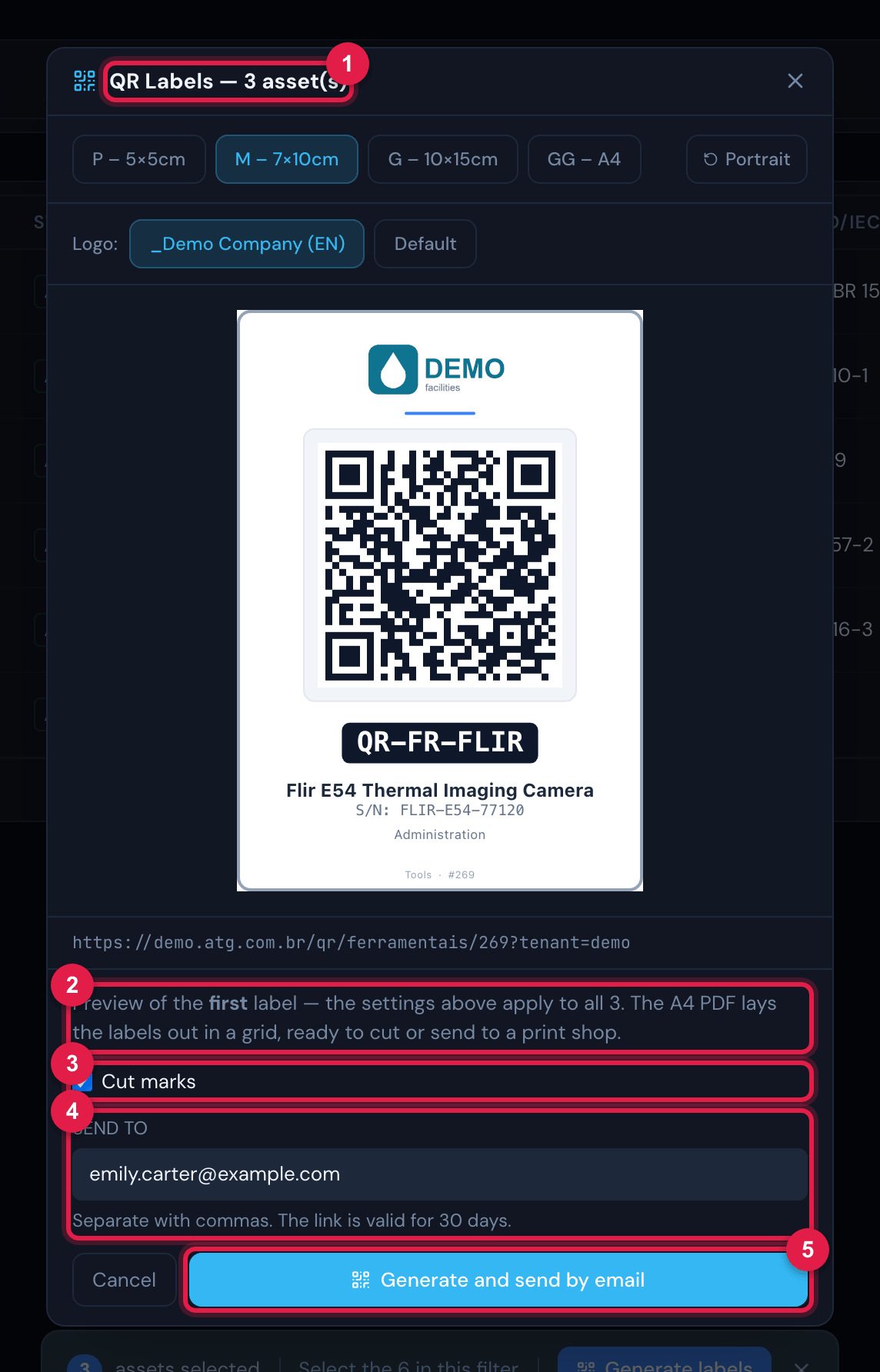
Figure 24. The QR Labels — N asset(s) window: preview of the first label, Cut marks, Send to and Generate and send by email.
- 1Title with the number of assets.
- 2Text “Preview of the first label — the settings above apply to all N.”
- 3Cut marks.
- 4Send to — “Separate with commas. The link is valid for 30 days.”
- 5Generate and send by email.
The public QR page
Section titled “The public QR page”Scanning the QR opens, in the phone’s browser, the asset page without asking for a login: the company’s logo and name, photo, name, tag, serial and location. Below, the Report a problem form. The page appears in the browser’s language (Portuguese, English or Spanish).
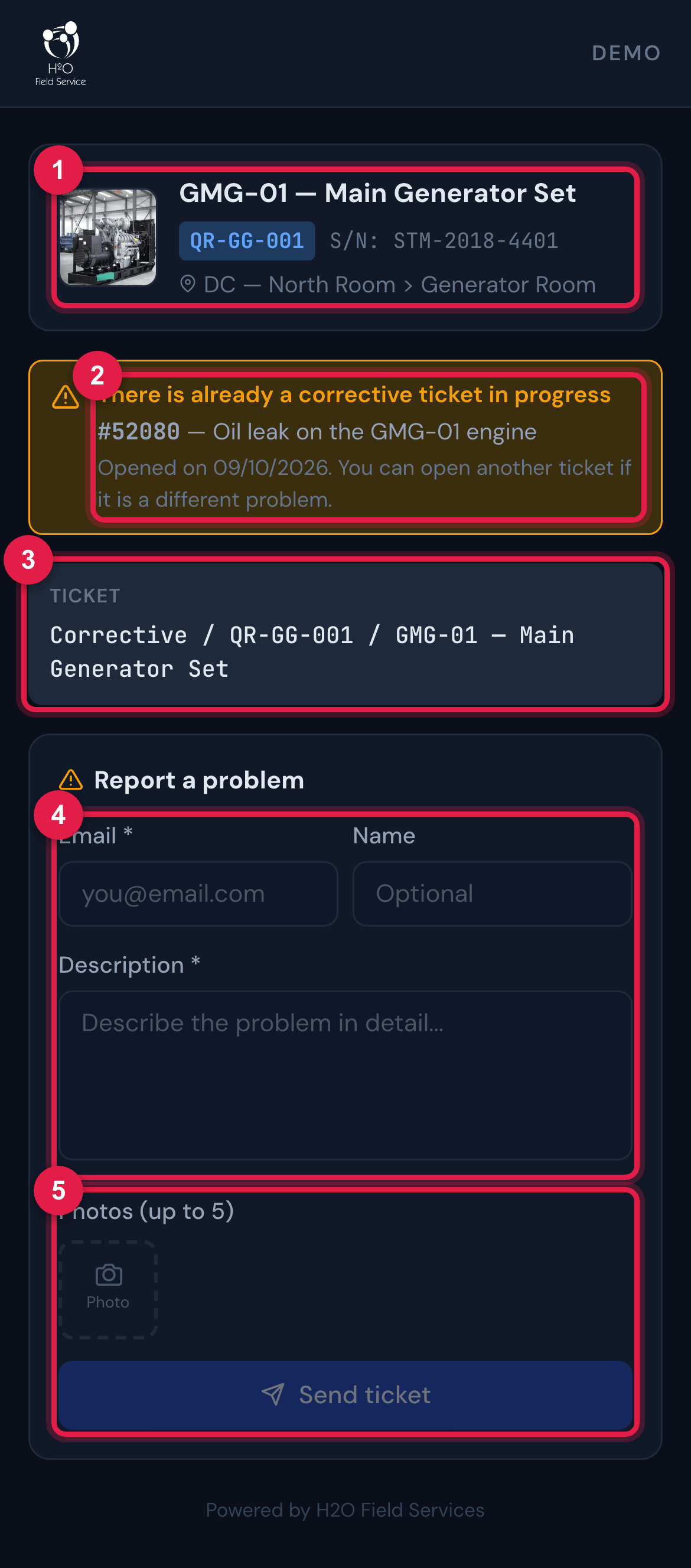
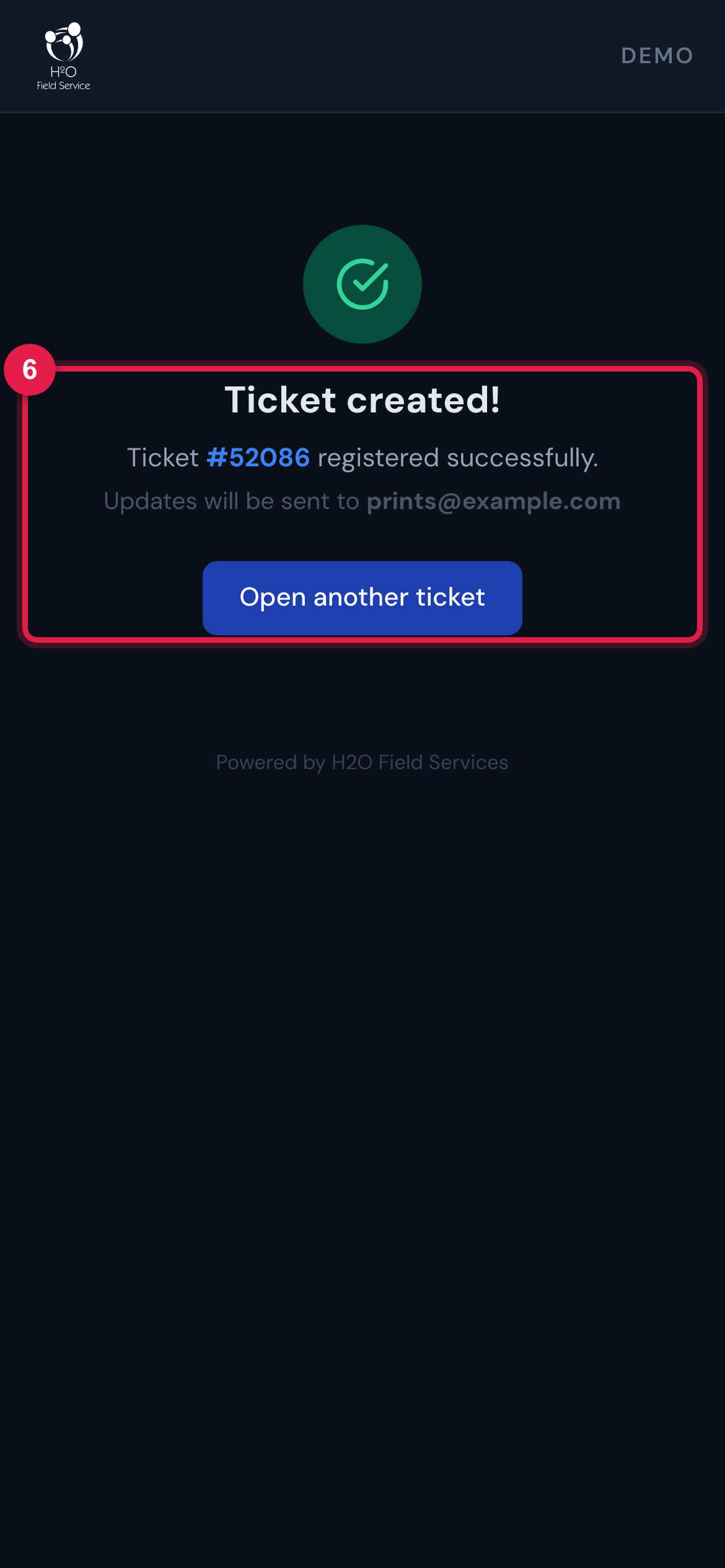
Figure 25. The public QR page of a generator set: the asset card, the yellow warning There is already a corrective ticket in progress (with the number and the date), the automatic ticket title and the form; on the right, the confirmation.
- 1Asset card: photo, name, tag, serial and location.
- 2Warning about a corrective ticket in progress — it does not prevent opening another ticket.
- 3Automatic ticket title.
- 4Email (required), Name (optional) and Description (required).
- 5Photos (up to 5) and Send ticket.
- 6Ticket created! with the number; Open another ticket.
| The ticket opened from the QR | What it looks like |
|---|---|
| Title | “Corrective / <tag> / <asset name>” (the word “Corrective” comes out in the page’s language). |
| Modality and priority | Corrective, with medium urgency, impact and priority; source QR Code. |
| Requester | The company’s “external” user, with the e-mail typed — that e-mail receives the ticket’s notifications. |
| Description | The text typed, followed by Origem, Reportado por and Ativo (source, reported by and asset — labels in Portuguese). The text goes in as plain text: pasted formatting or code is displayed literally, never executed. |
| Assignment and SLA | If the asset has a Technician or a Technical Group, the ticket is already assigned to them; if it has a Default SLA, the deadlines are calculated by it. The company’s ticket rules also run. |
| Photos | Up to 5 images (JPEG, PNG, GIF or WebP, up to 5 MB each), attached to the ticket. |
Was this page helpful?
Thanks for the feedback!
Got it — we will improve this page.