
Setting up the project
Manual — Commissioning · chapter 3 of 10
Commissioning lives in a regular project (the Projects manual). For it to appear, the schedule needs phase tasks: project tasks whose Type is one of the levels of chapter 2. The rest of the project — team, Gantt, daily reports, costs — works as in any project.The tree: systems and phases
Section titled “The tree: systems and phases”The recommended way is one parent task per system with one phase per level below it. The parent task is the group of the matrix (the header above the columns) and the “system” in the ticket titles; and the previous-phase-incomplete warning only compares phases with the same parent.
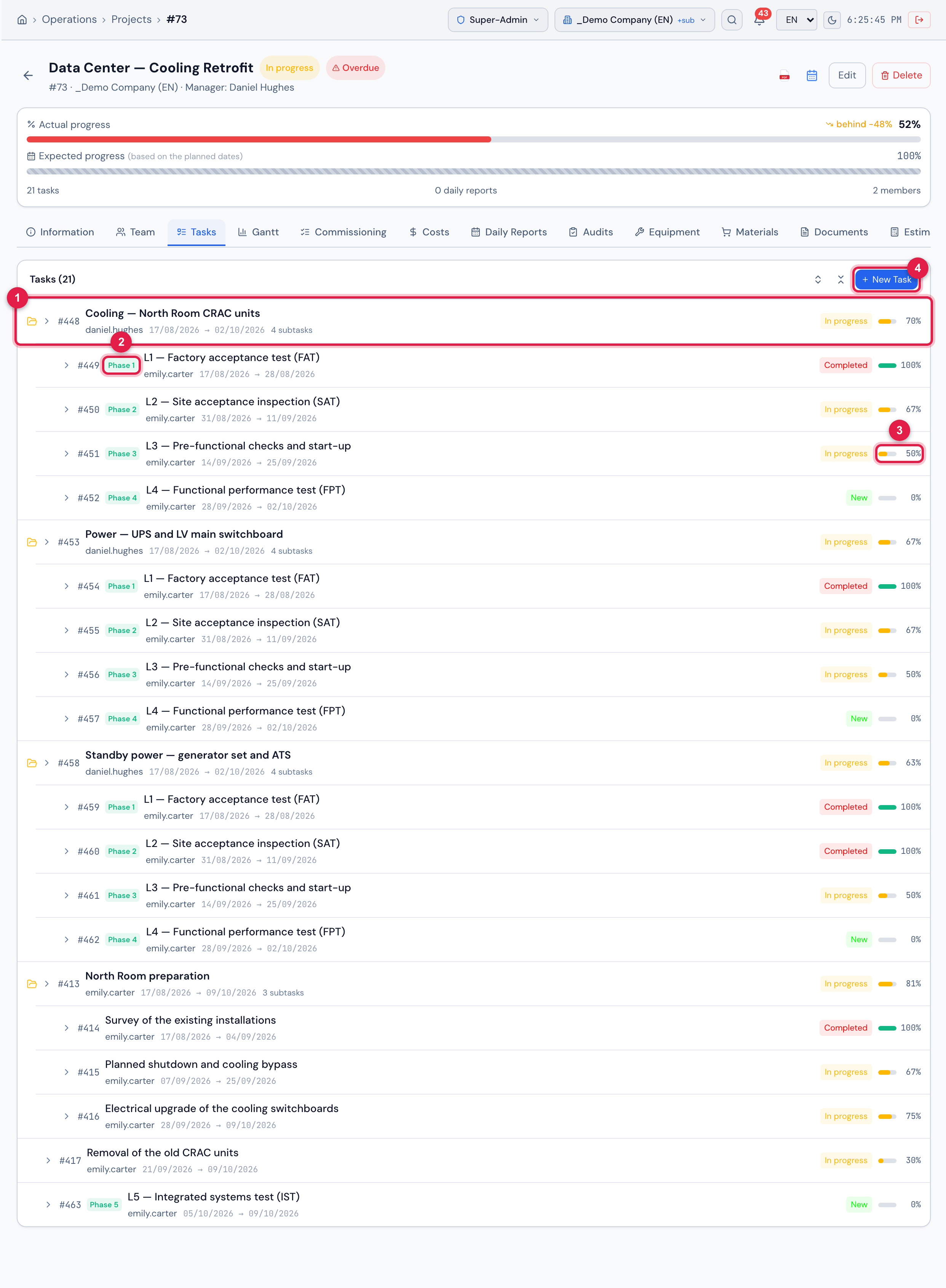
Figure 6. Tasks tab of the Data Center — Cooling Retrofit project: the systems Cooling — North Room CRAC units, Power — UPS and LV main switchboard and Standby power — generator set and ATS as parent tasks, each with phases L1 to L4 marked with the Phase N badge; L5 — Integrated systems test (IST) sits at the root, with no parent, and the regular tasks of the project (such as North Room preparation) have no badge.
- 1The parent task — the system.
- 2The phases of the system, with the Phase N badge.
- 3The % of each phase, computed from the tickets.
- 4New Task — creates the phase (Create right in Projects).
- Create the phase with New Task (the Projects manual, chapter 6): in Type, the levels appear as ◆ Phase N · name. When you pick one, the form shows the Commissioning phase badge, turns on % from ticket tasks and locks Progress (%): Computed from tickets — the typed value is ignored.
- In Parent Task, choose the system. Give the phase planned dates: they draw the bar in the Gantt and go into the PDF.
- The phase name is free (“L4 — Cooling FPT”, “SAT — UPS”). What makes it a phase is the Type.
- A small project, a single system? The phases can sit at the root, with no parent. The matrix shows the No group header when there are phases with and without a parent.
How the phase % is computed
Section titled “How the phase % is computed”The % of a phase is: approved tasks ÷ total tasks of all the tickets linked to the phase, rounded. With no linked ticket, the phase stays at 0%.
| The ticket task is… | Does it count as done? |
|---|---|
| completed with Approved | yes |
| completed without a result (through a path that does not ask) | yes — it counts as Approved |
| Failed | no |
| marked for Retest | no |
| to do | no |
| failed and already with a retest task | leaves the count: the retest is what counts (chapter 7) |
| on a cancelled ticket | leaves the count, like one on a deleted ticket (chapter 6) |
- The % is recomputed automatically whenever a task of these tickets changes — on the web, in the app or through the batch —, when a ticket is linked to or unlinked from the phase and when a ticket is deleted, restored or cancelled.
- In the Gantt, the % bar of a phase cannot be dragged and the global Progress skips the phases (the Projects manual, chapter 7). On the Operations › Kanban › Project tasks board, the phase cannot be dragged either, and the By phase view shows one column per level.
- If the project is in From tasks mode, the phases count in the project % like any task.
The assets
Section titled “The assets”Commissioning is per asset: each ticket task tests one piece of equipment. The assets are those of the Assets register (the Assets manual) — there is no parallel register.
- The batch includes the assets of the project site and of the sites below it, within your reach, plus the assets marked as recursive on the sites above. Register the CRAC units, UPS units, generators, transfer switches and switchboards on the data center site before generating.
- To find them fast during generation, fill in Tag / Asset # and Serial and use names starting with the equipment code (“CRAC-01 — Precision cooling, White Space”): the batch accepts a pasted list of codes (chapter 4).
- The Location of the asset becomes the location of the generated ticket and appears in the preview.
- Tools (type Tools) are not commissioning assets: they do not enter the batch or the matrix.
Linking an existing ticket to a phase
Section titled “Linking an existing ticket to a phase”The normal way is the batch (chapter 4). But a ticket that is already open — a test done before the project existed, a ticket from a supplier — can be linked to the phase by hand: in the Tasks tab, expand the phase and use Link with the ticket number (the Projects manual, chapter 6).
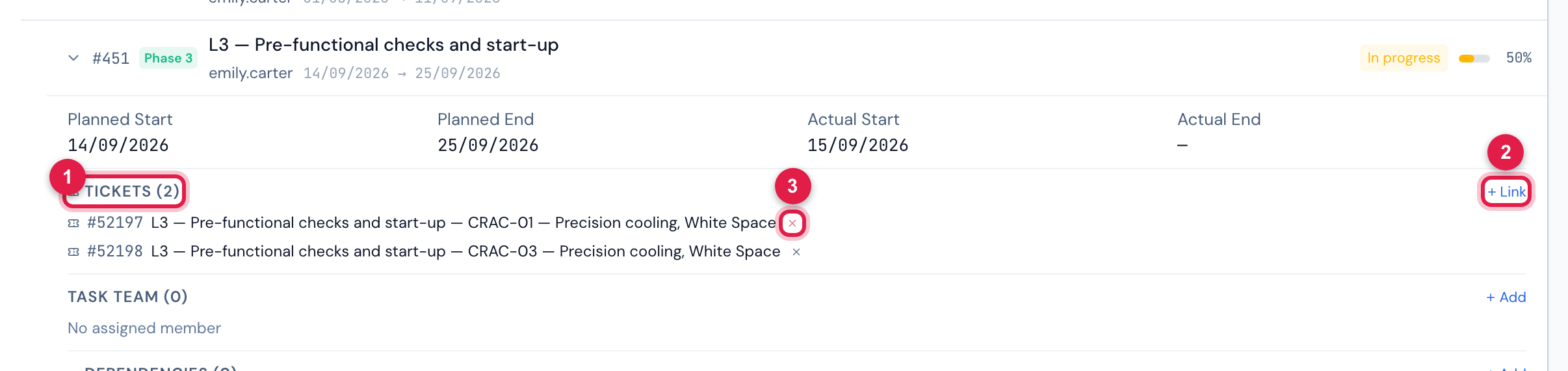
Figure 7. The phase L3 — Pre-functional checks and start-up of Cooling — North Room CRAC units expanded: the tickets linked to it in Tickets (N), with Link to link one more.
- 1Tickets (N) — the tickets linked to the phase.
- 2Link — links a ticket by its number (Create right in Projects).
- 3The ✕ unlinks the ticket from the phase (Edit right in Projects).
- Everything the ticket has starts counting in the phase: all of its tasks enter the total.
- The asset of each task comes from the Asset field of the task; if the task has no asset, the ticket asset applies. With no asset at all, the task appears in the matrix in a (no asset) row.
- Unlinking the ticket from the phase takes its tasks out of the count; the ticket still exists.
Was this page helpful?
Thanks for the feedback!
Got it — we will improve this page.