
Password and two-factor authentication (administrator)
Manual — Users, groups and profiles · chapter 6 of 12
This chapter is the administrator’s side: setting a new password for someone, following the team’s two-factor authentication, resetting it when the person loses their phone and exempting whoever should not be required to use it. The step by step for whoever turns the verification on is in chapter 7. Everything here requires the Edit level on Users.Setting a new password
Section titled “Setting a new password”When someone forgets their password, the administrator sets a new one — H2O does not send a recovery link by email.
- In the user record, click Password (or, in the list, the row’s Password button).
- In the Change Password window — with the person’s name —, type the new password in New password (min. 6 characters).
- Click Change. Password changed appears.
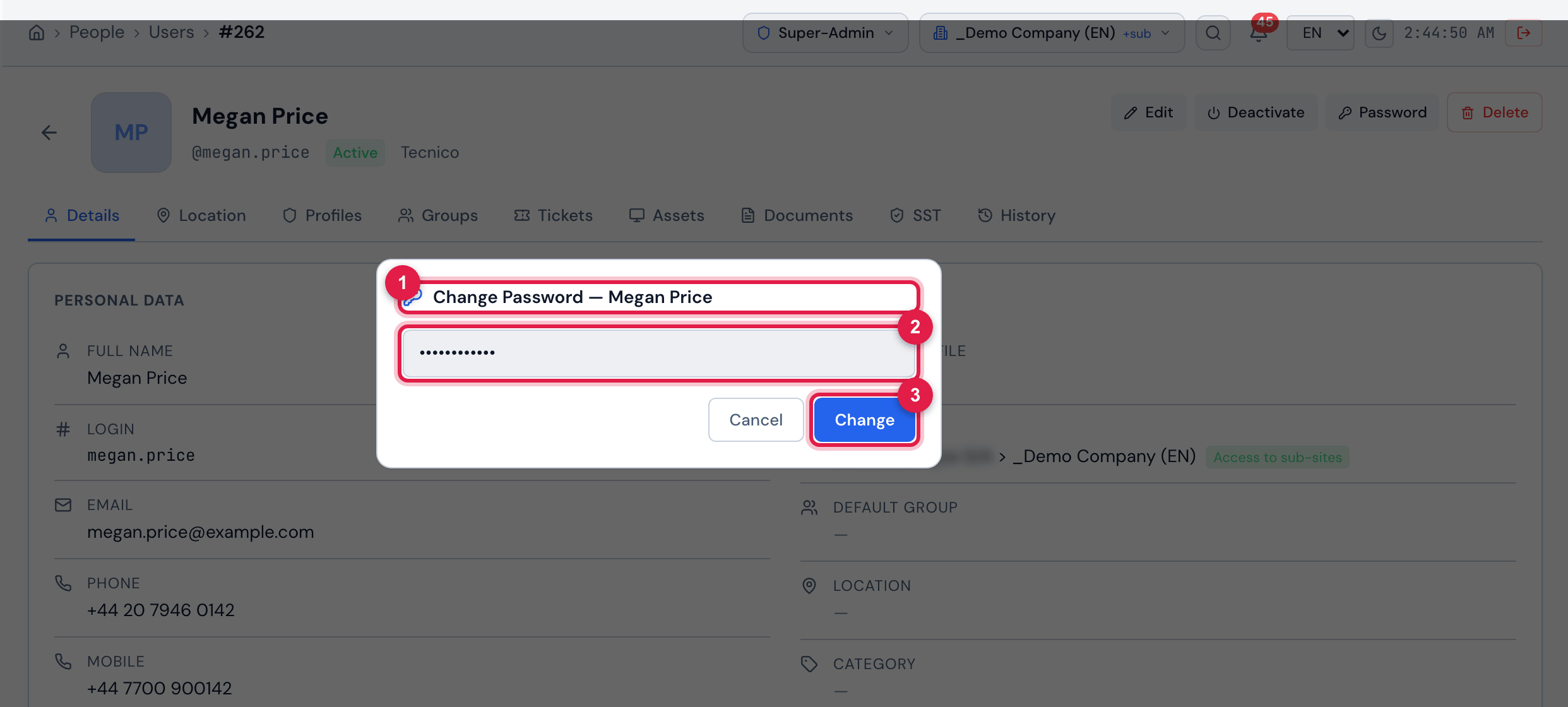
Figure 9. The Change Password — Megan Price window, opened with the record’s Password button, with a password typed (not saved yet) and the Cancel and Change buttons.
- 1Title with the user’s name.
- 2The new password: 6 to 128 characters.
- 3Change saves the password.
- Give the password to the person through a secure channel and ask them to change it in My Profile (H2O does not force the change at the next sign-in).
- Changing the password does not end the sessions that are already open nor forget the trusted devices of two-factor authentication. To take someone out of H2O at once, deactivate the user (chapter 8).
- Changing the password does not touch two-factor authentication: if the person also lost their phone, reset the verification (below).
The team’s two-factor authentication
Section titled “The team’s two-factor authentication”Two-factor authentication (MFA/2FA) is mandatory for everyone, except those exempted. Each person has 7 days, counted from the first sign-in, to set up the authenticator app; after that, sign-in only finishes once the setup is done (chapter 7). The MFA column of the list shows who has already turned it on (Active), who is Exempt and who has not set it up yet (Inactive).
In the record, Details tab, the Security — Two-factor authentication block shows the person’s status — MFA enabled or MFA not set up, with the exempt badge when that is the case — and the two actions.

Figure 10. The Security — Two-factor authentication block of a user with MFA enabled, after clicking Reset MFA (user lost access): the confirmation question, Cancel and Reset (here, not confirmed). Below, the exemption box.
- 1The status: MFA enabled (or MFA not set up).
- 2The reset confirmation, which explains the new period.
- 3Reset — confirms; Cancel gives up.
- 4Exempt this user from mandatory MFA.
Resetting the verification (the person lost access)
Section titled “Resetting the verification (the person lost access)”Use it when the person lost or changed their phone and no longer has the recovery codes — with a recovery code they can sign in by themselves and change the app in My Profile (chapter 7).
- Confirm by some other means that it really is the person who is asking.
- In their record, click Reset MFA (user lost access). The link only appears with the verification on.
- Read the confirmation: Reset this user’s MFA? They will sign in normally next time and get a new 7-day period to set up the authenticator app; after that, setup becomes mandatory.
- Click Reset. The user’s MFA has been reset appears and the status changes to MFA not set up.
- Tell the person: they sign in with the password only, delete the old H2O account from the authenticator app and set it up again in My Profile (chapter 7).
- The reset erases the registered authenticator app, the recovery codes and all the trusted devices of the person.
- The new 7-day period starts at their next sign-in.
- The password does not change. If they also forgot the password, set a new one (above).
Exempting from the requirement
Section titled “Exempting from the requirement”Tick Exempt this user from mandatory MFA and the exemption applies at once (User exempted from MFA); untick it to remove it (Exemption removed). There is no save button.
- An exempt user is never required to set it up, not even after the period. They can still turn the verification on by themselves in My Profile.
- Removing the exemption brings the requirement back. If the 7-day period was never counted for the person, it starts at their next sign-in; if it had already started before the exemption, it keeps counting from when it started — and, once it has passed, setup is required at the next sign-in.
- Use the exemption for service accounts or for the cases the company decides; it weakens the protection of the account.
Was this page helpful?
Thanks for the feedback!
Got it — we will improve this page.