
Locations: concepts
Manual — Locations and calendars · chapter 1 of 9
A Location is the physical place, inside a site, where things happen: a building, a floor, a technical room, an area of the job site. Tickets and assets point to a location; it tells the technician where to go and lets the reports show where the problems are.Locations form their own tree, separate from the site tree: a location can have sub-locations, in as many levels as needed.
| Example | Level | Full path |
|---|---|---|
| Tower A | 1 | Tower A |
| Machine Room | 2 | Tower A > Machine Room |
| Main switchboard | 3 | Tower A > Machine Room > Main switchboard |
- Level — the depth in the tree: a location without a parent is level 1.
- Full path — the names from the top, separated by “ > “. This is what appears in the ticket and asset pickers.
- Site — each location belongs to a site (Companies and hierarchy manual). It appears to whoever works on that site.
- Recursive — with Visible in sub-sites (recursive) ticked, the location also appears in the sites below its own site. Use it for common places, registered once at the company and used by every project.
The level and the full path are calculated by H2O and update by themselves when the location or one of its parents is renamed or moved (chapter 6).
Where locations are used
Section titled “Where locations are used”| Where | How |
|---|---|
| Ticket | Location field of the new ticket, with search. The + button (Add new) registers a location right there, with the name only: it is created without a parent, in the ticket’s site (requires Create on Locations). |
| Asset | Location field of the asset record, with the New location window to register one without leaving the screen, already in the asset’s site. |
| Location record | Tickets tab: the tickets of the location and of its sub-locations (chapter 5). |
| Reports | in Reports (Overview menu): Locations and Locations (list) — the same table as the List mode (chapter 3). |
| Site record | Statistics tab: how many locations there are in the site and in the sub-sites. |
| H2O app | Location field of the asset record and of the new ticket (chapter 7). |
Access rights
Section titled “Access rights”The Locations and Calendars screens are in the Configuration menu and are unlocked by the profile rights of the same name (People › Profiles › profile › Permissions tab, Configuration group). Without the Read level, the item does not appear in the menu.
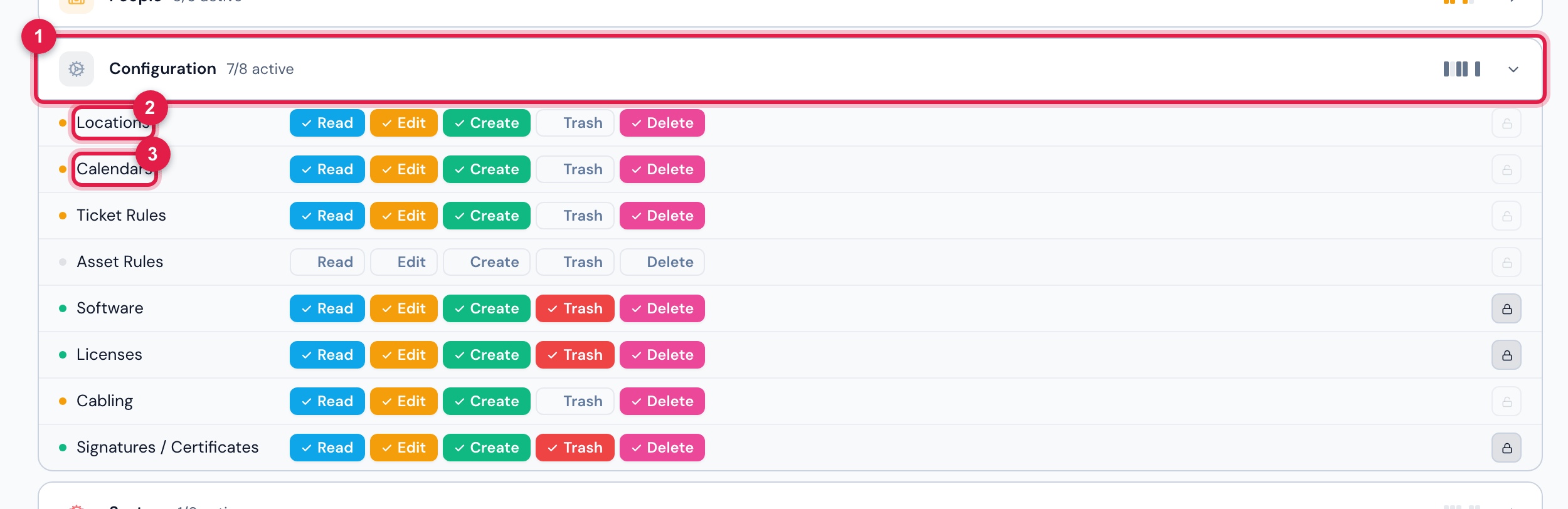
Figure 1. People › Profiles › a profile › Permissions tab, with the Configuration group open: the Locations and Calendars rows, each with the levels Read, Edit, Create, Trash and Delete.
- 1Configuration group.
- 2Locations right.
- 3Calendars right — only Read has an effect: it unlocks the list.
| Locations level | What it allows |
|---|---|
| Read | see the tree, the list and the record of the locations. |
| Create | New Location and New Sub-location. |
| Edit | Edit the location, including changing its parent (moving it). |
| Trash | Delete the location. Despite the name of the level, the deletion is permanent (chapter 6). |
| Delete | not used by the Locations screen. |
Was this page helpful?
Thanks for the feedback!
Got it — we will improve this page.