
The app offline: what comes down, what goes up
Manual — Occupational Safety · chapter 12 of 13
The H2O app was built for job sites with no signal. Everything the SST module needs in the field is downloaded to the device during sync (which runs when the app opens, at sign-in and in the background), and everything done in the field is saved locally first and sent automatically when there is a network. Users do not need to “save to the server”: they only see the status chip of each document.| Chip | Meaning |
|---|---|
| Pending | created or changed on the device and not sent yet (no network, or the sync has not run yet) |
| (no chip) | already on the server — sent by the device or downloaded from it; only what is waiting to be sent gets a chip |
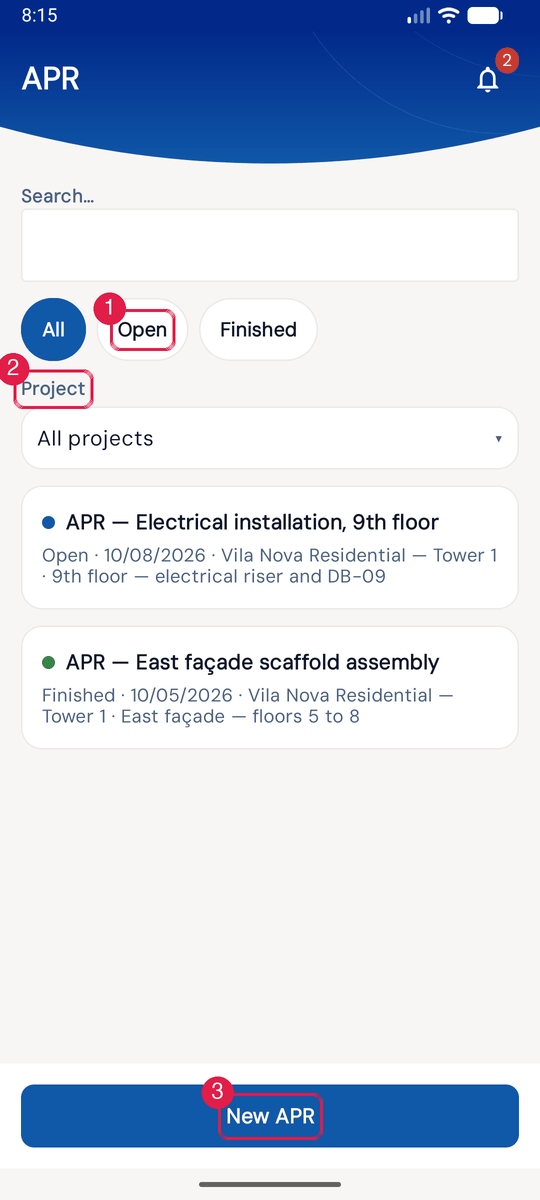
App H2OFigure 81. APR list in the app: each card shows the status dot (green finished, blue open), the Pending chip when something is waiting to be sent (here everything is already on the server, so it does not appear) and the line “Open/Finished · date · project · location”.
- 1All / Open / Finished filters.
- 2Project selector.
- 3New APR button.
What comes down to the device
Section titled “What comes down to the device”- APR, PT and Inspection templates (with the checklist items) — without a template on the device, the app says “No X template on the device. Sync before creating.”
- Projects and workers within the user’s scope (their sites and the parent sites); workers are read-only in the app.
- Existing APRs, PTs, inspections, attendance, work crews, signatures and revalidations — including those created on the web.
- Trainings and attendance; the PPE catalog (assets of the PPE/CPE category, with the CA) and the deliveries; deviations already synced (as tickets).
- Checklist answers, sections and document photos.
What goes up, and in what order
Section titled “What goes up, and in what order”Sending follows a fixed order, so that each record finds its parent already on the server:
- Parent documents: workers (when there are any), APRs, inspections, PTs and trainings. A document created on the device starts with a negative id and switches to the server id when it is sent; all its children are re-pointed right away.
- Children: team acknowledgment, work crew, attendance, revalidations, PPE deliveries. A row with a signature is only sent after the signature image has been sent.
- Checklists: answers, sections and photos (the photo goes before its metadata).
- Tickets: deviations (with class, level, photo and the source inspection) become numbered tickets on the server.
| Situation | What the app does |
|---|---|
| Parent not sent yet | the child waits in the queue (this is not an error) |
| Parent was deleted on the server | the child is discarded, so it does not stay stuck forever |
| Document finished on the device | it is sent as finished; the server does not downgrade the status (it does not reopen through the app) |
| Same document edited on the web and in the app | the last save wins; avoid editing the same document on both sides at the same time |
“Waiting to be sent” and the deviation
Section titled ““Waiting to be sent” and the deviation”The hub’s Report deviation card shows “N waiting to be sent” when there are deviations in the queue. Inside the screen, the “Waiting to be sent” section lists each one (“title — class · level · with photo”) and explains: “They are sent on the next sync and become a numbered ticket.” Until it gets a number, the deviation appears in the ticket list as #new.
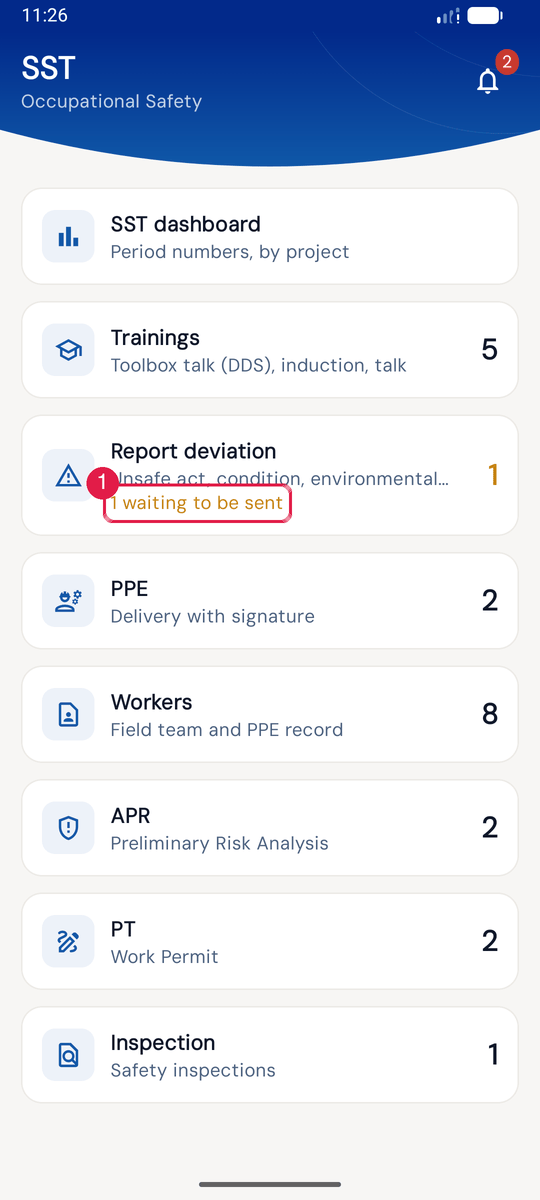
App H2OFigure 82. SST hub right after a deviation was reported with the device offline: the Report deviation card shows “1 waiting to be sent” (and the counter 1 on the right). Inside the screen, the “Waiting to be sent” section lists the deviation; when the network comes back, it is sent and becomes a ticket.
- 1“1 waiting to be sent”: deviation in the queue, waiting for the sync.
PDF from the server
Section titled “PDF from the server”The app’s Report (PDF) button downloads the same PDF as the web when the document is already on the server and has nothing pending — with number, trail and verification codes. Without a network (or with pending items), the app generates a simplified local PDF for immediate reference. While it is generating, the button shows “Generating…”; if it fails, “Could not generate the report.”
Rights and session
Section titled “Rights and session”The hub cards follow the Read right of each module, read from the session during sync. Changed the profile on the web? Sync (or sign out and back in). Without any of the APR, PT and Inspection rights, the hub warns “No SST module enabled for this user. If that is wrong, sync: the rights come from the session.”
The SST upload routes require the Edit right of the corresponding module on the server — a user with Read only can view, but whatever they record on the device will be refused when it is sent. Grant the right before sending the team to the field.
Was this page helpful?
Thanks for the feedback!
Got it — we will improve this page.