
Project Daily Reports and Audits
Manual — Projects · chapter 9 of 13
The Daily Reports and Audits tabs show the field records of this project. The same records, of all projects, are in Operations › Daily Reports and Operations › Audits. Here are the essentials; the complete step by step is in the dedicated manuals.Daily Reports tab
Section titled “Daily Reports tab”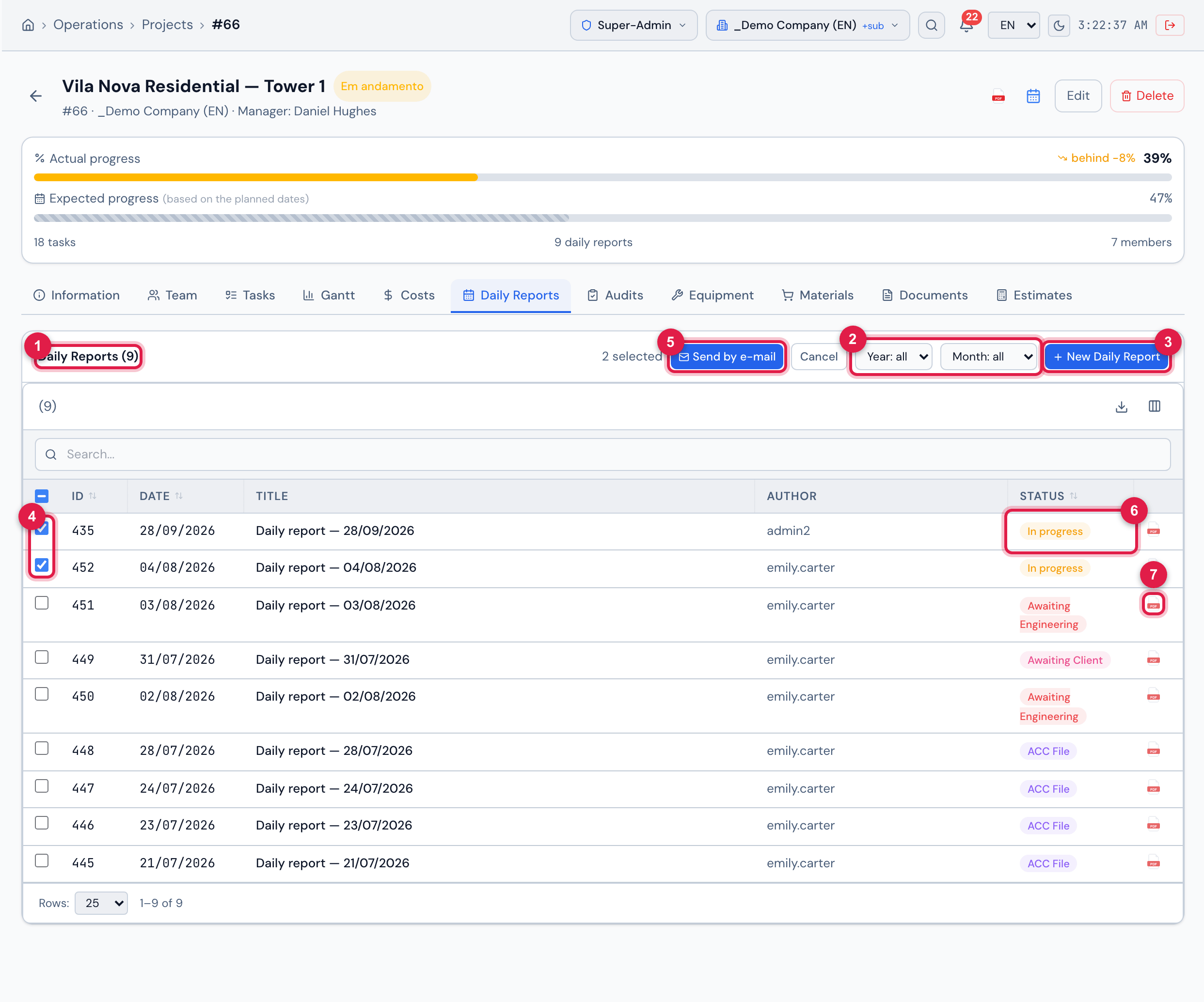
Figure 18. Daily Reports tab of Vila Nova Residential — Tower 1: the year and month filters, New Daily Report, the 9 reports (from “Daily report — 21/07/2026” to “Daily report — 28/09/2026”) with the status of each one and two reports selected to be sent by e-mail.
- 1Daily Reports (N).
- 2Year and Month filters.
- 3New Daily Report — it needs the Create right in Projects.
- 4Check boxes — choose several reports to send.
- 5Send by e-mail — shown when some report is checked.
- 6Report Status.
- 7PDF icon of a report.
- New Daily Report opens the Novo Diário de Obras window (still in Portuguese) already with the project: choose the Data (date — the weather forecast for morning, afternoon and night appears and is recorded in the report) and the mode — Em branco (blank) or Copiar de anterior (copy from a previous one). When copying, choose the source report and O que copiar (what to copy): Atividades (activities), Mídias (media), Equipes (teams) and Equipamentos (equipment).
- Clicking a row opens the report to fill in activities, workforce, equipment and media, and to follow the approval flow.
- Send by e-mail generates the PDF of each checked report and sends a ZIP to the recipients entered (separate the e-mails with comma, space or line break).
| Status | Meaning |
|---|---|
| In progress | the report of the day, still being filled in. |
| Awaiting Engineering | submitted; waiting for engineering approval. |
| Awaiting Management | approved by engineering; waiting for management. |
| Awaiting Client | approved by management; waiting for the client — unless the project has Daily report without client approval (chapter 4). |
| Approved | flow completed. |
| ACC File | archived. |
- Each approval requires the registered signature of the approver, and the approval level comes from the Daily Reports right (Approve (Eng.), Approve (Mgmt.), Approve (Client)).
- Deleting a report (on the report screen) needs Trash in Projects.
- In the app, the project’s Daily report tab opens today’s report (chapter 11).
- The whole flow, the PDF and the copy rules are in the Daily report manual.
Audits tab
Section titled “Audits tab”These are the project audits: an inspection checklist applied at the job site or installation (workmanship quality, site safety, tidiness of the technical room), with the answers Compliant, Partially Compliant, Non-Compliant and Not Applicable. Not to be confused with the ISO Audit of the Quality menu, which is another module.
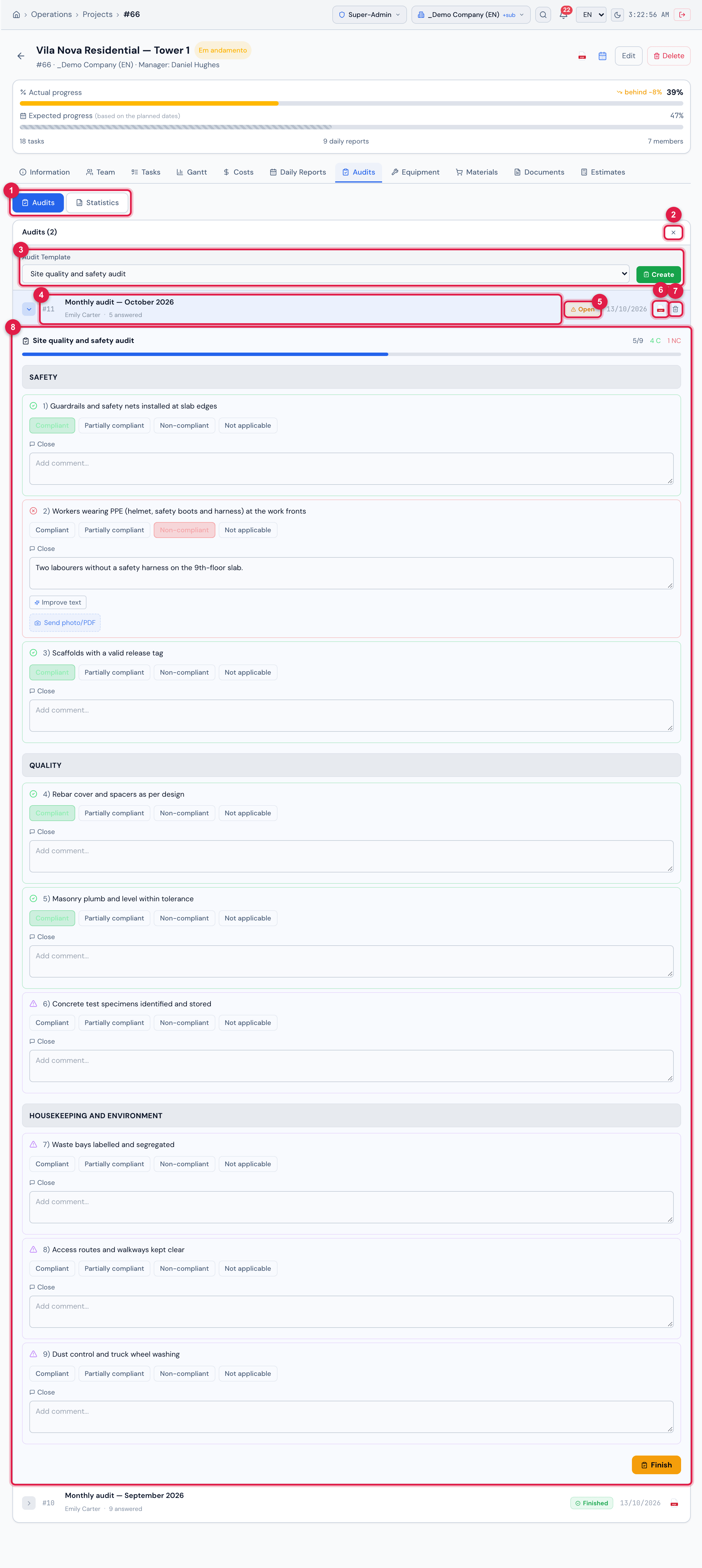
Figure 19. Audits tab: the New Audit panel with the template Site quality and safety audit, the Monthly audit — October 2026 (Open) expanded with the checklist and the Monthly audit — September 2026 (Finished).
- 1Audits and Statistics sub-tabs.
- 2New Audit — already clicked here: the button turns into ✕, which closes the panel. It needs the Create right in Audits.
- 3Audit Template and Create.
- 4An audit: number, name, author and how many items have been answered.
- 5Open or Finished badge.
- 6Download PDF.
- 7Trash can — only on an Open audit, with Trash in Audits.
- 8The checklist, answered right there; Finish at the end.
- The models are the templates with Template type = Audit, registered in Knowledge › Templates. Without any, No audit template found. appears.
- Answering needs Edit in Audits. Finish only goes through with all required items answered and with the signature of whoever finishes registered (in the app: Profile menu).
- A finished audit cannot be deleted.
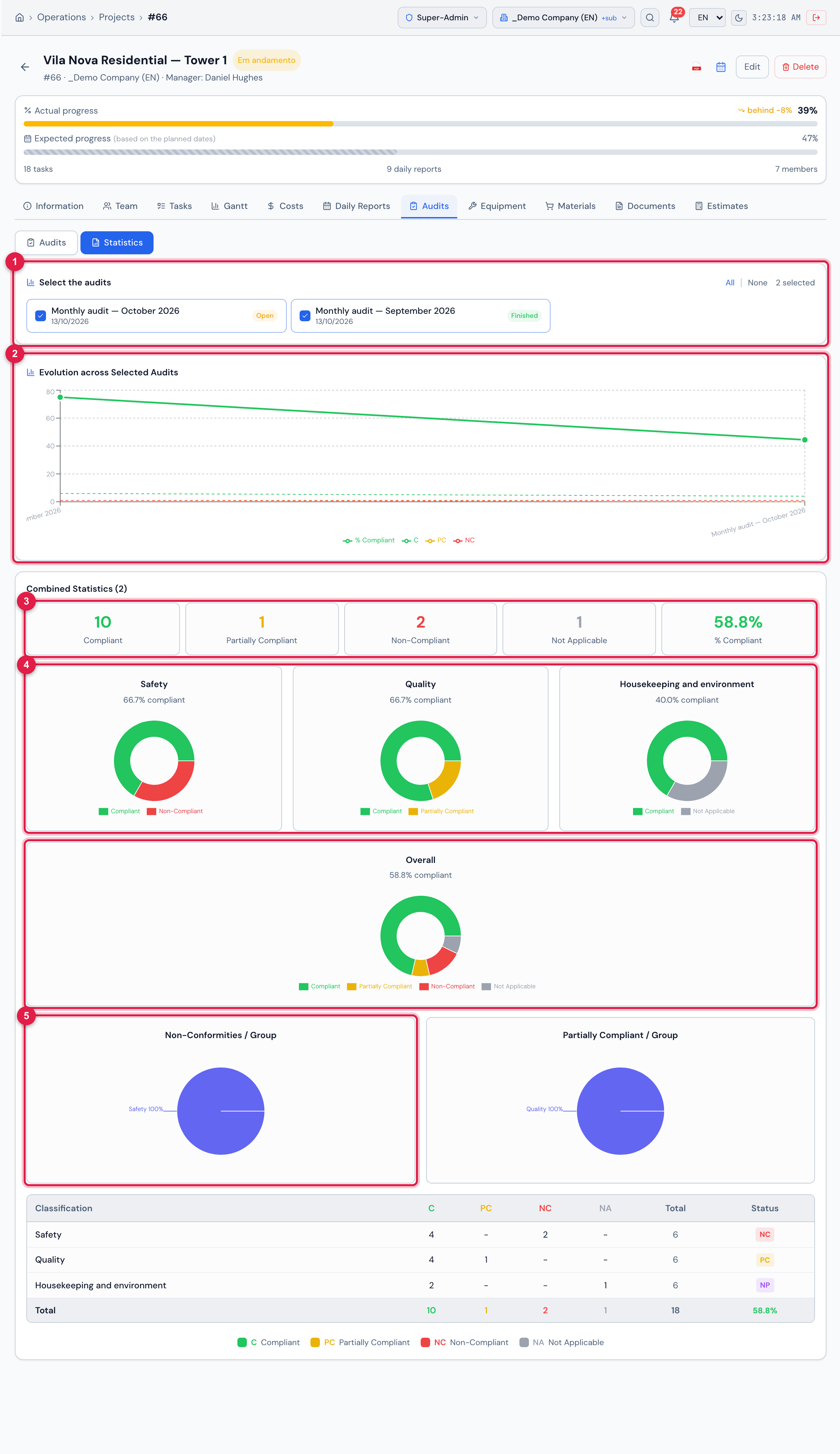
Figure 20. Statistics sub-tab with the two monthly audits selected: the evolution between the audits, the totals and the pie charts by checklist group (Safety, Quality, Housekeeping and environment).
- 1Select the audits — All / None or one by one.
- 2Evolution across Selected Audits — compare the first inspection with the re-inspection.
- 3The totals: Compliant, Partially Compliant, Non-Compliant, Not Applicable and % Compliant.
- 4One pie chart per checklist group and the Overall one.
- 5Non-Conformities / Group.
Sending the report by e-mail, the PDF and use in the app are in the Audits manual.
Was this page helpful?
Thanks for the feedback!
Got it — we will improve this page.