
Flow 1 — The worker base
Manual — Occupational Safety · chapter 3 of 13
Before the first field document, the module needs to know who works, what their job role requires and whether they are fit. That is flow 1: register the worker, define the required training by job role, record trainings and toolbox talks (DDS), collect the acknowledgment of the work instruction, deliver PPE and record the ASO (Occupational Health Certificate). All of this comes together in the worker status, which appears on the worker’s record, on the user SST tab, in the compliance report and in the block (with justification) of the APR/PT.| Step | Web | App | Feeds |
|---|---|---|---|
| Worker | Workers › New | view only | everything |
| Required training by job role | Required training (NR) › Catalog and Matrix | — | status, APR/PT block, expirations |
| Training / toolbox talk | Trainings › New › attendance, result, RT signs, certificate | Trainings › New › attendance with signature | training validity |
| SST work instruction for the job role | SST work instructions (OS) › Publish › acknowledgment | — | status (OS acknowledgment) |
| PPE | PPE record › Deliver PPE; PPE acknowledgments | PPE › Sign and deliver; Record › return | record, NR-06 acknowledgment, S-2240 (CA) |
| ASO | Medical exams (ASO) › Record ASO | — | status, APR/PT block, S-2220 |
Workers
Section titled “Workers”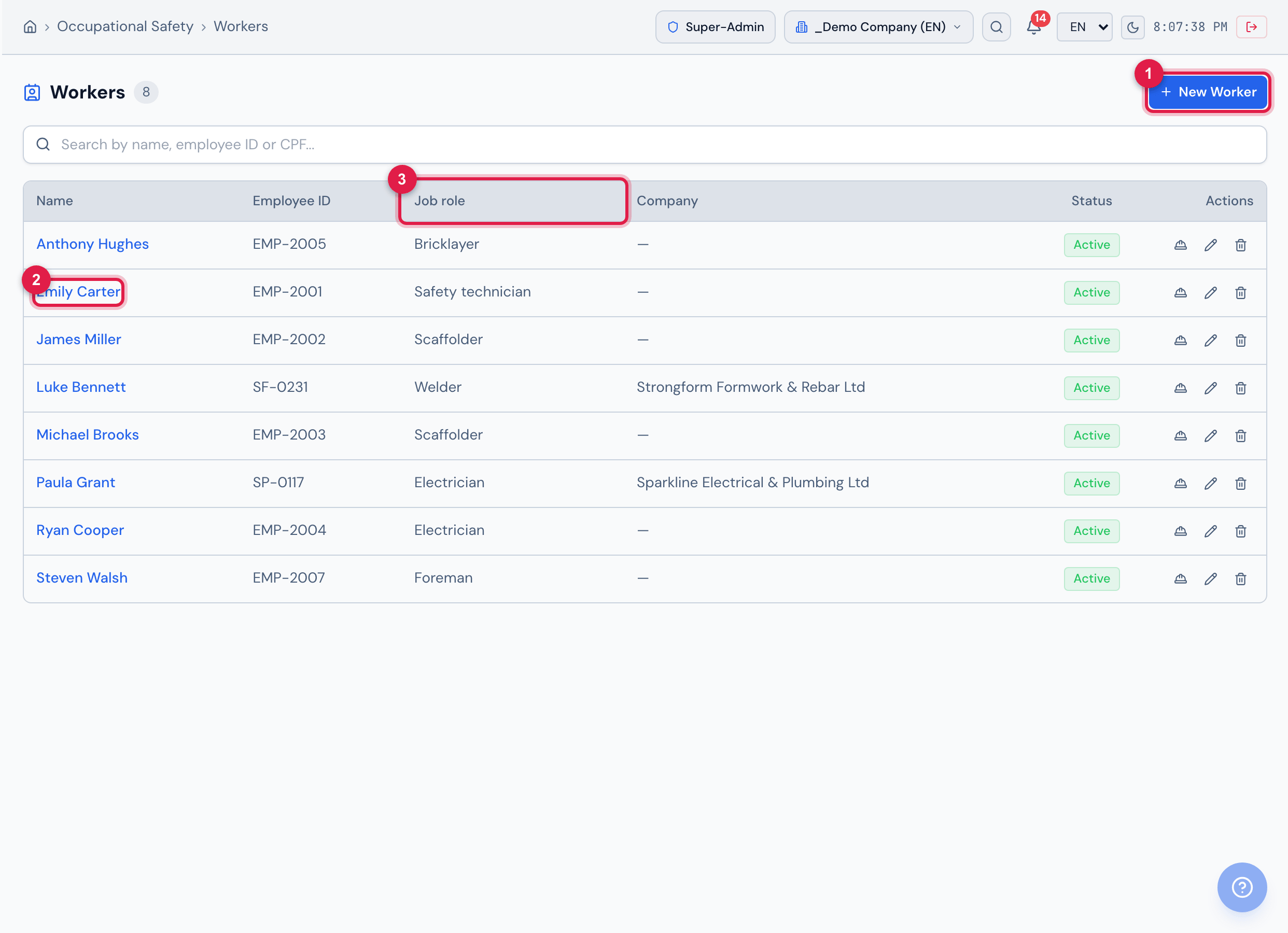
Figure 6. Workers: search by name, employee ID or CPF; columns Name, Employee ID, Job role, Company and Status. On the row: PPE record (hard hat), Edit and Delete.
- 1New Worker.
- 2The name opens the worker record; the hard hat, under Actions, opens the PPE record.
- 3Job role column (list of team roles); next to it, Company (supplier) — third-party workers are also registered here.
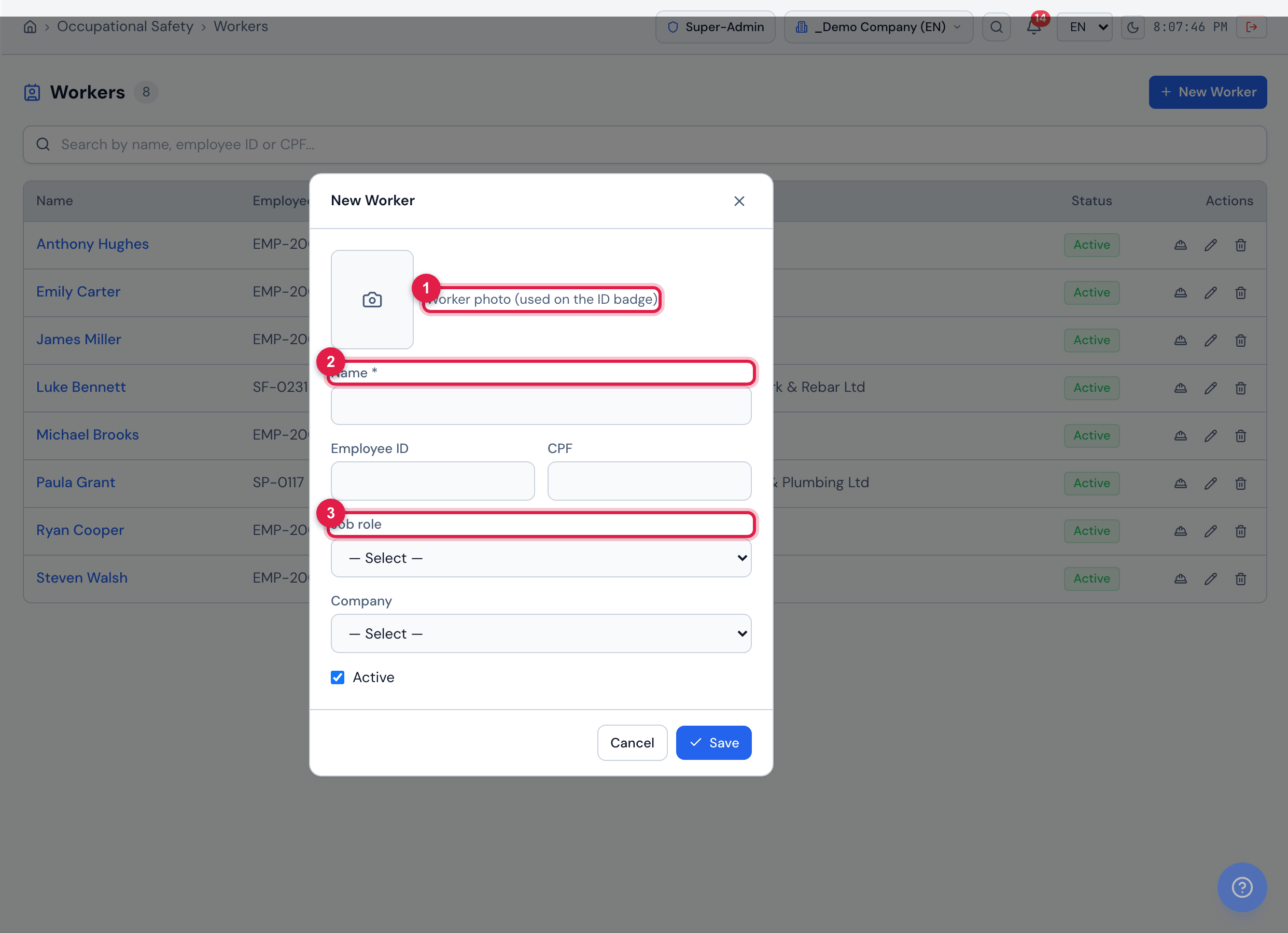
Figure 7. New Worker modal: photo (used on the gatehouse ID badge), Name (required), Employee ID, CPF, Job role, Company and Active; Save. The CPF is validated and cannot be repeated.
- 1Worker photo (used on the ID badge).
- 2Name (required); below, Employee ID and CPF (validated).
- 3Job role — sets the required NRs; below, Company and Active.
Other ways to register: the quick registration inside the training and the APR/PT (name and signature only, for the person who showed up in the field) and the user SST tab (chapter 2).
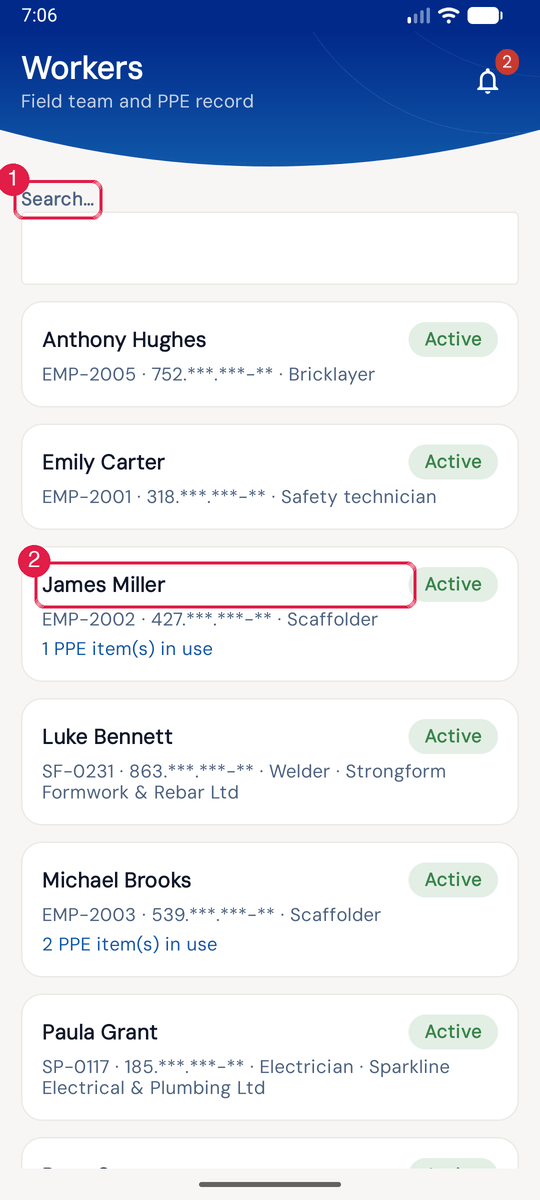
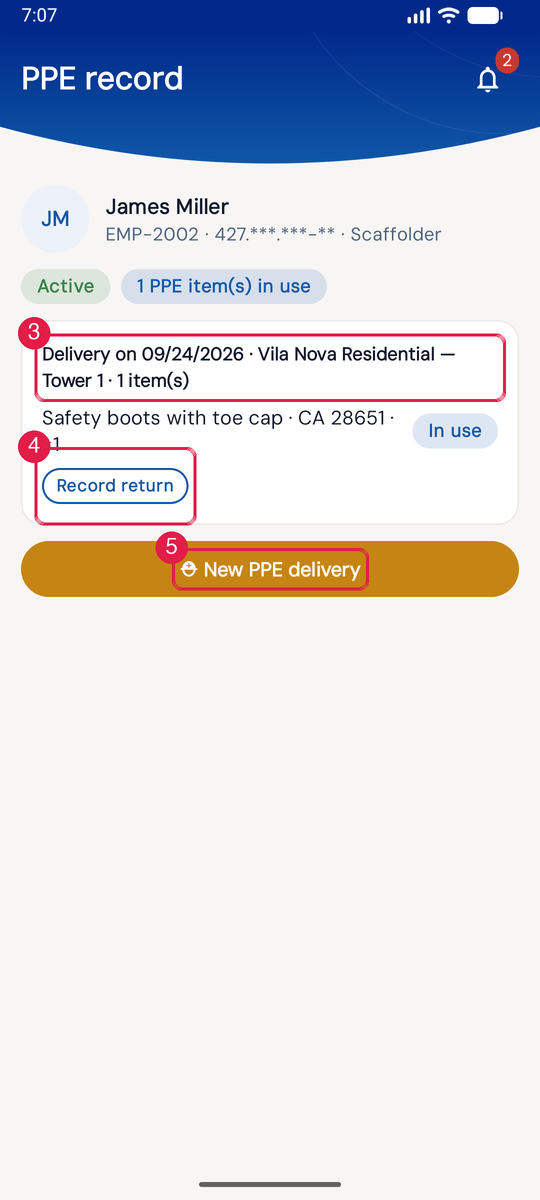
App H2OFigure 8. In the app, Workers is view-only: search by name, employee ID or company; each card shows employee ID, masked CPF, job role, company and, when there is an active delivery, “N PPE item(s) in use”; tapping opens the PPE record with the history by batch and the return.
- 1Search (name, employee ID or company).
- 2Worker card — tapping opens the PPE record.
- 3Delivery batch: date, project and number of items.
- 4Record return of the item (status In use next to it).
- 5New PPE delivery.
Required training (NR): catalog, matrix by job role and expirations
Section titled “Required training (NR): catalog, matrix by job role and expirations”NR-01 (1.7) — the Brazilian regulatory standard on general provisions — requires training suited to the job role, with minimum hours and refreshers. In Required training (NR) you define the catalog (NR-35, NR-10, NR-18, NR-33, NR-06…, with minimum workload, validity rule and refresher) and the matrix by job role (which training each job role requires). From then on the system works out, for each worker, what is up to date, expiring, expired or has no record.
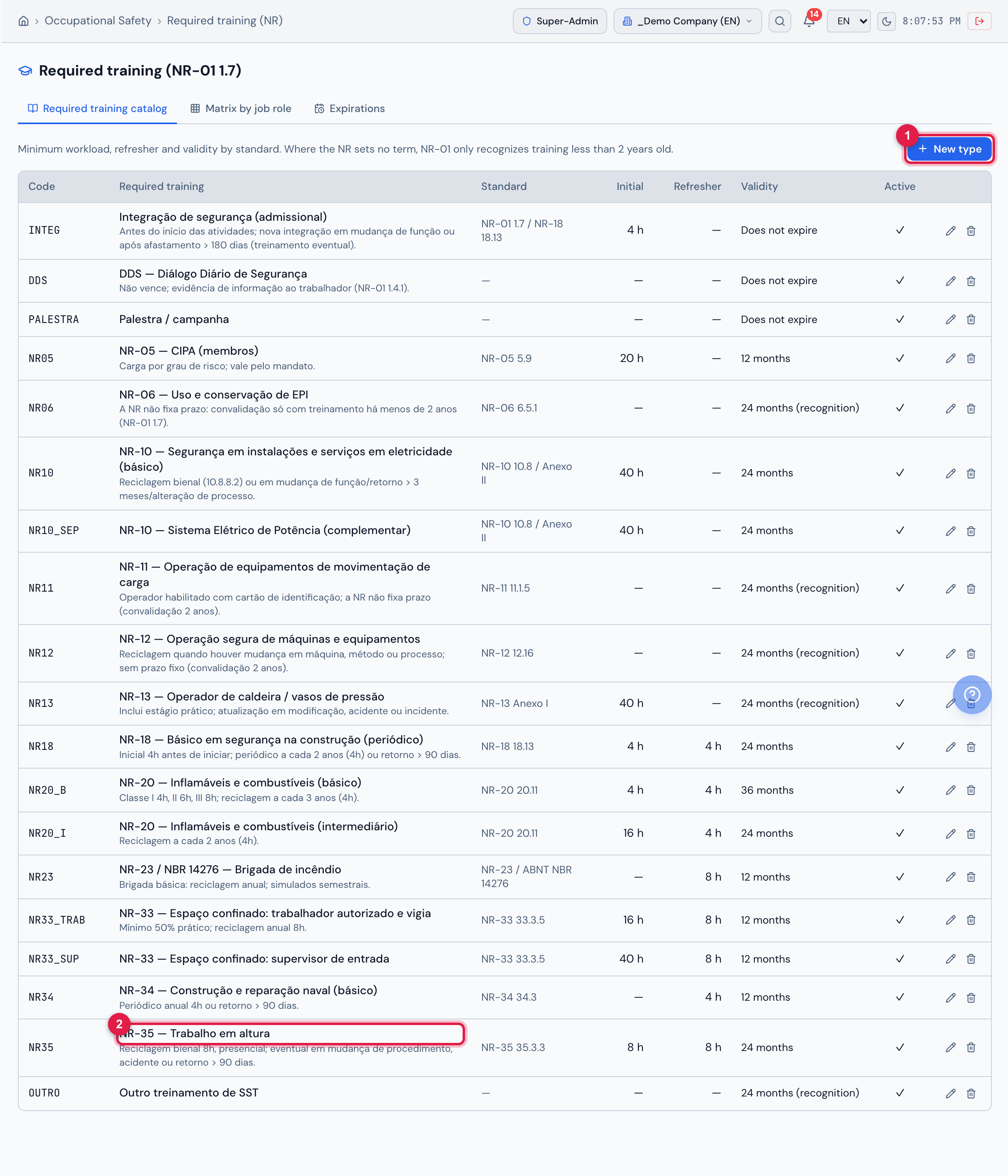
Figure 9. Required training catalog tab: code, name, standard, initial workload, refresher, validity and active. H2O ships with 19 types; New type adds your company’s own.
- 1New type: code, standard/item, name, minimum workload, refresher, validity rule (NR term / 24-month recognition / does not expire), requires hands-on part.
- 2NR-35 row — Work at height: initial 8 h, refresher 8 h, validity 24 months; the pencil edits and the trash can only deactivates.
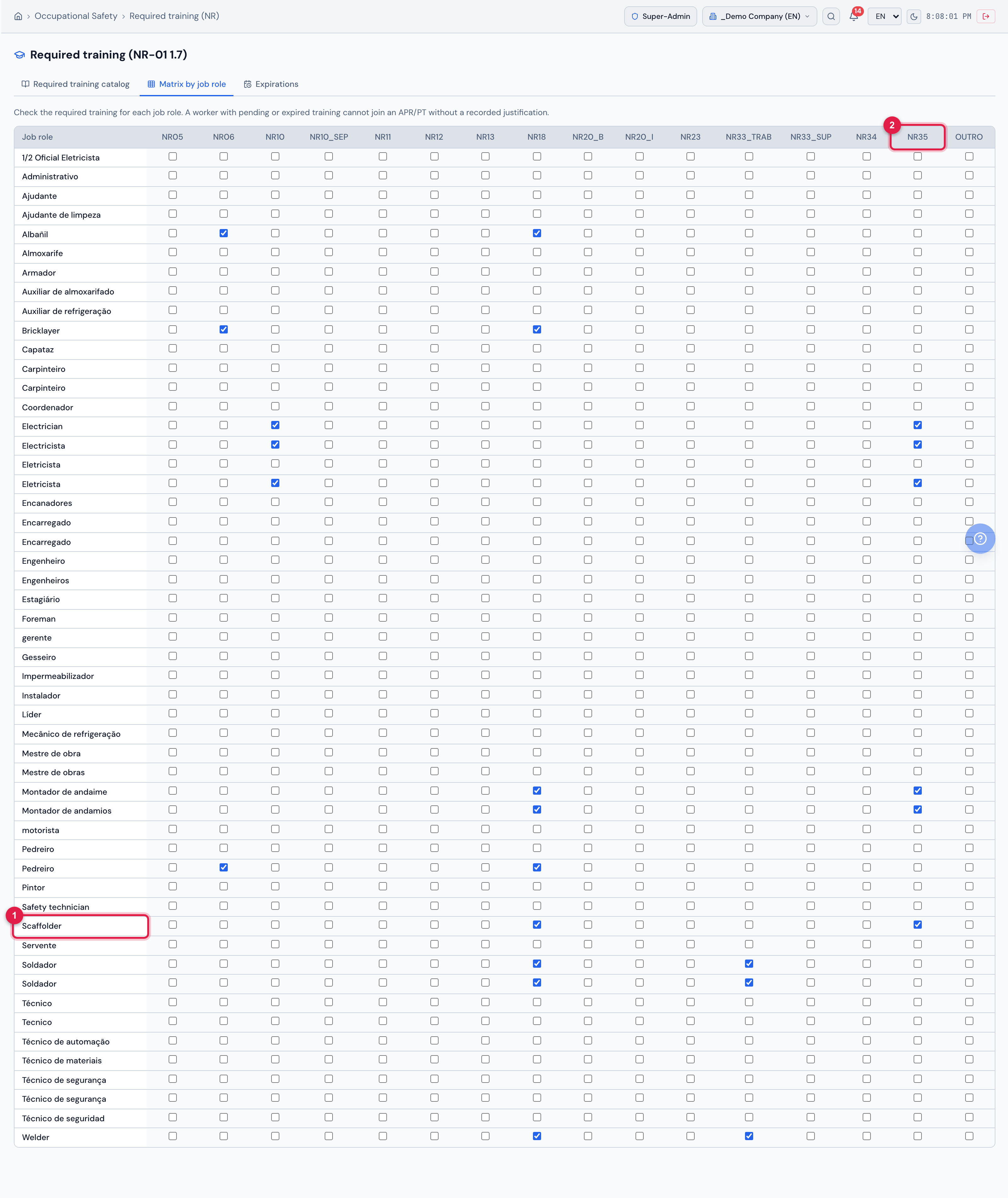
Figure 10. Matrix by job role tab: job roles in the rows, required training in the columns; check what each job role requires — it saves on every click.
- 1Job role row (Scaffolder: NR18 and NR35 checked).
- 2Required training column (NR35) — one click checks or unchecks and saves right away. A worker with a pending issue in the matrix can only join an APR/PT with a justification.
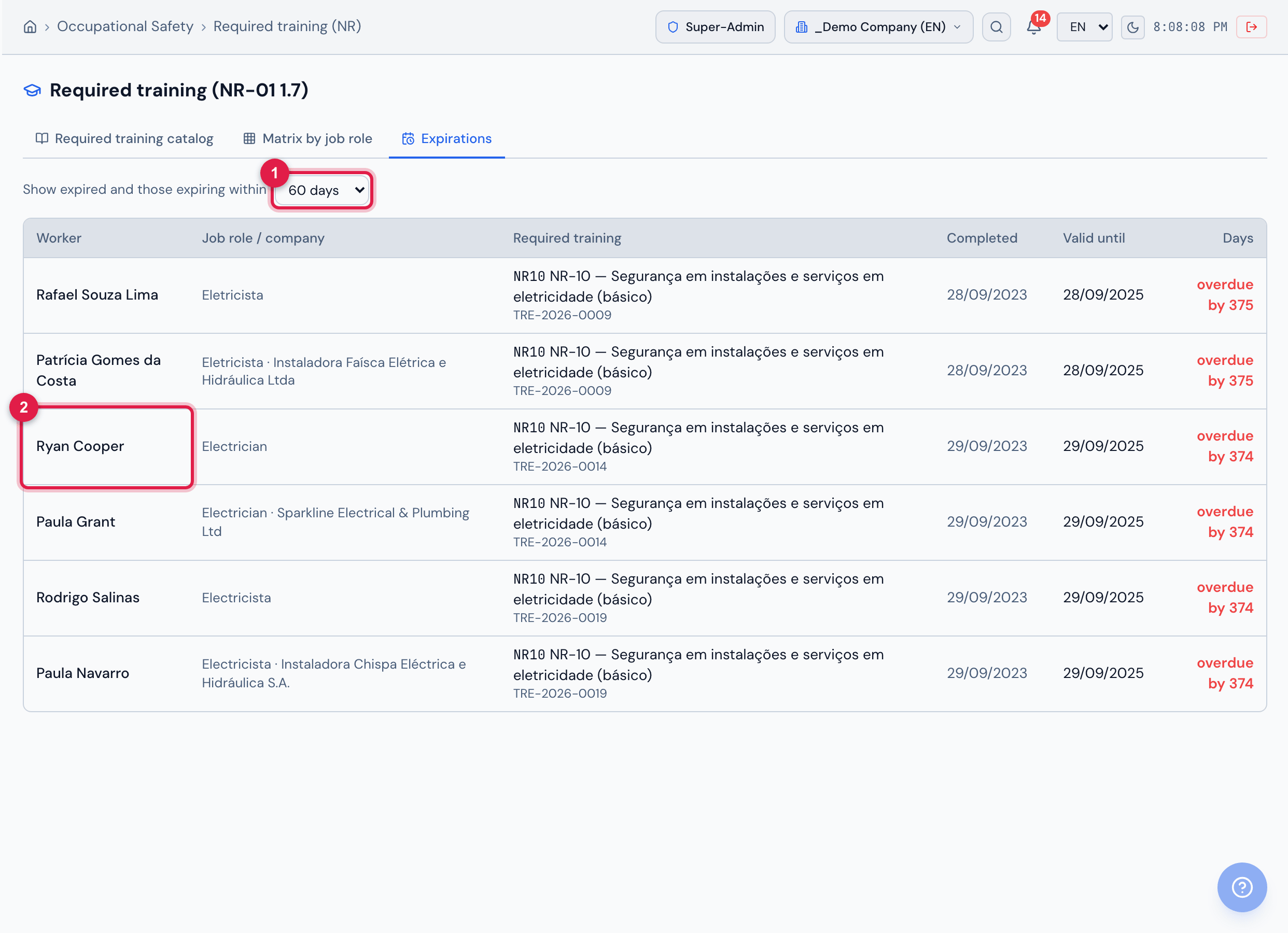
Figure 11. Expirations tab: expired training and training expiring within N days (selector; 60 days in the example) — worker, job role/company, required training (with the training number), completed, validity and days.
- 1Horizon in days.
- 2Worker with expired training (Ryan Cooper’s NR-10, “overdue by 374” days, in red in the Days column).
Trainings and toolbox talks (web)
Section titled “Trainings and toolbox talks (web)”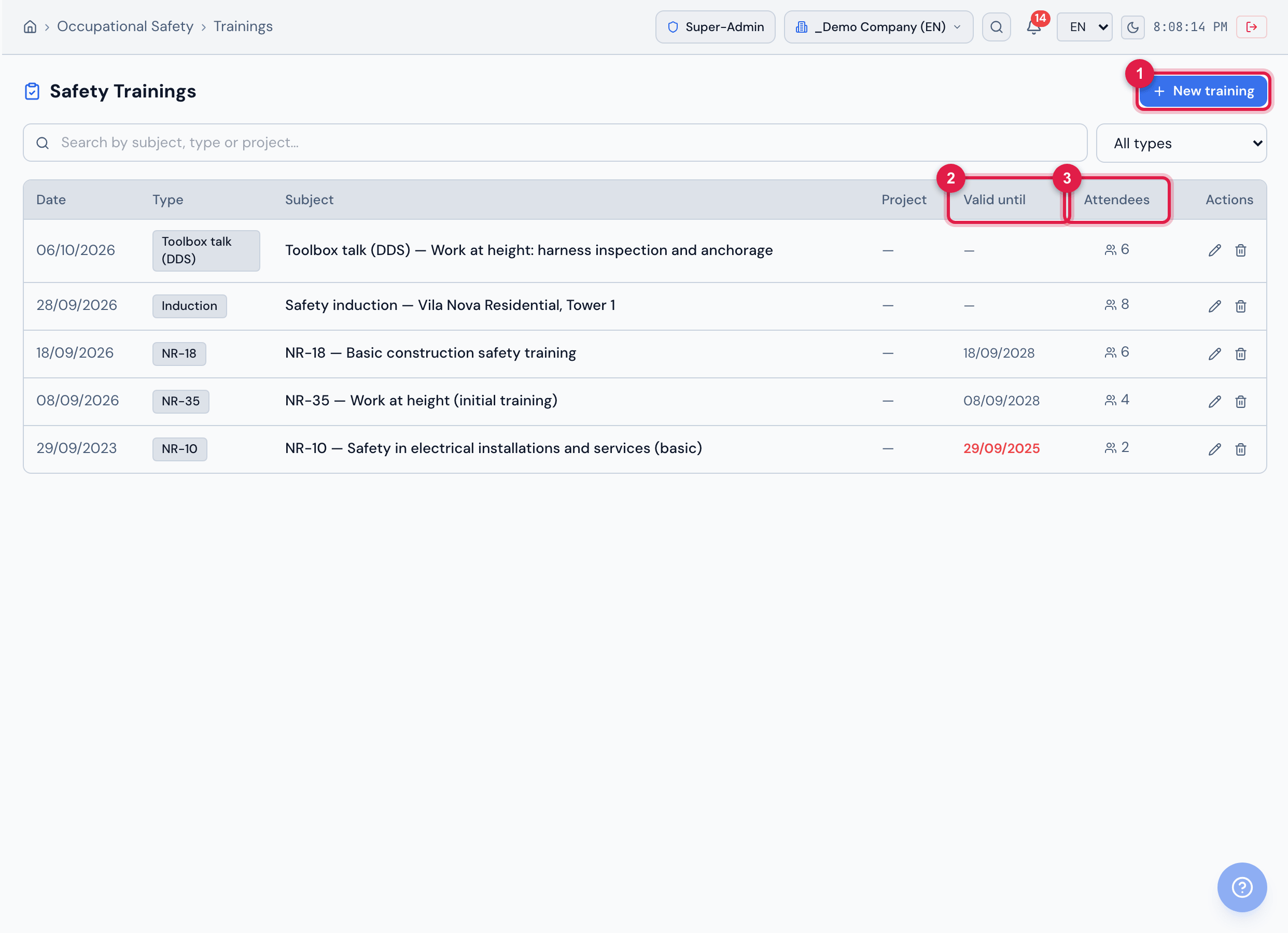
Figure 12. Safety Trainings: search by subject, type or project and the All types filter; columns Date, Type (Toolbox talk (DDS), Induction, NR-18, NR-35, NR-10…), Subject, Project, Valid until (red if expired) and Attendees.
- 1New training.
- 2Validity of the resulting training credential.
- 3Attendees — total number of participants.
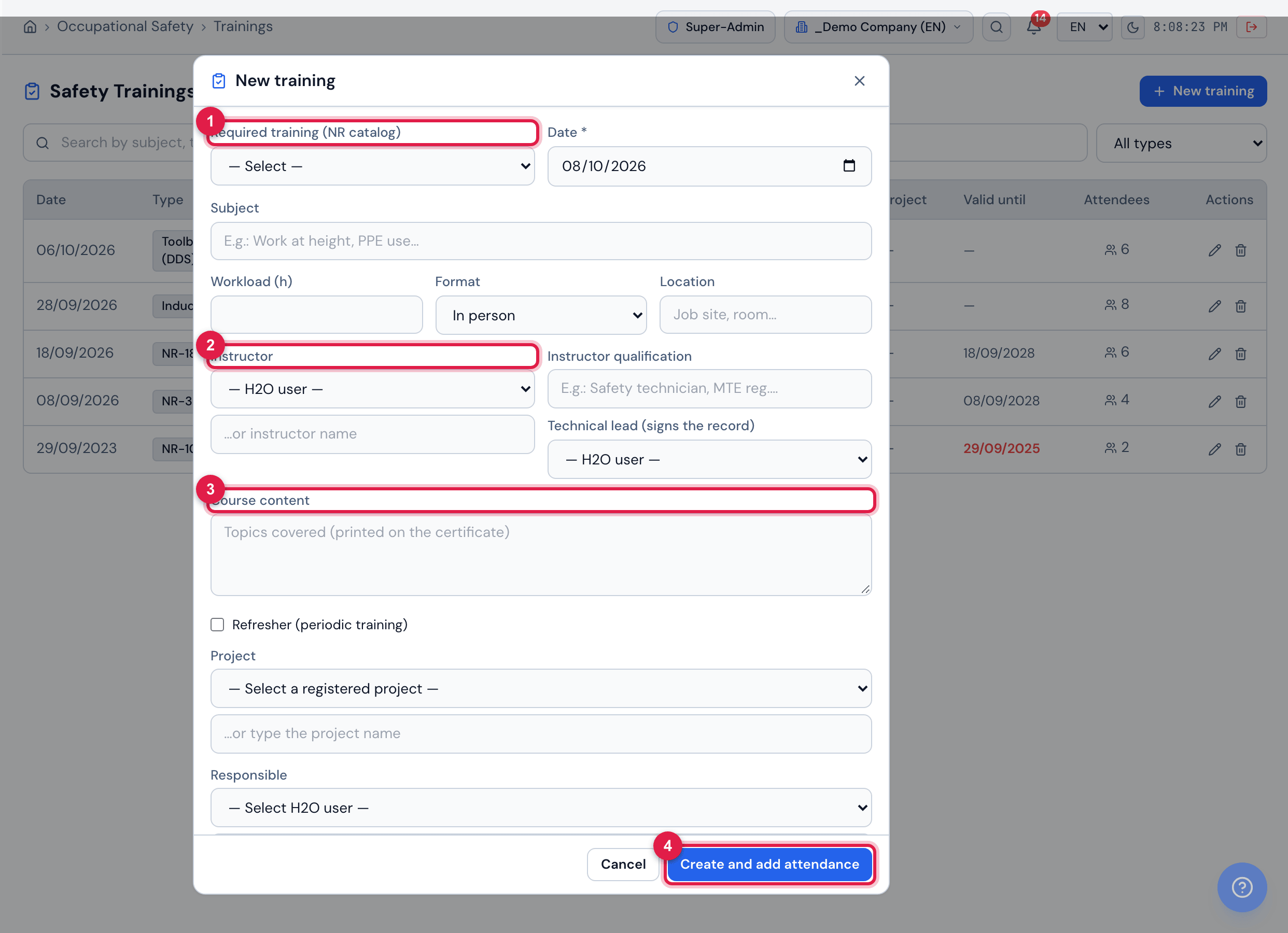
Figure 13. New training: the Required training from the catalog suggests the minimum workload; date, subject, workload, format, location, instructor and qualification, technical lead (who signs the record), course content, refresher, project and responsible person. Create and add attendance takes you to the detail.
- 1Required training (NR catalog) → suggested minimum workload.
- 2Instructor (H2O user or free text name); next to it, the qualification and the technical lead who signs.
- 3Course content (printed on the certificate); below, Refresher.
- 4Create and add attendance.
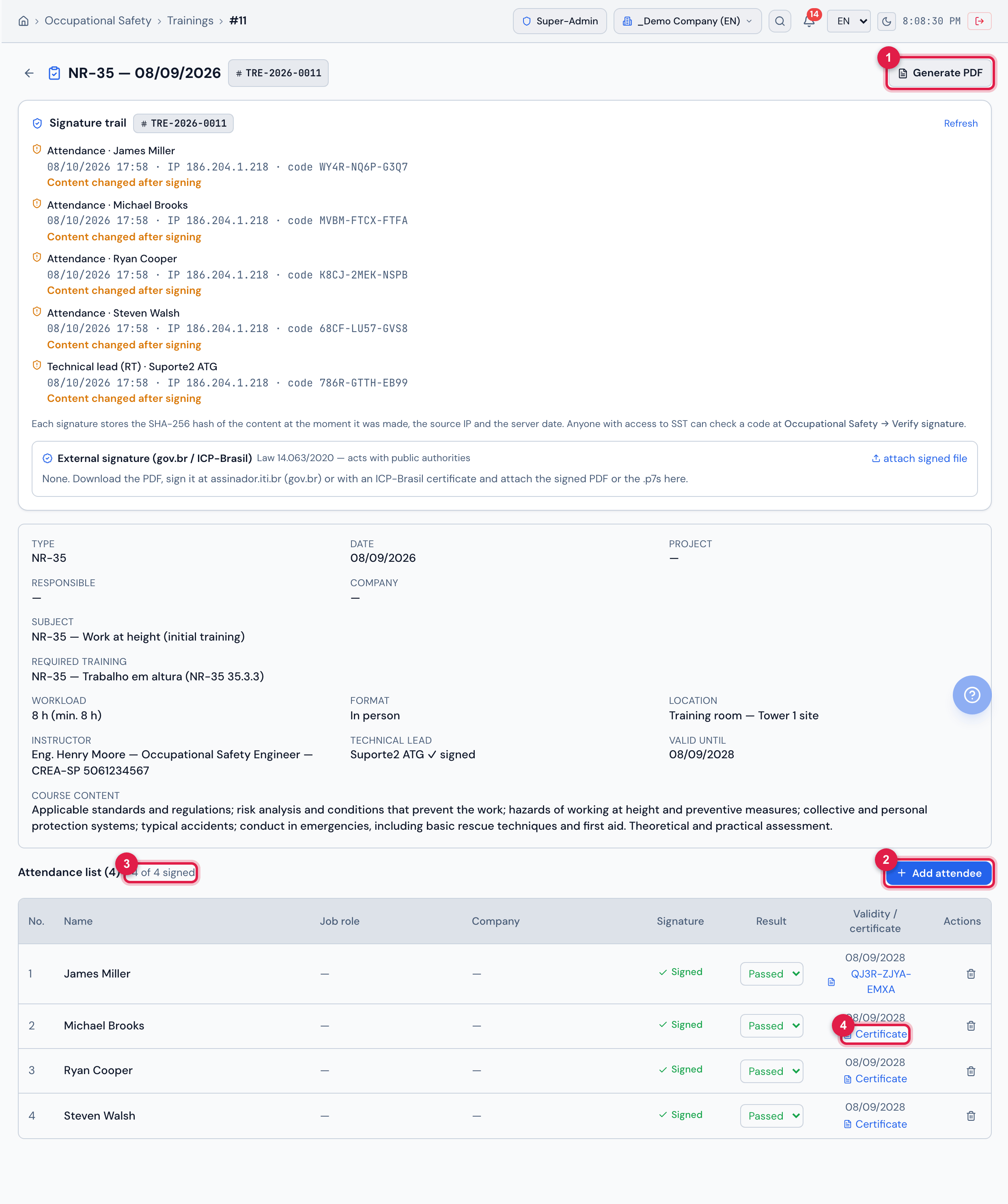
Figure 14. Detail of the NR-35 training (TRE-2026-0011): Generate PDF, signature trail (four attendees and the RT, with date, IP and code — shown here in orange, “Content changed after signing”, because the training data was edited after it was signed; chapter 10 explains the states), the gov.br/ICP-Brasil external signature block, data panel (type, date, subject, required training, workload, instructor, RT “signed”, valid until 08/09/2028, course content) and the Attendance list (4) — Add attendee, signature, result (Passed / Failed / Absent) and validity/certificate. Sign as RT appears while the RT has not signed.
- 1Generate PDF — the signed attendance list.
- 2Add attendee: Select from list (several) or Quick registration.
- 34 of 4 signed counter of the attendance list.
- 4Certificate — a pass creates the validity and a code.
- New training → choose the Required training (e.g., NR-35 Work at height — initial 8 h), date, workload, instructor, RT and project → Create and add attendance.
- In Add attendee, check the workers (several at once) and save.
- Collect each attendee’s signature (drawn) and set the result. Passed → the system records the validity (catalog rule) and unlocks the Certificate as a PDF with a code.
- Click Sign as RT and Generate PDF — the signed attendance list is the record required by NR-01.
Toolbox talks and training in the app
Section titled “Toolbox talks and training in the app”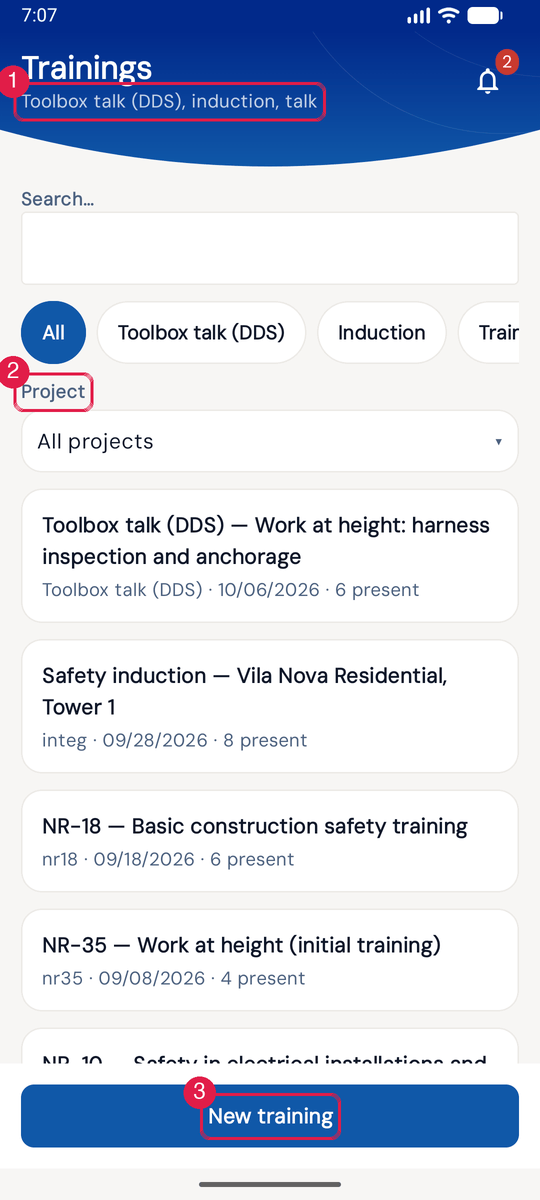
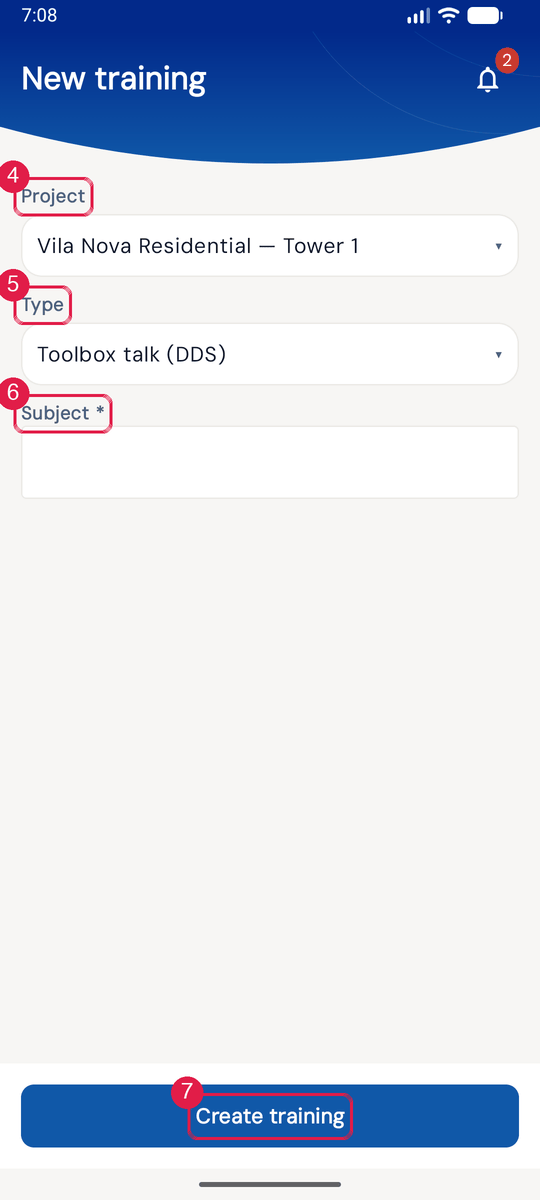
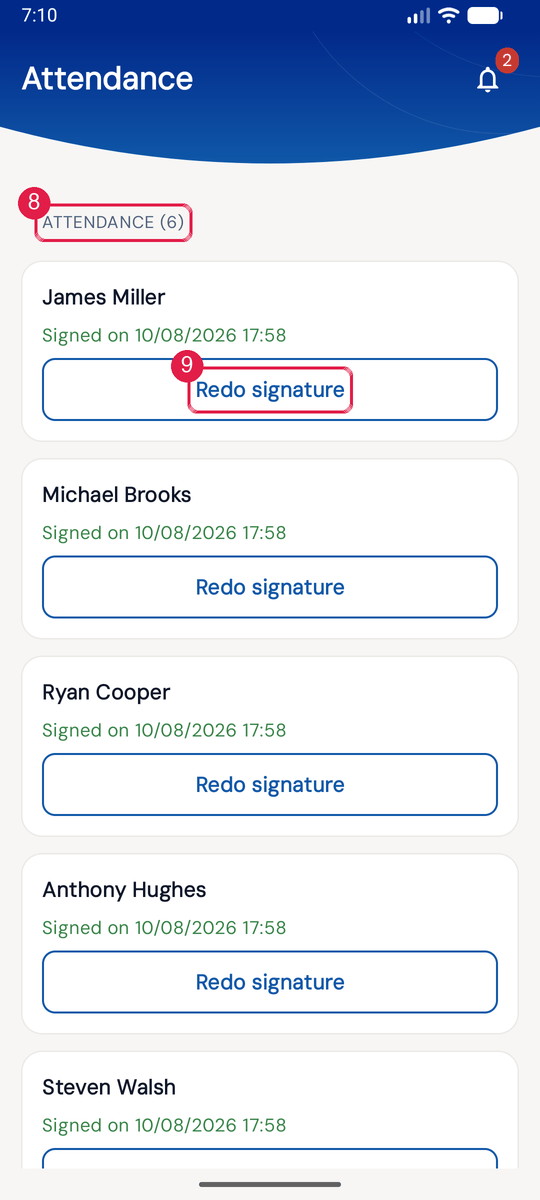
App H2OFigure 15. In the app, a toolbox talk takes three taps: New training (project, type Toolbox talk (DDS)/Induction/Training/Talk and subject) → Add attendees (multiple selection: “a fifteen-person toolbox talk is not entered one by one”) → Sign next to each name. The responsible person is the signed-in user. It is sent on the next sync; the RT signs and the result is set later, on the web.
- 1List subtitle (Toolbox talk (DDS), induction, talk); below, search and the chips All / Toolbox talk (DDS) / Induction / Training.
- 2Project selector — filters the list.
- 3New training.
- 4Project of the training.
- 5Type: Toolbox talk (DDS), Induction, Training or Talk.
- 6Subject (required).
- 7Create training — goes straight to attendance.
- 8Attendance (6) header: the attendees already checked, each name with “Signed on <date time>”.
- 9Redo signature — reopens the signature pad for that name.
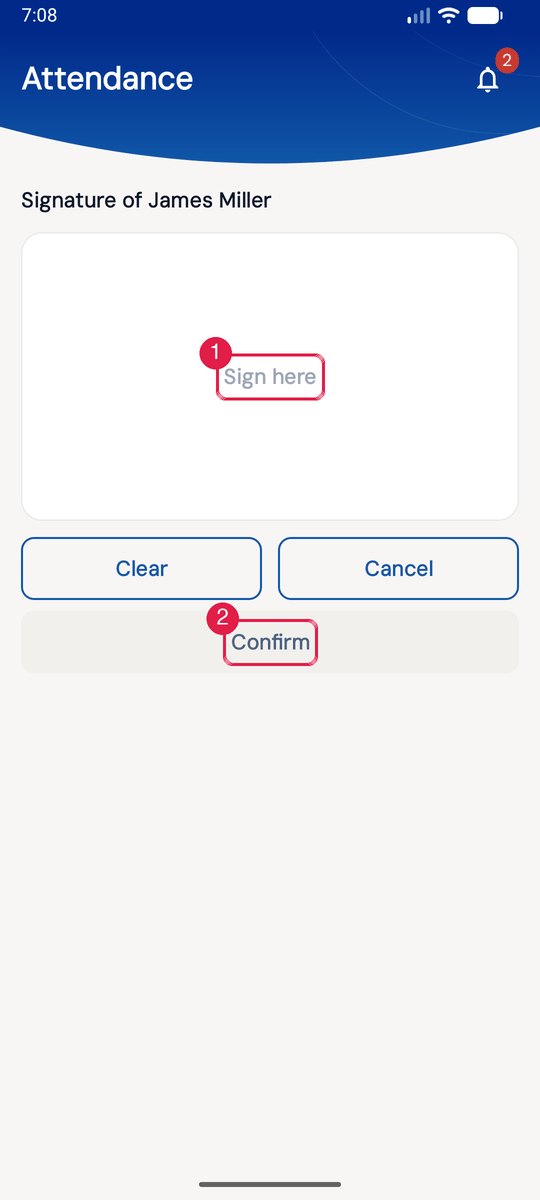
App H2OFigure 16. The app signature pad (“Signature of <name>”, Clear, Cancel, Confirm) is the same for attendance, team acknowledgment, work crew, PPE and PT revalidation.
- 1“Sign here” area.
- 2Confirm (above it, Clear and Cancel).
SST work instructions by job role
Section titled “SST work instructions by job role”NR-01 (1.4.1 “b”) requires the employer to inform the risks of the job role through a work instruction (OS) acknowledged by the worker. In SST work instructions (OS) you draft the OS for each job role (activities, risks, control measures, required PPE, procedures, prohibitions, emergency), publish and sign it as issuer, and collect the signed acknowledgment of each worker in that job role. Only one OS is active per job role; editing an active one creates a new version (v+1) and the acknowledgment must be collected again.
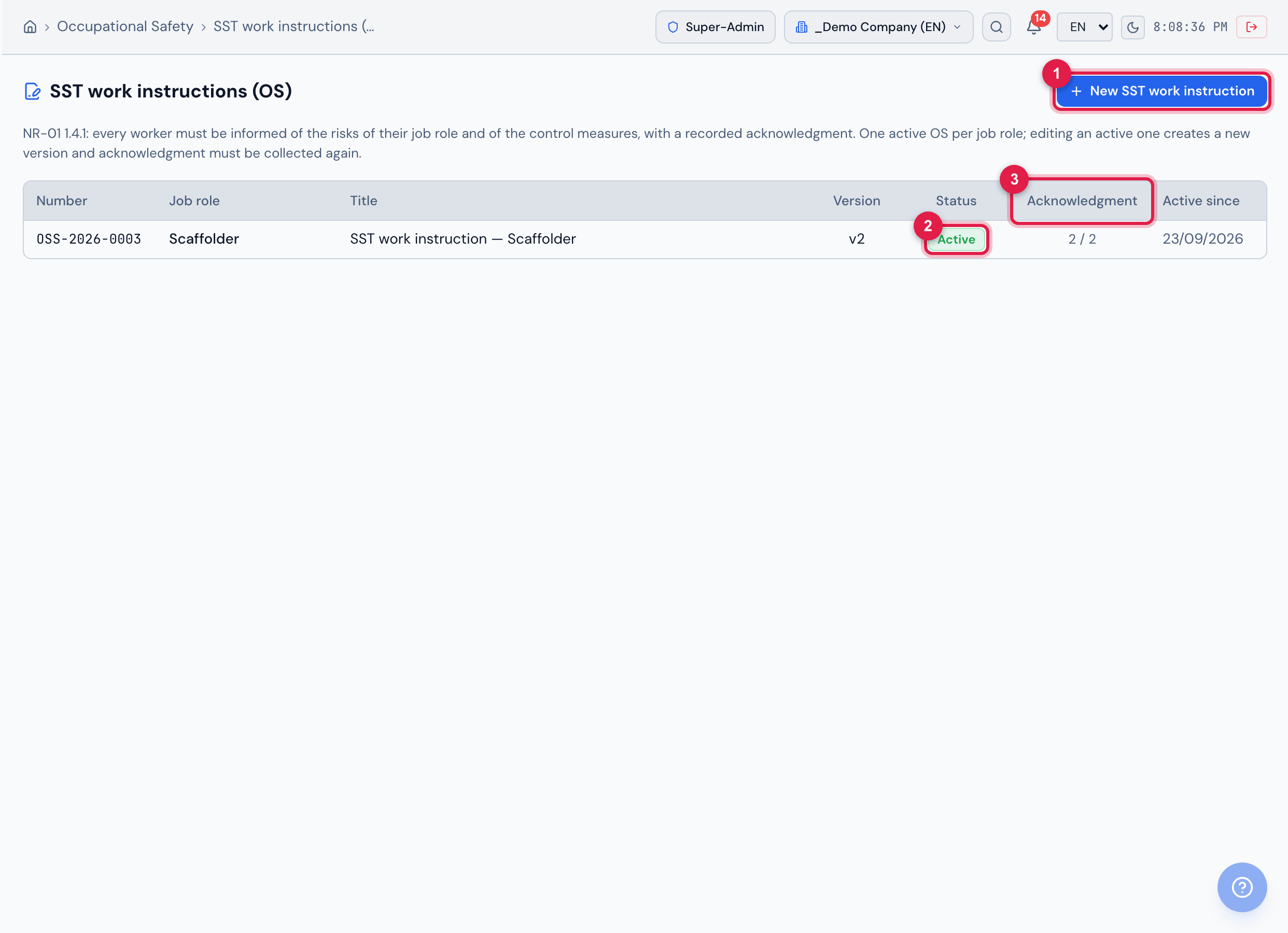
Figure 17. SST work instructions (OS): number (OSS-YYYY-000N), job role, title, version, status (Draft, Active or Revoked — Active in the example), acknowledgment (x/y) and active since.
- 1New SST work instruction (job role and title).
- 2Status (Active); on the left, the version (v2).
- 3Acknowledgment x/y — how many workers in the job role have already signed.
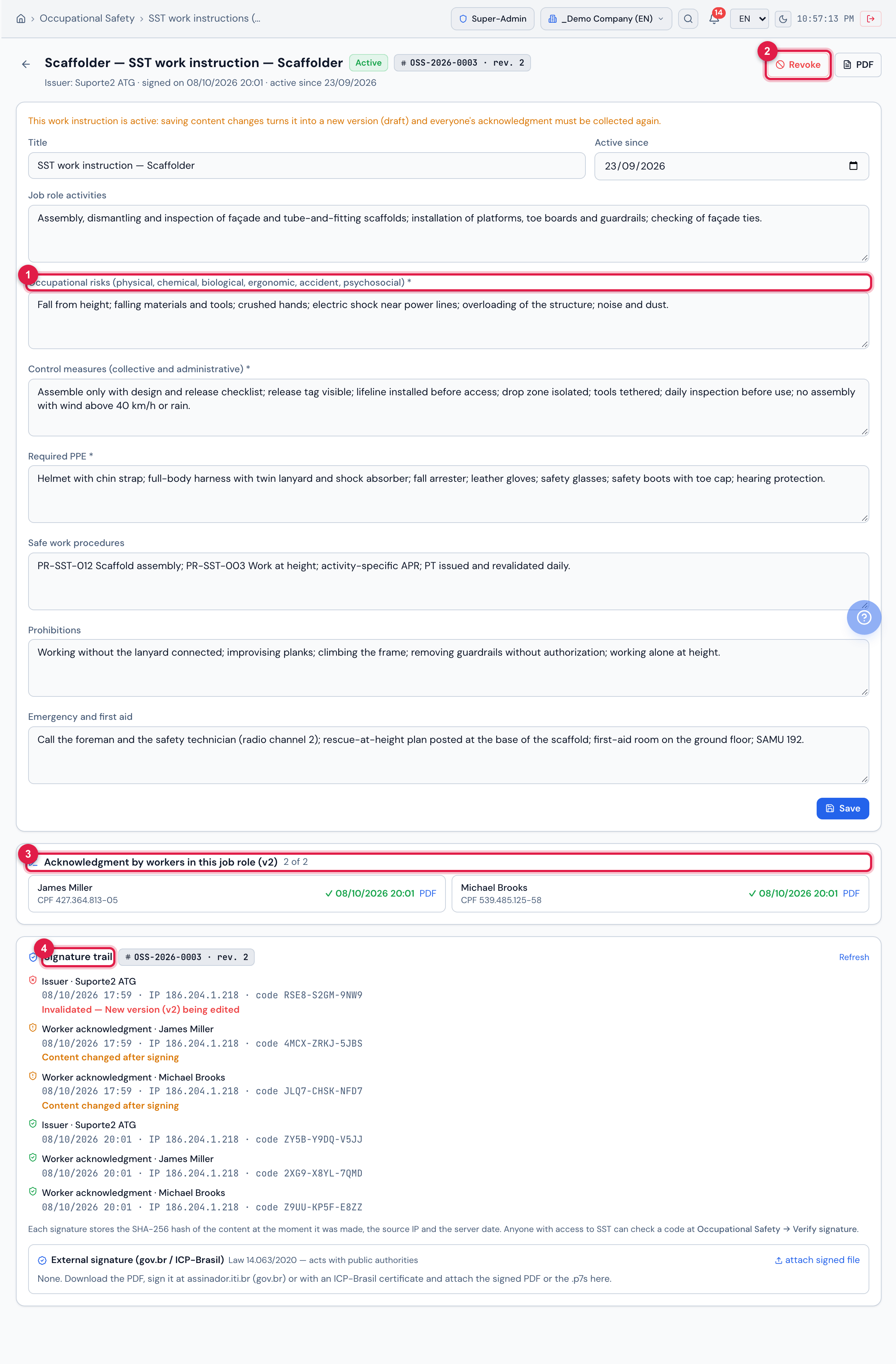
Figure 18. Detail of an active OS: the seven text sections, Revoke, PDF and Save (saving a content change on an active OS creates a new draft version), the Acknowledgment by workers in this job role (v2) block with the date and individual PDF of those who have signed, and the signature trail. Publish and sign appears on a draft OS; “Sign acknowledgment” (statement + drawn signature) appears for those who have not signed yet.
- 1Occupational risks — a required section, like Control measures and Required PPE; the others (activities, procedures, prohibitions, emergency) are optional.
- 2Revoke (next to it, PDF).
- 3Acknowledgment by workers in this job role (v2) — 2 of 2, each one with date and individual PDF.
- 4Signature trail: issuer and each worker’s acknowledgment, with date, IP and code — the v1 signatures stay in the history (issuer “Invalidated”, acknowledgments “Content changed after signing”) above the v2 ones.
PPE: acknowledgment, delivery, record and return
Section titled “PPE: acknowledgment, delivery, record and return”The PPE catalog is the PPE/CPE asset category (Assets), where each item has its CA (Certificate of Approval). The delivery is recorded on the worker’s PPE record (web) or on the PPE screen of the app, always with the signature of the person receiving it — NR-06 (the Brazilian PPE standard) requires the signed record. The statement of responsibility printed on the record PDF is set up once in PPE acknowledgments.
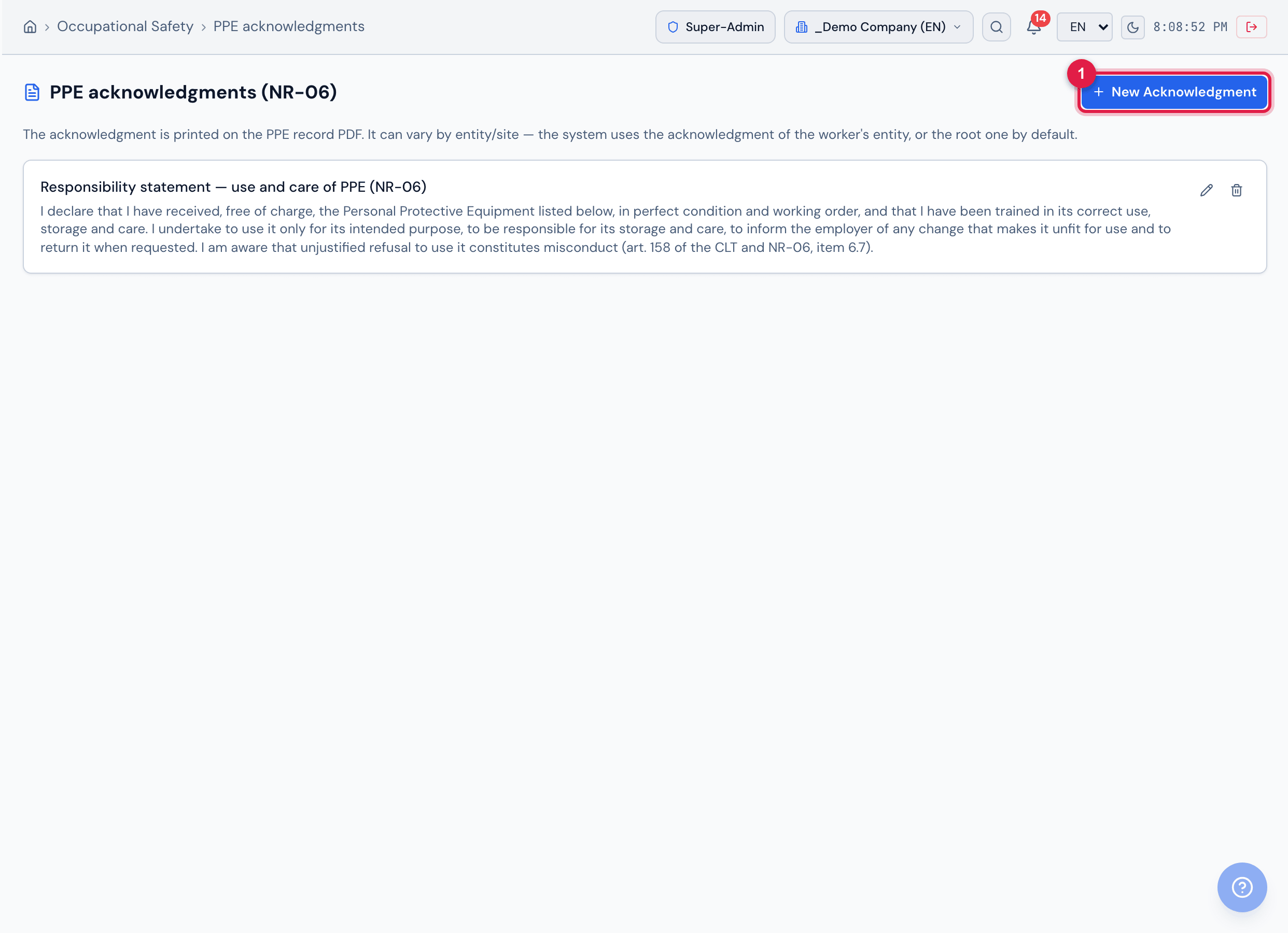
Figure 19. PPE acknowledgments (NR-06): one acknowledgment per entity (when the entity has none, the root one applies); each acknowledgment shows title and text, with a pencil to edit and a trash can. Without an acknowledgment, the record PDF comes out without the legal text.
- 1New Acknowledgment: title and text.
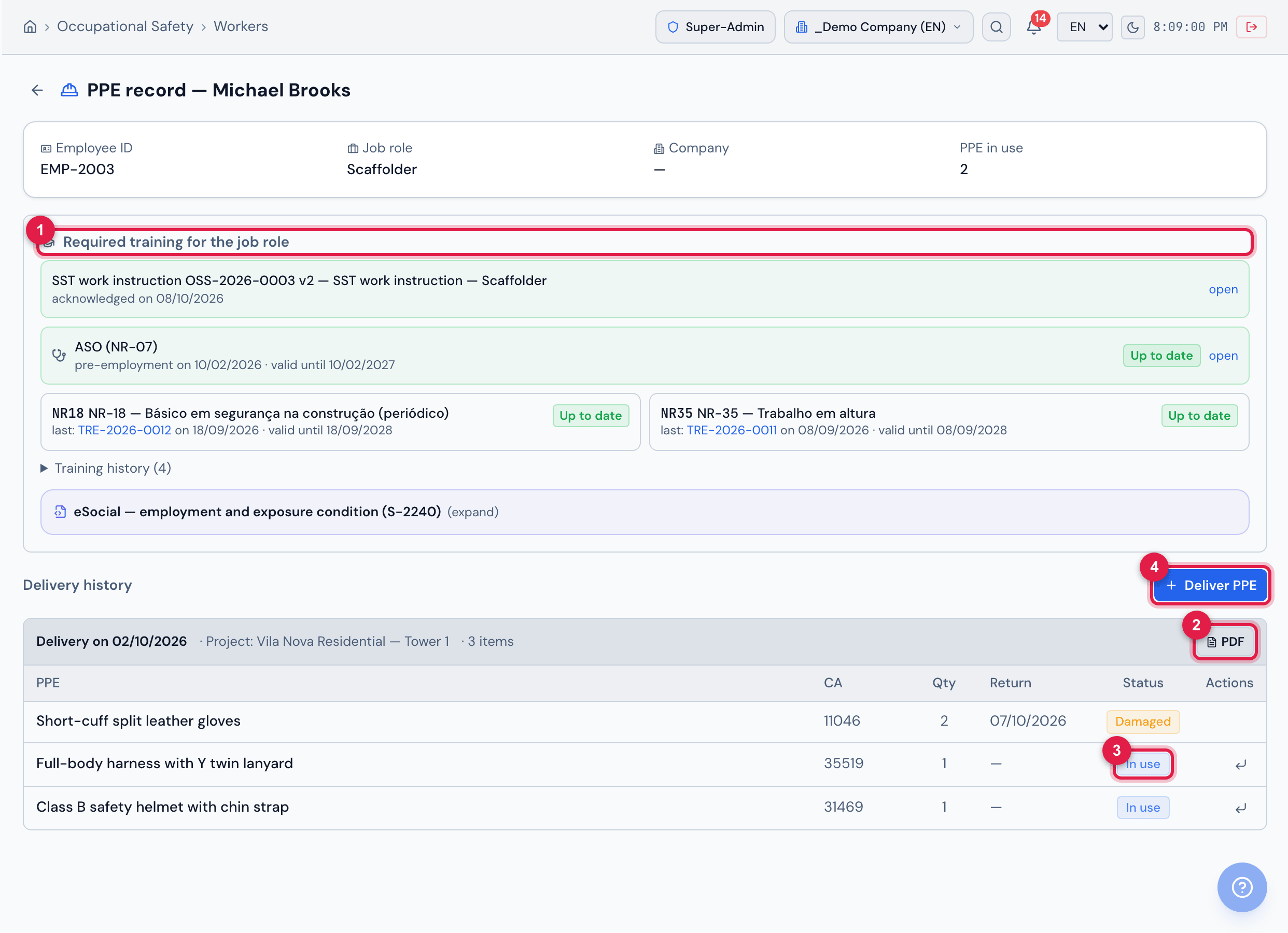
Figure 20. Worker PPE record: header with employee ID, job role, company and PPE in use; status block (required training, SST work instruction, ASO, training history, eSocial S-2240); Delivery history by batch with PDF — in the example, hard hat, full-body harness and glove (returned as damaged); Deliver PPE button.
- 1Worker status: required training for the job role (up to date / expiring / expired / no record), SST work instruction, ASO, trainings and eSocial.
- 2Delivery batch with PDF (record + NR-06 acknowledgment).
- 3Item status (In use; Returned, Lost or Damaged after the return) — the arrow under Actions records the return.
- 4Deliver PPE.
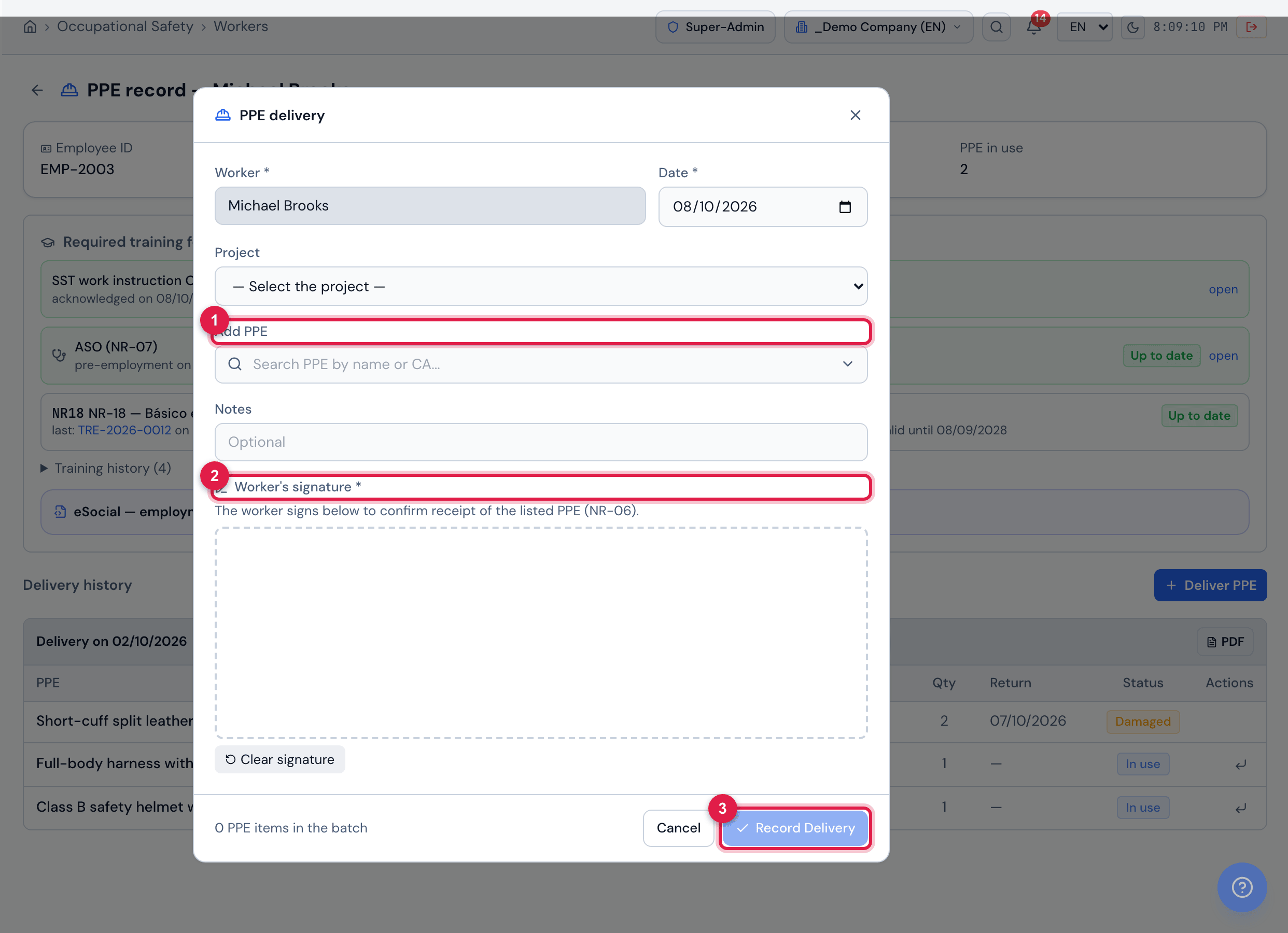
Figure 21. PPE delivery modal: worker, date, project, Add PPE (search the catalog by name or CA), notes and the drawn worker’s signature (with Clear signature). Record Delivery creates the batch; the footer counts the PPE items in the batch.
- 1Add PPE — searches the PPE/CPE catalog by name or CA.
- 2Worker’s signature (required).
- 3Record Delivery — enabled when there are items and a signature.
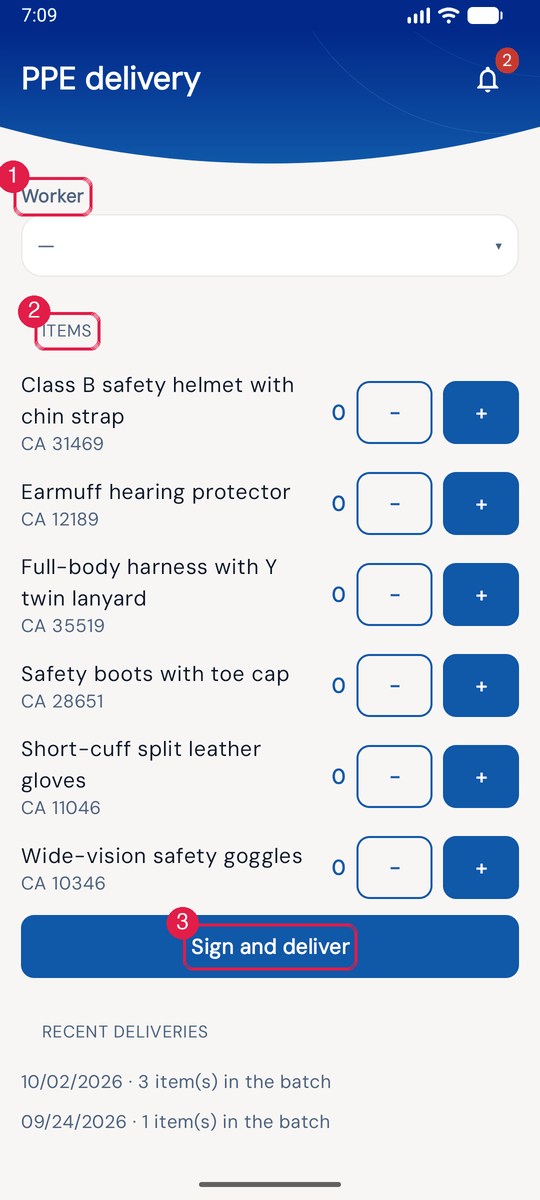
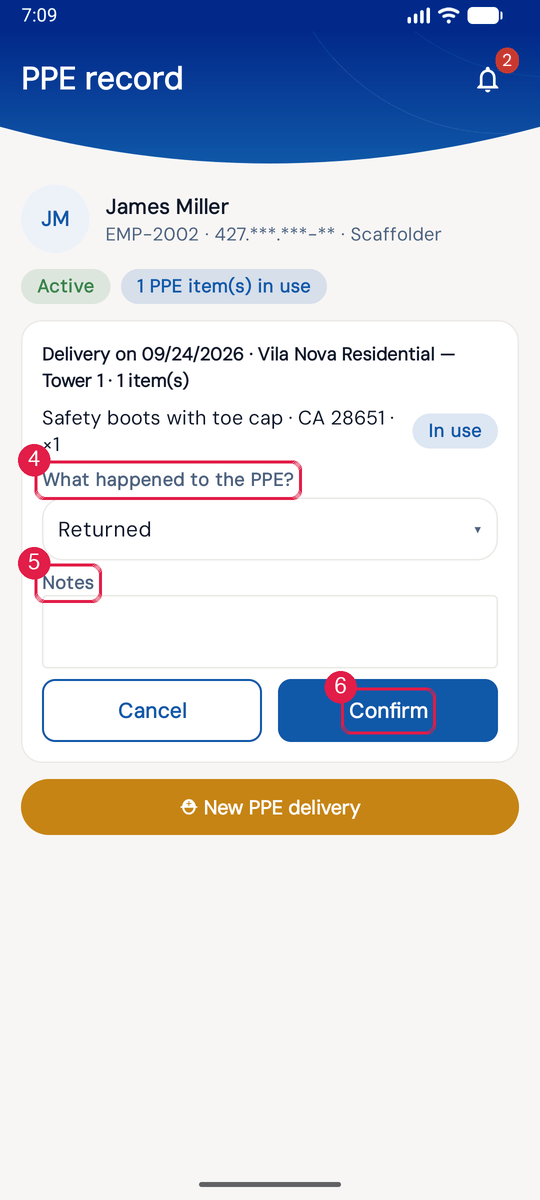
App H2OFigure 22. In the app, PPE delivers in batches: choose the worker, adjust the quantities (−/+) of the catalog items and tap Sign and deliver — one signature closes the whole batch. The return is on the worker’s record: “What happened to the PPE?” (Returned, Lost, Damaged) + notes and Confirm.
- 1Worker receiving the PPE.
- 2Items: PPE catalog (PPE/CPE asset category) — safety helmet, earmuff hearing protector, full-body harness, safety boots, leather gloves and safety goggles — each with its CA and the quantity set with −/+.
- 3Sign and deliver (one signature per batch); below, the recent deliveries.
- 4Return on the record: “What happened to the PPE?” — Returned, Lost or Damaged.
- 5Return notes.
- 6Confirm (or Cancel).
ASO — occupational health exams (NR-07)
Section titled “ASO — occupational health exams (NR-07)”The ASO (Occupational Health Certificate, NR-07) is health data: the screen requires its own right, every view or download is logged (LGPD, the Brazilian data protection law) and there is no ICD code — only exam type, validity and fitness. The ASO regime only starts to block APR/PT once the entity has at least one ASO on file; from then on, an expired ASO, an unfit result, no record or an exit exam as the last exam becomes a pending issue (a justification is possible).
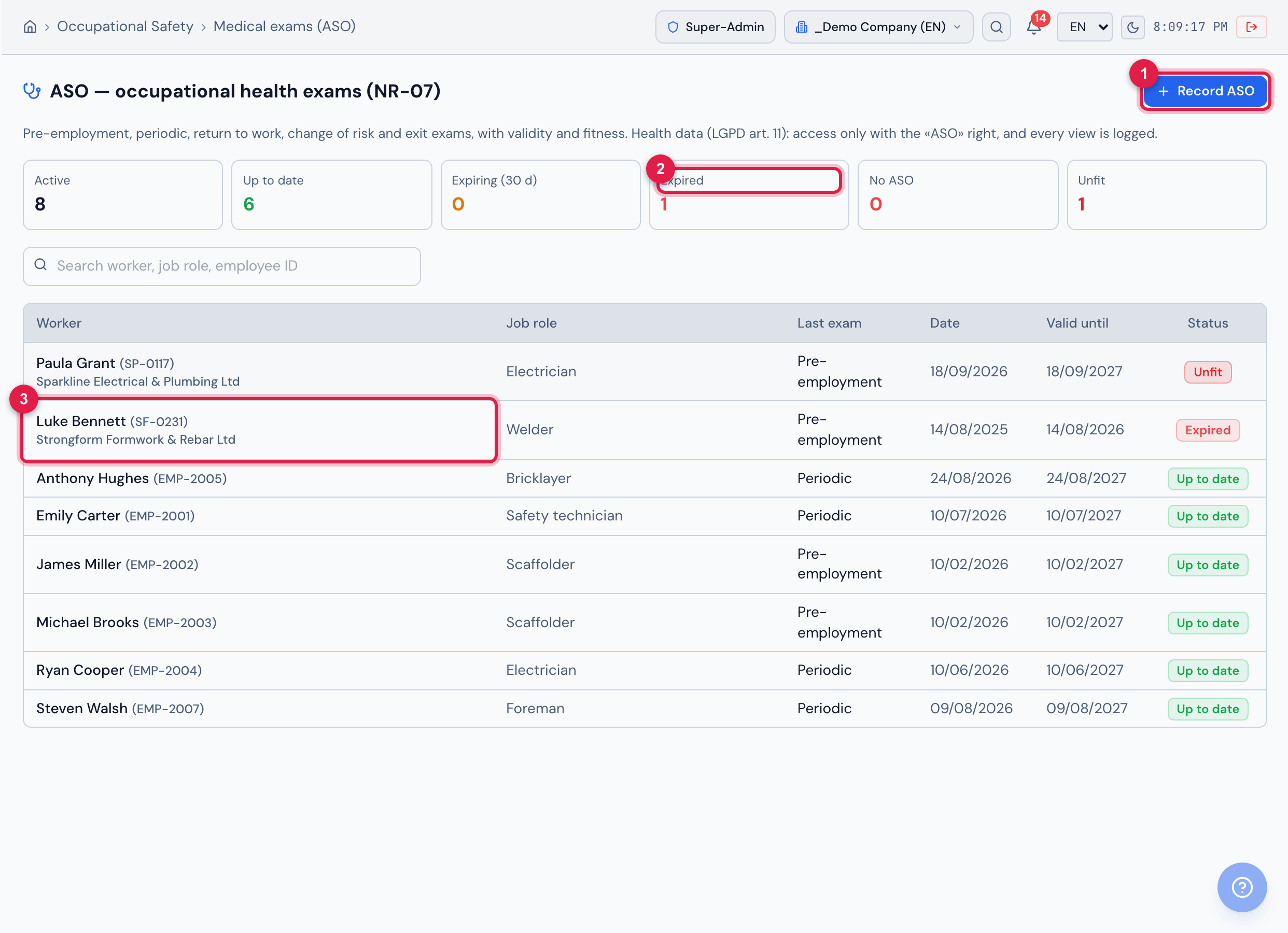
Figure 23. ASO — occupational health exams (NR-07): filter cards (Active, Up to date, Expiring (30 d), Expired, No ASO, Unfit), search by worker, job role or employee ID, and the list of active workers with job role, last exam, date, valid until and status (Up to date, Expired, Unfit).
- 1Record ASO.
- 2Expired filter card (1 in the example).
- 3Row of the worker with an expired ASO (Luke Bennett: pre-employment exam on 14/08/2025, valid until 14/08/2026).
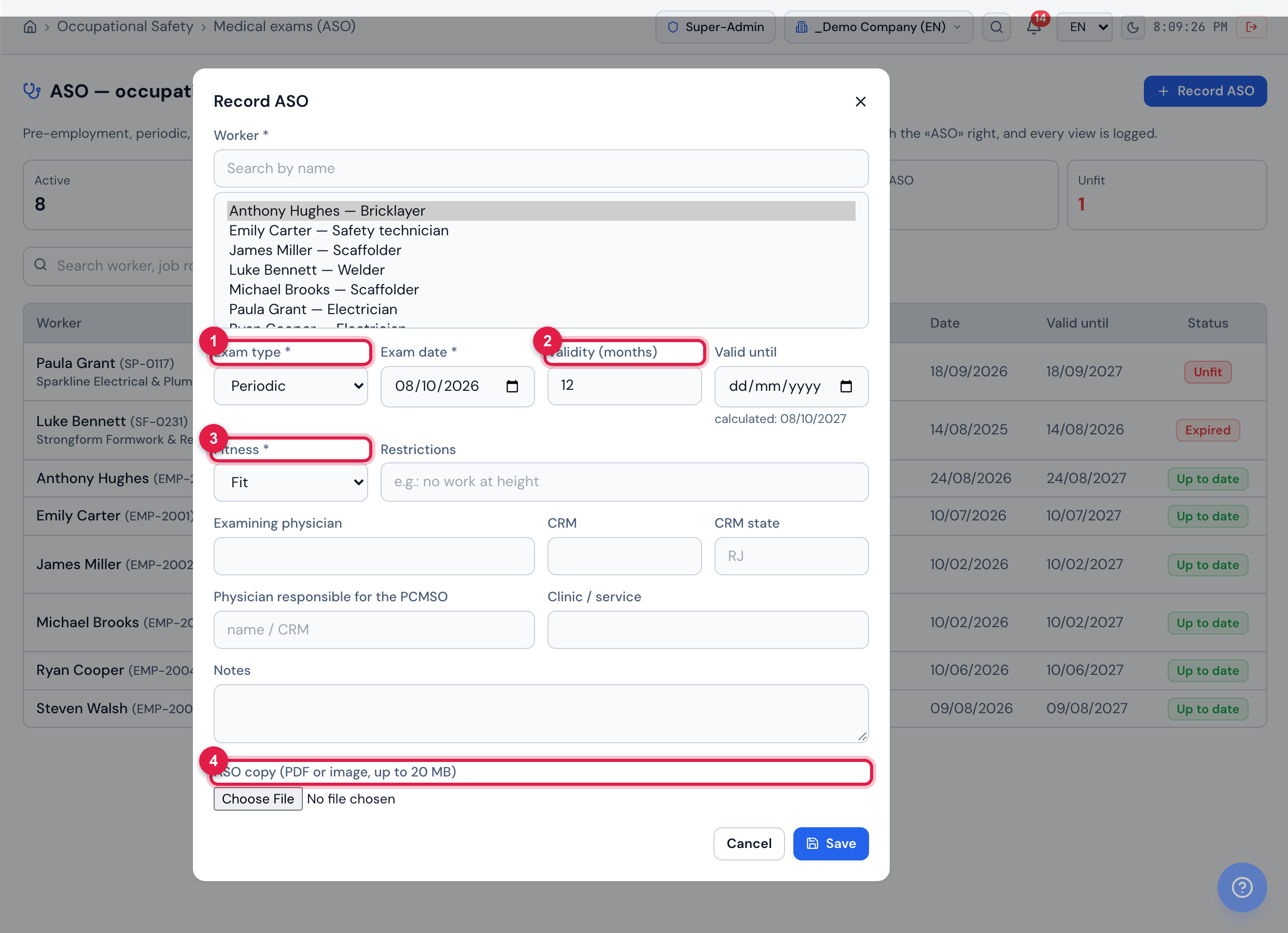
Figure 24. Record ASO: worker, type (Pre-employment, Periodic, Return to work, Change of risk, Spot monitoring, Exit — the eSocial types), date, validity in months (default 12; exit and monitoring exams do not expire), fitness (Fit, Fit with restrictions, Unfit — restrictions required), examining physician/CRM/state, PCMSO physician, clinic, notes and copy (PDF or image, up to 20 MB); Save.
- 1Exam type (eSocial).
- 2Validity in months — “Valid until” is calculated next to it.
- 3Fitness; restrictions required for “Fit with restrictions”.
- 4ASO copy (stored and never deleted).
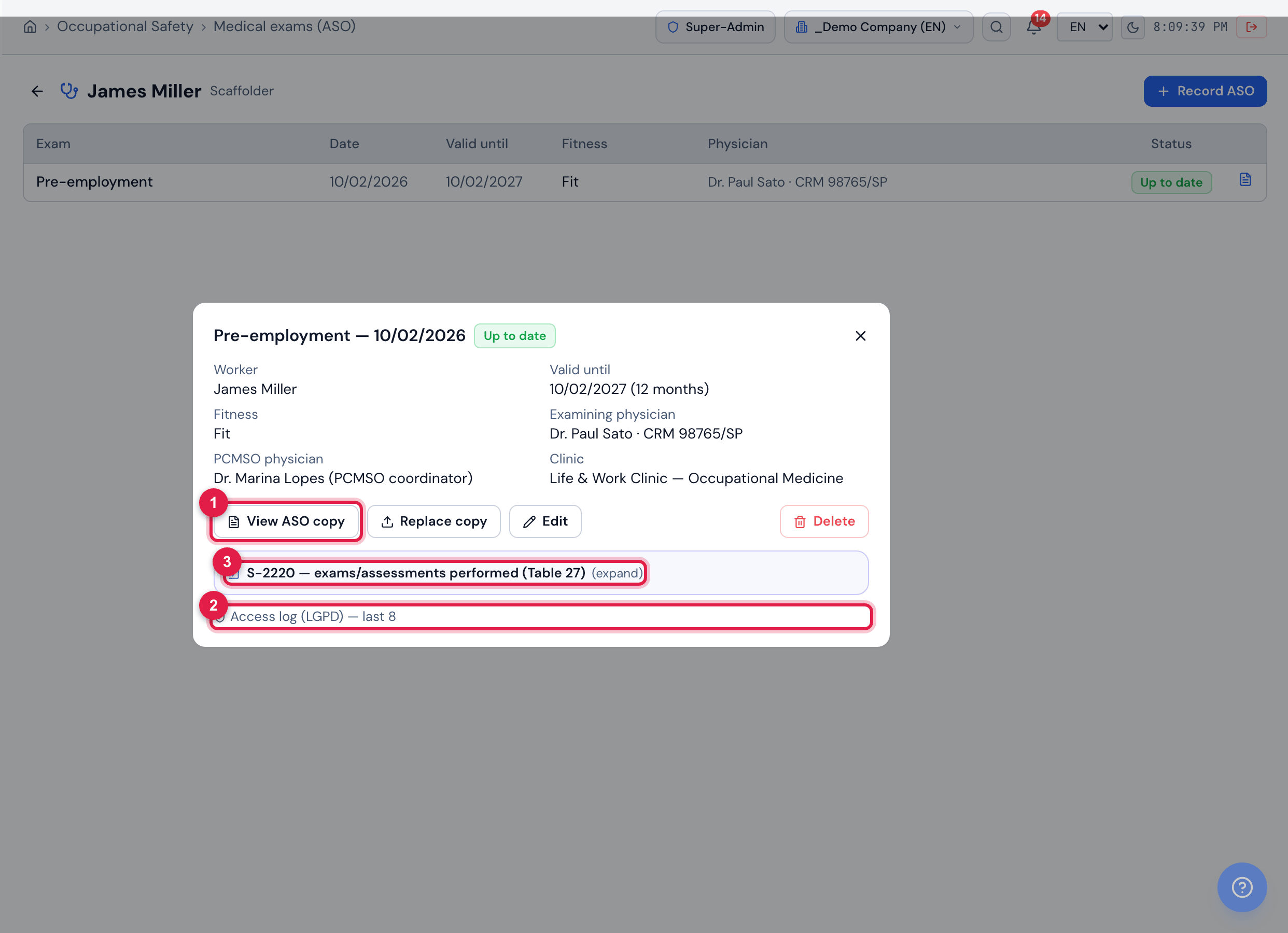
Figure 25. History by worker (James Miller): one exam per row (type, date, valid until, fitness, physician/CRM and status) and Record ASO. The icon on the right of the row opens the exam detail — worker, validity (12 months), fitness, examining physician, PCMSO physician and clinic — with View ASO copy, Replace copy, Edit, Delete (soft), the eSocial S-2220 complement and the Access log (LGPD), which shows who viewed/downloaded it and when.
- 1View ASO copy — each opening goes into the access log.
- 2Access log (LGPD) — the latest accesses to the exam, one line per view or download (the counter grows each time the exam is opened).
- 3S-2220 — exams/assessments performed (Table 27) — eSocial complement (chapter 8).
Was this page helpful?
Thanks for the feedback!
Got it — we will improve this page.