
The alerts bell
Manual — Getting started — web · chapter 9 of 13
The bell in the header gathers, in a single list, what is waiting for you now. The red number is the total of items in the list. H2O updates the bell when you open the list and every 2 minutes.The bell is not a history and has no “mark as read”: each alert leaves by itself when the situation that created it is resolved — the ticket gets a technician, the approval is answered, the deadline passes. Clicking an alert takes you to the screen where it is resolved.
| Alert | Who sees it | Leaves the list when | Takes you to |
|---|---|---|---|
| Title of a Planning note (with a padlock, if private) | users with access to the Planning notes; private notes, only the author | the note ends (the bell shows today’s and those of the next 24 h) | Planning |
| Ticket #N without a technician (Urgent badge on the highest priorities) | users with access to the Planning notes | the ticket gets a technician or is no longer new/in progress; only tickets of high priority or above are included | the ticket |
| Approval pending — Ticket #N | the designated approver, or the members of the approver group | the approval is answered | the ticket |
| Awaiting approval — Ticket #N | whoever requested the approval | the approval is answered | the ticket |
| Ticket solved — #N | the requester (or the requester group) | the ticket is closed or reopened | the ticket |
| Ticket #N in progress | the requester, when the ticket has a technician and changed in the last 48 h | 48 h after the last change | the ticket |
| New message on ticket #N | the requester, when someone else writes a public follow-up | 48 h after the message | the ticket |
| Reply from H2O Support | whoever opened the conversation in Support | you reply in the conversation | the Support & Feedback window |
| Budget, measurement, addendum, readjustment, contract or guarantee (Budget awaiting approval — #N, Measurement period awaiting approval, Contract expires in N days…) | contract inspectors and managers, according to their role | the item is handled or the deadline passes | the item’s screen |
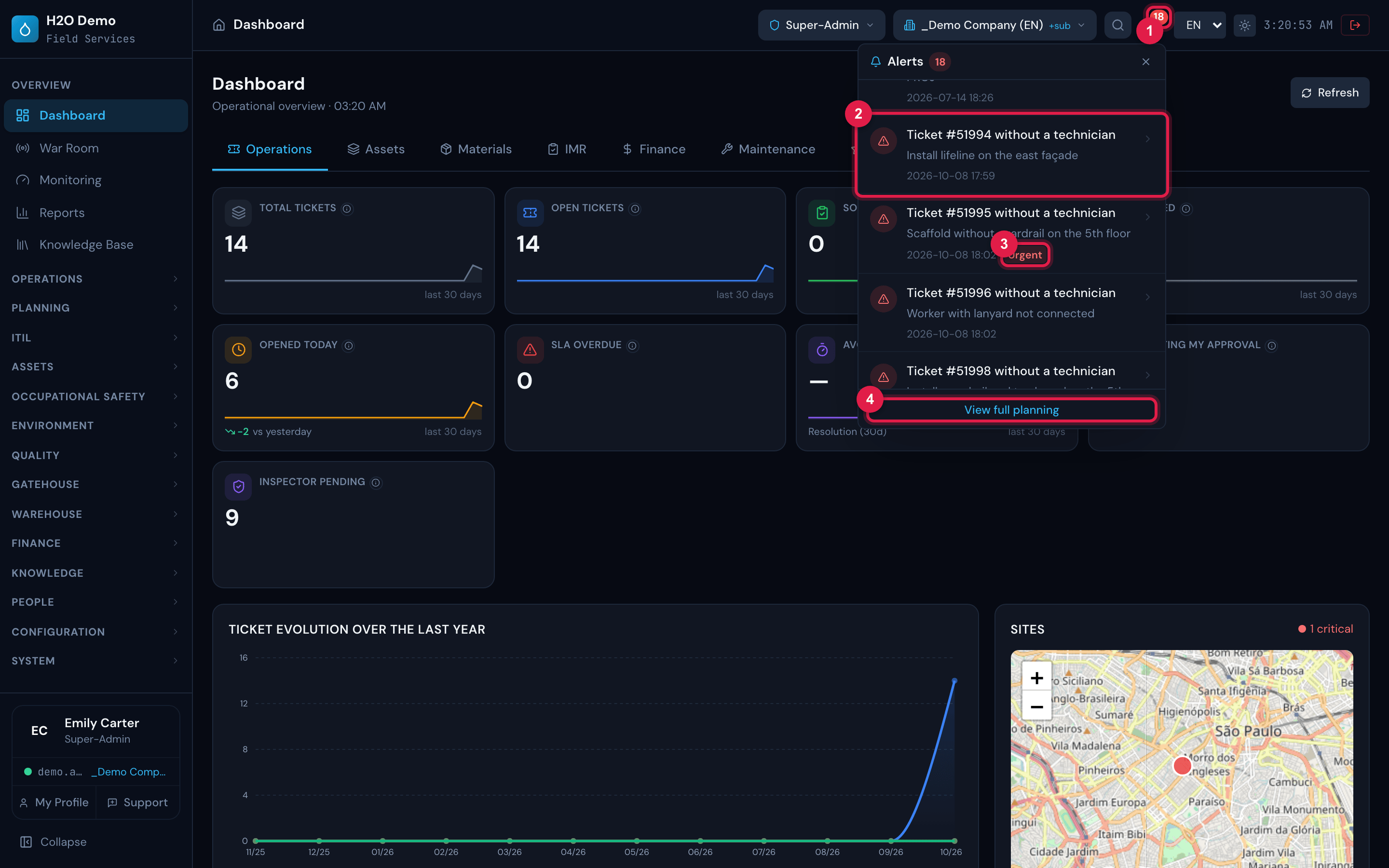
Figure 21. The bell open: the Alerts title with the total (18), alerts for tickets without a technician — each with an icon, title, detail, date and time; one of them with the Urgent badge — and the View full planning link at the bottom. The list scrolls to show the other alerts.
- 1Red counter — total of alerts in the list.
- 2An alert: title, detail and date; click to open it.
- 3Urgent badge on a ticket without a technician.
- 4View full planning.
In the self-service portal, the bell footer is View my tickets.
Was this page helpful?
Thanks for the feedback!
Got it — we will improve this page.