
Creating the daily report
Manual — Daily report · chapter 3 of 9
The daily report is created with the New Daily Report button — in the general list (choosing the project) or in the project’s Daily Reports tab (with the project already filled in). It can start blank or as a copy of a previous daily report of the same project.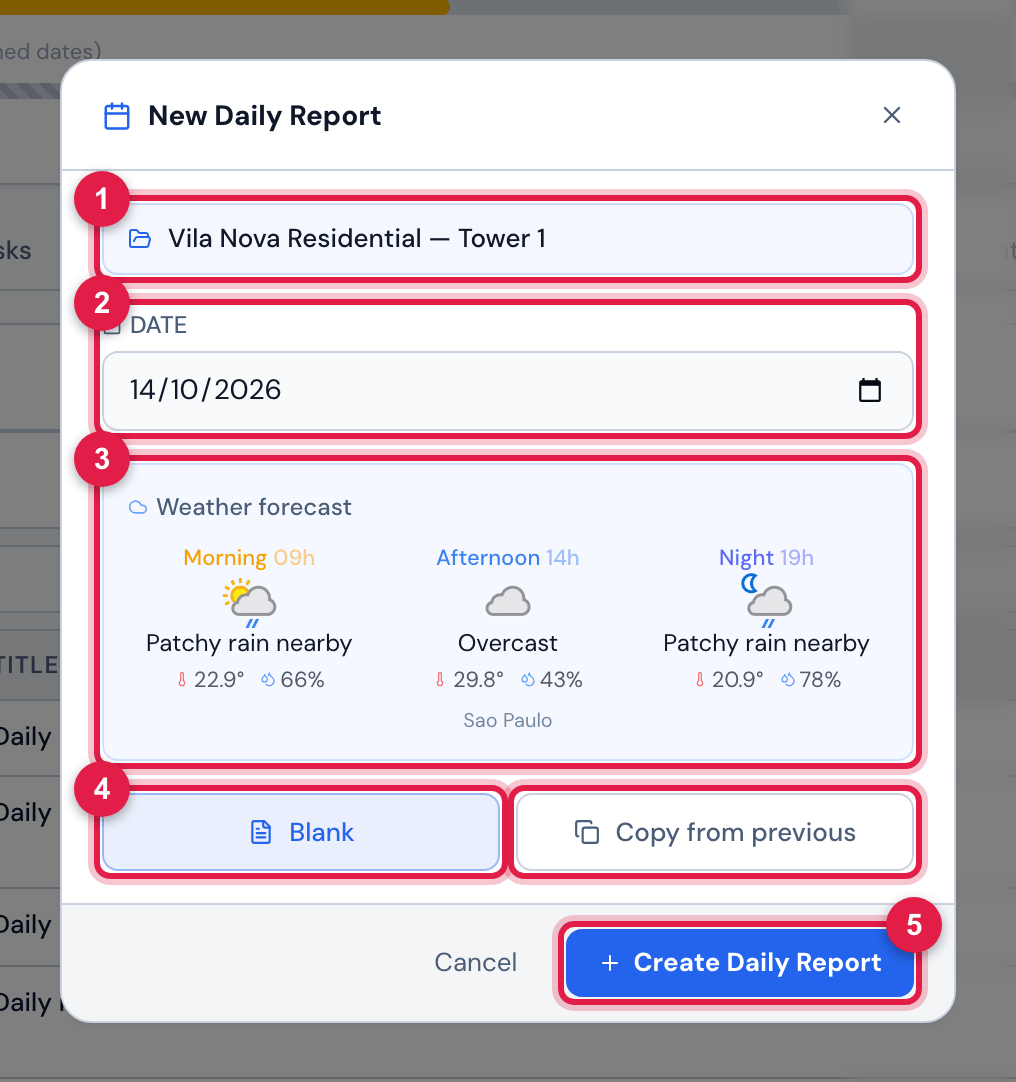
Figure 5. The New Daily Report dialog opened from the Daily Reports tab of Vila Nova Residential — Tower 1: today’s date, the weather forecast for the job site and the Blank mode.
- 1The project — in the general list, the Project field (required) to choose.
- 2Date — today, by default (your computer’s date).
- 3Weather forecast — morning, afternoon and night at the job site.
- 4Blank and Copy from previous.
- 5Create Daily Report.
- Click New Daily Report. In the general list, choose the Project.
- Check the Date. H2O fetches the weather for that date at the job site (Fetching forecast…) and shows the result in Weather forecast.
- Leave Blank selected and click Create Daily Report.
- Daily report created appears and the daily report page opens, In progress, with you as the author.
Copying a previous daily report
Section titled “Copying a previous daily report”On a construction job, the next day usually repeats much of the previous one: the same crews, the same equipment, the work fronts in progress. The copy brings all that ready to adjust.
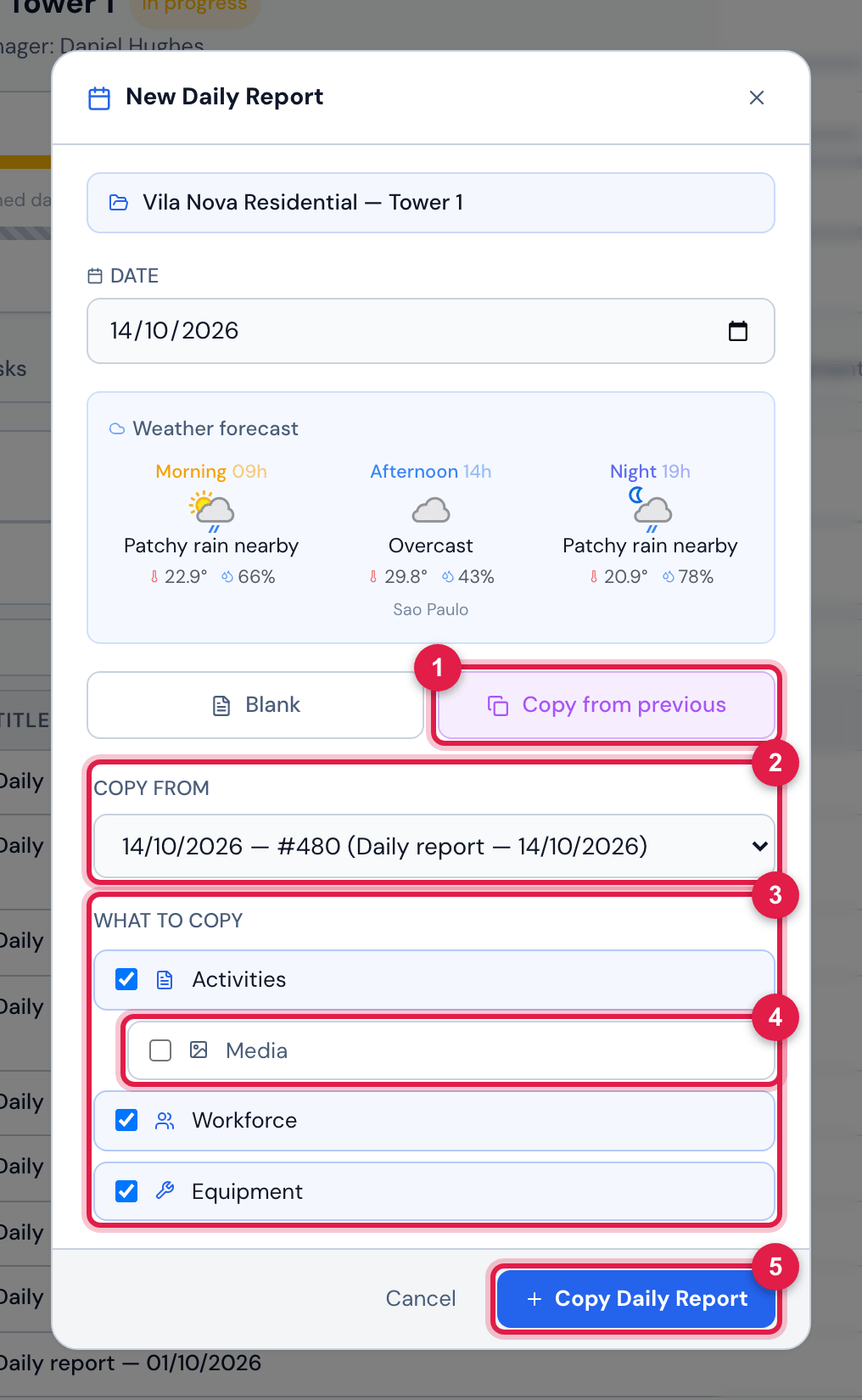
Figure 6. Copy from previous with the project’s most recent daily report as the source and Activities, Workforce and Equipment checked.
- 1Copy from previous.
- 2Copy from — the source daily report: date, number and name.
- 3What to copy: Activities, Media, Workforce and Equipment.
- 4Media is indented and can only be checked together with Activities.
- 5Copy Daily Report.
| Mark | What comes into the new daily report |
|---|---|
| Activities | the text of each activity, as a new item (author: you). |
| Media | the photos, videos and PDFs of each copied activity. Only with Activities checked. |
| Workforce | the counts per job role and company, active and idle. |
| Equipment | the equipment list with the quantities. |
- Always copied from the source, checked or not: General observations, Client observations, the Energized area (the answer and the three fields), Team Comment and Idle Team. Review these fields in the new daily report (chapter 4) — especially Client observations, where the reason for a rejection is kept (chapter 5).
- Not copied: the name (the new daily report starts without a title), the state (it starts In progress), the approvals and the signatures.
- The weather is that of the date of the new daily report, not that of the source.
- The Copy from list brings all the project’s daily reports, from the most recent to the oldest.
Automatic weather
Section titled “Automatic weather”The weather comes from the WeatherAPI weather service for the job site, at three times: Morning (9 am), Afternoon (2 pm) and Night (7 pm) — with the weather condition, the icon, the temperature, the humidity and, when available, the chance of rain.
| Rule | How it works |
|---|---|
| Place | that of the project’s site: the latitude and longitude in the site record; without them, the city. Without either, the daily report is created without weather. |
| Date | a past date uses the weather history; today and future dates, the forecast. |
| When it is saved | when the daily report is created. The weather is frozen: it does not change afterwards and cannot be edited on screen. |
| Language | the weather condition (“Sunny”, “Heavy rain at times”…) appears in the language of whoever reads it — on screen, in the PDF and in the app —, whatever the language of whoever created the daily report. |
| No weather | the Weather Conditions panel does not appear and the PDF comes out without the section. In the app, when a daily report without weather is opened, the device fetches the weather for the date and saves it. Old daily reports without weather can be filled in by the H2O administrator, on request. |
The job’s progress on the day
Section titled “The job’s progress on the day”The page header shows · Project N% — the project’s progress on the day of the daily report (hover: Project progress on the day of the report). The same number comes out in the PDF.
- In today’s daily report, the number follows the project’s progress until the end of the day; from the next day on, it is frozen.
- Daily reports for past dates, created later, get the progress the project had on that date when the project measures progress by schedule; old daily reports, from before this record, show a calculated value and the (estimated) mark.
Was this page helpful?
Thanks for the feedback!
Got it — we will improve this page.