
Setting up the company
Manual — Energy Management · chapter 2 of 13
Before the first entry, tell H2O which country the company is in and which unit you want to see energy in. The rest of the settings come ready and only need checking.Country, currency and unit
Section titled “Country, currency and unit”- Open Energy Management › Energy settings, Company tab.
- Choose the Country. The suggested currency, time zone and energy unit come with it and can be changed.
- Check the Energy unit (MWh, kWh, GJ, Tcal…) and the CO₂ equivalent set (the IPCC report used in the calculations).
- Click Save.
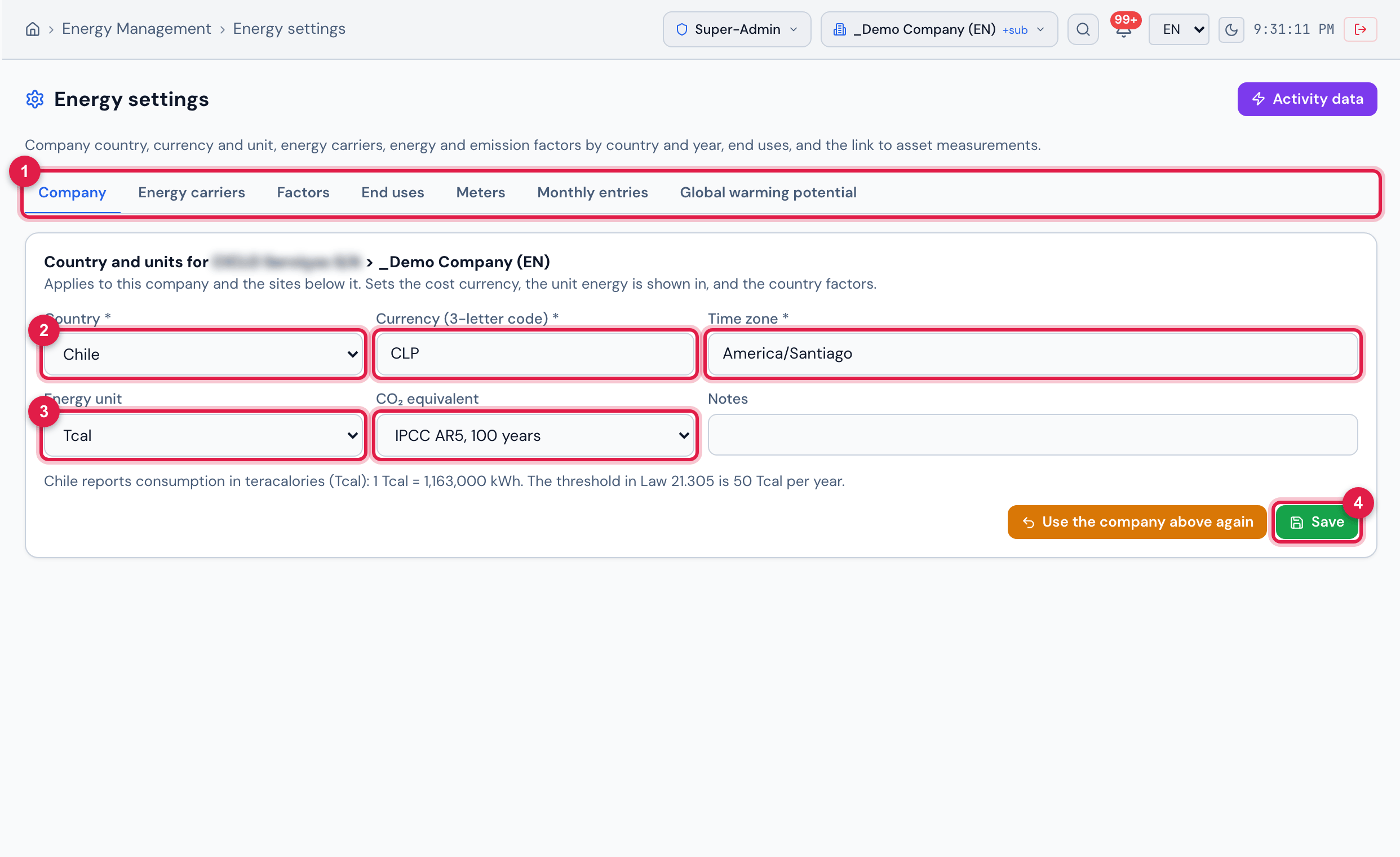
Figure 1. The Company tab of the settings.
- 1The settings tabs. Company is the only mandatory one; the others come filled in.
- 2Country, Currency (3-letter code) and Time zone. The country defines the emission factors and what the dashboard shows (chapter 12).
- 3Energy unit and CO₂ equivalent. The whole module shows energy in this unit.
- 4Save.
Energy carriers, factors and end uses
Section titled “Energy carriers, factors and end uses”H2O already comes with the most common energy carriers (electricity, natural gas, LPG, diesel, gasoline and others), the heating value of each and the emission factors. You only change things here to add an energy carrier of your own or a more precise factor.
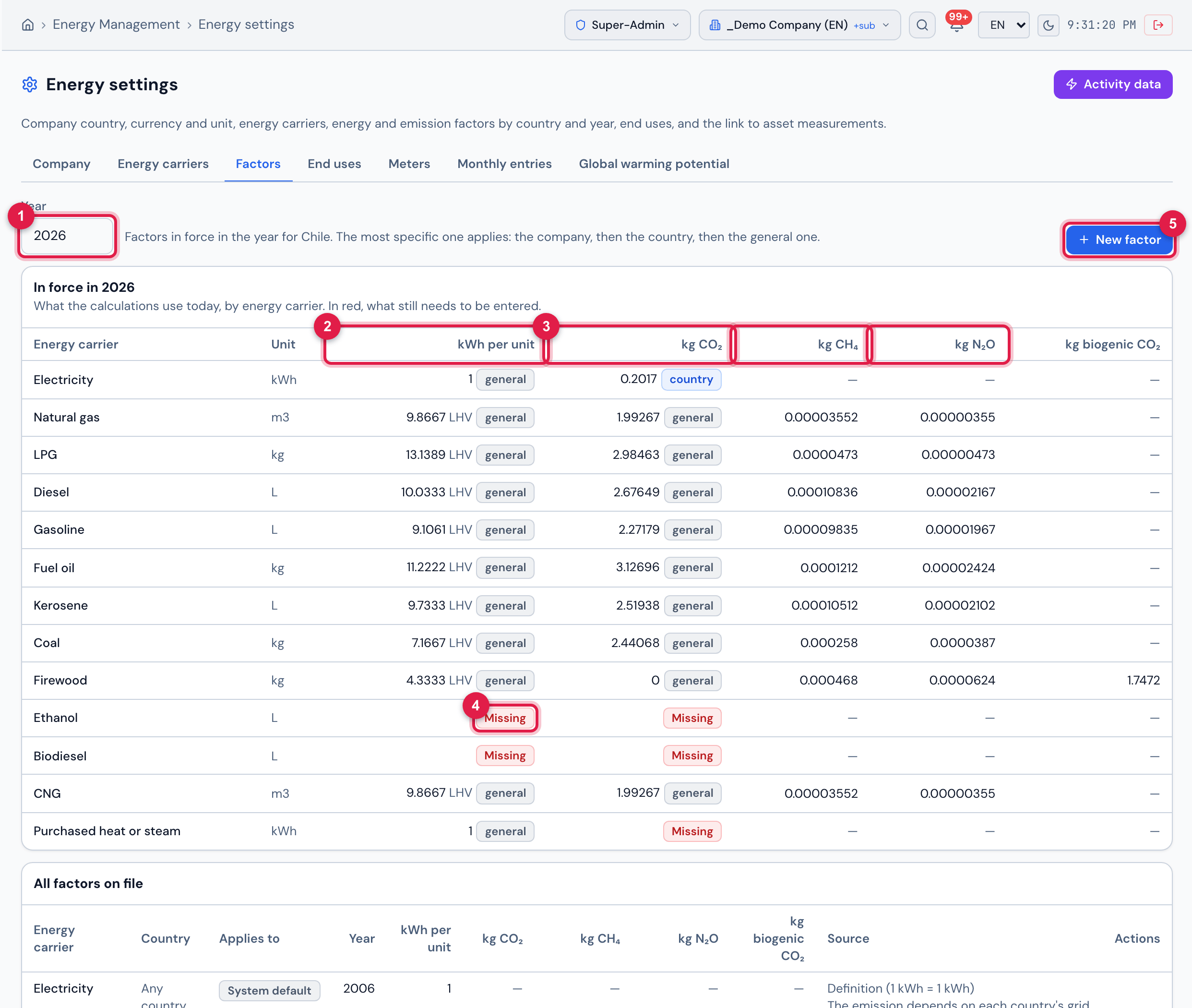
Figure 2. The Factors tab, with the In force box for the year.
- 1The Year. For each energy carrier, H2O uses the most recent factor up to that year.
- 2The energy per unit (kWh per unit) and where it comes from: general, country or company.
- 3The emission factors by gas. The tag says whether the factor is the general one or the country’s.
- 4Missing in red: the energy carrier does not have that factor. Its consumption counts in the energy, but not in the emissions, until you enter one.
- 5New factor adds a factor for your company or for the country, with the source.
The most specific factor always applies: the company’s, then the country’s, then the general one. This is how a company uses the factor agreed with its supplier without changing the calculation for the others.
Meters
Section titled “Meters”If the site already has a cumulative energy meter registered in the H2O assets, with automatic or manual reading, link it to an energy carrier on the Meters tab. From then on the month’s consumption comes from the difference between readings, with no typing.
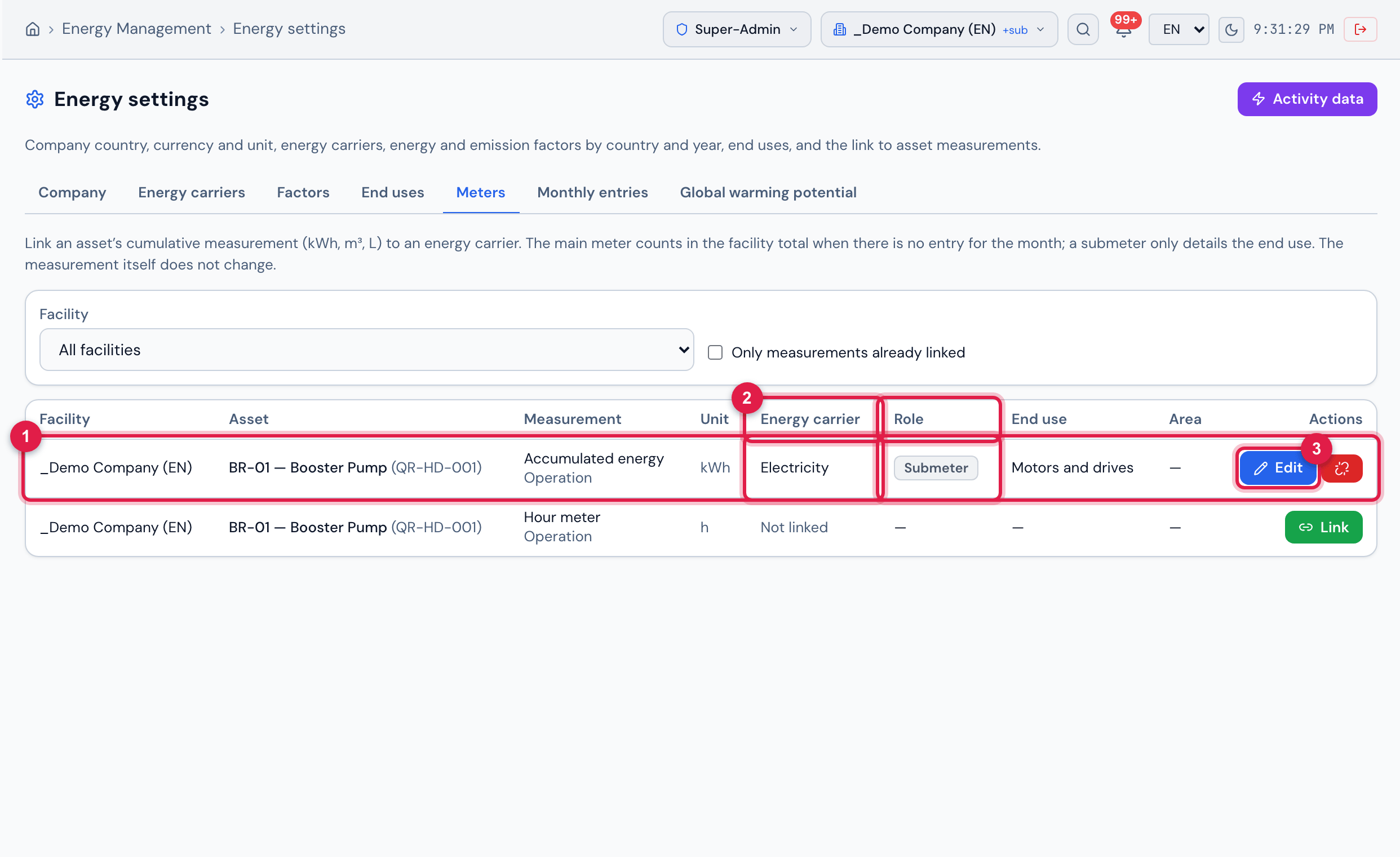
Figure 3. The Meters tab: the cumulative measurements of the assets and the link of each one.
- 1Each row is a cumulative measurement of an asset of the site.
- 2The Energy carrier and the Role of the meter: Main meter (measures the whole facility) or Submeter (details one end use).
- 3Edit changes the link; on a measurement not yet linked, the button is Link.
| Role | What it does |
|---|---|
| Main meter | gives the facility’s consumption for the month when there is no entry for that energy carrier |
| Submeter | does not add to the total; it splits the consumption by end use (air conditioning, lighting…) |
Monthly entries: who enters and by when
Section titled “Monthly entries: who enters and by when”For consumption that depends on someone typing it in (the utility invoice, a tank reading), say who is responsible and the deadline. If the deadline passes without the data, H2O opens a ticket for the group.
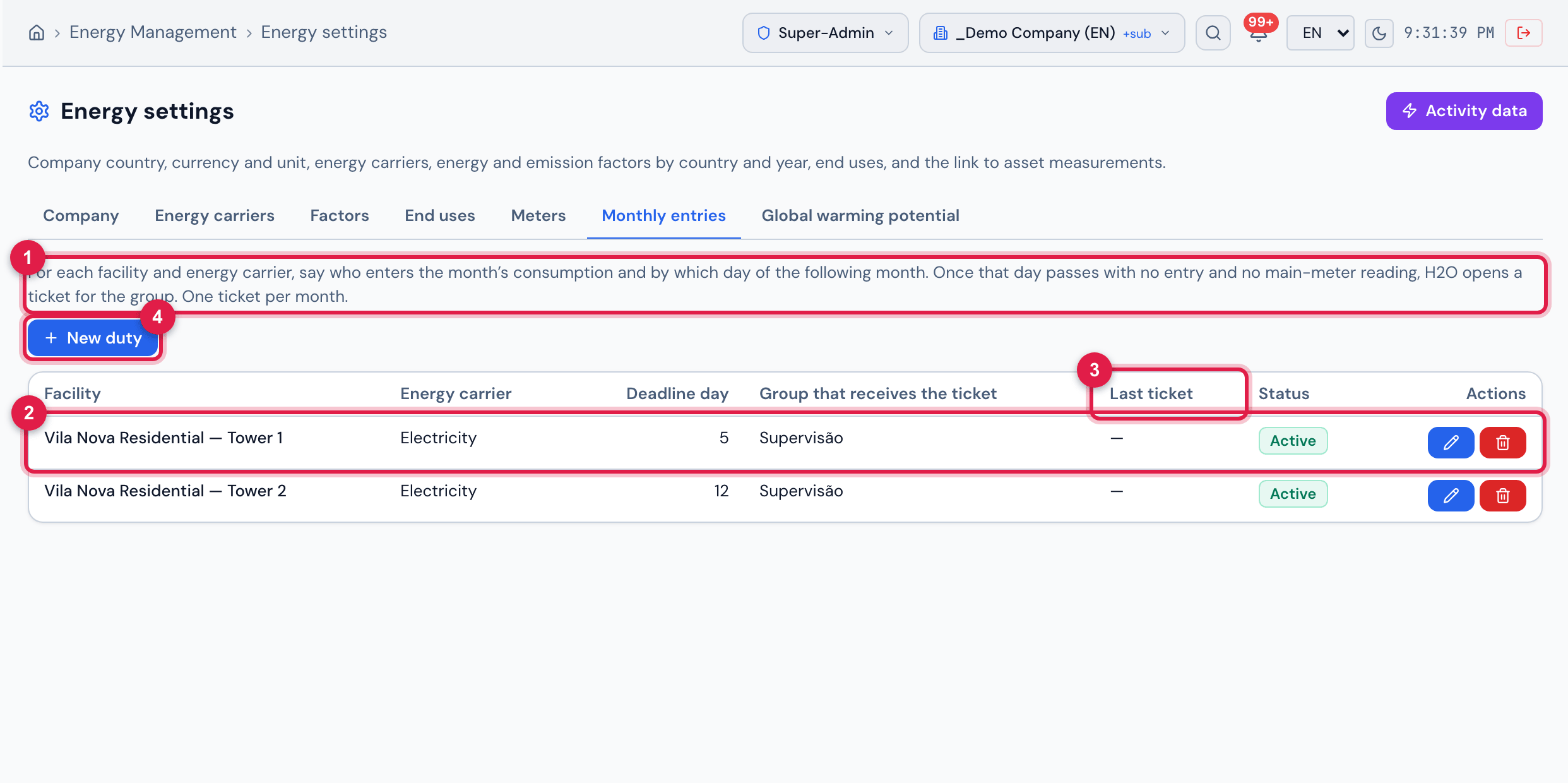
Figure 4. The Monthly entries tab.
- 1The explanation of the rule.
- 2Each row: the Facility, the Energy carrier, the Deadline day of the following month and the Group that receives the ticket.
- 3Last ticket stays empty until the first request; after that it shows the month requested and the number of the ticket opened.
- 4New duty adds another one.
- Click New duty.
- Choose the Facility and the Energy carrier.
- Enter the Deadline day (1 to 28, of the following month) and the Group that receives the ticket.
- Optional: the Ticket category and where the data comes from (for example, “Utility invoice”).
- Click Save.
The check runs every morning. There is one ticket per duty and per month: while it is open, H2O does not open another.
Was this page helpful?
Thanks for the feedback!
Got it — we will improve this page.