
Groups
Manual — Users, groups and profiles · chapter 9 of 12
A group is a team: Electrical, HVAC, Building Maintenance. Groups are used for:- tickets — a group can be requester, assigned technician or watcher of a ticket (the group’s Tickets tab);
- visibility — whoever has the See group level on Tickets sees the tickets in which they or one of their groups take part (chapter 11);
- planning — the group lists of Planning and of the Maintenance Calendar.
Groups are in People › Groups and follow the site rules: each group belongs to a site and, if recursive, also appears on the sites below.
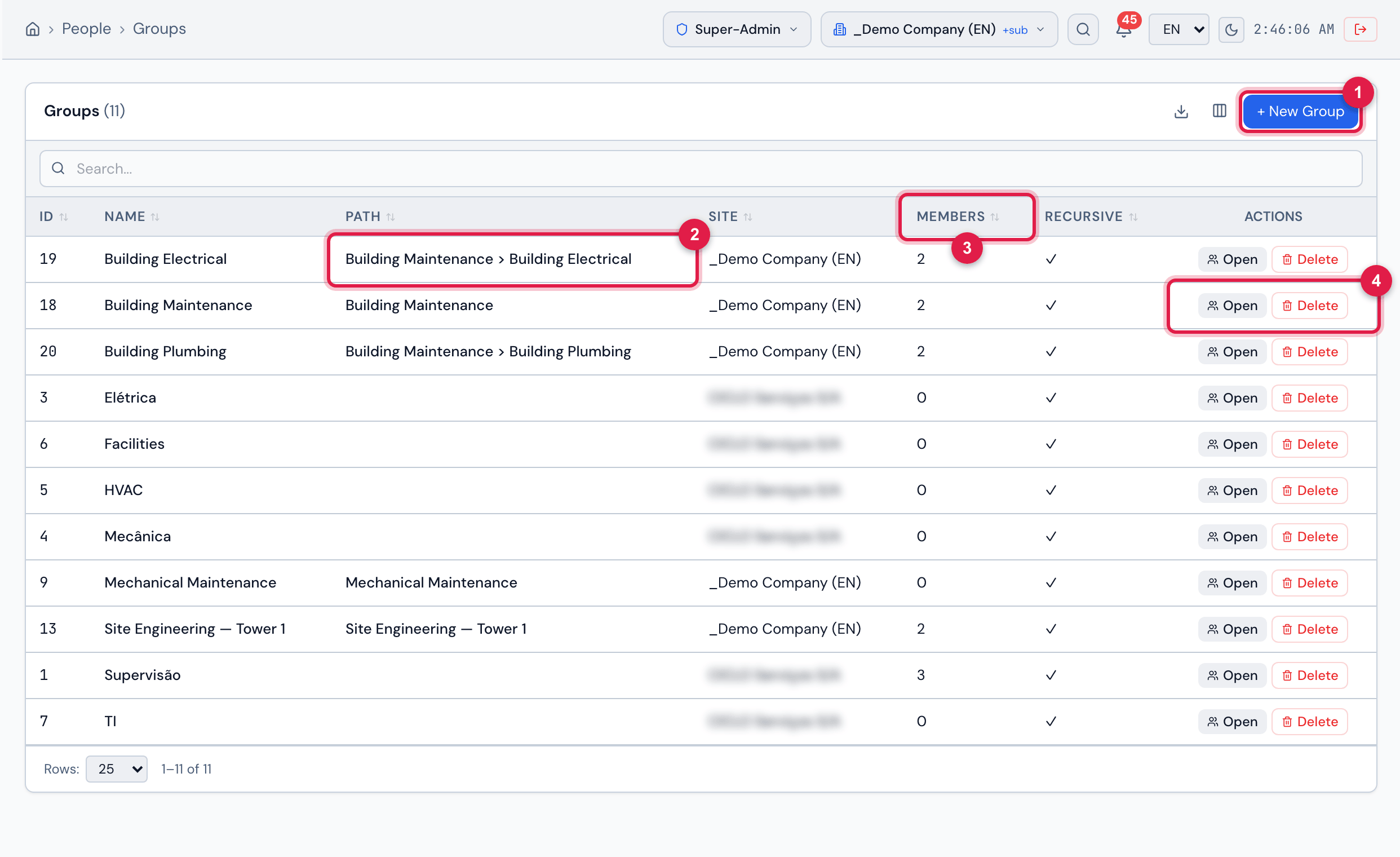
Figure 18. People › Groups: + New Group and the table with Name, Path, Site, Members and Recursive. The groups without a path and with the site grayed out come from the Root (recursive).
- 1+ New Group (Create level on Groups).
- 2Path — the group’s position in the tree: Parent group > Sub-group.
- 3Members — how many people the group has.
- 4Actions: Open and Delete (Trash level).
Creating a group
Section titled “Creating a group”- Click + New Group.
- Fill in Name and, if you wish, Comment.
- Choose the group’s Site.
- To create a sub-group, choose the Parent Group; leave — Root (no parent) — for a top-level group.
- Recursive: Yes — Visible in sub-sites makes the group also appear on the sites below.
- Check the Roles in the System and click Create Group. The group record opens.
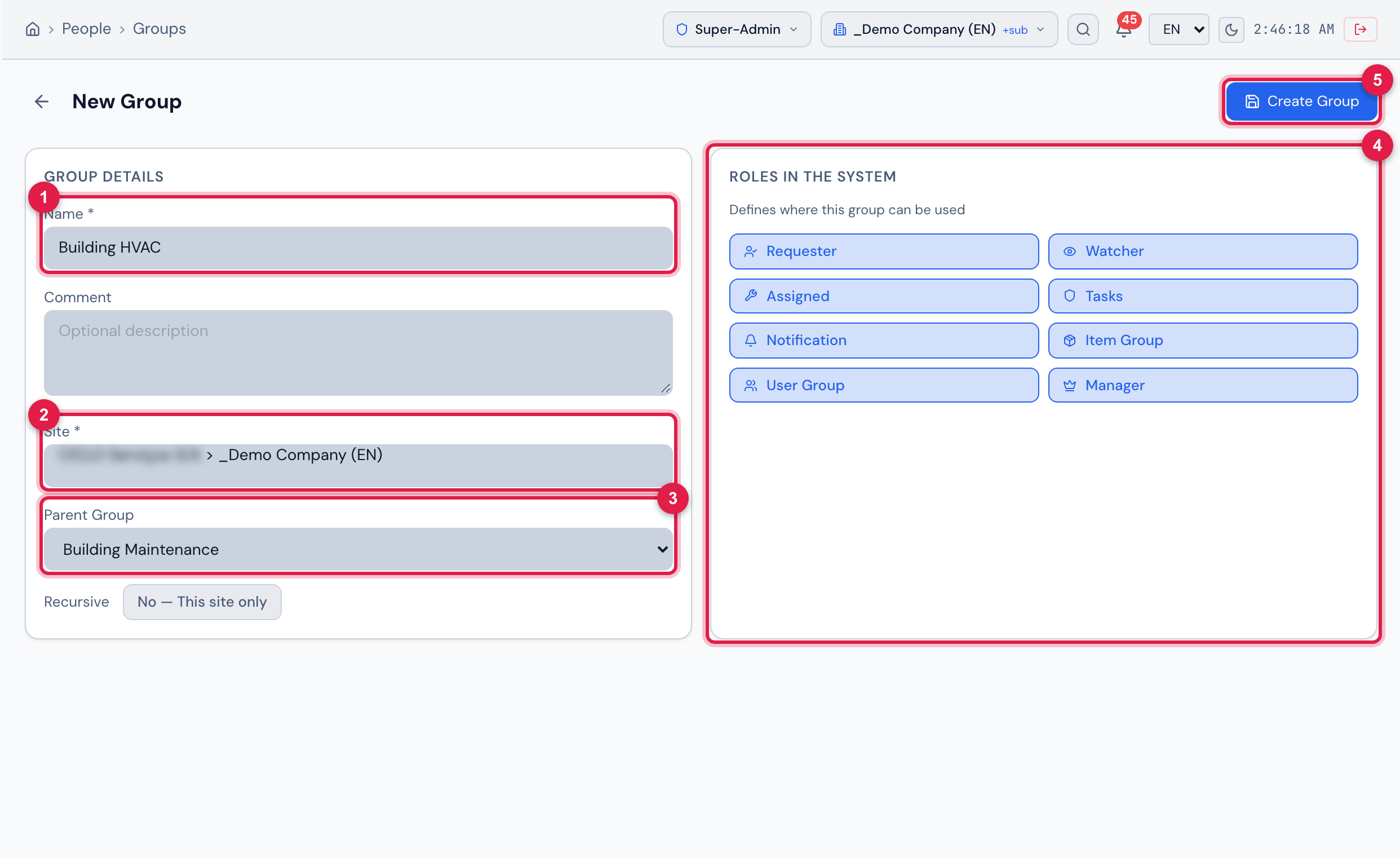
Figure 19. The New Group form filled in (not created yet): Group Details on the left and Roles in the System on the right, with the eight roles on.
- 1Name *.
- 2Site *.
- 3Parent Group — here the group would be created as a sub-group of Building Maintenance.
- 4Roles in the System — click a role to turn it on or off.
- 5Create Group.
| Role | Effect today |
|---|---|
| Assigned and Tasks | the group appears in the group lists of Planning and of the Maintenance Calendar if at least one of the two is on. |
| Requester, Watcher, Notification, Item Group, User Group, Manager | they are recorded, but today they change nothing in H2O. |
The group record
Section titled “The group record”At the top are the name, the full path and the N members, N sub-groups and Recursive badges; on the right, Edit and the trash (delete). The tabs are Information, Members, Sub-groups and Tickets.
- Information: Group Details (name, comment, site, parent group, recursive) and Roles in the System (✓ on, ✗ off). Edit changes name, comment, site, recursive and roles; Save saves. When a group is renamed, the path of its sub-groups (at every level) uses the new name.
- Tickets: Linked tickets — the tickets in which the group is Requester, Assigned or Watcher, with number, title, status, priority, role and date, from the most recent to the oldest. Only the tickets you can see appear.
The Members tab holds the people of the group:
- Click + Add.
- Choose the person in Select a user… and, if you wish, tick Manager and/or Delegate.
- Click Add. The X at the end of the row closes the panel without adding.
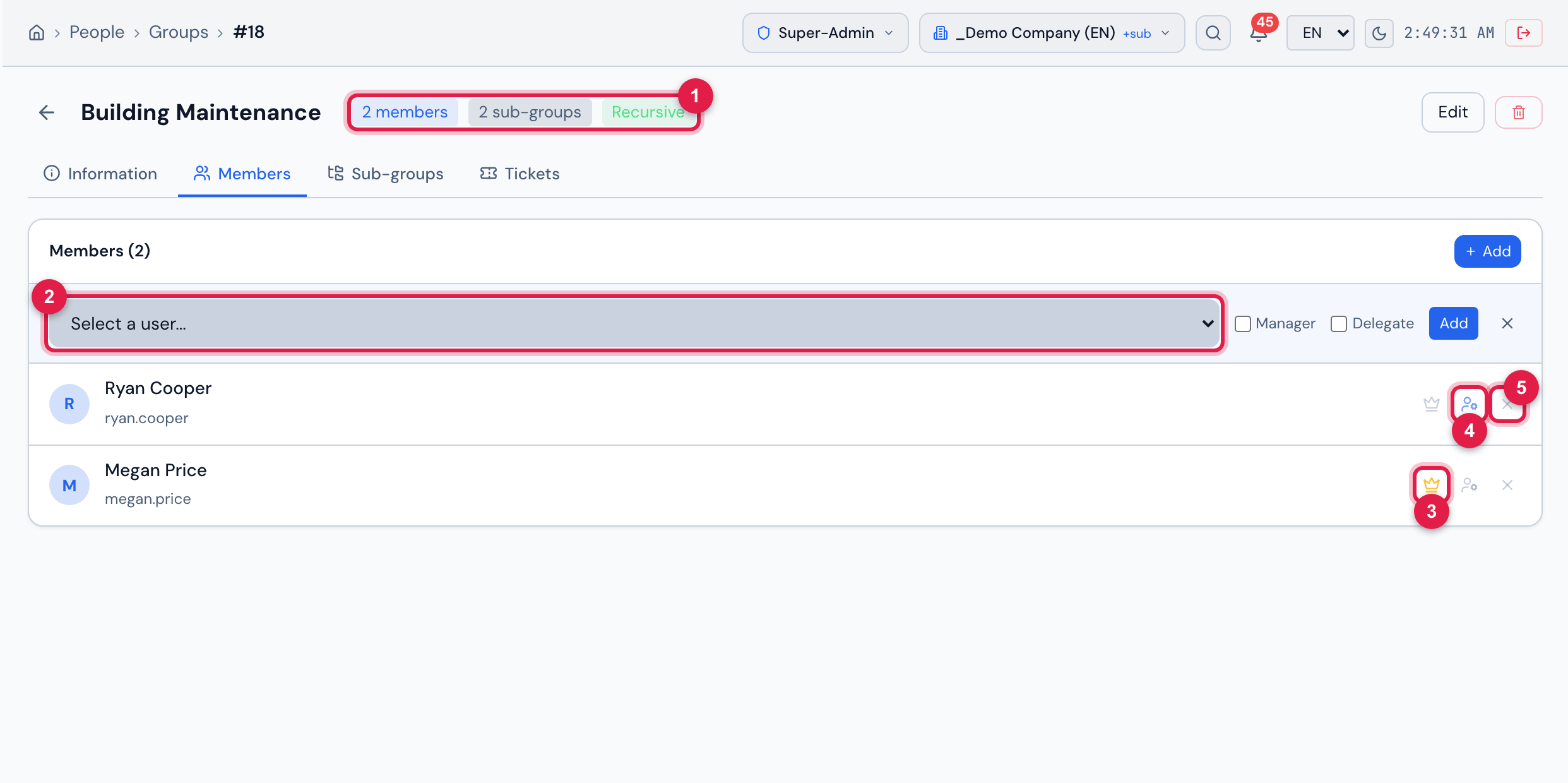
Figure 20. Members tab of the Building Maintenance group with the add panel open (nothing added yet). Megan Price is Manager (yellow crown) and Ryan Cooper is Delegate (blue icon).
- 1The group badges: members, sub-groups and Recursive.
- 2Select a user… — with Manager, Delegate and Add next to it.
- 3The crown: Manager — click to turn it on or off.
- 4The Delegate icon — click to turn it on or off.
- 5X — takes the person out of the group, after confirming Remove this member from group?
- Dynamic members (Dynamic badge) are created automatically by H2O and have no X. A deactivated member appears with the Inactive badge.
- Click a member’s name to open their record.
- Manager and Delegate are recorded, but today they give no extra rights or notices.
The Sub-groups tab holds the groups created with this one as Parent Group, with the path, the members and the Rec (recursive) badge. Click one to open it.
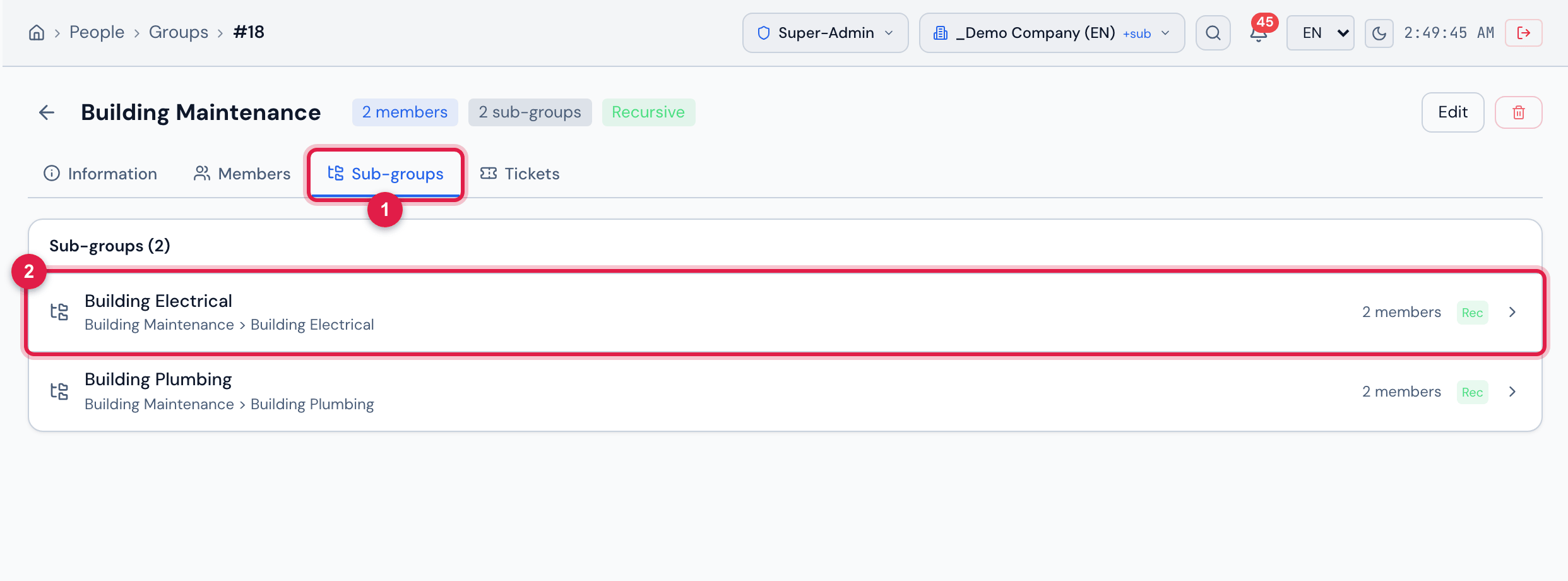
Figure 21. Sub-groups tab of Building Maintenance: Building Electrical and Building Plumbing, each with the full path and 2 members.
- 1Sub-groups tab.
- 2A sub-group — click to open it.
Who changes and deletes
Section titled “Who changes and deletes”- Edit and the member buttons appear with the Edit level on Groups and with the group’s site (or the Root) in the header. On another site, the record shows This group belongs to another site. Read-only mode.
- A recursive group of a site above your reach can only be viewed: changes and deletion are refused.
- Delete (the record’s trash or Delete in the list) requires the Trash level on Groups, asks for confirmation and is permanent — there is no trash for groups.
- A group with sub-groups cannot be deleted: Cannot delete group with sub-groups. Remove sub-groups first.
When the group has members or tickets, the confirmation says what goes with it: This also removes: N member(s) and N link(s) to N ticket(s). Tickets and history are kept; the technical group that pointed to it (assets, tasks, templates) is left empty.
| When the group is deleted | What happens |
|---|---|
| Goes with it | the members; the group on tickets, problems and changes (as requester, assigned or watcher); the visibility of knowledge base articles to the group; the group on project teams; the group as a notification recipient. |
| Left empty | the technical group of assets, tasks, task templates and maintenance plans, and the group of projects, of categories and the Default Group of the users that pointed to it. |
| Stays as it is | tickets, tasks and history — none of it is deleted. Each ticket that loses the group gets a line in its history, with the group name marked as deleted. |
Was this page helpful?
Thanks for the feedback!
Got it — we will improve this page.