
PDF and sending by e-mail
Manual — Daily report · chapter 6 of 9
The PDF is the daily report ready to deliver: the same content as the tabs, laid out on an A4 sheet, with the signatures. It is generated on the spot, always with the current state of the daily report, in the language of whoever generates it.Generating the PDF
Section titled “Generating the PDF”Click the PDF icon — on the row of the general list, on the row of the project’s Daily Reports tab (Generate daily report PDF) or in the page header. The PDF opens in another browser tab, where it can be printed or saved. It requires Read in Projects.
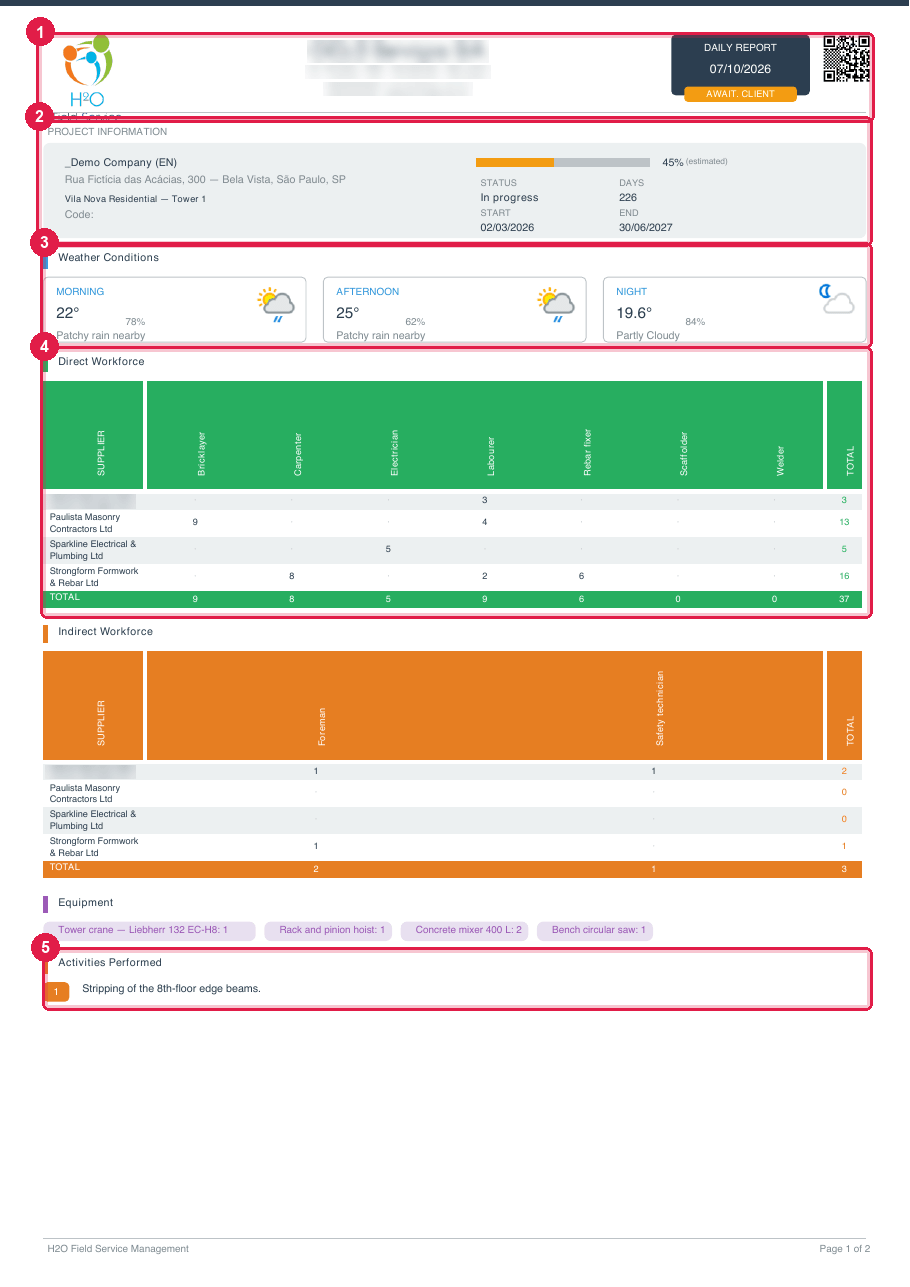
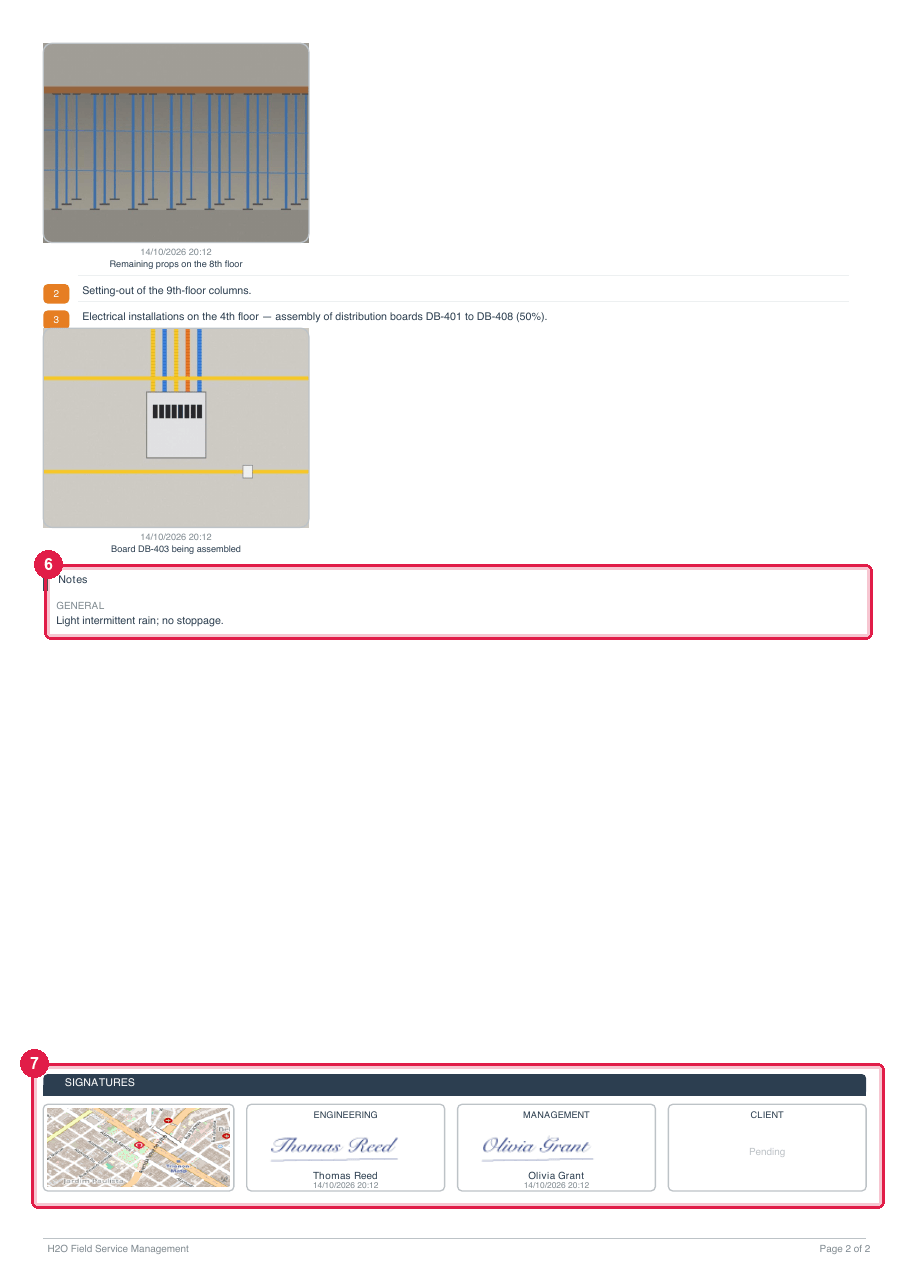
Figure 19. The PDF of a daily report of Vila Nova Residential — Tower 1 approved by engineering (Thomas Reed) and by management (Olivia Grant) and awaiting the client.
- 1The header: logo and company details, DAILY REPORT, the date and the state badge.
- 2PROJECT INFORMATION: site, project, code, progress, STATUS, DAYS, START and END.
- 3Weather Conditions.
- 4Direct Workforce — companies in the rows, job roles in the columns.
- 5Activities Performed, numbered, with the photos.
- 6Notes — here only GENERAL: CLIENT appears when the report has client observations.
- 7SIGNATURES: the job site map and the Engineering, Management and Client boxes (the last one still Pending).
| PDF section | What it brings |
|---|---|
| header | logo, name, address and contact of the company; DAILY REPORT, the date of the daily report and the state badge. |
| PROJECT INFORMATION | the site (client) and the address, the project, the Code, the job’s progress on the day (with (estimated) when applicable), the project STATUS, DAYS since the planned start, planned START and END. |
| Weather Conditions | morning, afternoon and night: temperature, humidity, icon and condition. Absent without weather. |
| ENERGIZED AREA | Location, Team and Notes — only when the energized area answer is Yes. |
| Direct Workforce and Indirect Workforce | the SUPPLIER × job roles tables with the totals, and the Team Comment. |
| Equipment | the day’s equipment with the quantities. |
| Activities Performed | each activity numbered and its media, three per row: photos with the caption and the date (the capture date, when the file has it); videos with a frame and a QR code to watch; PDFs with the first page as a thumbnail. |
| Idle Direct Workforce and Idle Indirect Workforce | the tables of the idle workforce and the Idle Team comment. |
| Notes | GENERAL and CLIENT. |
| SIGNATURES | the map of the job site (without coordinates on the site: No map) and one box per role — Engineering, Management and Client — with the signature, the name and the date/time of the approval, or Pending. |
| Attached document — Activity N | at the end, the full pages of each PDF attached to the activities. |
| footer | H2O Field Service Management and Page N of M. |
- In a project with Daily report without client approval, the Client box does not come out (unless the client has already approved that daily report).
- Sections without content — energy off, workforce without job roles, no weather — do not appear.
- A daily report with many photos or attached PDFs takes longer to generate. If there is an error, Error generating PDF appears; try again.
Sending several PDFs by e-mail
Section titled “Sending several PDFs by e-mail”To send the daily reports of a week or a month to the client or the inspection team, use the project’s Daily Reports tab: H2O generates one PDF per daily report, puts them all in a ZIP file and e-mails a link to download it.
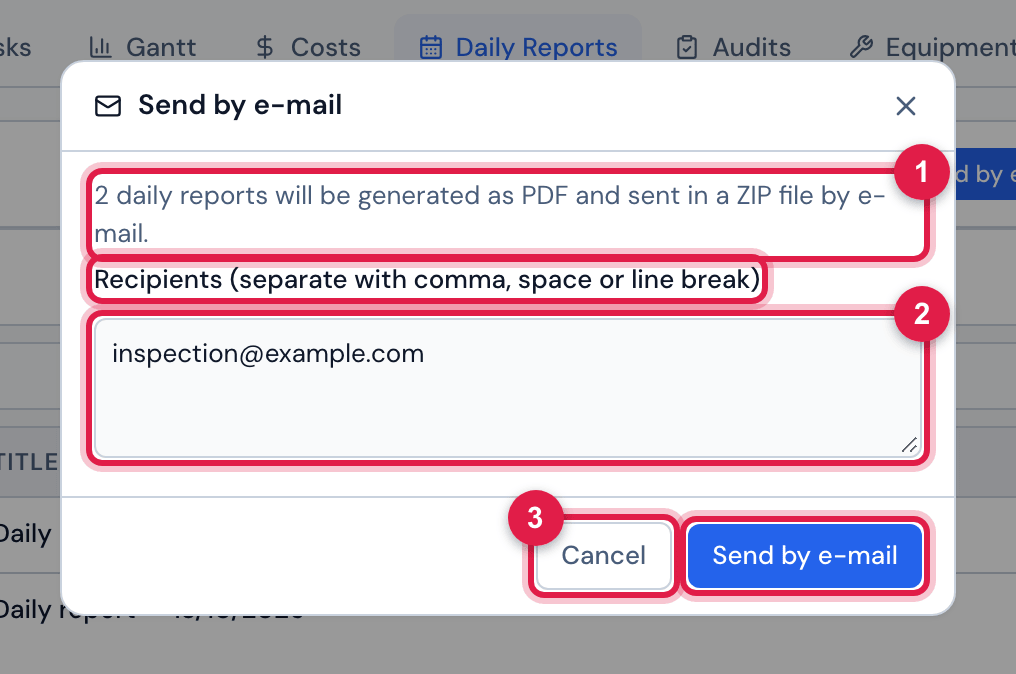
Figure 20. Sending two daily reports of Vila Nova Residential — Tower 1 by e-mail.
- 1How many daily reports go in the ZIP.
- 2Recipients (separate with comma, space or line break).
- 3Cancel and Send by e-mail.
- In the project’s Daily Reports tab, filter by Year and Month, if you wish, and check the daily reports — the header checkbox checks the whole page.
- Click Send by e-mail.
- Write the recipients’ e-mails — they do not need to be H2O users.
- Click Send by e-mail. ZIP package with N daily reports queued! The e-mail with the download link will arrive shortly. appears.
- The PDFs are generated in the background, in blocks; the e-mail goes out when the last block is ready — a few minutes, or longer for a large batch —, with the subject Daily Reports — N reports and the ⬇ Download ZIP button. The e-mail and the PDFs come out in the language of whoever requested the sending.
- The link is valid for 30 days. Inside the ZIP, each PDF has the date and the number of the daily report in its name (Daily_report_2026-10-01_472.pdf) — two daily reports of the same day do not overwrite each other.
- There is no limit of daily reports or recipients. Only daily reports of the sites you can see are accepted: if any is outside them, the sending is refused with Daily reports outside the sites you can see, or not found: ….
- Sending requires only Read in Daily Reports.
Was this page helpful?
Thanks for the feedback!
Got it — we will improve this page.