
The invoice record
Manual — NF-e and material receiving · chapter 4 of 11
Click an invoice in the list to open its record. At the top are the number, the state and the flow buttons (chapter 7); below, four tabs: Information, Items (chapter 5), Documents (chapter 6) and History.Information
Section titled “Information”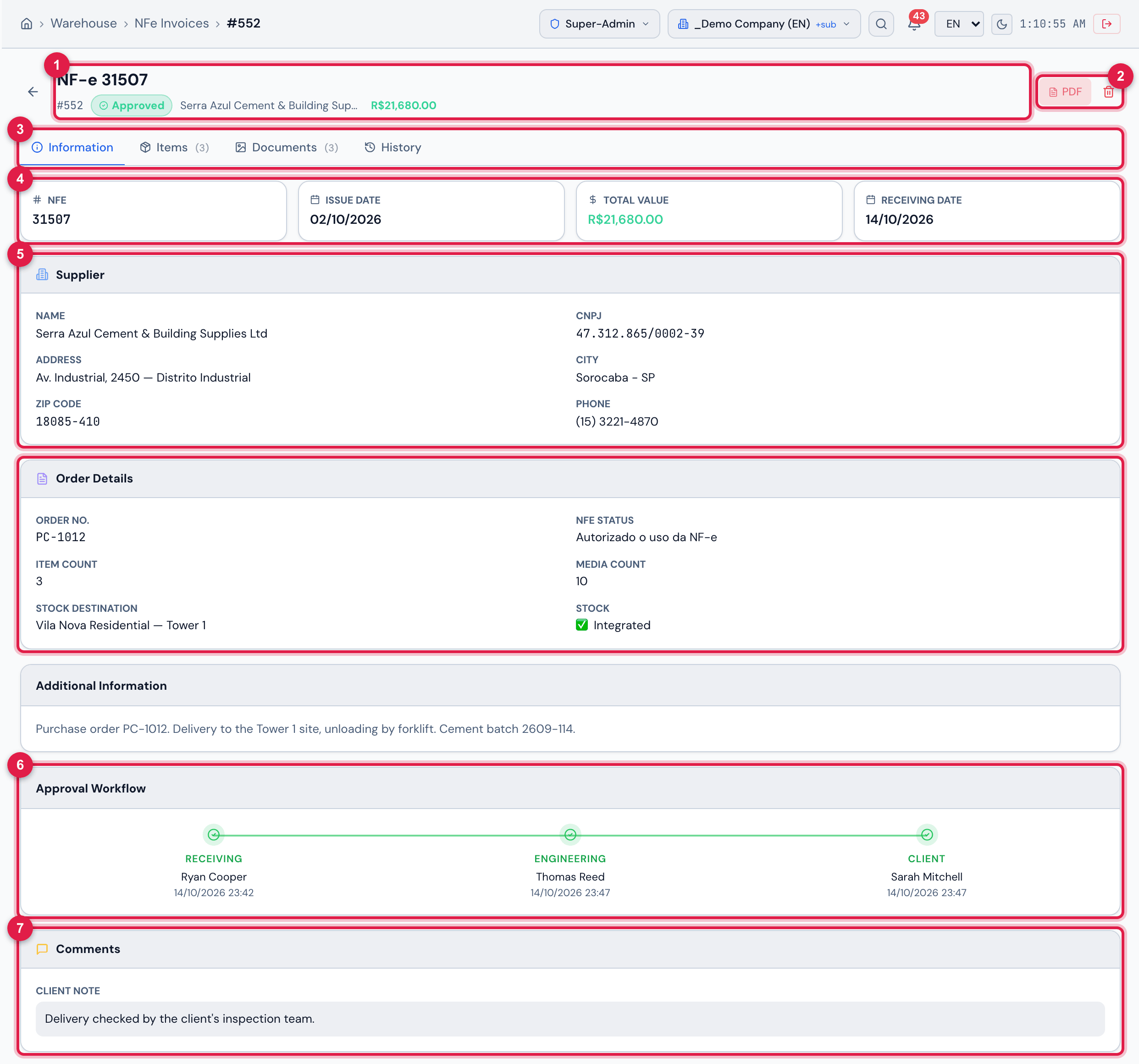
Figure 5. The record of invoice 31507 from Serra Azul Cement, for Vila Nova Residential — Tower 1, already Approved: Information tab.
- 1The invoice number, the ID, the state badge, the supplier and the value.
- 2PDF — the inspection PDF (chapter 9) — and the trash.
- 3The tabs, with the number of items and documents.
- 4The NFe, Issue Date, Total Value and Receiving Date cards.
- 5Supplier and Order Details.
- 6Approval Workflow: Receiving, Engineering and Client, with who acted and when.
- 7Comments — on this invoice, only the Client note.
| Block | What it shows |
|---|---|
| cards | NFe (the number), Issue Date, Total Value and Receiving Date — the day the invoice was imported |
| Supplier | Name, CNPJ, Address, City, ZIP Code and Phone, as they came from the invoice |
| Order Details | Order No., NFe Status (the status at SEFAZ), Item Count, Media Count (all the invoice’s files), Stock Destination and Stock: ✅ Integrated after the materials entered the stock, ⏳ Pending before |
| Additional Information | the free text the issuer wrote on the invoice (appears when there is one) |
| Approval Workflow | the three steps — Receiving (who imported it), Engineering and Client — with the name and date/time of whoever approved |
| Rejection reason | only on a Rejected invoice: the latest reason, highlighted |
| Comments | two boxes: Comments and reasons (history) and Client note (they appear when they have text) |
- Comments and reasons (history) gathers, one per line and with date and time, the comment of engineering’s approval, the rejection reasons — from engineering or the client, made on the web or in the app —, the Return for adjustment reasons and the invoice comments written in the app. The history only grows: a new entry never erases the earlier ones.
- Client note keeps the note the client writes when approving or rejecting (the Client note (optional)… field, chapter 7).
- On a Rejected invoice, the Rejection reason box, just above Comments, repeats the last entry of the history, without the date. An invoice rejected by an old version of the app, which kept the reason in another field, shows that text.
- A rejection does not fill in the Approval Workflow: who rejected and when are in the History, in the state change to Rejected.
History
Section titled “History”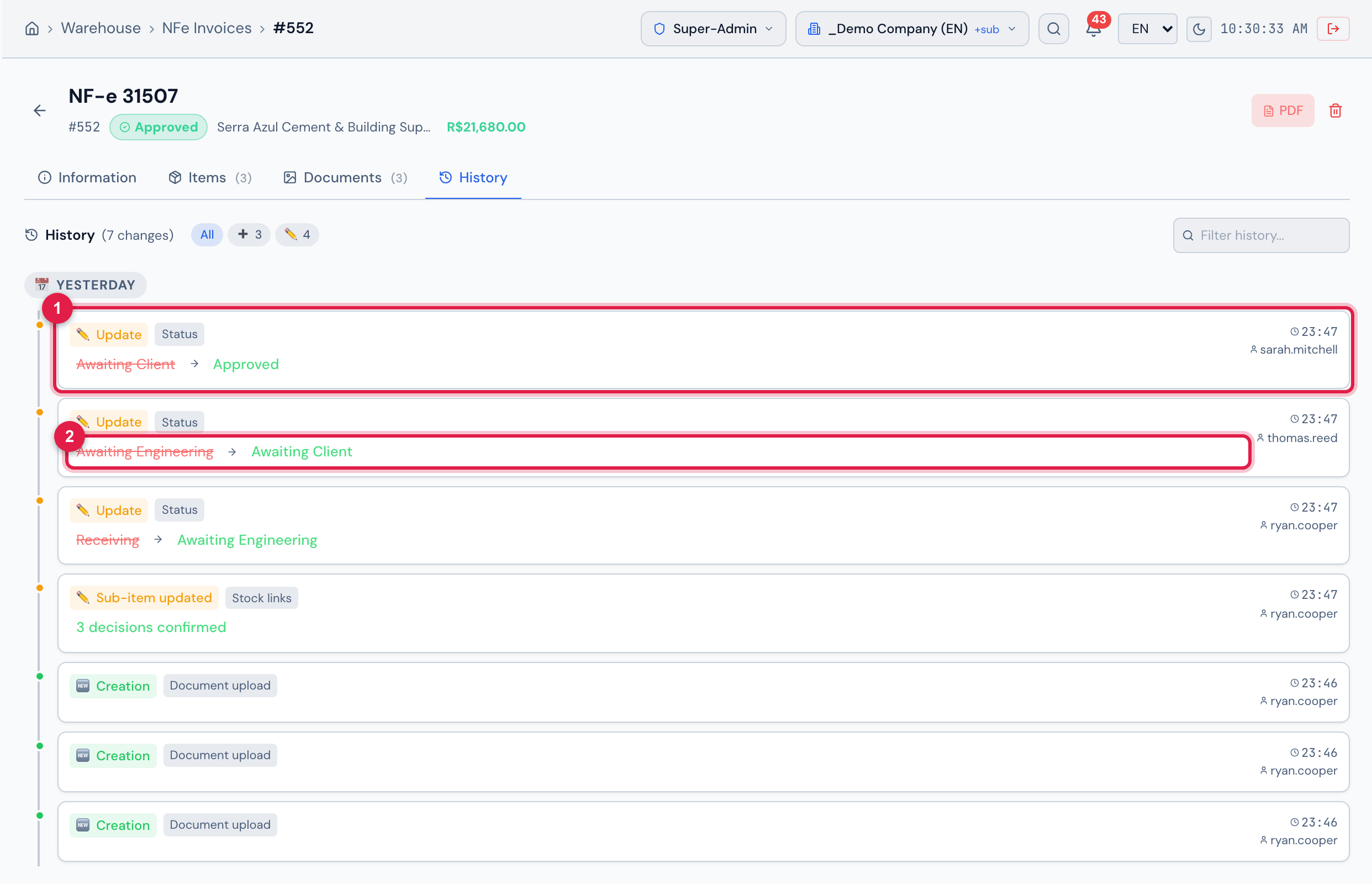
Figure 6. The History tab of invoice 31507, which went through the whole flow.
- 1Each record: the action, who did it and when.
- 2The state change, from the old one to the new one.
The History records what happens to the invoice: the import, each state change (with who did it and the Return for adjustment reason), the stock links saved, the stock entry, the documents attached, the e-mail sendings and the move to the trash and back. It appears for whoever can see the invoice.
Deleting the invoice
Section titled “Deleting the invoice”The trash icon, next to PDF, appears for whoever has Trash in Invoices (NFe). It asks Move this NFe to trash? and warns that it can be restored; once confirmed, NFe moved to trash appears and the invoice leaves the list. To bring it back, use the list’s 🗑 Trash tab (chapter 2).
Was this page helpful?
Thanks for the feedback!
Got it — we will improve this page.