
Adjustments: items and deletion
Manual — Automatic Scheduling · chapter 6 of 8
Once generated, the schedule allows two adjustments on screen: removing an item (an asset × plan pair) and deleting the whole schedule. Both follow the same rule: only the tickets that are still “on paper” go to the trash; work already started stays.Schedule Items
Section titled “Schedule Items”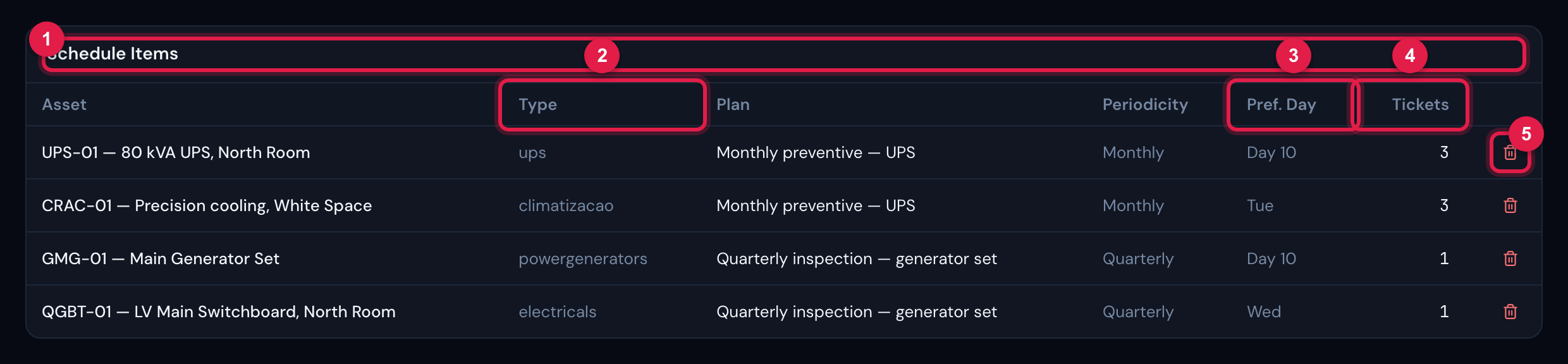
Figure 13. The Schedule Items table, at the end of the page: one item per asset × plan pair, with periodicity, preferred day and number of tickets; on the right, Remove item.
- 1Schedule Items — one item per asset × plan pair.
- 2Type — the internal name of the asset family (e.g.
ups,powergenerators). - 3Pref. Day — “Day 10” or the day of the week.
- 4Tickets — how many tickets the item generated.
- 5Remove item (trash icon) — only with Update in Tickets.
- Remove item asks Remove “asset” / “plan” from this schedule? and explains: the item stops generating tickets; its tickets that are still only planned go to the trash; the others are kept. Afterwards, the message says how many went to the trash and how many stayed.
- The removed item stays in the table, with the Inactive badge, for the record. It cannot be reactivated on screen.
- If your profile has Update but not Delete in Tickets, the item is deactivated and all its tickets are kept.
Deleting the schedule
Section titled “Deleting the schedule”The Delete schedule button, in the page header, appears with the Delete right in Tickets.
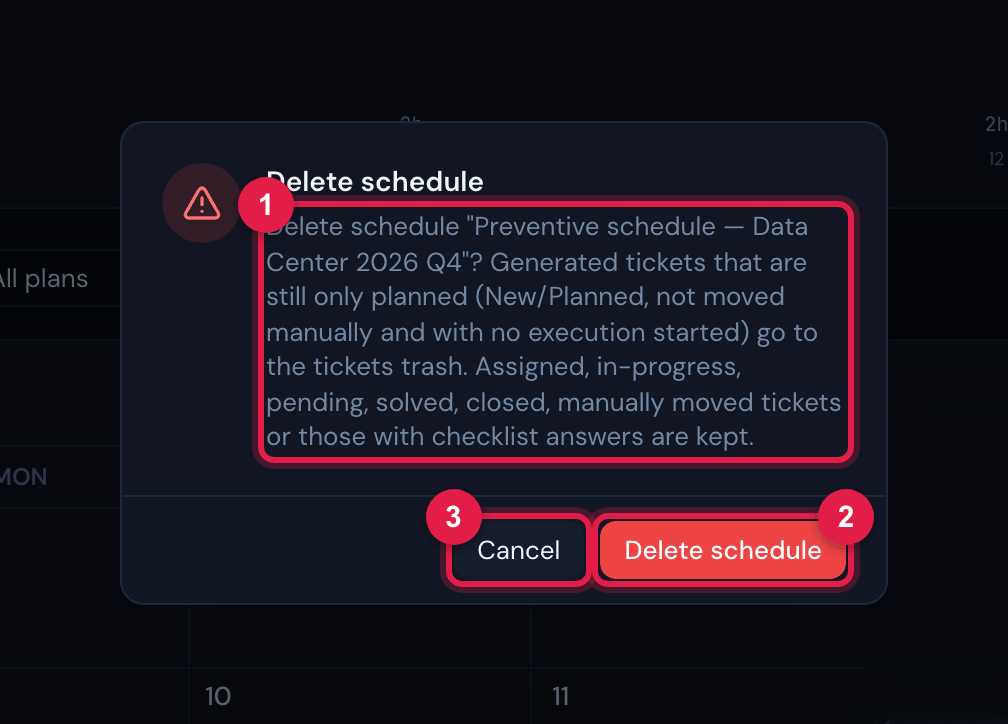
Figure 14. The Delete schedule confirmation: it explains which tickets go to the trash and which stay.
- 1The text of the rule: only the still-only-planned tickets go to the trash.
- 2Delete schedule — confirms.
- 3Cancel.
| Generated ticket | When deleting the schedule (or removing the item) |
|---|---|
| New or Planned, never moved manually, no task done and no checklist answer at all | goes to the tickets trash. |
| Assigned, in progress, pending, solved or closed | stays. |
| Moved manually on the calendar (chapter 5) | stays — even if still Planned. |
| With any checklist item answered (on the web or in the app), or with the task done | stays. |
- The schedule disappears from the list; the final message says how many tickets went to the trash and how many stayed. Those that stayed go on as ordinary tickets, without the schedule.
- The trash is the Tickets one (Trash button in the Tickets list): a ticket deleted by mistake can be restored, with its task and asset.
- Each ticket sent to the trash is recorded in the audit log, together with the deletion of the schedule.
Was this page helpful?
Thanks for the feedback!
Got it — we will improve this page.