
Receiving: the order and the invoice
Manual — Purchasing: orders, quotations and accounts payable · chapter 5 of 9
When the invoice arrives, H2O looks for its purchase order and matches the two, item by item: what was ordered, what had already arrived, what came on this invoice and at what price. Receiving the invoice itself — checking, photographing, approving — is in the manual NF-e and material receiving.How the invoice finds the order
Section titled “How the invoice finds the order”- By the order number on the invoice. If the supplier entered the order number on the invoice, and it is the ERP code or the PC-… number of an open order of the site, the invoice is linked by itself when the tab is opened.
- By the supplier. Without a number, H2O suggests the open orders of the same supplier (by tax ID) for you to choose from.
- By the search. Whoever is receiving can look for any open order by number, ERP code or supplier and link it.
An open order is one that is Issued or Partially received, at the invoice’s site or at a site above it.
The Purchase order tab of the invoice
Section titled “The Purchase order tab of the invoice”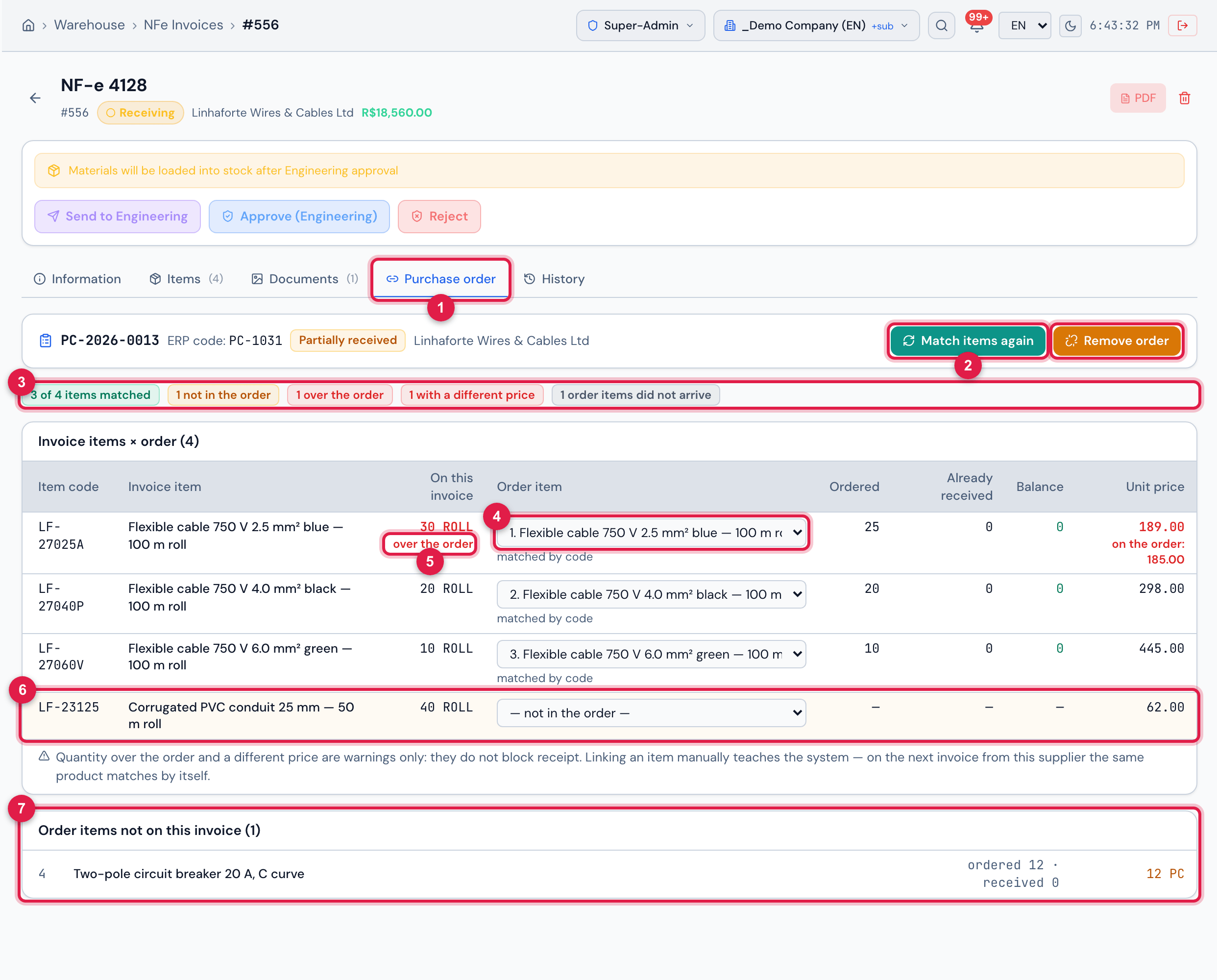
Figure 9. The Purchase order tab of an invoice that found the order by its number.
- 1The Purchase order tab, on the invoice record.
- 2Match items again and Remove order.
- 3The summary: items matched, not in the order, over the order, with a different price and the ones that did not arrive.
- 4Order item — the item the invoice row matched; change it in the list to correct it.
- 5over the order — the quantity on this invoice, added to what has already arrived, exceeds the order.
- 6An invoice item not in the order.
- 7Order items not on this invoice.
| Column | What it shows |
|---|---|
| Invoice item, On this invoice | the product and the quantity on this invoice |
| Order item | the corresponding order item and how it matched: matched by code, by barcode, by material, by description or linked manually |
| Ordered, Already received, Balance | the quantity ordered, what arrived on earlier invoices and what is still missing after this one |
| Unit price | the invoice price; if it differs, on the order: appears with the agreed price |
- Linking an item by hand: in the Order item column, choose the right item in the list. H2O learns: on the next invoice from this supplier, the same product matches by itself.
- Match items again redoes the automatic matching — use it after correcting the order. What was linked by hand is kept.
- Remove order undoes the link between the invoice and the order.
Invoice without an order
Section titled “Invoice without an order”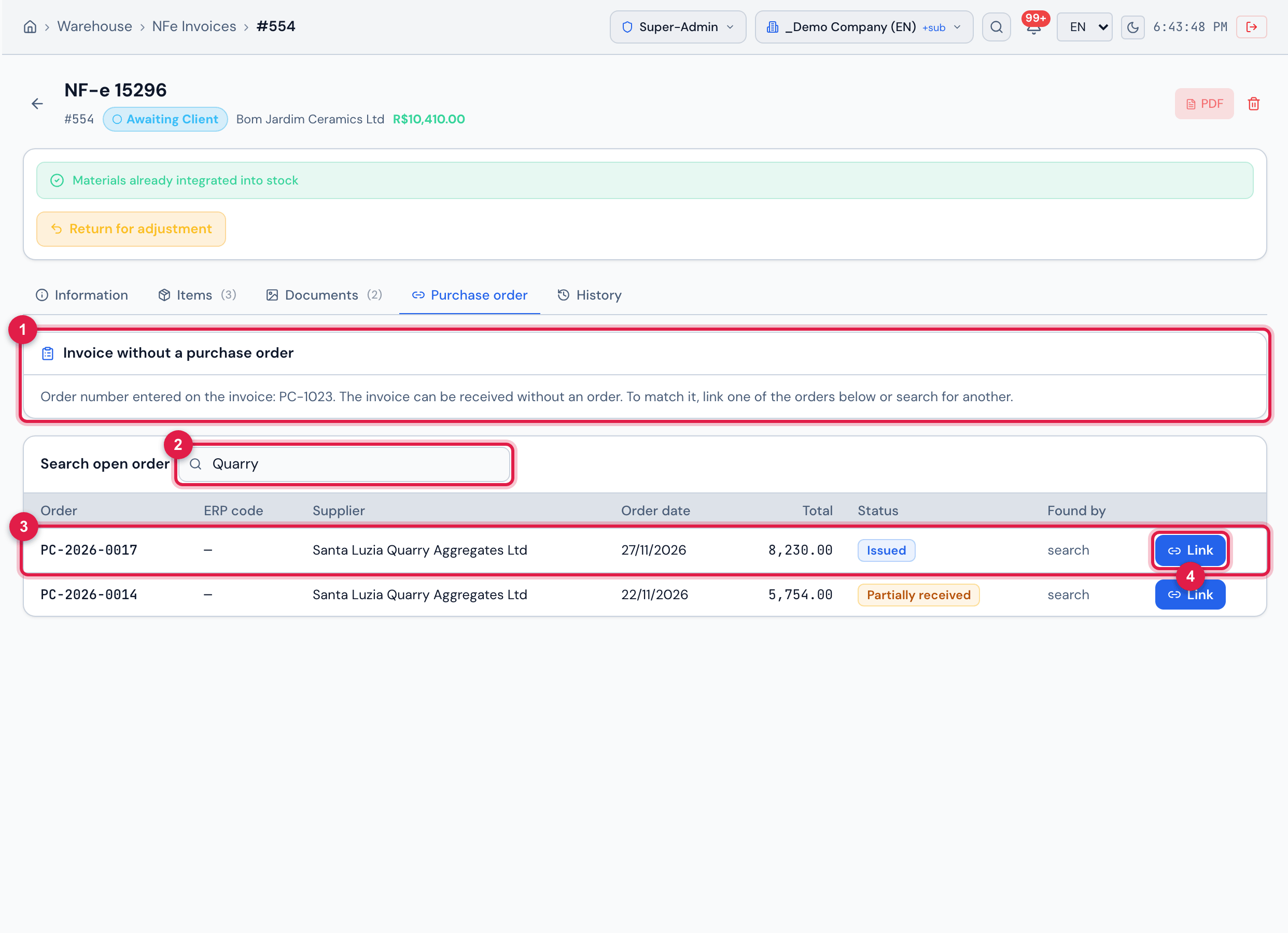
Figure 10. An invoice that found no order, with the search filled in.
- 1Invoice without a purchase order and the order number the invoice states.
- 2Search open order — type at least 2 characters.
- 3An order found: number, ERP code, supplier, date, total and status.
- 4Link.
The invoice follows the normal flow without an order. To match it, click Link on one of the orders suggested or found by the search: H2O matches the items right away.
What changes on the order
Section titled “What changes on the order”Each linked invoice updates the order: the Received and the Balance of each item, and the status — Partially received while there is a balance, Received when everything has arrived. On the order record, the Matching against the invoice block lists the invoices, the total received and the items that came without being in the order (figure 7).
A rejected invoice appears in the matching with the note not counted: it does not add to what was received.
In the app
Section titled “In the app”In the H2O app, the matching appears on the invoice itself, under Invoices. It is the same check as on the web, done at the moment of receipt, with the device connected.
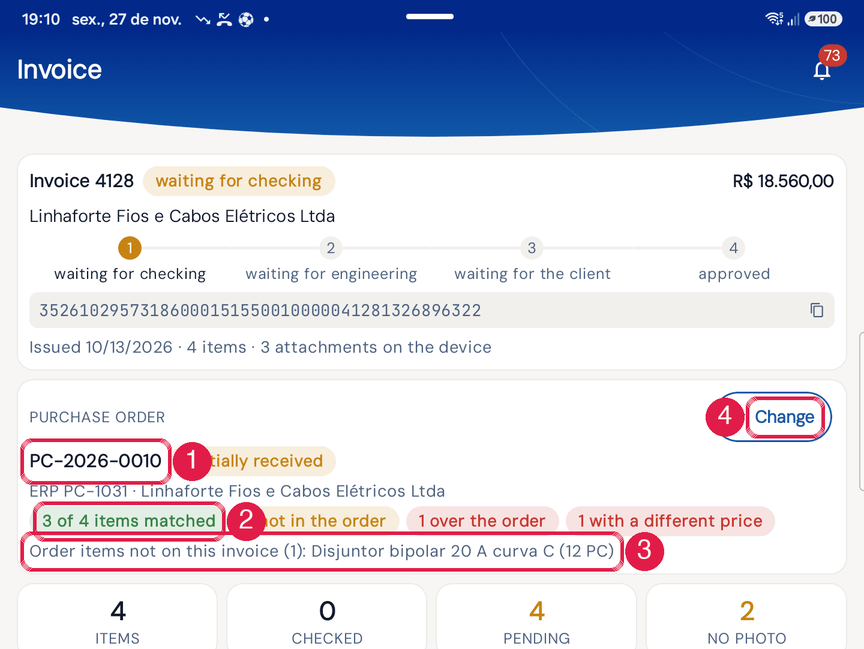
App H2OFigure 11. The Purchase order card on the invoice, in the app.
- 1The order found: number, status, ERP code and supplier.
- 2The summary: items matched, not in the order, over the order and with a different price.
- 3What from the order did not come on this invoice.
- 4Change — links another order.
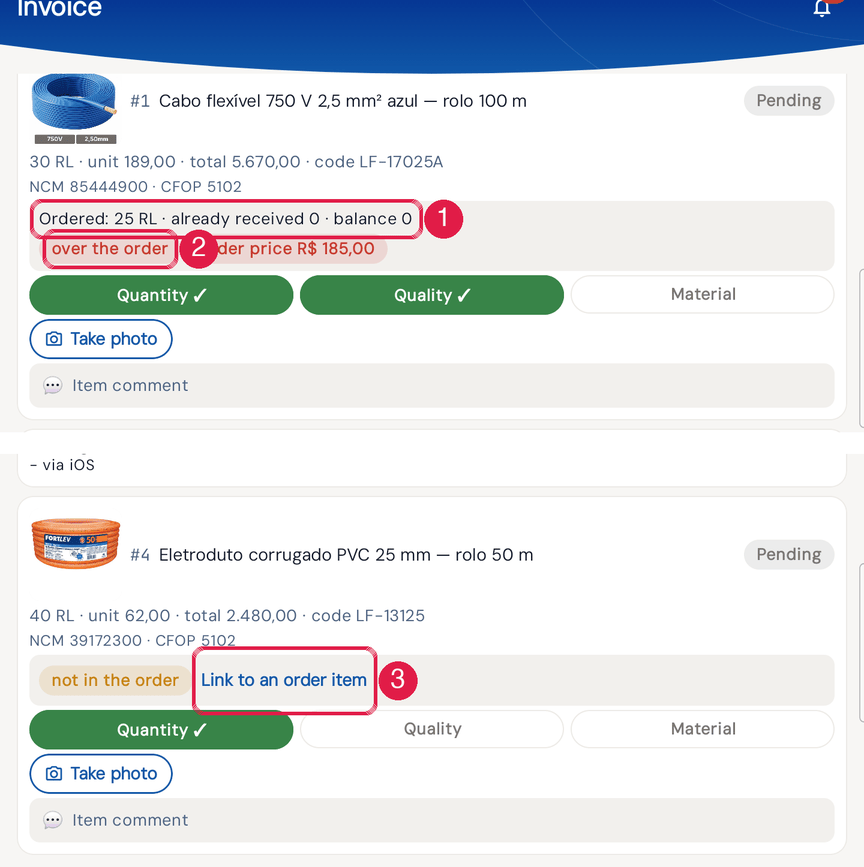
App H2OFigure 12. The order line inside each invoice item.
- 1Ordered, already received and balance of the item.
- 2The warnings over the order and order price.
- 3not in the order and Link to an order item — choose the right item in the list.
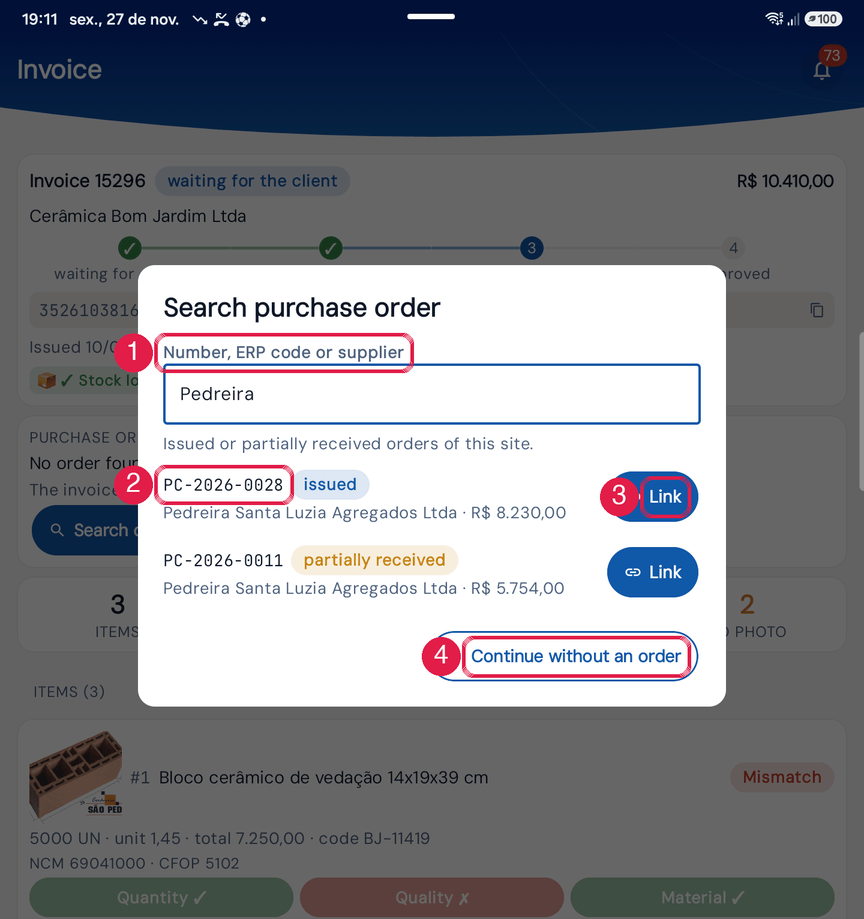
App H2OFigure 13. The order search, when the invoice found none.
- 1Number, ERP code or supplier.
- 2The orders found.
- 3Link.
- 4Continue without an order.
- When the invoice finds no order, the card shows No order found for this invoice, suggests the open orders of the same supplier and offers Search order.
- Looking up, searching and linking need the internet. Offline, the app shows the last check it read, with the notice Offline: this is the last check saved on the device.
- The warnings do not block anything: the Quantity, Quality and Material check, the photos and the sending go on as always.
- To undo an item linked by hand, use the Purchase order tab on the web.
Was this page helpful?
Thanks for the feedback!
Got it — we will improve this page.