
The main screen
Manual — Getting started — web · chapter 5 of 13
After you sign in, H2O opens the Dashboard. The screen has three fixed parts: the side menu on the left, the header at the top and, in the middle, the open page. In the bottom right corner is the round help button (chapter 10).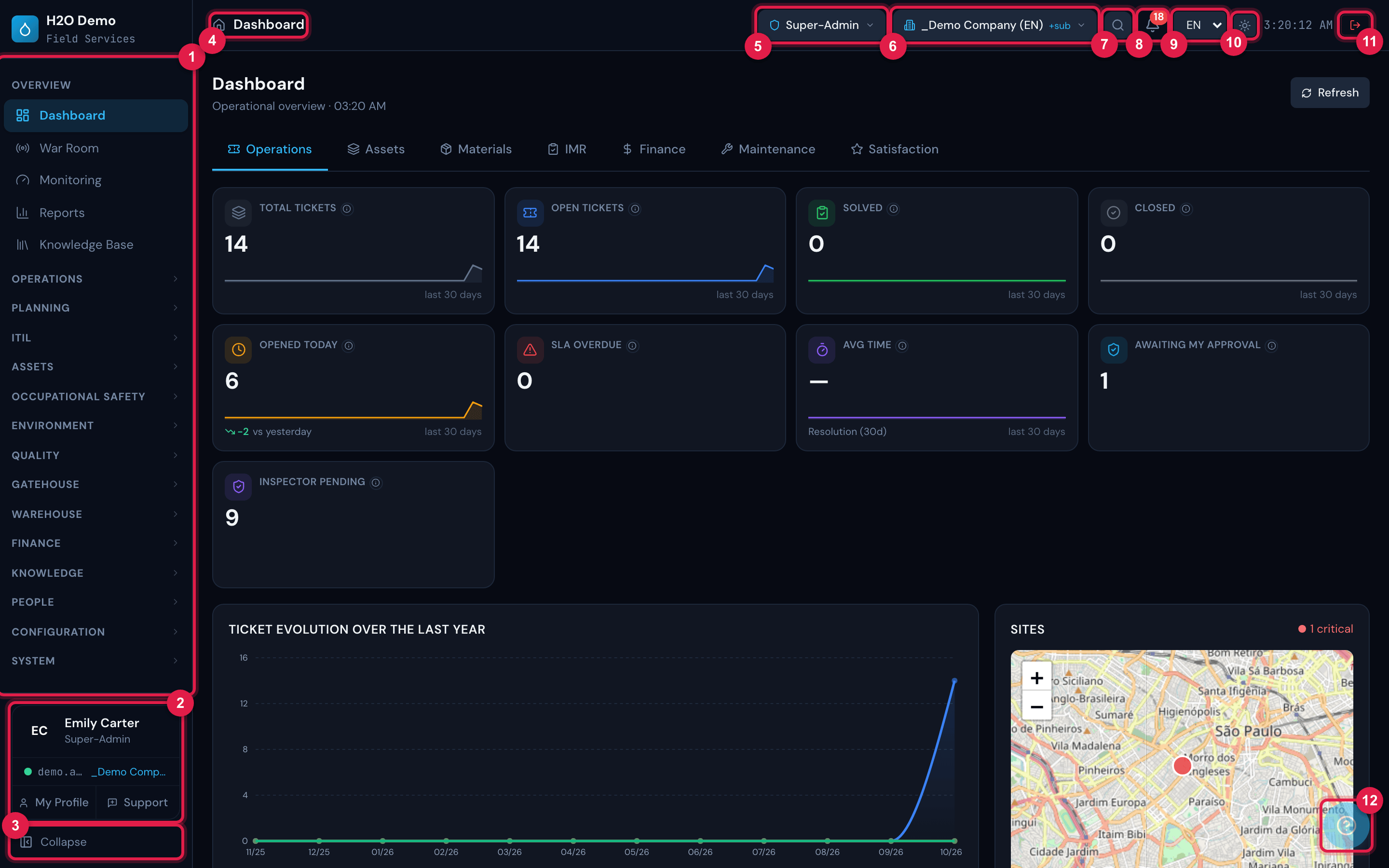
Figure 15. The H2O web main screen with the Dashboard open: the side menu with the sections and the user card at the bottom; in the header, the navigation trail and, on the right, profile, site, Global Search, the Alerts bell, language (EN), theme, clock and Logout; in the bottom right corner, the help button.
- 1Side menu: sections and pages, according to your profile’s rights.
- 2User card: name, profile, company address and site; My Profile and Support buttons.
- 3Collapse — shrinks the menu to icons only.
- 4Navigation trail: little house (Dashboard) › section › page.
- 5Active profile (shield).
- 6Active site (building); +sub shows that the sub-sites are included.
- 7Global Search magnifier.
- 8Alerts bell, with the total number of alerts.
- 9Language (PT, EN, ES).
- 10Light/dark theme.
- 11Logout (red) — signs out at once, without confirmation.
- 12Help button (shortcut Ctrl+/).
The side menu
Section titled “The side menu”- At the top, the company name. Below it, the sections: Overview, Operations, Planning, ITIL, Assets, Occupational Safety, Environment, Quality, Gatehouse, Warehouse, Finance, Knowledge, People, Configuration and System.
- Overview is always open. Clicking the name of another section opens it and closes the one that was open; the menu remembers, in this browser, which one was left open.
- Each item only appears to users who have the matching right in their profile. A section with no item allowed does not appear. If a page you need is missing, ask the administrator to adjust your profile.
- When you hover over an item, the Open in new tab icon appears on the right — the new tab opens already signed in.
- At the bottom, the user card: initials, name, active profile, the
company.atg.com.braddress and the active site; the My Profile (chapter 11) and Support (chapter 10) buttons. Clicking the name also opens My Profile. - Collapse leaves the menu with icons only; the same button expands it again.
The header
Section titled “The header”| Element | What it does |
|---|---|
| Trail (little house › section › page) | shows where you are; the little house goes back to the Dashboard and the page name goes back to the list. On record pages, it ends with the record number (#123). |
| Profile (shield icon) | shows the active profile; with more than one profile, switches profile (below). |
| Site (building icon) | shows the active site and switches site (below). |
| Magnifier | opens Global Search (chapter 7). |
| Bell | opens the Alerts (chapter 9). |
| PT / EN / ES | language of the screens in this browser (chapter 6). |
| Sun / moon | switches between the light and dark themes; the choice stays in this browser. |
| Clock | current time (only shows on wide screens). |
| Red button | Logout — ends the session at once, without asking for confirmation (chapter 12). |
Switching site
Section titled “Switching site”Everything H2O shows — lists, dashboards, search, alerts — is filtered by the site selected in the header. To switch:
- Click the site button (building icon).
- In Select site, the tree of sites allowed for your active profile appears. The arrows open the sub-sites.
- Click the site you want. The page reloads the data of that site.
If your profile also covers the sub-sites (a recursive profile) and the chosen site has sub-sites, the bottom of the list shows the Site + sub-sites / This site only switch. With Site + sub-sites, the header button shows +sub next to the name. The bottom also shows how many sites you can choose from (for example, 12 Sites).
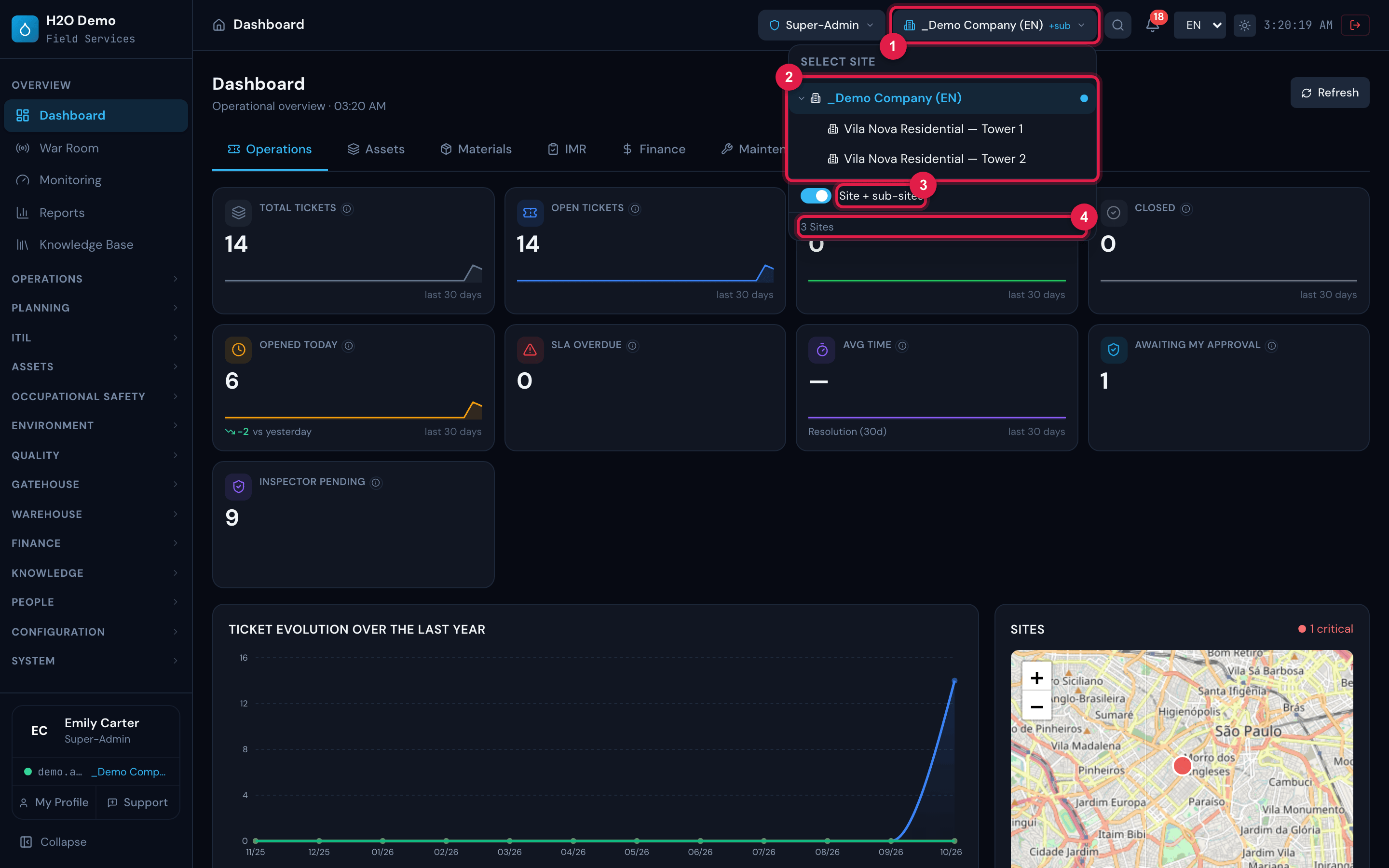
Figure 16. Select site open: the site tree of the active profile, with the current site (_Demo Company (EN)) highlighted and expanded to show its sub-sites Vila Nova Residential — Tower 1 and Tower 2; the Site + sub-sites switch on and the count 3 Sites at the bottom.
- 1Button of the active site, with +sub.
- 2Tree of the allowed sites — the arrows open the sub-sites.
- 3Site + sub-sites / This site only switch.
- 4How many sites the active profile reaches.
Switching profile
Section titled “Switching profile”Users with more than one profile see an arrow on the profile button. Click it and choose in Select profile. The profile decides what you can do (the menu items and the buttons on the screens) and where (the list of sites in the selector). Some profiles open the self-service portal instead of the full menu (below).
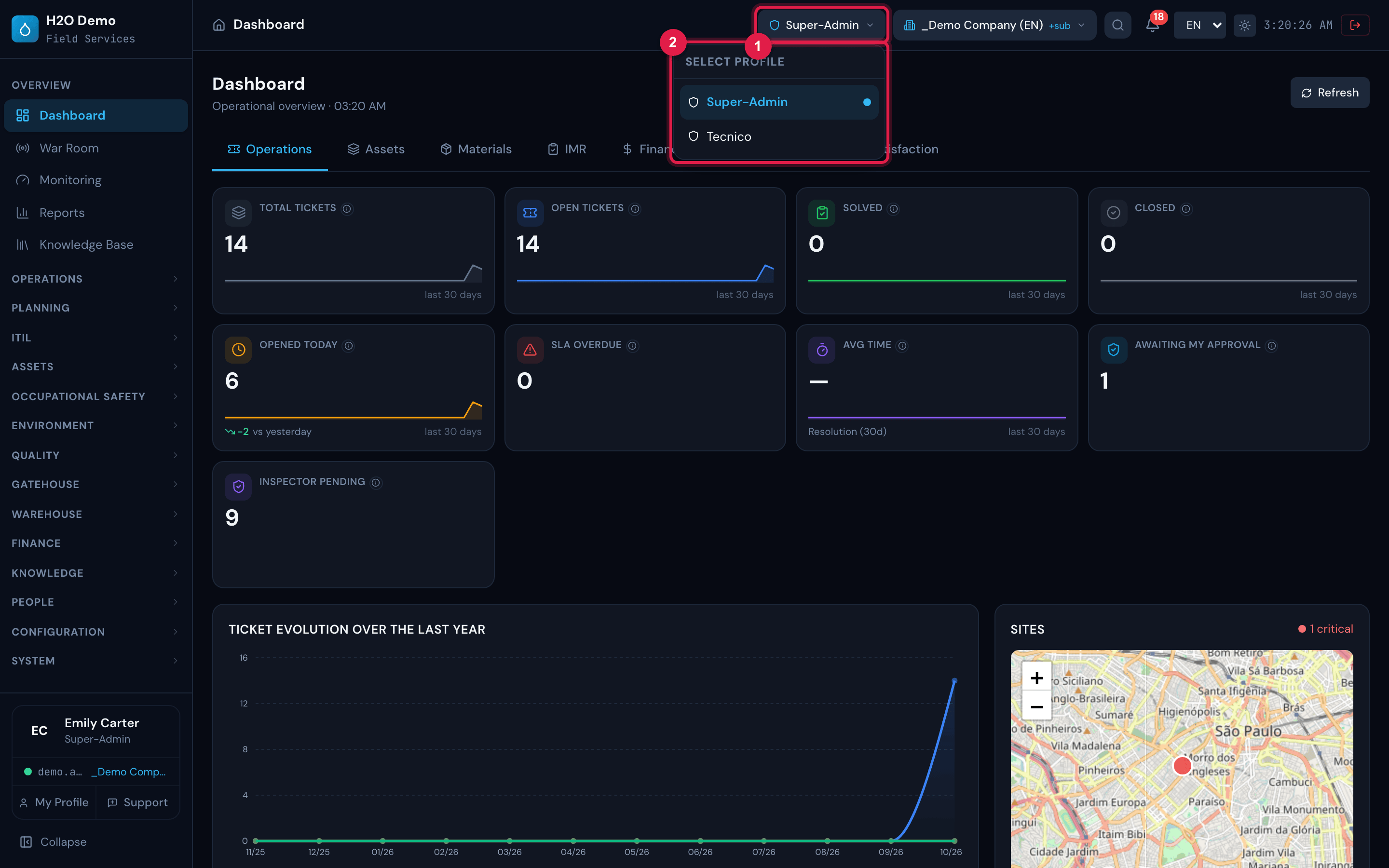
Figure 17. Select profile open in the header: the user’s two profiles — Super-Admin, the active one, highlighted, and Tecnico.
- 1Button of the active profile.
- 2The Select profile list.
The self-service portal
Section titled “The self-service portal”Self-service profiles (such as the requester profile) do not see the side menu: H2O opens a simple portal, with the My Tickets, Knowledge Base (when the profile has access to it), My Profile and Support tabs. In My Tickets, the New Ticket button opens a ticket, and the list shows the user’s tickets. The header is the same as on the full screen, with profile, site, bell, language, theme and Logout — only the Global Search magnifier does not appear.
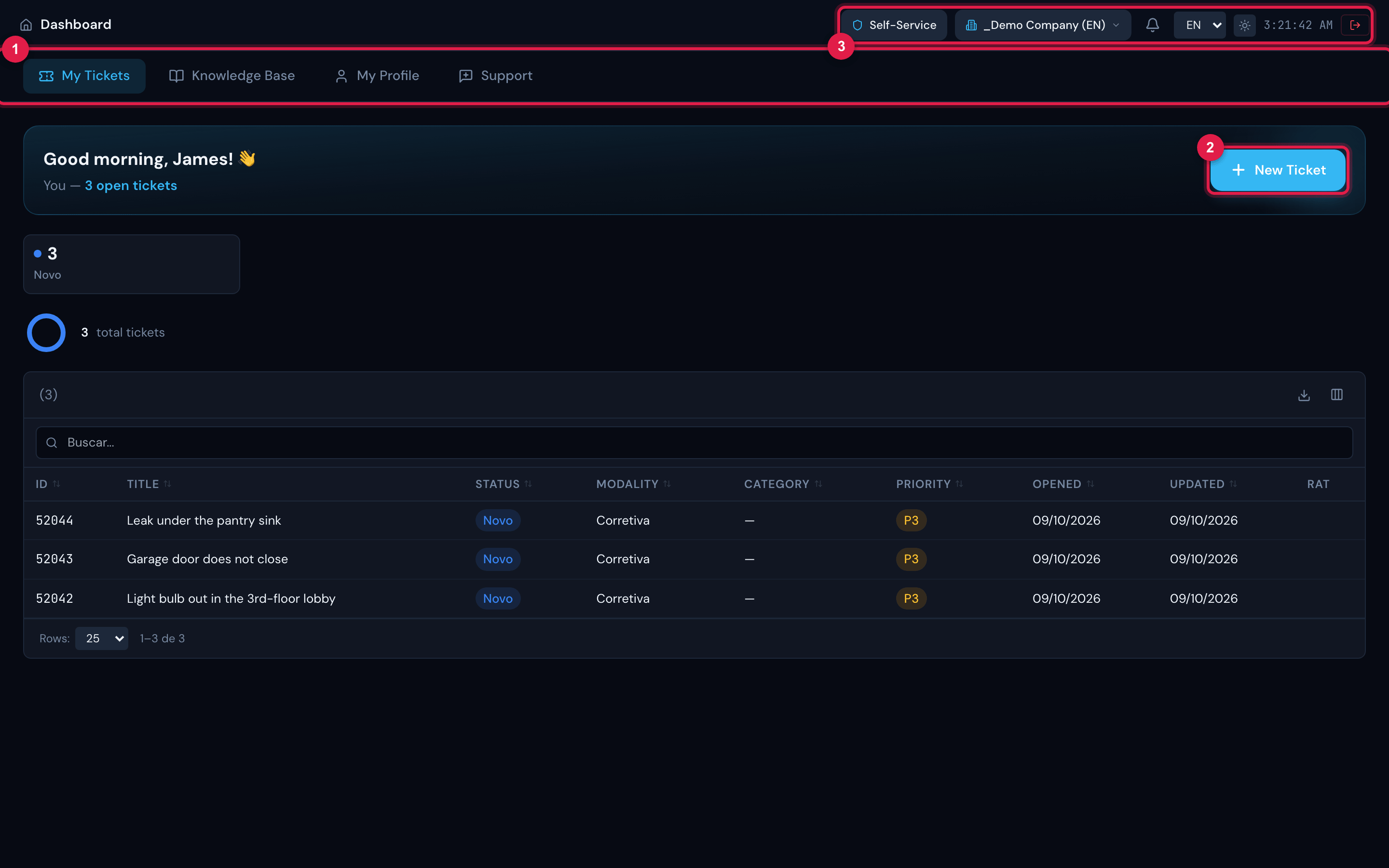
Figure 18. The self-service portal: the header and the My Tickets, Knowledge Base, My Profile and Support tabs, with the list of the user’s three tickets.
- 1Portal tabs.
- 2New Ticket button.
- 3Header — the same as on the full screen, without the magnifier.
Was this page helpful?
Thanks for the feedback!
Got it — we will improve this page.