
Purchase orders
Manual — Purchasing: orders, quotations and accounts payable · chapter 3 of 9
The purchase order says what was bought, from whom, for how much and for when. It has one supplier, several items with quantity and price, and goes through statuses that H2O updates as the invoices arrive.| Status | What it means |
|---|---|
| Draft | being prepared: everything can change and nothing is in force yet |
| Issued | the order is in force: it awaits delivery and has already generated the forecast in accounts payable |
| Partially received | some invoice of the order has arrived, but there is still a balance to receive |
| Received | everything has arrived — or the receipt was closed manually |
| Canceled | the order was canceled, with the reason recorded |
The record also shows where the order came from: Created in H2O, Created from material requests, Imported from spreadsheet or Generated from quotation.
Creating an order
Section titled “Creating an order”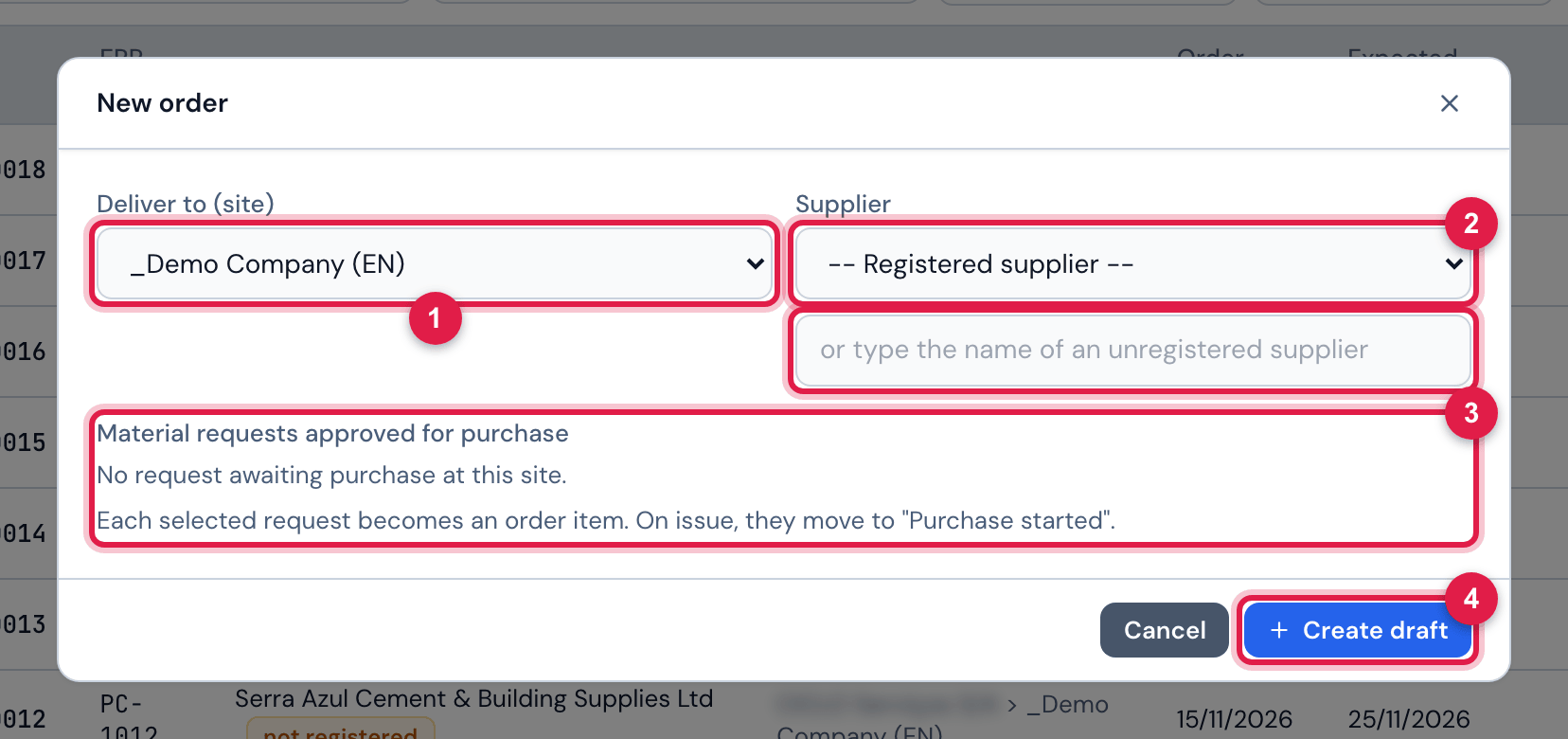
Figure 5. The New order window.
- 1Deliver to (site) — the site or job that receives the material.
- 2Supplier — choose a registered one or type the name of an unregistered supplier.
- 3Material requests approved for purchase — select the ones that go into this order.
- 4Create draft.
- In Warehouse › Purchase orders, click New order.
- Choose the site in Deliver to (site) and the Supplier. The supplier can be left for later.
- If there are material requests approved for purchase at that site, select the ones this order covers: each one becomes an item.
- Click Create draft. The order opens already in edit mode.
- Complete the header and the items and click Save.
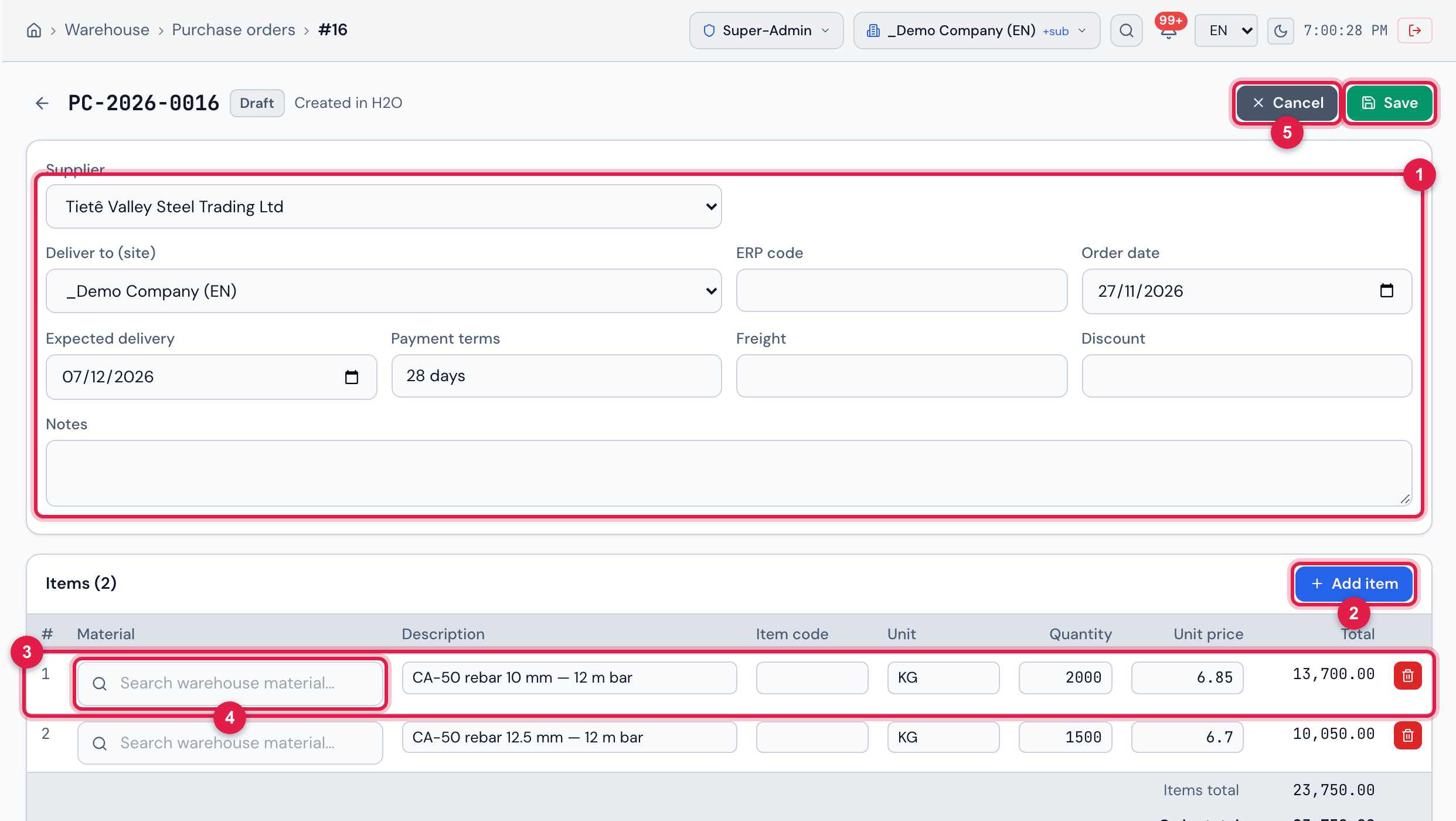
Figure 6. A draft being edited.
- 1The header: Supplier, Deliver to (site), ERP code, Order date, Expected delivery, Payment terms, Freight, Discount and Notes.
- 2Add item.
- 3An item: Material, Description, Item code, Unit, Quantity and Unit price; the Total is calculated.
- 4Material — search for a warehouse material to tie the item to the stock; or just write the Description.
- 5Cancel and Save.
- ERP code is the number of this order in the customer’s system. It cannot repeat in another order of the same site.
- Item code is the product code — preferably the same one the supplier puts on the invoice, because that is how the invoice item matches the order item (chapter 5).
- Payment terms is free text, but the numbers count: 30/60/90 generates three installments in accounts payable, 28 days generates one (chapter 8).
- The Order total is the items total plus the Freight, minus the Discount.
- Amounts accept decimals: 6.85.
Issuing
Section titled “Issuing”With the draft checked, click Issue. The order needs a supplier and at least one item. On issue:
- the status becomes Issued and the record shows who issued it and when;
- the material requests tied to the items move to Purchase started;
- the forecast is created in Accounts payable, with the installments from the payment terms.
To send the order to the supplier, click PDF: the document comes out with the number, the ERP code, the items and the totals.
The order record
Section titled “The order record”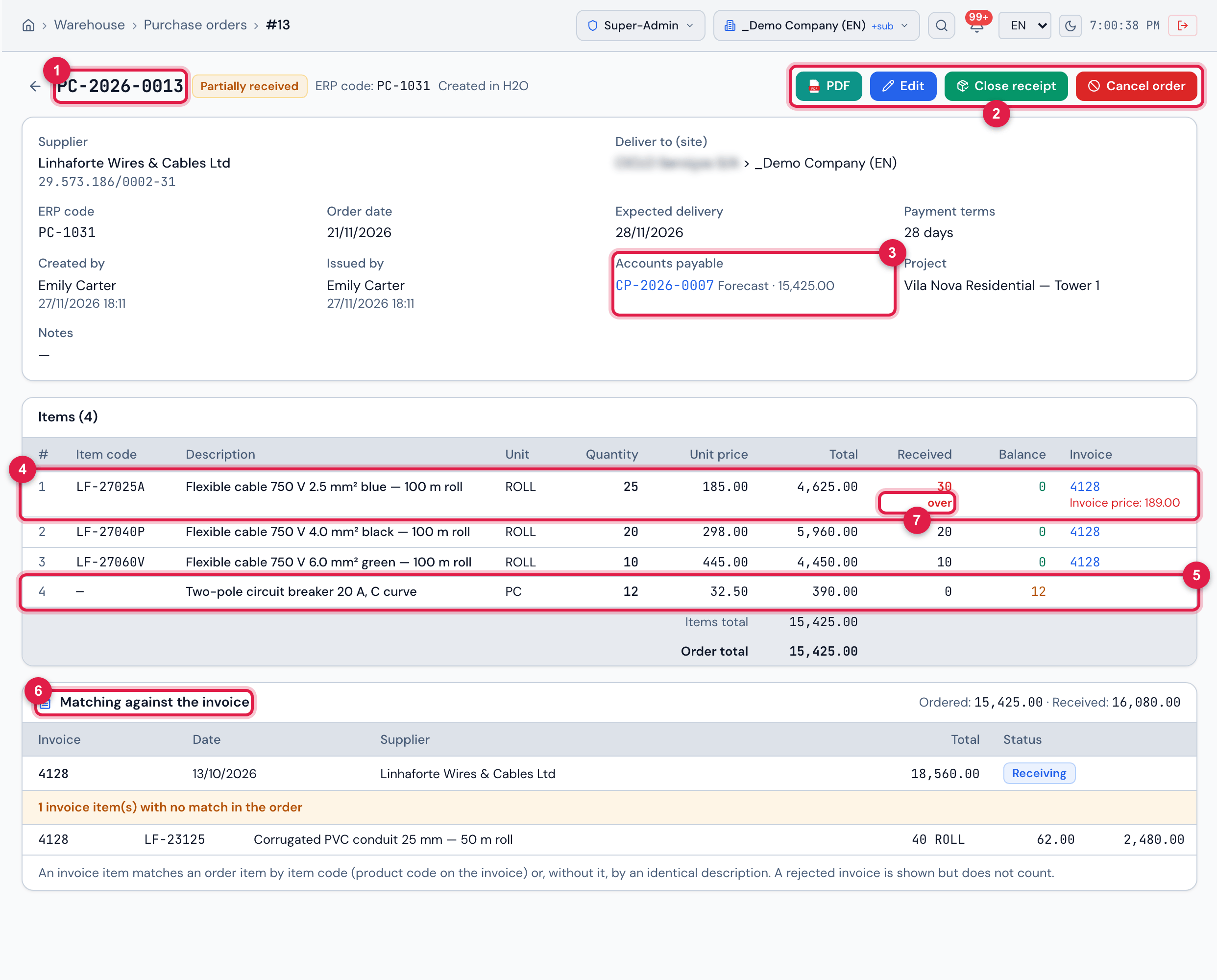
Figure 7. The record of a Partially received order.
- 1The order number; next to it, the status, the ERP code and the origin.
- 2PDF, Edit, Close receipt and Cancel order.
- 3Accounts payable — the payable this order generated; click to open it.
- 4An item with Quantity, Received, Balance and the Invoice it arrived on.
- 5An item that has not arrived yet: the Balance is the whole quantity.
- 6Matching against the invoice — the invoices of this order and their items that are not in the order (chapter 5).
- 7over — more arrived than was ordered.
Until the invoice arrives, the Received, Balance and Invoice columns stay empty. Click the invoice number to open it.
Changing an issued order
Section titled “Changing an issued order”On an issued order, Edit changes only the ERP code, the Expected delivery, the Payment terms and the Notes. That is the case of someone who creates the order in H2O and gets the ERP code later.
To change the supplier or the items, click Reopen: the order goes back to Draft and the requests go back to awaiting purchase. Reopen only exists while no invoice of the order has arrived.
Closing the receipt and canceling
Section titled “Closing the receipt and canceling”- Close receipt — marks the order as Received even with a balance. Use it when the balance will not be delivered or when the invoice came with no link to the order. The record shows closed manually, and Reopen undoes it.
- Cancel order — asks for the Cancellation reason and takes the order to Canceled. The requests go back to awaiting purchase and the forecast in accounts payable is canceled. The record shows who canceled it, when and why.
- Delete — only for a Draft.
Exporting
Section titled “Exporting”Export Excel and Export CSV take to the spreadsheet the orders that are on screen — with the tab, search, supplier and period you chose —, one row per item.
Was this page helpful?
Thanks for the feedback!
Got it — we will improve this page.