
NF-e in the app
Manual — NF-e and material receiving · chapter 10 of 11
In the H2O app, the receiving is done at the job’s gate, on the phone or the tablet: read the DANFE key with the camera, check the items, take photos, scan the invoice, the order and the certificates and send it to engineering. The check and the photos are kept on the device and go up at the sync — only the invoice import needs internet.The invoice list
Section titled “The invoice list”On the home screen, tap Invoices (received material). The module appears for whoever has Read in Invoices (NFe) or Approve (Eng. and Contractor) in NFe Validation (chapter 1).
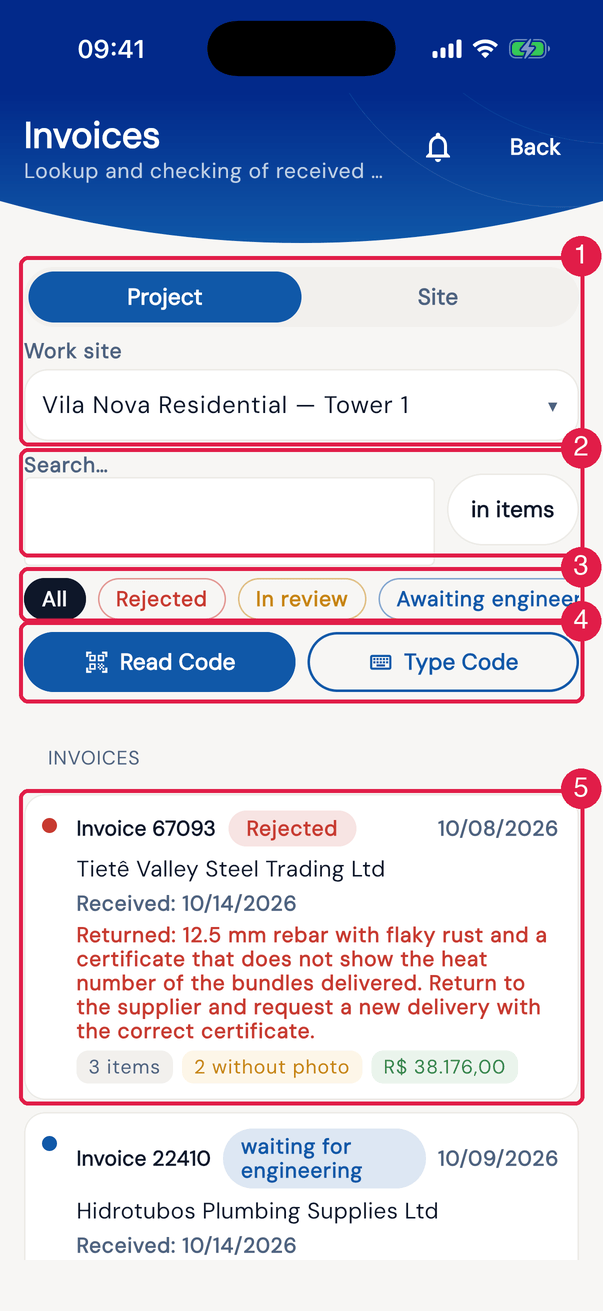
App H2OFigure 23. The invoices of Vila Nova Residential — Tower 1 in the app.
- 1Project / Site and the Work site selector.
- 2Search… and the in items chip.
- 3The state chips.
- 4Read Code and Type Code.
- 5An invoice: number, state, issue date, supplier, receiving date (and the FVM, when the invoice has one), the return reason (Returned: …), items, items without photo and the value.
- Project shows the invoices of a job (choose it in Work site); Site, the invoices whose destination is a site (choose it in the Site selector). The app remembers the last choice.
- Each invoice has one destination — a project or a site —, chosen at import; it does not change afterwards. The list shows only the invoices whose destination is exactly the chosen project or site: an invoice with site X as destination does not appear under a project of site X, and an invoice with a project as destination does not appear in Site mode. Site mode does not add up the sites below either: the parent site does not show the invoices of its child sites. An invoice without a destination does not appear in any mode.
- The Site selector lists only the sites with a registered address, among the sites the device knows. With none, No site found appears.
- To know where to look for an invoice, see the Destination column of the web list (chapter 2): Proj calls for Project mode with that job; Site calls for Site mode with that site.
- The list goes from the most recently changed invoice to the oldest: the invoice that has just changed is at the top. On the web, the order is by issue date.
- Search… looks in the number, the supplier and the key; with in items on, it looks by the product name.
- The chips filter by state: Rejected, In review, Awaiting engineering, Awaiting client, Approved and ACC archive (Autodesk). The first tap keeps only that state; further taps add more; All turns the filter off.
- With no chip on, whoever only approves as the client (Approve (Contractor), without Approve (Eng.) or Approve (Eng. and Contractor)) sees only Rejected, Awaiting client, Approved and ACC archive (Autodesk): the In review and Awaiting engineering invoices stay hidden until they turn on those chips.
- On the card, N without photo warns about items still without a check photo, and Returned: … shows the reason of the last rejection — made on the web or in the app.
Bringing in a new invoice
Section titled “Bringing in a new invoice”Read Code and Type Code appear for whoever has Create in Invoices (NFe). The invoice comes in with the destination chosen at the top of the list — the Work site or the Site.
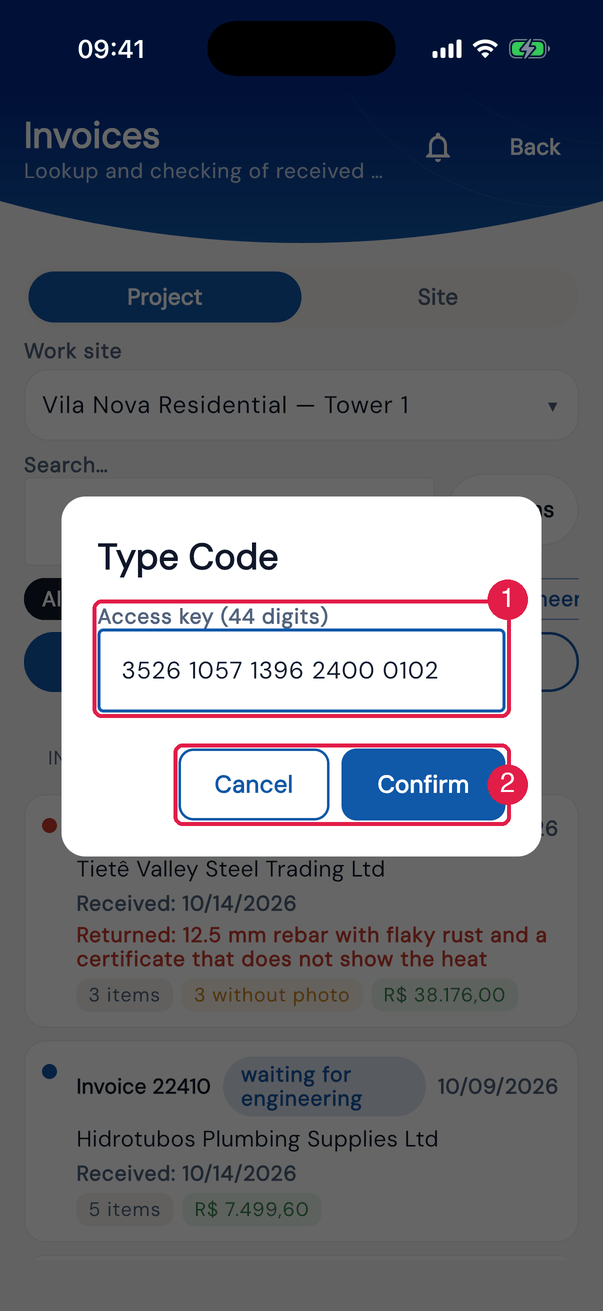
App H2OFigure 24. Type Code: the 44-digit key, in blocks of 4.
- 1Access key (44 digits).
- 2Confirm and Cancel.
- Read Code opens the camera: point it at the DANFE barcode.
- While SEFAZ answers, Fetching the invoice… appears; then the invoice opens. If it already exists and you can see it, it simply opens.
- It needs internet. With no signal, keep the DANFE and import it later, or import it on the web (chapter 3).
The invoice in one scroll
Section titled “The invoice in one scroll”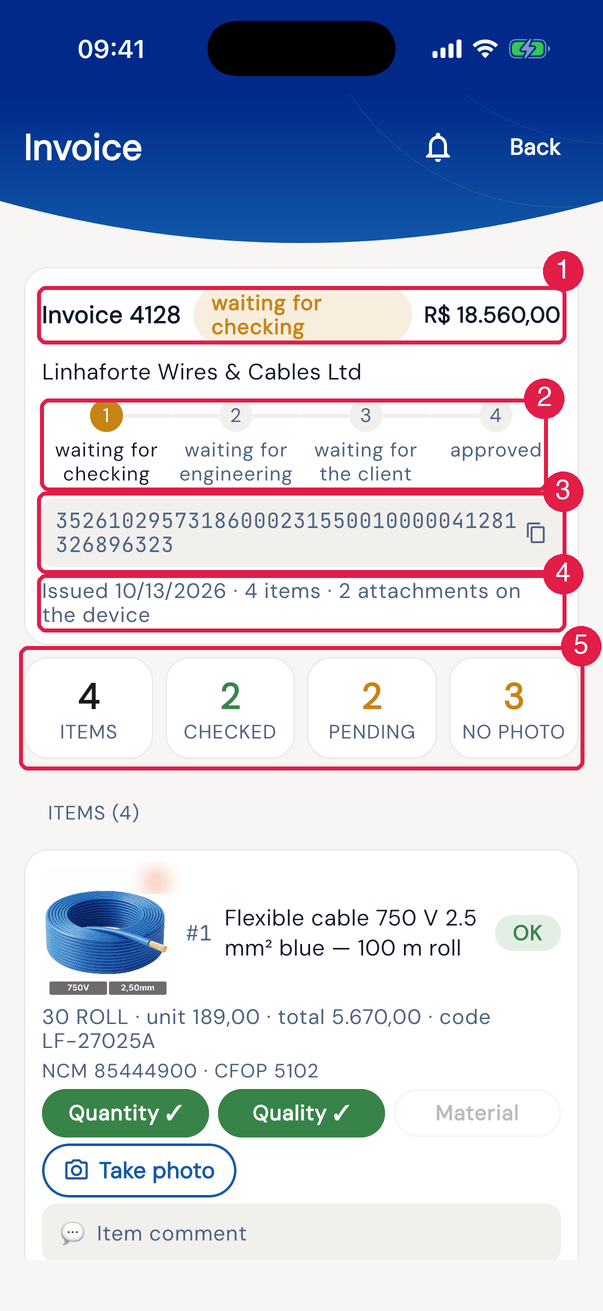
App H2OFigure 25. The top of invoice 4128 from Linhaforte Wires & Cables, in review.
- 1Invoice N, the state and the value.
- 2The progress: waiting for checking, waiting for engineering, waiting for the client and approved.
- 3The access key — tap to copy (Access key copied.).
- 4Issue date, items and attachments on the device (and the FVM, when the invoice has one).
- 5The counters: items, checked, pending and no photo — checked is the item with the answers of your role.
Below the top come the items (Items (N)), the Check with the flow buttons, the Report and the Invoice documents. From Awaiting client on, the 📦 Stock loaded badge (or 📦 Stock pending) says whether the materials have already entered the stock.
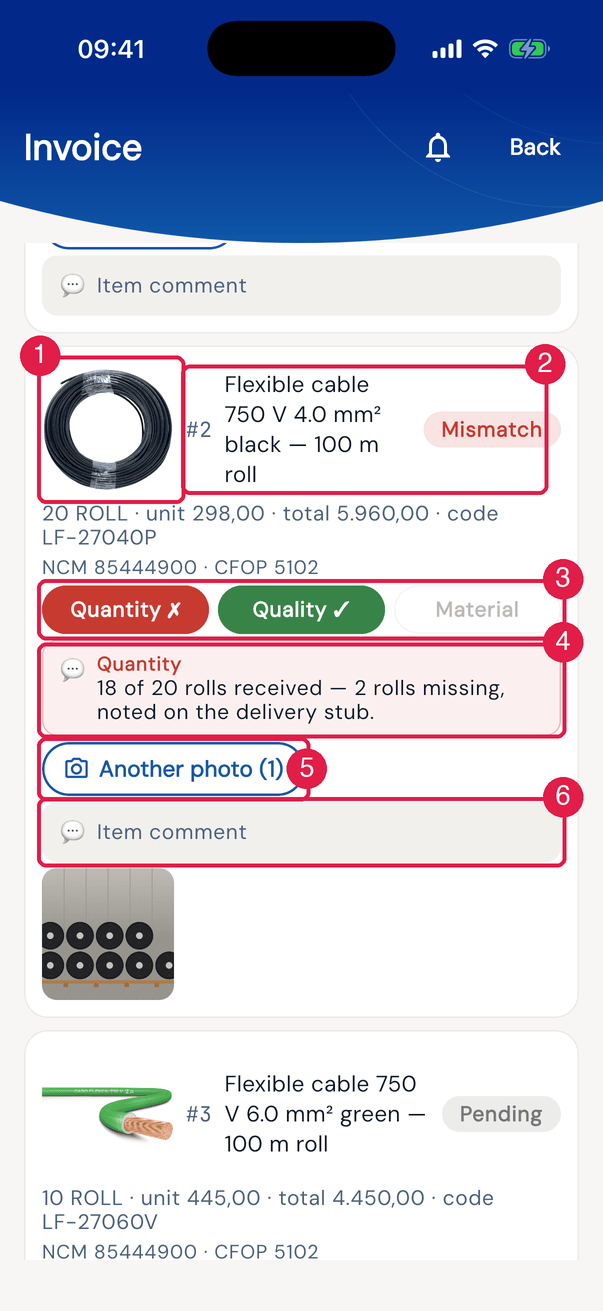
App H2OFigure 26. An item as seen by the receiver: the reference image, the data, the check in chips and the check comment.
- 1The reference image — tap to enlarge.
- 2The product and the OK, Mismatch or Pending badge.
- 3Quantity, Quality and Material — for the receiver, Material appears greyed out.
- 4The comment of a check — here, the Quantity one, in red because the answer is ✗.
- 5Take photo (or Another photo (N)); the photos appear as thumbnails at the end of the item.
- 6Item comment.
- Each chip starts at — (no answer). The first tap marks ✓ (Yes); the next ones switch between ✓ and ✗ (No). In the app, the answer does not go back to “no answer”.
- Material is answered by whoever approves as engineering (Approve (Eng.) or Approve (Eng. and Contractor)); for the receiver the chip appears greyed out: they answer only Quantity and Quality, and for them an item with both answered is already checked — the badge, the counters and the send button follow this rule.
- Below the chips appears the comment of each check that has one (Quantity, Quality or Material), in the colour of the answer: green for ✓, red for ✗. It comes from the server; in the app, it is read-only.
- Take photo opens the camera or the gallery. Tap a photo to enlarge it; long-press to delete it (Delete this photo?). A photo with a yellow border has not gone up yet.
- The check is possible up to Awaiting engineering; after that, the chips are read-only. The reference image only appears in the app (the most recent one, if there is more than one) — to change or discard it, use the web (chapter 5).
Documents with the scanner
Section titled “Documents with the scanner”In Invoice documents, three buttons attach the receiving papers: Invoice photo (the DANFE), Order photo and Certificate photo. Each one asks where the file comes from:
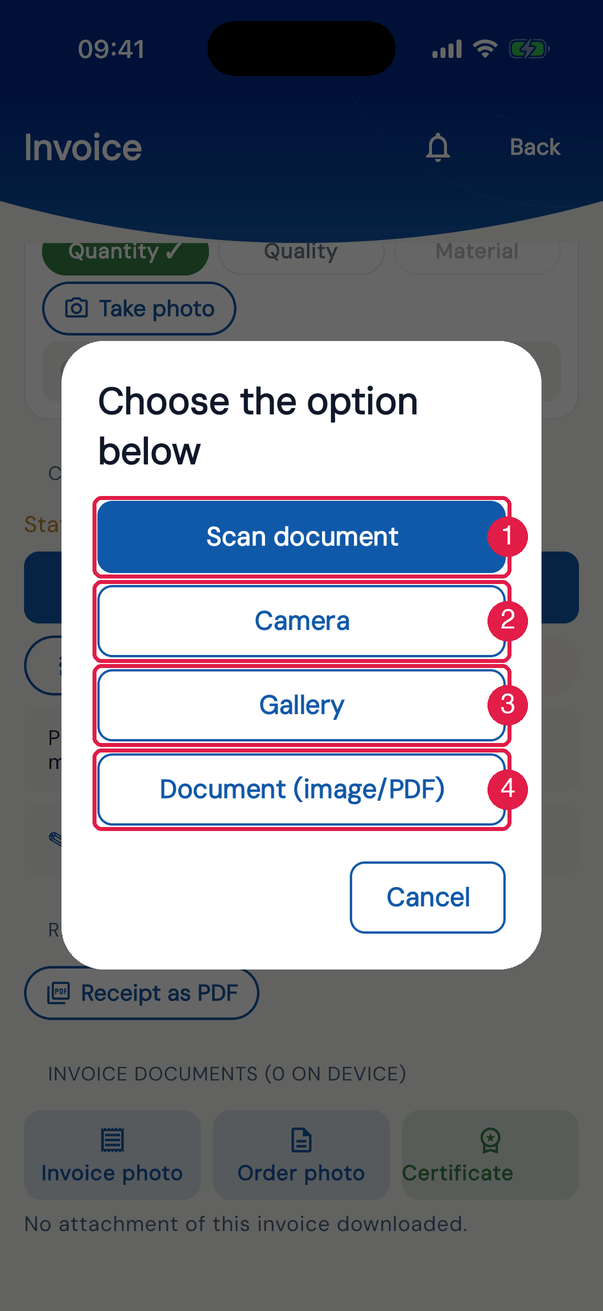
App H2OFigure 27. Invoice photo on a device with a document scanner.
- 1Scan document — the device’s scanner.
- 2Camera — an ordinary photo.
- 3Gallery — an image already saved.
- 4Document (image/PDF) — a file, including PDF.
| Option | How it works | Becomes |
|---|---|---|
| Scan document | the scanner finds the edges of the sheet, straightens and crops it; you can scan several pages in a row | one image per page (N pages saved — they are sent on the next sync.) |
| Camera | the usual camera | one image |
| Gallery | picks an image from the device | one image |
| Document (image/PDF) | picks a file — the certificate PDF that came by e-mail, for example | the file as it is |
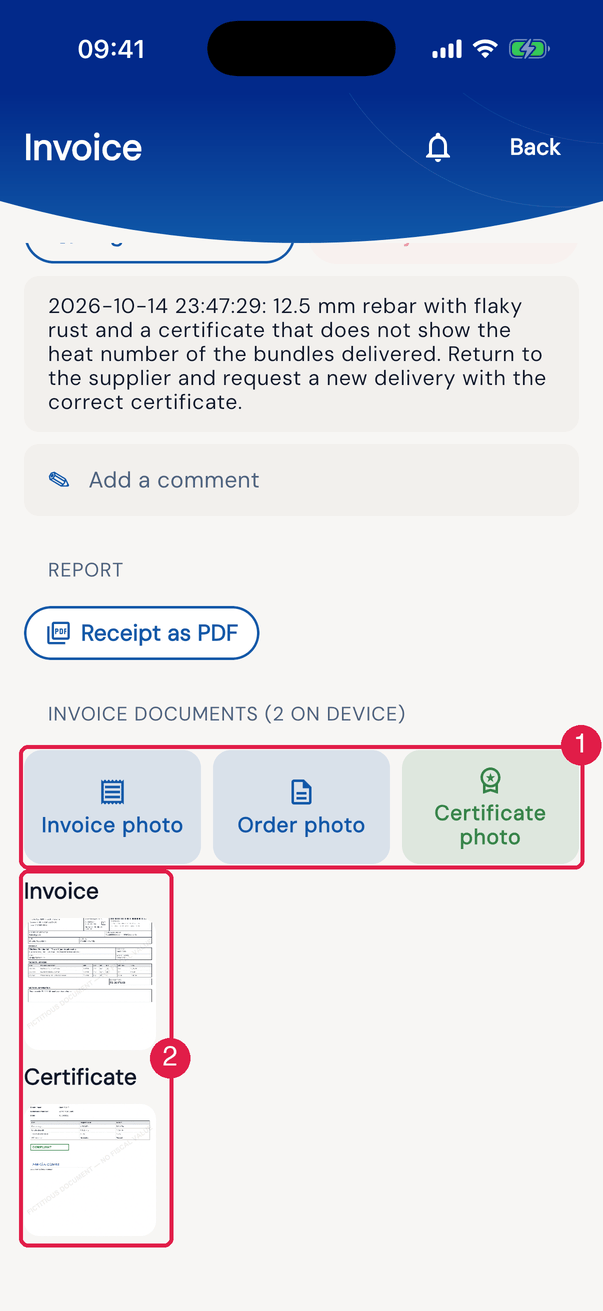
App H2OFigure 28. The documents of invoice 67093, returned to checking, separated by group.
- 1Invoice photo, Order photo and Certificate photo.
- 2The groups with the thumbnails — here, Invoice (the DANFE) and Certificate; Purchase order appears when the invoice has an order attached.
- Scan document appears where the device has a scanner (Android with Google services, and iPhone). If the scanner does not open, Scanner unavailable on this device — opening the camera. appears and the camera opens instead.
- For item photos, the options are only Camera and Gallery: the scanner is for paper.
- Limits: up to 20 MB per file; a PDF with more than 30 pages goes up with the first 30 and a notice page. A large file goes up in the background.
- On the web, the pages appear on the Documents tab, in the NF-e Photos, Order Photos and Quality Certificates columns (chapter 6).
Sending, signing and approving
Section titled “Sending, signing and approving”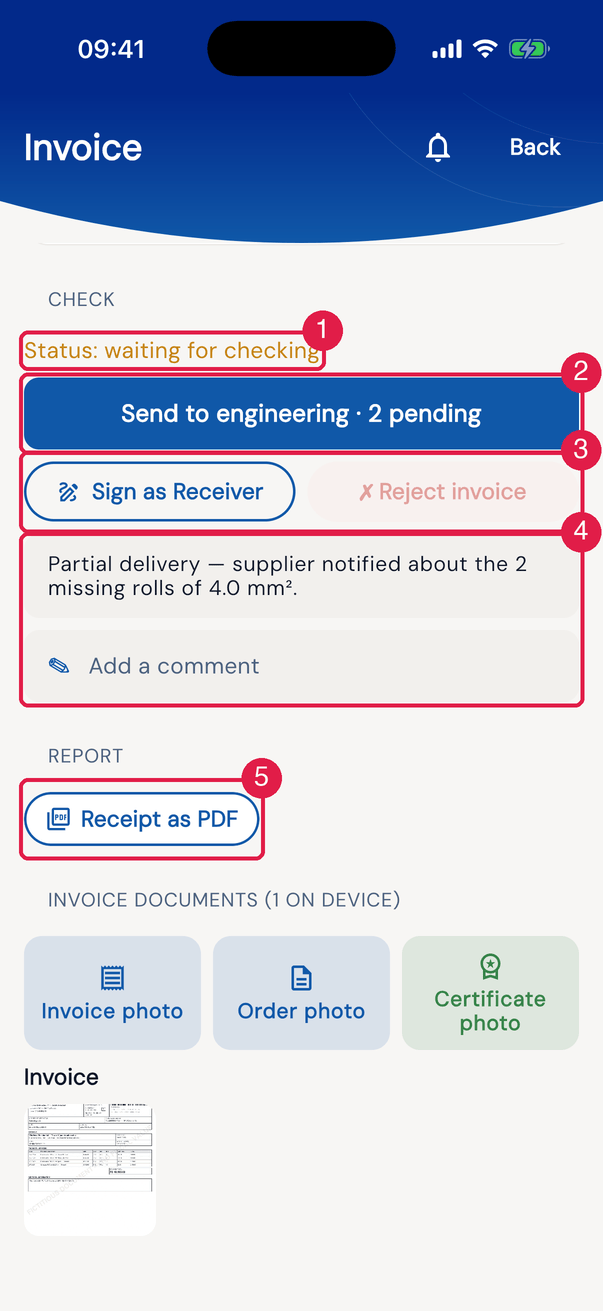
App H2OFigure 29. The Check of an invoice in review, as seen by the receiver.
- 1Status: — after signing, ✓ signed — Receiver also appears.
- 2The button of your role, with the pending items (Send to engineering · 2 pending).
- 3Sign as Receiver and ✗ Reject invoice.
- 4The history of comments and reasons and Add a comment.
- 5Receipt as PDF.
In the app, each button is active only for the role whose turn it is — the same the web would accept:
| Role in the app | Right in the profile | Its turn | Button | Goes to |
|---|---|---|---|---|
| Receiver | Create | In review or Rejected | Send to engineering | Awaiting engineering |
| Engineering | Approve (Eng.) or Approve (Eng. and Contractor) | In review or Awaiting engineering | Send to the client or ✗ Reject invoice | Awaiting client — and the stock is loaded — or Rejected |
| Client | Approve (Contractor) or Approve (Eng. and Contractor) | Awaiting client | Approve or ✗ Reject invoice | Approved or Rejected |
| Receiver and Engineering together | Create and Approve (Eng.) | from the check up to Awaiting engineering | Send for approval | Awaiting client |
- With pending items — for the receiver, without Quantity or Quality; for engineering, without one of the three —, the button warns (Send to engineering · N pending), but does not block the sending.
- Out of your turn, the button appears greyed out, with Nothing for you on this invoice now — it is another role’s turn. The same happens to engineering or the client when the step already has another assigned person (chapter 7).
- Sign as Receiver (or as Engineering) opens the pad already holding your profile signature; confirm it or sign again. Sign before sending: from Awaiting client on, no more signing in the app. Signing as Engineering makes you the invoice’s assigned engineer. The client approves without signing in the app: for the PDF to carry the CLIENT box, the client approves on the web.
- ✗ Reject invoice belongs to engineering (in In review and Awaiting engineering) and to the client (in Awaiting client): it asks for the Rejection reason and returns the invoice to Rejected (Invoice rejected — back to checking). The reason goes into the comment history, with date and time, and appears on the card as Returned: …. If the invoice had already passed engineering, the stock entry is undone, as on the web.
- The history of comments and reasons appears above the ✎ card, read-only. The card — Invoice comment, or Add a comment when there is already a history — adds a new entry, with date and time, without erasing the earlier ones. It is the same history as the web’s Comments and reasons (history) box and the PDF’s Notes.
- Each action shows …: done — goes up on the next sync. and counts on the web after the sync.
PDF, map and offline
Section titled “PDF, map and offline”- Receipt as PDF generates the PDF and opens the device’s share sheet. With internet, it is the server’s inspection PDF (chapter 9); without internet, the app builds a PDF on the device itself, with the items, the photos, the documents and the Receiver and Supervisor signatures.
- When you open an invoice in review, the app records by itself a map of where you are: it appears in the PDF, in the LOCATION box.
- With no signal, everything done on the invoice — check, photos, documents, signature, sending — is kept (Attachment saved — goes up on the next sync.) and goes up when the internet comes back.
Was this page helpful?
Thanks for the feedback!
Got it — we will improve this page.