
Preparing: levels, routines and templates
Manual — Commissioning · chapter 2 of 10
Before the first project, three things are set up once for the whole company: the levels (the phases commissioning will have), the task templates with the checklist of each test and the routines that say which template to use at each level for each asset type. With that ready, generating hundreds of test tickets takes a few clicks (chapter 4).- Levels: in Configuration › Project task types, Create default levels (L1–L5) or register your own.
- Task templates: in Knowledge › Templates, one template per test, with the checklist — for example, “L2 — Site acceptance inspection (SAT)” or “L3 — UPS start-up and energization”.
- Routines: on the same screen as the levels, the Routines by level grid links level × asset type to the template.
The levels (project task types)
Section titled “The levels (project task types)”The levels are in Configuration › Project task types — the same list of types the project Tasks tab uses in the Type field. A type becomes a level when it is marked as Commissioning phase; the Order gives the sequence (1 = first).
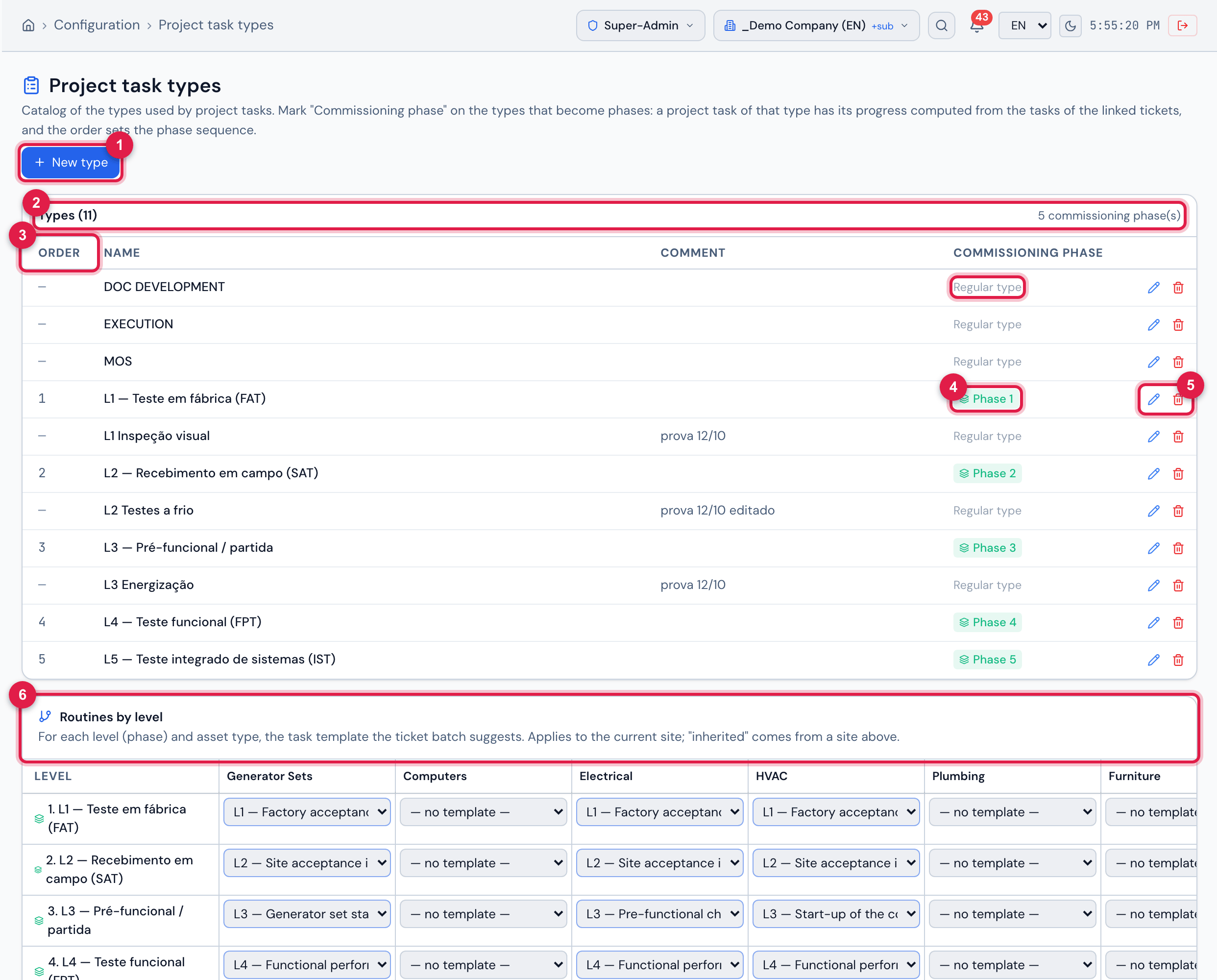
Figure 3. Configuration › Project task types with the five levels created by Create default levels (L1–L5), each with the Phase N badge, and the regular types (Regular type) among them.
- 1New type — registers a type (Create right in Projects).
- 2Types (N) and how many are commissioning phases.
- 3Order — the sequence of the phases.
- 4The Phase N badge — the type is a level. Regular type is any other task type.
- 5Pencil (Edit) and trash can (Trash).
- 6Routines by level, right below (see further on).
- Create default levels (L1–L5) is shown while there is no phase at all. It creates the five levels of chapter 1, in order 1 to 5, with the names in the language of whoever clicks. Anything that already exists with the same name is not repeated. The message says how many were created and how many already existed. In the demo company of these screenshots the levels were created in Portuguese, so the list of types, the Type selector and the routines grid show the Portuguese names (L1 — Teste em fábrica (FAT) … L5 — Teste integrado de sistemas (IST)); the phases of the project, which are tasks, have English names.
- The list is one for the whole company (it does not depend on the site in the header). Renaming a level renames it in every project that uses it.
- A type in use by any project task cannot be deleted: Cannot delete: the type is used by N task(s). Rename it or unmark the phase instead of deleting.
- Unmarking Commissioning phase on a type in use deletes nothing, but the tasks that still have % from ticket tasks on remain phases (chapter 3).
Registering or editing a level
Section titled “Registering or editing a level”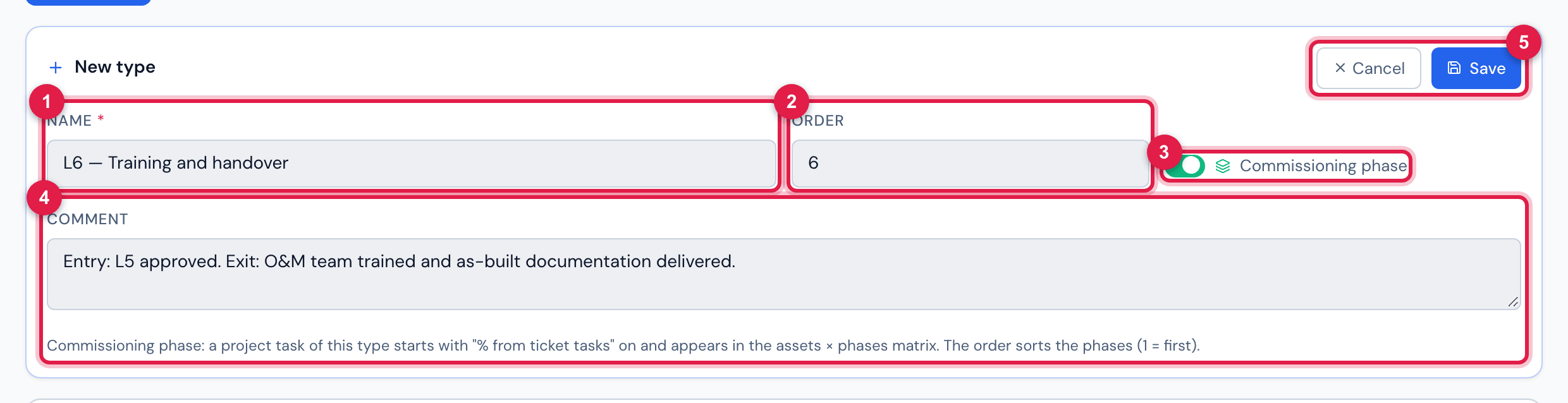
Figure 4. The New type form filled in with a sixth level, L6 — Training and handover, marked as Commissioning phase with order 6 (example; the form was not saved).
- 1Name (required).
- 2Order — suggests the next one after the highest.
- 3Commissioning phase switch.
- 4Comment — free text; a good place for the entry and exit criteria of the phase.
- 5Save and Cancel.
| Field | What it is for |
|---|---|
| Name | required. It is what appears in the task Type field, in the title of the generated tickets (placeholder {phase}) and in the matrix. |
| Order | the position of the phase: 1 is the first. It sorts the matrix, the asset timeline and the previous-phase-incomplete warning. Only applies to types marked as phase. |
| Commissioning phase | on, the type becomes a level: a project task of that type starts with % from ticket tasks on and enters the assets × phases matrix. |
| Comment | free text. |
The task templates
Section titled “The task templates”Each test is run from a task template of Knowledge › Templates — the same register used to schedule preventive maintenance (the Automatic Scheduling manual, chapter 2). What the template brings to the test:
- the checklist — the items the technician answers (Conforming / Non-conforming / N/A), with mandatory photos where needed;
- the task description, the category, the planned duration and, if any, the default technician;
- the planned materials (the template Materials tab). With the Create material requests on the work order switch on — the default —, each material becomes a material request on the ticket when the task is created, also in batch generation and in the retest (chapters 4 and 7). Switched off, the list is for reference only.
One template per test and per equipment type usually works better than a generic template: the FPT checklist of a CRAC unit is not the one of a UPS. Give names that help find them in the list, starting with the level: “L3 — Start-up of the cooling unit (CRAC)”, “L3 — Generator set start-up and ATS test”.
Routines by level
Section titled “Routines by level”The Routines by level grid, below the list of types, answers the question “at this level, for this asset type, which test is done?”. The rows are the levels; the columns, the asset types of the company (HVAC, UPS, Generator Sets, Electrical…; Tools are left out). In each cell, choose the task template.
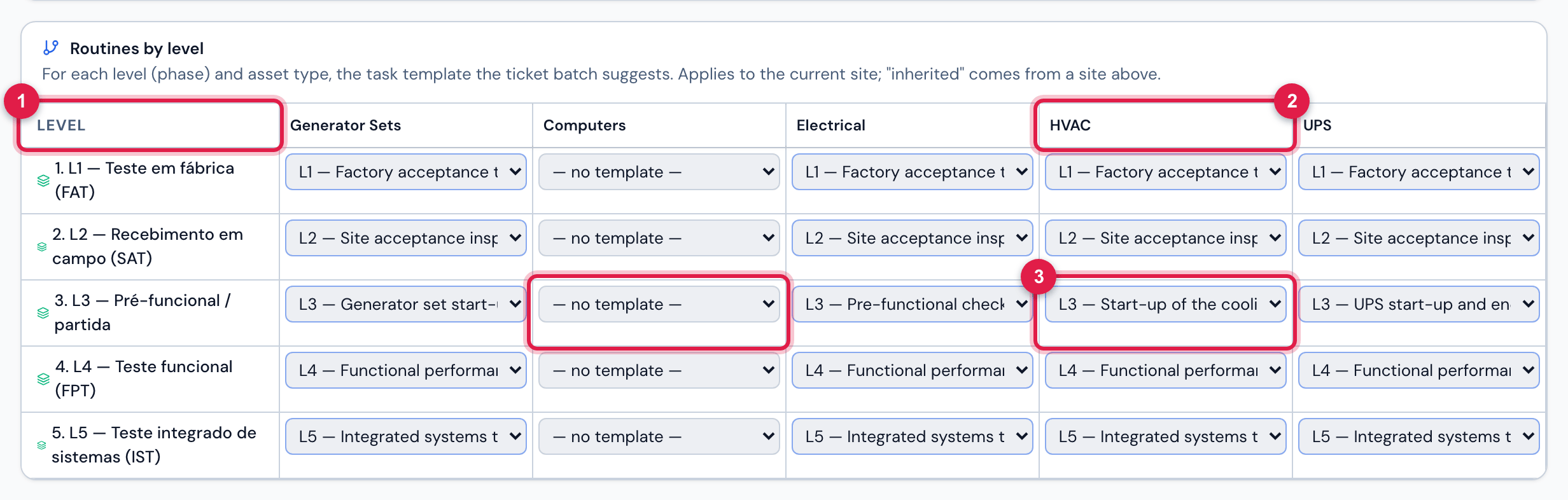
Figure 5. The Routines by level grid with the test templates of HVAC, UPS, Generator Sets and Electrical at levels L1 to L5: at L3, one start-up template for each equipment type; at the other levels, the same template for all. The Computers column, with no routine, shows — no template —.
- 1Level — one row per commissioning phase, in order.
- 2One column per asset type.
- 3The cell: the task template of this level for this type. — no template — = none.
- Changing the template saves immediately (Routine saved.); choosing — no template — removes the routine from this site (Routine removed.). It needs the Edit right in Projects.
- The routine applies to the site chosen in the header and to the sites below it. Save on the highest site (the company) the default for all projects; on a specific site, only the exception — the routine of the site itself wins over the inherited one.
- An inherited routine cannot be removed from here: switch the header to the site where it was saved.
- The list in each cell shows the templates of the site chosen in the header and the recursive templates of the sites above it. A template of another site that is not recursive does not appear. Every new template is created with Recursive on.
- An empty cell blocks nothing: in batch generation you can pick the template by hand, asset by asset (chapter 4).
Was this page helpful?
Thanks for the feedback!
Got it — we will improve this page.