
Running the test and recording the result
Manual — Commissioning · chapter 5 of 10
The test is run like any ticket task: the technician opens the ticket (on the web or in the app), answers the checklist of the template, takes the photos, signs. What commissioning adds is one question, asked when the task is completed: did the test pass?On the web and in the app the question is the same. This chapter shows the web; the app is in chapter 9.
The commissioning ticket page
Section titled “The commissioning ticket page”A ticket linked to a phase shows, at the top of the Tasks tab, the Commissioning ticket — phase: banner with the phase name (a link to the Commissioning tab of the project) and the project. And each task gets the Test result: line.
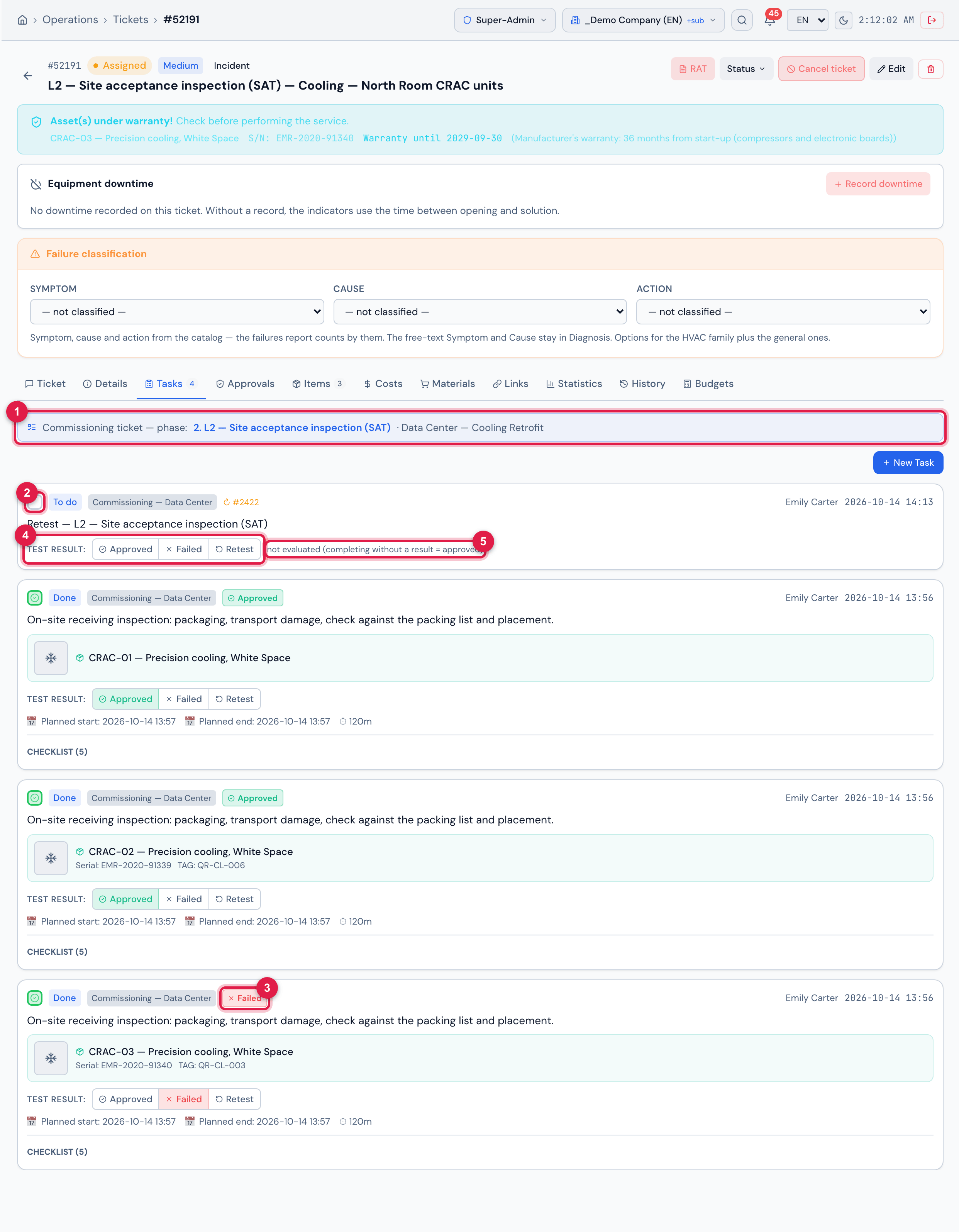
Figure 12. Tasks tab of the receiving (L2) ticket of the CRAC units, generated with One ticket per system: the phase banner, the tasks of CRAC-01 and CRAC-02 approved, the one of CRAC-03 failed (transport damage) and the retest task still open and without a result.
- 1Commissioning ticket — phase: — click the phase to open the project matrix.
- 2The complete checkbox: on an open task, it asks for the result before completing.
- 3The badge of the result already recorded.
- 4Test result: — Approved, Failed, Retest, to give or change the result right on the row.
- 5not evaluated (completing without a result = approved) — the task has no result yet.
Completing the task: the Test result
Section titled “Completing the task: the Test result”On a task of a ticket linked to a phase, completing opens the Test result dialog. It appears in the three ways of completing on the web: the complete checkbox in the Tasks tab of the ticket, the Mark Done button of the task page and the Finish button of the checklist — there, after the pending items are checked.
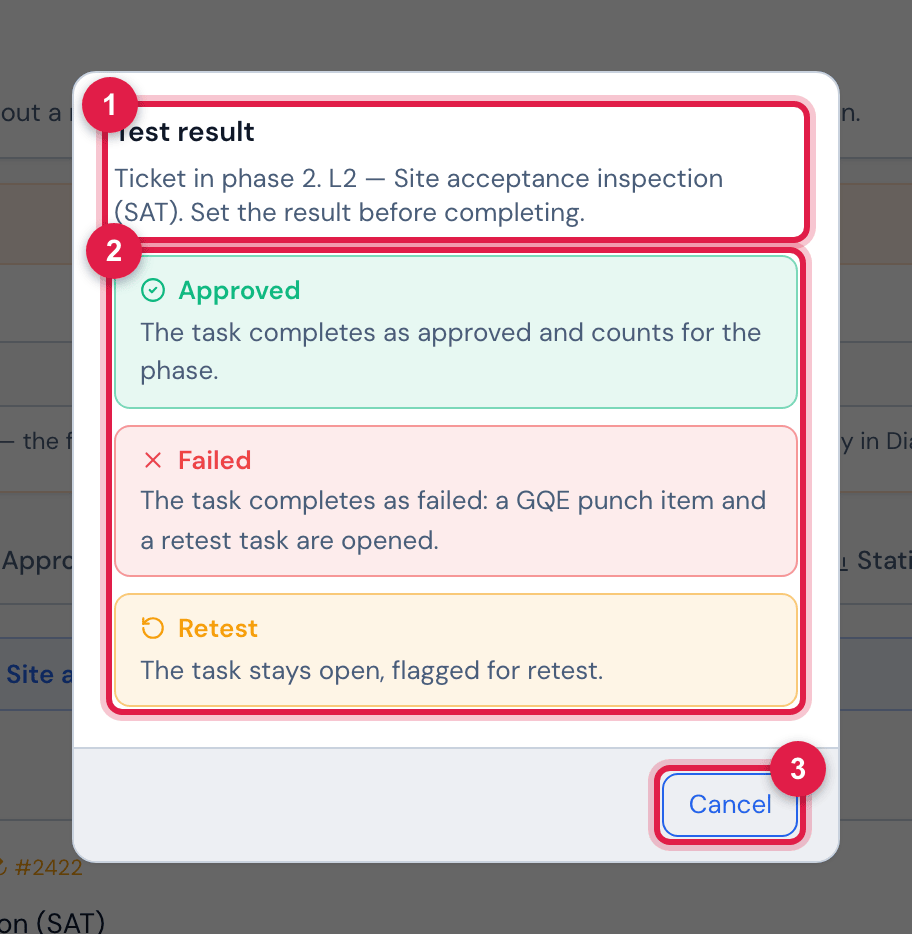
Figure 13. The Test result dialog, opened by the complete checkbox of the CRAC-03 retest task in the receiving (L2) ticket of the CRAC units.
- 1The title and Ticket in phase …. Set the result before completing.
- 2Approved, Failed and Retest, each with what it does.
- 3Cancel — closes without completing and without saving anything.
| Option | What happens |
|---|---|
| Approved | the task completes with the result Approved and counts as done in the phase. |
| Failed | asks for confirmation — Confirm failure? A GQE punch item and a retest task will be opened., with the Failed button —; the task completes as failed and H2O opens a GQE item and a retest task on this same ticket (chapter 7). The message gives the numbers: Failed: GQE item #N and retest task #M opened. |
| Retest | the task does not complete: it stays open, flagged for retest — Flagged for retest — the task stays open. It opens nothing and the task does not count as done. |
| Cancel | nothing is saved; the task stays as it was. |
- The Test result: buttons on the row follow the same rule: Approved and Failed complete the task, and Failed asks for confirmation (Mark as FAILED? This opens a GQE item and a retest task on this ticket.); Retest leaves the task open — on a task already completed, it reopens it.
- Reopening a completed task (unticking the checkbox, or Reopen on the task page) asks nothing. The recorded result stays until it is changed, but an open task does not count as done.
- Picked the wrong result? Click the right one on the task row. Switching to Failed opens the GQE item and the retest task — each one only if it does not exist yet (an open GQE item of that task; a retest task of it).
- The task page (the one opened by the Failed task link of the GQE item) shows the result badge next to the state; the result buttons are in the Tasks tab of the ticket.
- A phase task completed without a result — through a path that does not ask, such as an integration through the API — counts as Approved. That is what the not evaluated (completing without a result = approved) on the row means.
Good practice in the field
Section titled “Good practice in the field”- Record the evidence in the checklist: measurements, screenshots of the supervisory system, photos of nameplates and displays. All of it goes into the asset dossier (chapter 8).
- Failed item in the checklist? Mark it as Non-conforming with a comment. When the task fails, these items become the description of the GQE item.
- Use Retest when the test could not be finished for an external reason (no load, no power, no access) and must be repeated; use Failed when the equipment did not meet the acceptance criterion.
- Do not delete a failed task to “clean up” the matrix: the retest already takes it out of the count and the history stays in the dossier.
Was this page helpful?
Thanks for the feedback!
Got it — we will improve this page.