
Creating and configuring the template
Manual — Task templates and checklists · chapter 3 of 10
A new template is created in two stages: first the header (name, type, duration, periodicity, technician, non-conformity rules); then the checklist items, on the record (chapter 4). For a ready-made draft, use the AI assistant (chapter 5) and adjust it here afterwards.New Template
Section titled “New Template”- Choose in the header the site where the template will live — it is saved in that site.
- In Knowledge › Templates, click New Template.
- Fill in at least the Name ∗. Recursive already comes on — uncheck it if the template should apply only to this site. The other fields are in the table below.
- Click Create Template. Template created successfully appears and the template record opens — now it is time for the items (chapter 4).
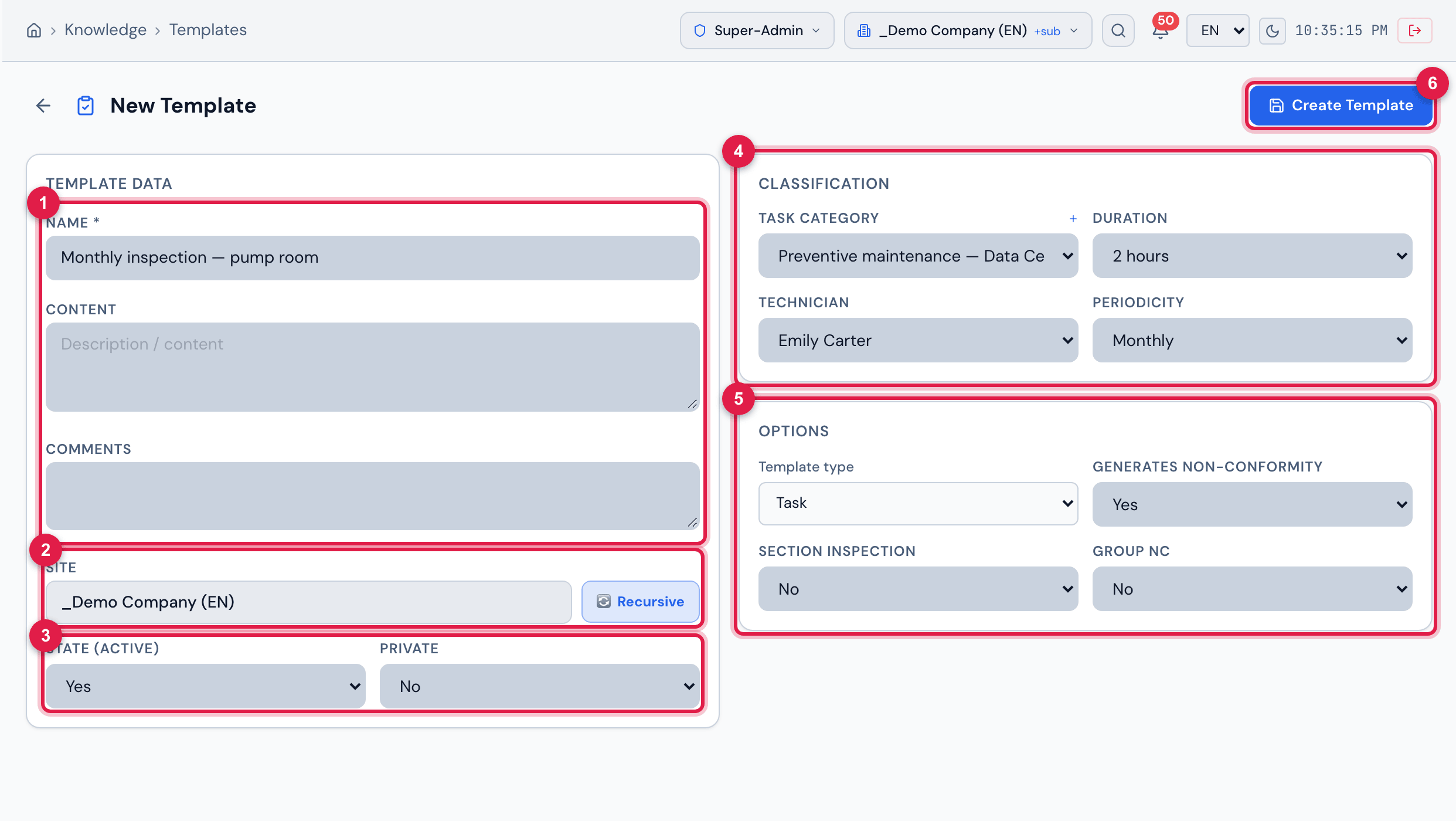
Figure 4. New Template filled in for a monthly inspection: the name, the header site with Recursive on (the default), the category Preventive maintenance — Data Center, 2 hours, the technician Emily Carter, the periodicity Monthly and, in Options, the type Task with Generates Non-Conformity = Yes.
- 1Template Data: Name ∗, Content and Comments.
- 2Site (the header one) and the Recursive button, which already comes on.
- 3State (Active) and Private.
- 4Classification: Task Category (with the +), Duration, Technician and Periodicity.
- 5Options: Template type, Generates Non-Conformity, Section Inspection and Group NC.
- 6Create Template.
What each field does
Section titled “What each field does”| Field | What it is for | Where it takes effect |
|---|---|---|
| Name ∗ | the name everybody will search for. Start with what sets it apart: “Monthly infrastructure inspection — Data Center”, “L3 — UPS start-up and energization” | list, selectors, title of the checklist and of the PDF |
| Content | the description of the job: scope, standard, precautions | becomes the task description when the template is chosen; in Automatic Scheduling, the description of the generated ticket |
| Comments | internal note for whoever maintains the template | only on the record |
| Site and Recursive | the template’s site (the header one at creation). Recursive = the template also appears in the sites below. It comes on in every new template; uncheck it for the template to stay only in its own site | list and selectors (chapter 2) |
| State (Active) / State | Active or Inactive | see the note below |
| Private | Yes = the task created with the template is private | task |
| Task Category | groups the templates | Category column; goes to the task created with the template — when the ticket is opened, in the ticket’s Tasks tab and in Automatic Scheduling |
| Duration | the expected task time (from 15 min to 8 hours). A duration outside the list — for example, the AI assistant’s — appears in minutes | task (expected time and end); planned hours of Automatic Scheduling |
| Technician (when editing, By (Technician)) | the suggested technician | task technician; owner of the NCR generated by the checklist (chapter 8) |
| Periodicity | from Daily to Annual, or Custom with Every how many days? (1 to 365). The screen shows it in the viewer’s language; the stored value is the same in any language | only templates with a periodicity enter Automatic Scheduling (chapter 6) |
| Template type | Task, Audit, Equipment, APR, PT (Work Permit) or Safety inspection | decides on which screen the template is offered (chapter 6) |
| Generates Non-Conformity | Yes = non-compliant items become NCRs when the task is finished | chapter 8 |
| Group NC (when editing, Group Non-Conformities) | Yes = one NCR per task, with all the items; No = one NCR per item | chapter 8 |
| Section Inspection | Yes = whoever executes can repeat each item (Add section) — one stretch, one floor, one circuit at a time | execution on the web (chapter 7) |
The template record
Section titled “The template record”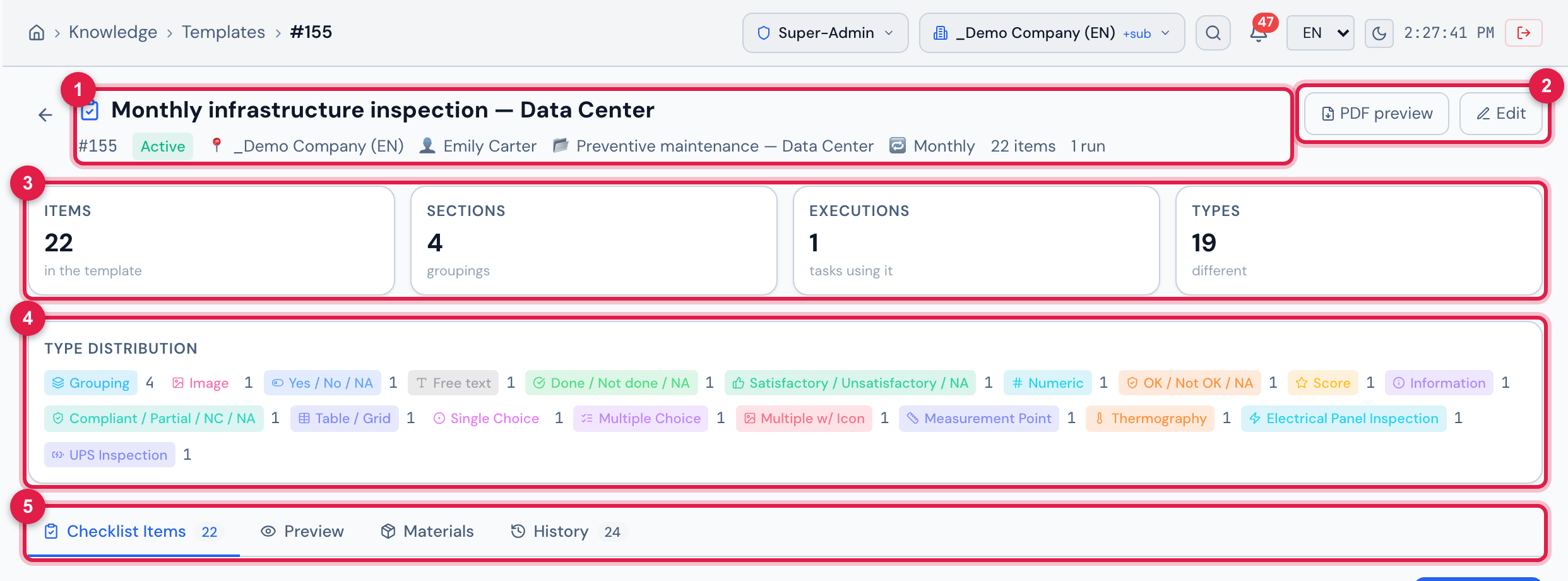
Figure 5. The record of Monthly infrastructure inspection — Data Center: the header with the number, the state, the site, the technician, the category, the periodicity, the items and the executions; the cards, the Type Distribution and the tabs.
- 1Name, #id, Active, type badge (here Task has no badge), 📍 site, 👤 technician, 📂 category, 🔁 periodicity, N items, N runs.
- 2PDF preview and Edit.
- 3The Items, Sections, Executions and Types cards.
- 4Type Distribution — how many items of each type.
- 5The Checklist Items, Preview, Materials and History tabs.
- Executions counts the ticket tasks that use the template (deleted tickets do not count). Audits, APR, PT, inspections and equipment checklists are not included in this count.
- Sections counts the items of the Grouping type (the titles that split the checklist).
- Edit only appears for those with Edit in Task Templates in the template’s site; without that right, a template from another site shows Read-only (inherited). The tab buttons follow the same rule (chapter 4).
Editing the header
Section titled “Editing the header”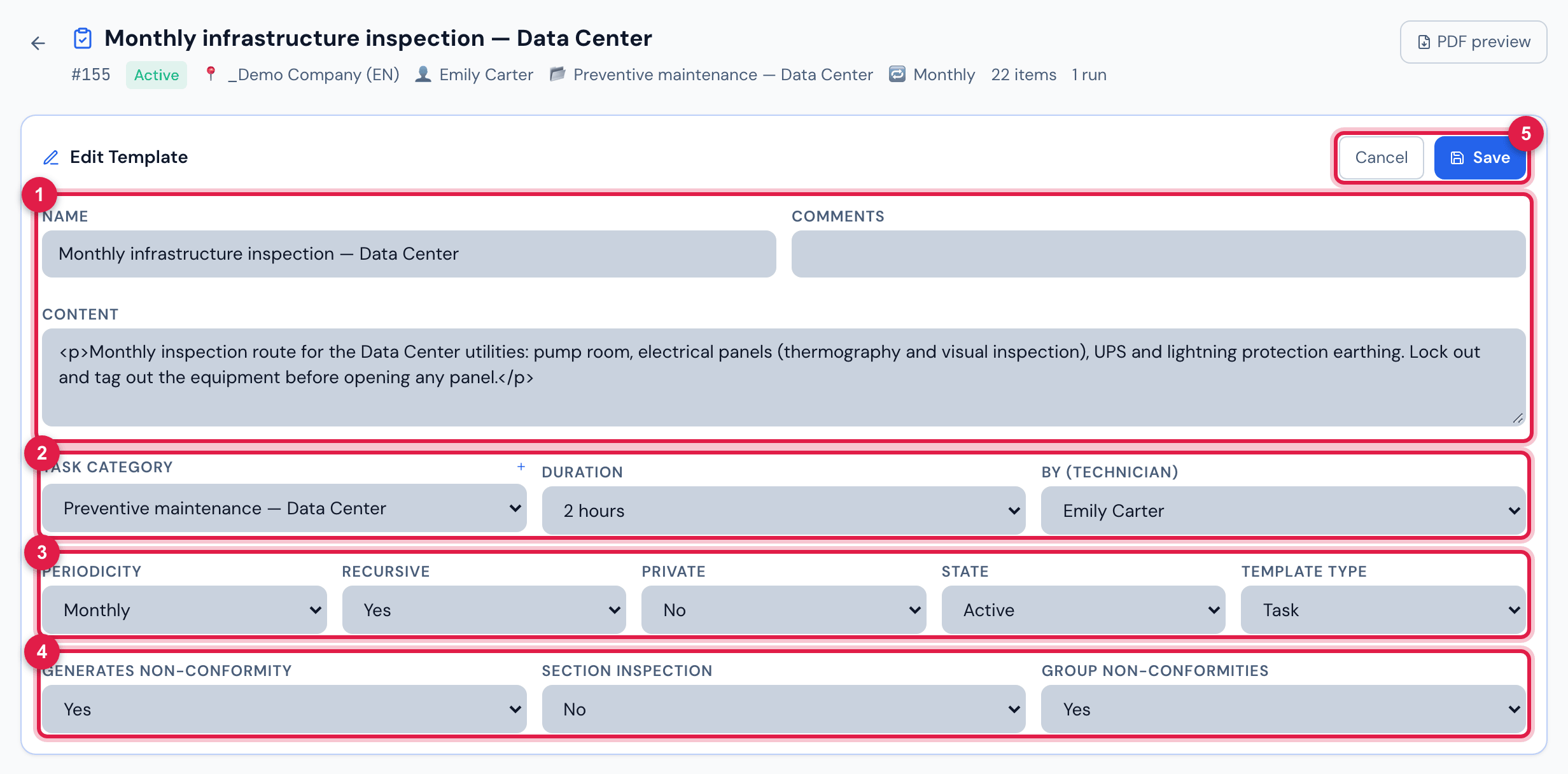
Figure 6. Edit Template: the same fields as New Template, except the site. Save stores the changes and records each changed field in the History.
- 1Name, Comments and Content.
- 2Task Category, Duration and By (Technician).
- 3Periodicity, Recursive, Private, State and Template type.
- 4Generates Non-Conformity, Section Inspection and Group Non-Conformities.
- 5Cancel / Save.
The site does not change after creation — there is no way to change the site, not even on the record. To have the template in another site, clone it with the header on the destination site (chapter 2).
Was this page helpful?
Thanks for the feedback!
Got it — we will improve this page.