
Executing the checklist
Manual — Task templates and checklists · chapter 7 of 10
This chapter is for whoever answers the checklist in the field. The examples are of a ticket task; audit, equipment checklist, APR, PT and inspection use the same answer screen, with the Finish of the document itself (manuals Projects and Occupational Safety).| I want to… | Web | App |
|---|---|---|
| open the checklist | task record (the ticket’s Tasks tab › the task) | ticket › Checklists card › the task |
| answer offline | no | yes — everything is uploaded at the next sync |
| see the item translation | yes, in italics | yes, in italics |
| attach a photo | photo or PDF, when the item asks for it | camera, gallery, document scanner or file, when the item asks for it |
| comment per item, with AI | Improve text and Suggest | ✦ Improve text and ✦ Generate comment, plus SUGGESTIONS FROM HISTORY |
| general checklist comment | no | ✎ General comments |
| repeat an item (Section Inspection) | Add section | + Add section |
| row-based reports (thermography, panel, UPS, electrical test sheets…) | yes; panel and UPS from the list or by name, sheets from the list or blank | yes; also by the asset label QR |
| finish | Finish | ✓ Complete task |
| PDF on the task record | Report (PDF) (offline, generated on the device) |
On the web
Section titled “On the web”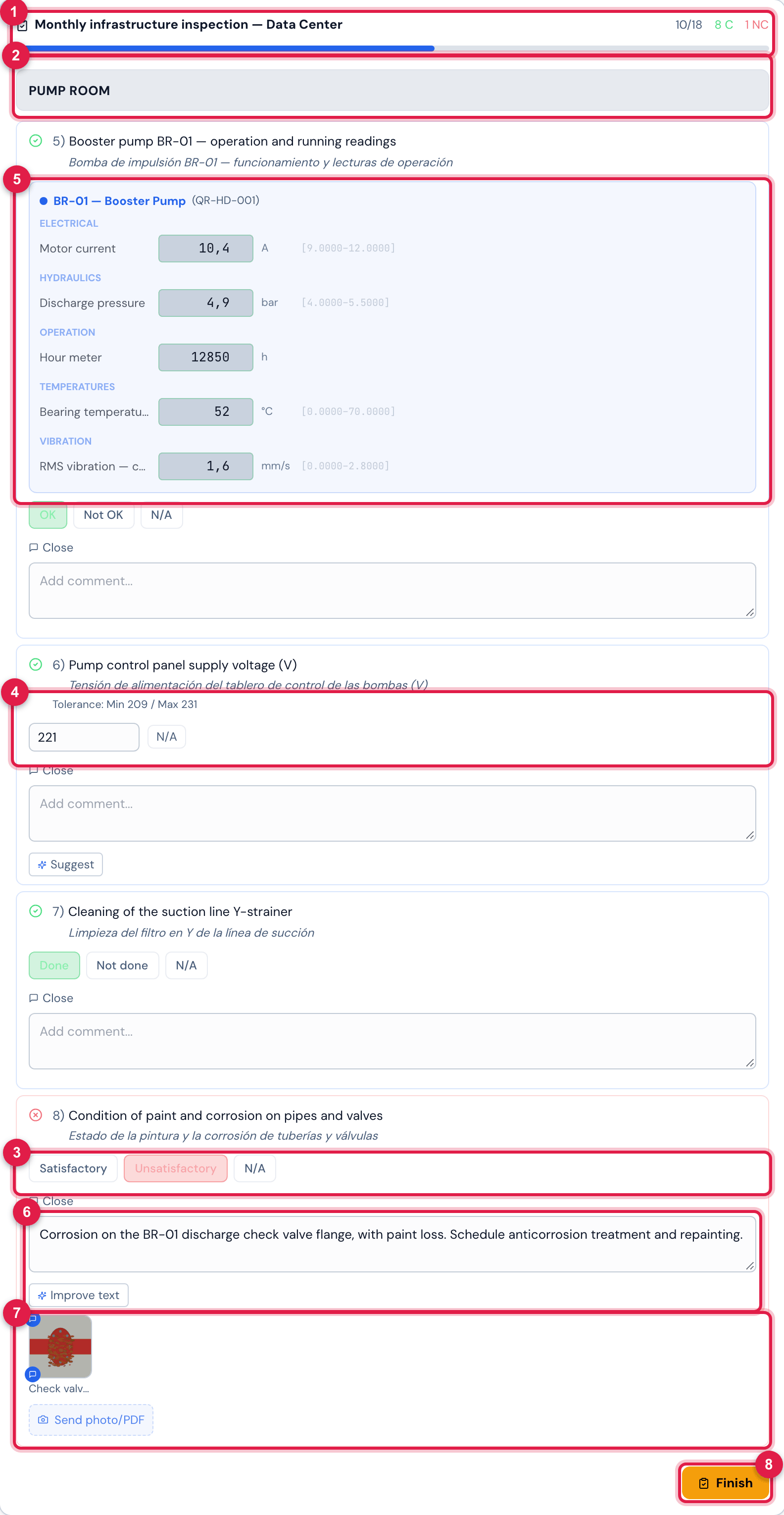
Figure 17. The Monthly infrastructure inspection — Data Center checklist in the October ticket, half done: the progress, the Pump room section, answered items, the Unsatisfactory for the corrosion (red) with photo and comment, and the panel voltage (Numeric, 221 V) with the tolerance.
- 1The template name, answered/total, the compliant (C) and non-compliant (NC) counts, and the bar.
- 2The title of a section (Grouping item).
- 3The answer buttons; the card colour follows the answer.
- 4The Numeric: the value field and N/A, with the Tolerance above (Save appears as you type).
- 5The planned readings of the asset linked to the item (the BR-01 pump), filled in together with the answer.
- 6The item comment, with Improve text (when there is text; with an empty box, Suggest).
- 7Send photo/PDF and the photos; the small blue bubble on the photo is Comment photo.
- 8Finish.
- Each click on an answer is saved immediately. Free text and Numeric are saved on Save.
- Items with Photo required and items answered as non-compliant open the Send photo/PDF area. Click the thumbnail to enlarge it (an attached PDF opens in the viewer). Hover over the photo for Comment photo — the comment becomes the caption in the PDF. In a Table / Grid with a required photo, each row has the Row photos area.
- Improve text rewrites your comment in technical language; Suggest writes the comment from what was recorded (the value and the range, the ticked options, the non-compliance). The suggestion only fills the box: check it and save. These buttons do not count towards the daily AI limit.
- With Section Inspection turned on in the template, each item has Add section: a new answer for the same item — for the next stretch, floor or circuit —, with its own comment and photo.
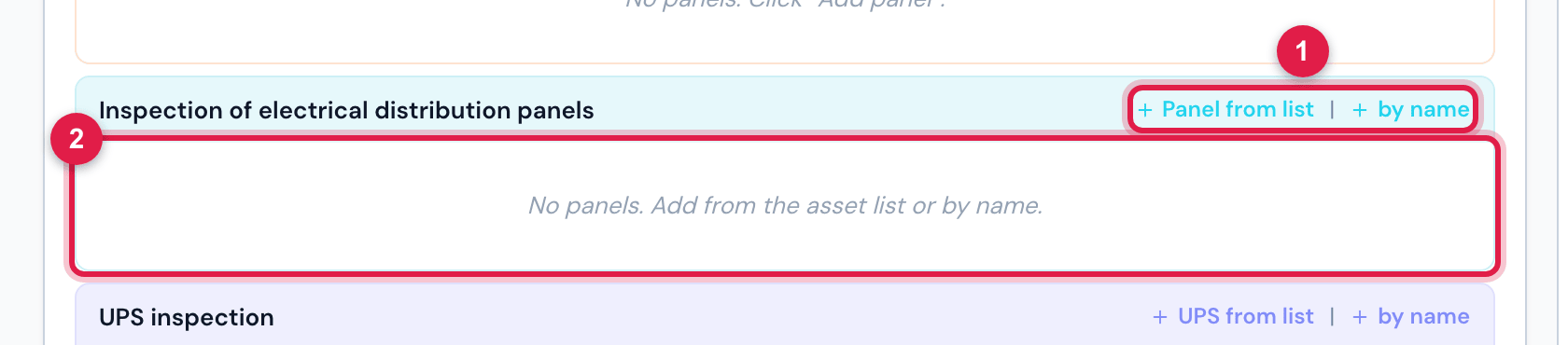
Figure 18. The item Inspection of electrical distribution panels with no panel yet: on the web, each panel comes from the site’s asset list or by name and becomes a row with Criticality (Critical, Regular, Minimal, None), Non-conformity description, Technical guidance, Notes and photos with captions.
- 1Panel from list and by name — add a panel to the item.
- 2With no panel, the item shows No panels. Add from the asset list or by name. and stays pending at Finish.
Electrical test sheets
Section titled “Electrical test sheets”In the electrical test templates (chapter 6), the sheets item takes one sheet per piece of equipment: a breaker, an RMU, a transformer, a panel. On the web, New sheet from list brings the equipment from the site asset list, already with manufacturer, model, serial and asset tag; blank opens an empty sheet to type in. In the app, the sheet can also be created by the asset label QR. No path is mandatory: the equipment does not need to be registered.
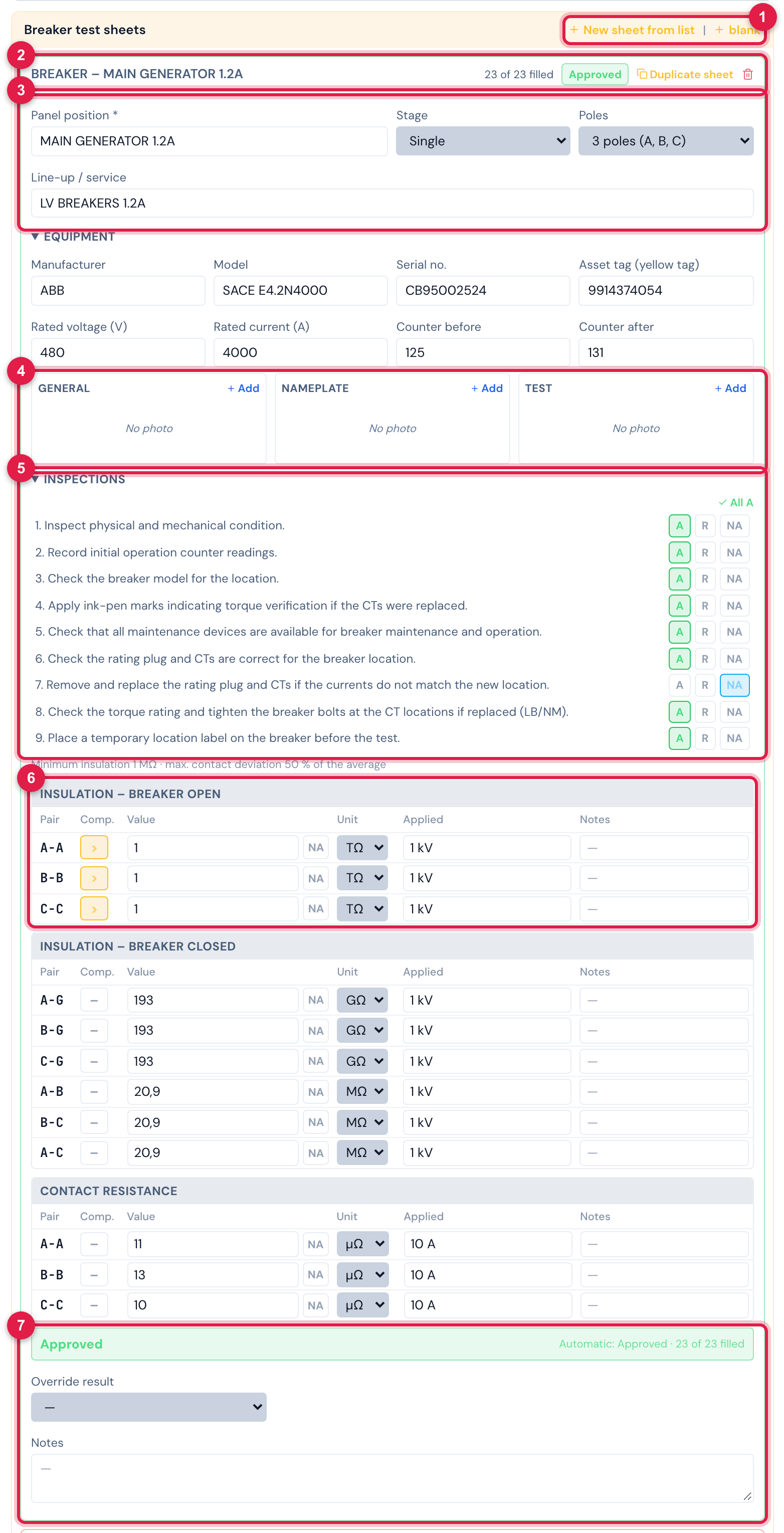
Figure 19. An LV Breaker Test Sheet filled in on the web, in the Pit Stop ticket: the MAIN GENERATOR 1.2A breaker, 3 poles, every inspection and measurement within the limits — result Approved.
- 1New sheet from list and blank — add a sheet to the item.
- 2The sheet title, x of y filled, the result and Duplicate sheet.
- 3The identification: Panel position, Stage, Poles and Line-up / service.
- 4The photos by role: General, Nameplate and Test.
- 5Inspections — A, R or NA on each line; All A ticks them all.
- 6A measurement grid: the pair, Comp. (>, <), the value, the unit, the Applied value and NA.
- 7The automatic result and Override result.
- Fill it in in the order of the report: the identification, the Equipment (data and counters), the Inspections, the measurement grids and the Notes.
- On the breaker sheet, Poles generates the grid rows: 3 poles (A, B, C), 4 poles (N, A, B, C) or Double (N1, N2, A1, A2, B1, B2, C1, C2).
- In the grids, type only the number: the unit and the applied voltage or current already come from the template (the limits, chapter 4). Comp. switches between “greater than” and “less than” — for example, > 1 TΩ. NA marks the pair that does not apply. The unit can be changed in the cell.
- The result comes out on its own: Approved when everything is filled in and within the limits; Failed when a cell or an inspection fails (it turns red); Incomplete while something is missing.
- To go against the result, choose it in Override result and write the Justification. Without a justification, the manual result does not count. The sheet shows (manual result) and, beside it, the automatic one.
- When the item has Photo required — the MV and Electrical Shutdown templates already come that way —, each sheet needs at least one photo, of any role.
- Duplicate sheet creates the next sheet from this one: it copies the structure (on the breaker sheet, line-up, stage, poles and inspections) and clears the equipment, the counters and the measurements. In Pit Stop, the same breaker measured before, removed and after is three sheets, one per stage.
- A Failed sheet counts as non-compliant (chapter 8). An incomplete sheet stays pending on Finish.
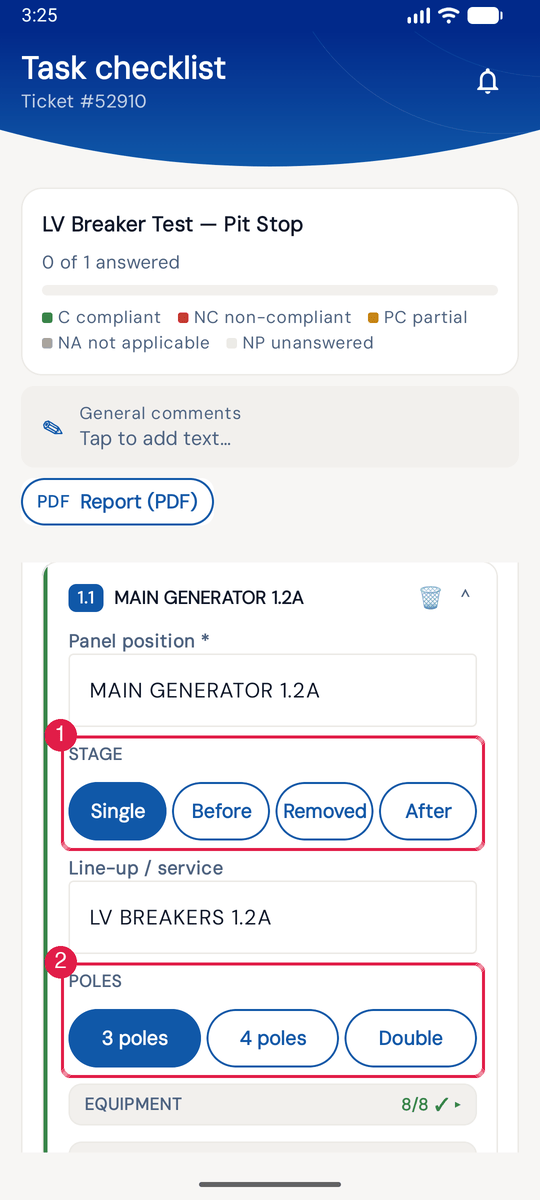
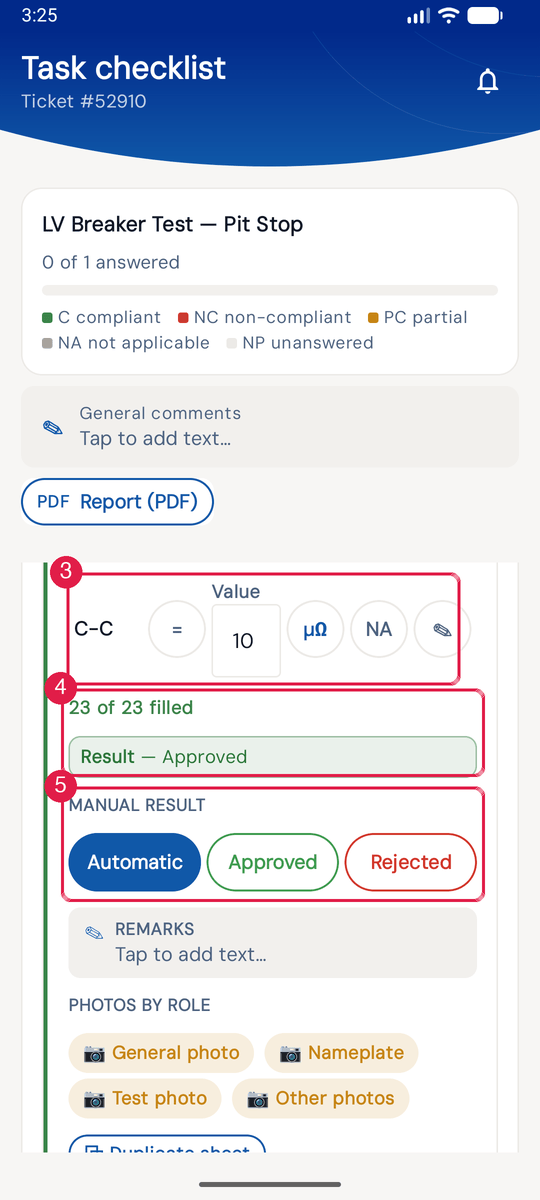
App H2OFigure 20. The same LV Breaker Test Sheet in the app, in the Pit Stop ticket: the MAIN GENERATOR 1.2A breaker, 3 poles, result Approved. Every tap is saved at once, offline too.
- 1Stage — Single, Before, Removed or After.
- 2Poles — 3 poles, 4 poles or Double; the choice creates the grid lines.
- 3A grid line: the pair (C-C), the comparator (= → > → < on each tap), the Value, the unit (µΩ — a tap switches between the grid units), NA and ✎ for the line remark.
- 4x of y filled and the automatic result (Result — Approved).
- 5Manual result — Automatic, Approved or Rejected; the manual one asks for the Justification.
Finishing on the web
Section titled “Finishing on the web”- Answer all the items and attach the requested photos.
- Click Finish. If something is missing, N pending items appears with the number of each item and what is missing (table below) — fix it and click again.
- If you do not have a signature registered yet, H2O opens the pad to draw it; save it (Signature saved! Try finishing again.) and click Finish again.
- In a Commissioning ticket, choose the Test result (manual Commissioning, chapter 5).
- Task finished successfully! appears: the task is completed, with your signature on the ticket. With Generates Non-Conformity, the non-compliant items become NCRs (chapter 8).
- If it was the last open task, H2O asks Solve ticket? — describe the solution in Describe the applied solution… (required) and click Solve, or Not now.
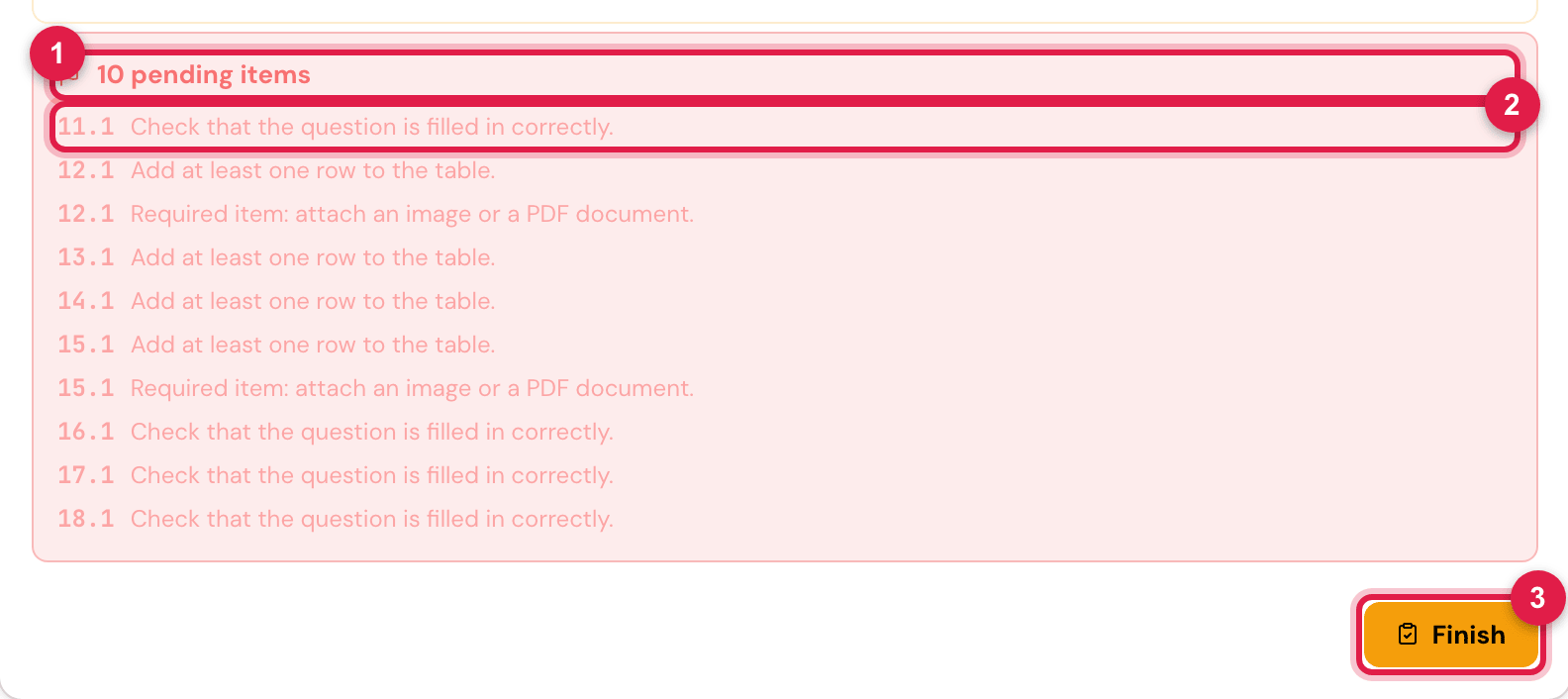
Figure 21. Finish with pending items: the list shows the number of each item and what is missing.
- 1N pending items (or 1 pending item).
- 2The item number (3.1; in a section, 3.2, 3.3…) and the message.
- 3Finish — click again after fixing.
| Pending item | When | What to do |
|---|---|---|
| Check that the question is filled in correctly. | item (or section) without an answer — including Information, which needs the OK | answer the item |
| Required item: attach an image or a PDF document. | item with a required photo and no photo (answer other than N/A), or Image item without a photo | attach the photo or the PDF |
| Add at least one row to the table. | row-based item (Table / Grid, Measurement Point, Thermography, panel, UPS, sheets) with no row | add the row (or the sheet) |
The PDF of the task record has the checklist as it was answered: each item in a numbered card (N/total) with the answer on the right, the translation, the comment and the photos; the sections as bands; the row-based reports in their frames; and the signatures.
In the app
Section titled “In the app”In the app, the technician opens the ticket and, on the Checklists card, taps the task. Each row shows the full template name on the first line (it wraps when long) and, below it, N answered, the PDF pill and the state (Pending, In progress, Completed). A task without a template opens through Open task ›.
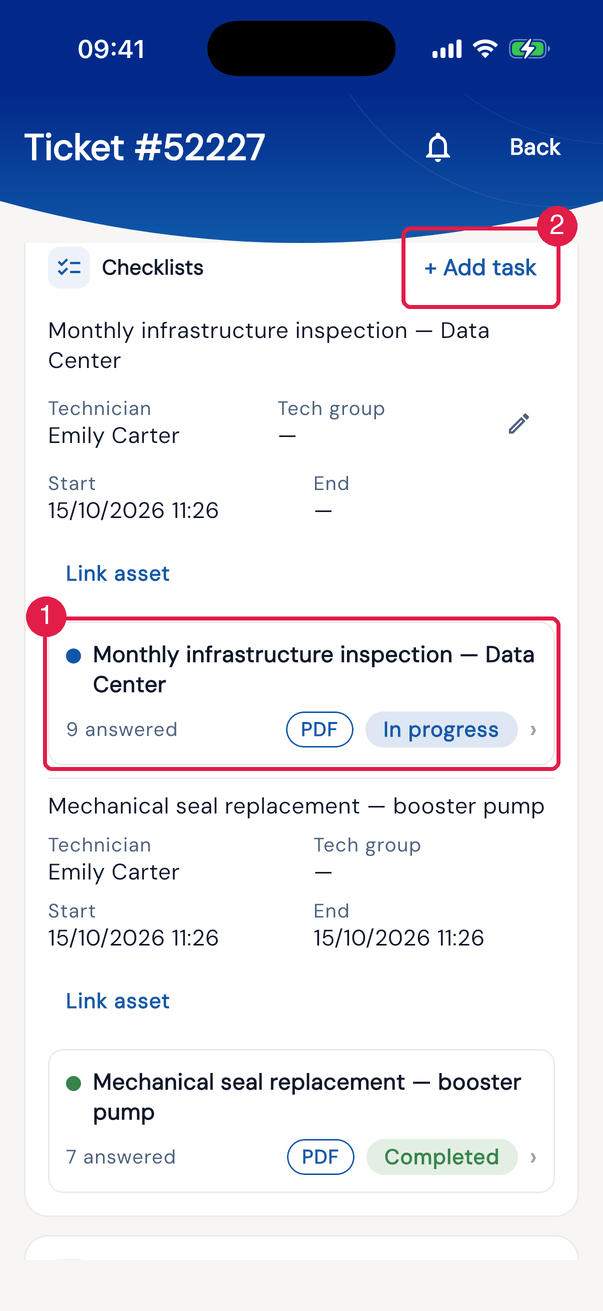
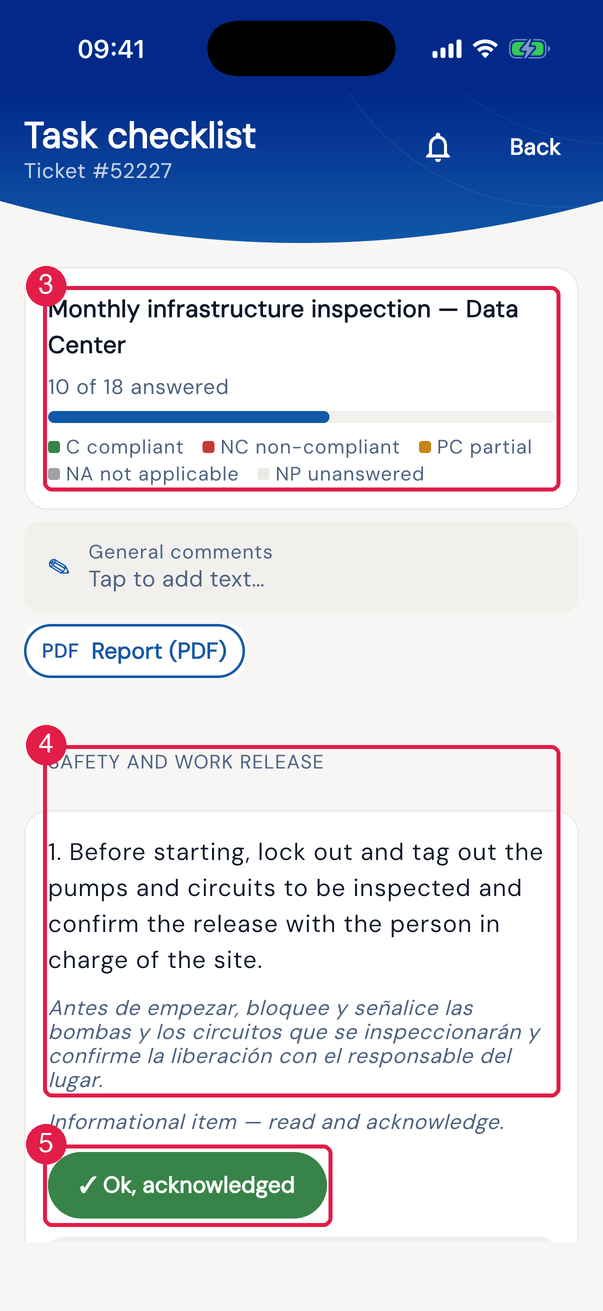
App H2OFigure 22. From the ticket to the checklist in the app.
- 1The task row: the full template name and, below it, answered, PDF and state.
- 2+ Add task — a new task with a Task template of the site.
- 3N of M answered and the legend C compliant · NC non-compliant · PC partial · NA not applicable · NP unanswered.
- 4A section (Grouping item) and the numbered items.
- 5The answer buttons.
- Everything works offline: the answers, the photos and the completion stay on the device and are uploaded at the next sync.
- Every non-compliant answer asks for confirmation: A non-compliance is being reported. — Confirm or Cancel.
- The Numeric opens through Enter value: the dialog shows the range (Tolerance min … · max …, or only the side that has a limit) and a value outside it becomes non-compliant — the same rule as the web (chapter 4). With no range in the template, the app warns No range configured: any value counts as compliant.
- Information needs a tap on ✓ Ok, acknowledged; Free text opens through ✎ Tap to add text….
- The photo button appears when the photo is required — Photo required, non-compliant answer or Image item — with the notice This item requires a photo. In New media: Scan document, Image — camera, Image — gallery and Document (image/PDF). A camera or gallery photo opens the markup board with the Caption field.
- 💬 Add a comment on the item and ✎ General comments in the card at the top of the screen. In the text dialog: SUGGESTIONS FROM HISTORY (phrases already used, works offline), ✦ Improve text and ✦ Generate comment (need internet). The AI suggestion fills the box; you save it with Confirm.
- With Section Inspection, + Add section repeats the item (in the simple answer types and in Numeric); the section is removed with the 🗑, with confirmation.
- When the item has a translation, the app shows it in italics, below the question, like the web.
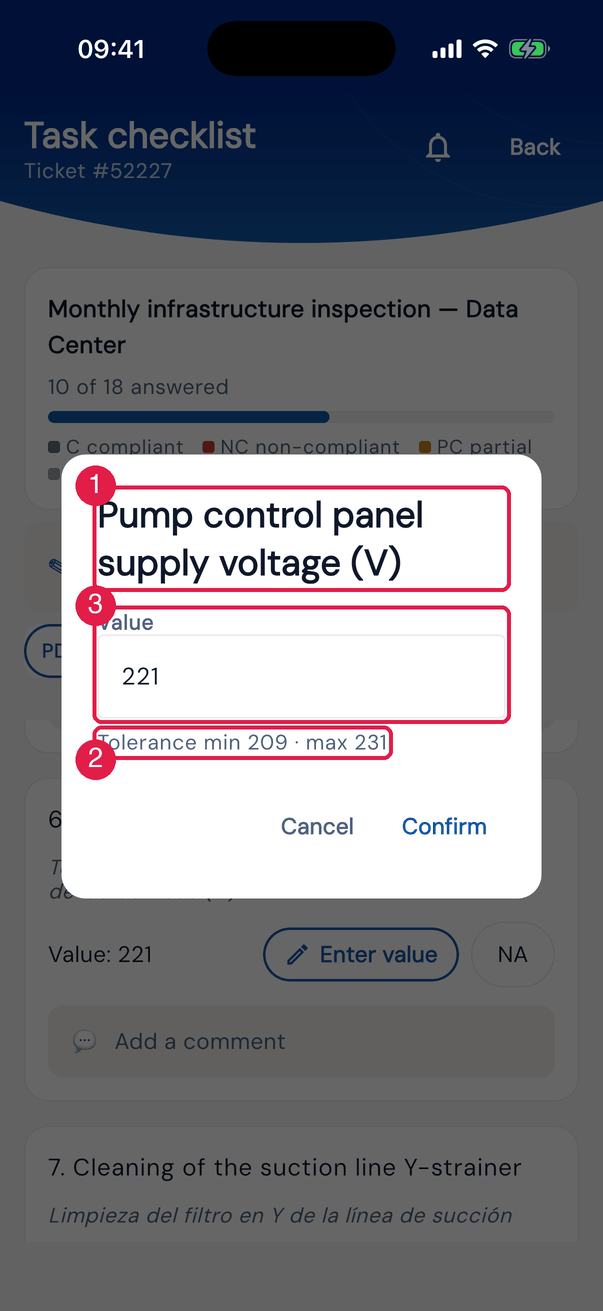
Figure 23. The Numeric in the app: Pump control panel supply voltage (V), with the Value field and the range from 209 to 231 V.
- 1The item question.
- 2The range: Tolerance min … · max ….
- 3The Value field.
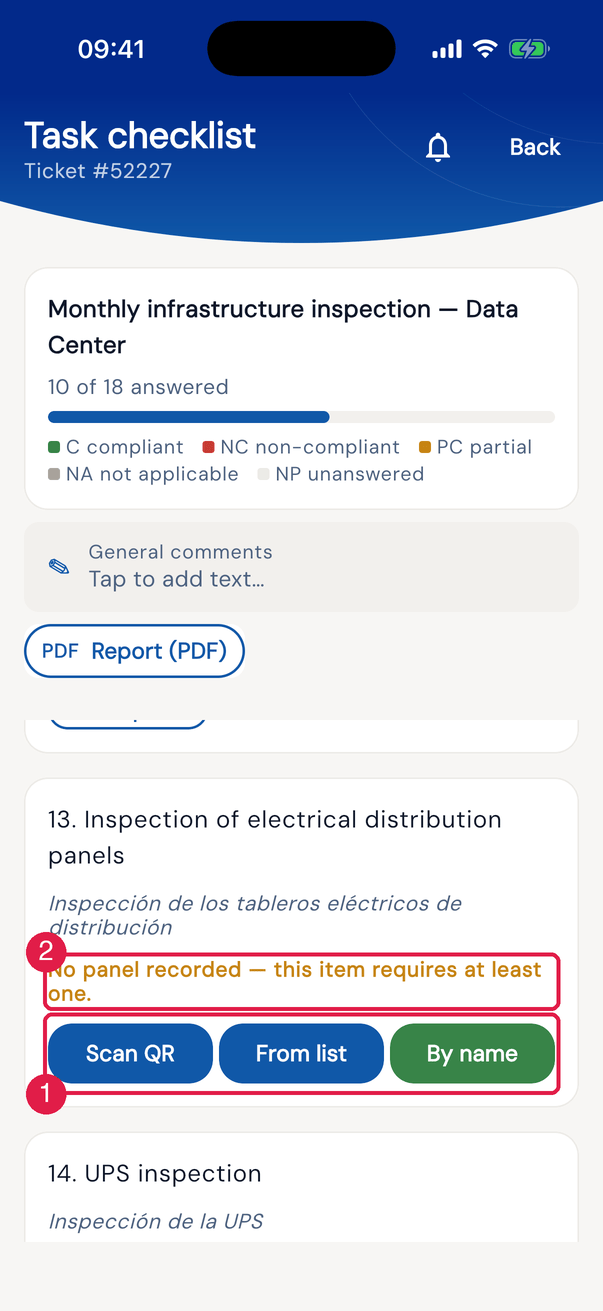
Figure 24. The item Inspection of electrical distribution panels in the app, with no panel yet: Scan QR, From list and By name add the panel. Each panel becomes a row with name, level and pending items (once complete, it collapses), the CRITICALITY — Critical, Regular, Minimal, None — and the panel photo, required when the criticality is not None.
- 1Scan QR / From list / By name.
- 2No panel recorded — this item requires at least one. — the item stays pending until it has a panel.
- In row-based reports, a pending row stays open with ● Pending: … and a complete one collapses; Expand all / Collapse all tidy up the screen, and each saved row shows ✓ saved at HH:MM.
- In Thermography, the photos are Thermogram and Panel photo; in UPS, Front photo, Rear photo and Battery bank photo (plus Other photos, optional).
- In a Table / Grid whose template requires a photo (or in a non-compliant row), each row has the Photos button — the row photo is checked on completion.
- On the electrical test sheets, Scan QR, From list and By name create the sheet; the rest follows the web: All A, Duplicate sheet, the automatic result and the manual one only with a justification. Everything works offline.
Completing in the app
Section titled “Completing in the app”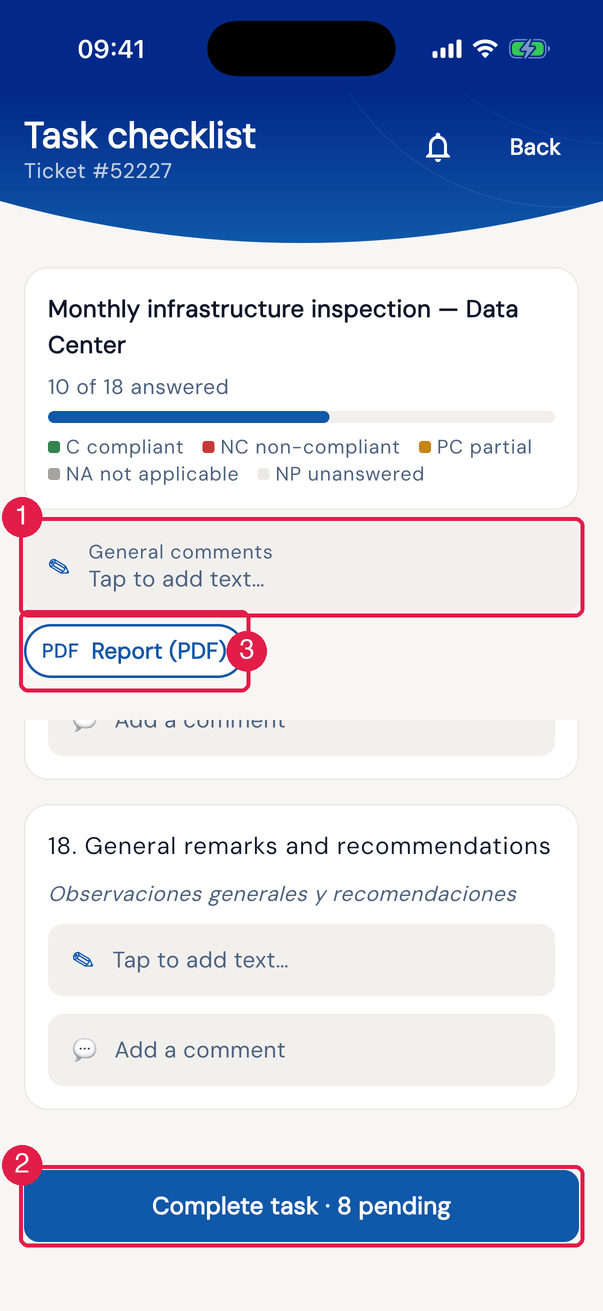
Figure 25. The end of the checklist in the app: Complete task · N pending while something is missing; once complete, ✓ Complete task. The card at the top, with ✎ General comments and Report (PDF), always stays in view.
- 1✎ General comments.
- 2Complete task · N pending / ✓ Complete task.
- 3Report (PDF).
- Tap ✓ Complete task. If something is missing, Cannot finish yet: … appears with what is missing (unanswered items, required photos, pending report rows).
- In a Commissioning ticket: Test result — ✓ Approved, ✘ Failed or ↻ Retest.
- With Generates Non-Conformity and non-compliant items: the Non-compliances dialog — Complete and open NCR or Go back and review (chapter 8).
- Sign to complete — the profile signature is already loaded; without one, the signature you draw becomes the profile one.
- Task completed. With the ticket solved or closed, the checklist becomes read-only.
Was this page helpful?
Thanks for the feedback!
Got it — we will improve this page.