
History
Manual — Daily report · chapter 7 of 9
The History tab of the daily report lists, from the most recent to the oldest, the changes made on the web: who made them, when, in which field and what changed. The field names, the states and the phrases appear in your language.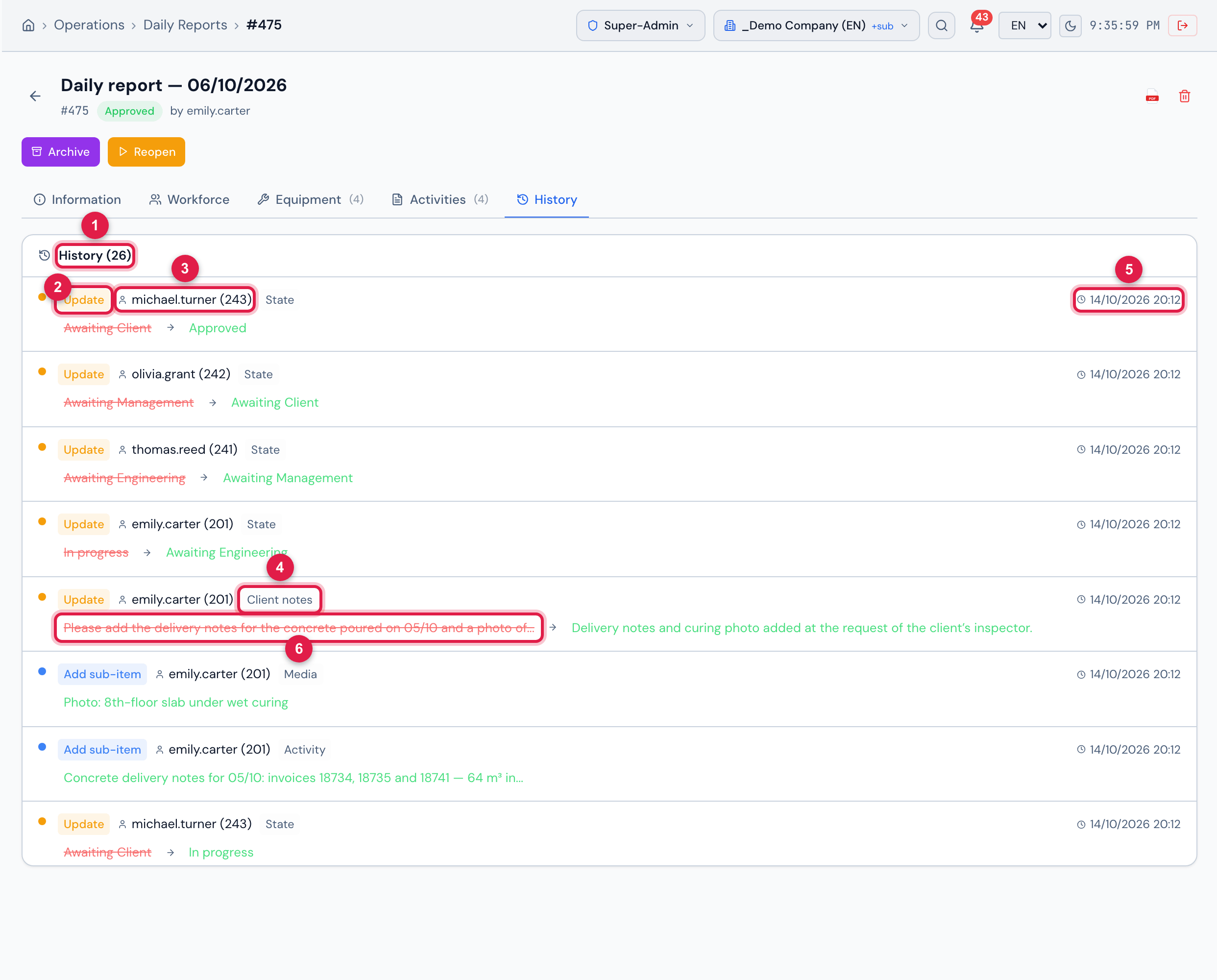
Figure 21. The History tab of the 06/10 daily report of Vila Nova Residential — Tower 1: the client’s rejection, the correction and the approvals again.
- 1History (N).
- 2The type of change, in colours — here, Update and Add sub-item (all types in the table below).
- 3Who did it.
- 4The field or item changed.
- 5The date and time.
- 6The old value (struck through) and the new one — hover to read a long text in full.
What goes in
Section titled “What goes in”| Action | How it appears |
|---|---|
| create the daily report | Creation — “Daily report #N — date” or, in a copy, “Copied from daily report #N (date)”. |
| Edit the information | Update of each changed field: Name, General notes, Client notes, Energized area, Energized area — workers, Energized area — location, Energized area — notes, Team comment, Idle team. |
| activities | Add sub-item, Update sub-item or Remove sub-item in Activity, with the beginning of the text. |
| photos, videos and PDFs | the same, in Media — “Photo: …”, “Video: …”, “Attachment: …”. |
| workforce | Update sub-item in “Direct workforce: Bricklayer”, “Idle indirect workforce: Foreman”… with the count before and after. |
| Copy Workforce | Update — “Workforce copied from daily report #N (date) — N entries”. |
| equipment | Add sub-item / Remove sub-item in Equipment — “Concrete mixer 400 L (x2)”. |
| submit, approve and reject | Update of State, with the names of the states — for example, Awaiting Management → Awaiting Client. Engineering’s direct approval brings “(skipped: Awaiting Engineering)”; with Daily report without client approval, management’s approval brings “(client approval waived by the project setting)”. |
| Archive and Reopen | Update of State, with the name of the state. |
| Send by e-mail | on the first daily report of the batch, in E-mail sending: the recipients and the numbers of the daily reports sent. |
- The rejection appears as the change of State to In progress. The text of the reason, saved in Client observations, does not appear as a change of that field — it only goes into the history when someone edits the field later.
- The history shows everything, since creation, with no limit of rows.
Was this page helpful?
Thanks for the feedback!
Got it — we will improve this page.