
Checking the items
Manual — NF-e and material receiving · chapter 5 of 11
The check is done on the Items tab, product by product: does the quantity match? Did the material arrive in good condition? Is it the specified material? Each answer is recorded on the item, goes into the inspection PDF and feeds the NFe Items report (chapter 9).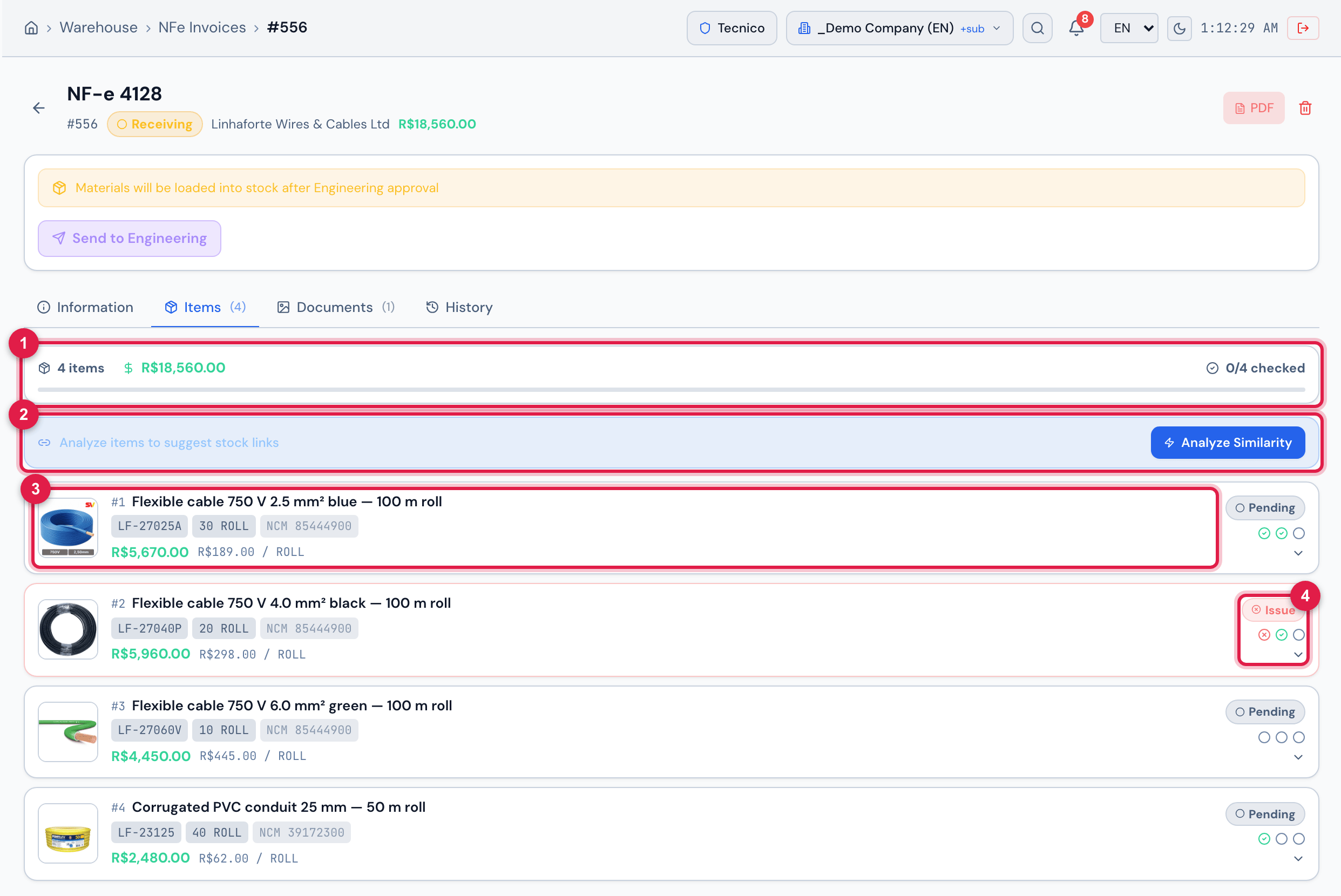
Figure 7. The Items tab of invoice 4128 from Linhaforte Wires & Cables, Receiving, with the check half done.
- 1The summary: the number of items, the value and N/N checked, with the bar.
- 2The stock strip (chapter 8).
- 3An item: the reference image, the number, the product, the code, the quantity, the NCM (and the GTIN, when the invoice has one) and the value.
- 4The badge — Compliant, Issue or Pending — and the three check marks.
Checking an item
Section titled “Checking an item”Click the item to open it. Below the photos and the tax data are the three check buttons:
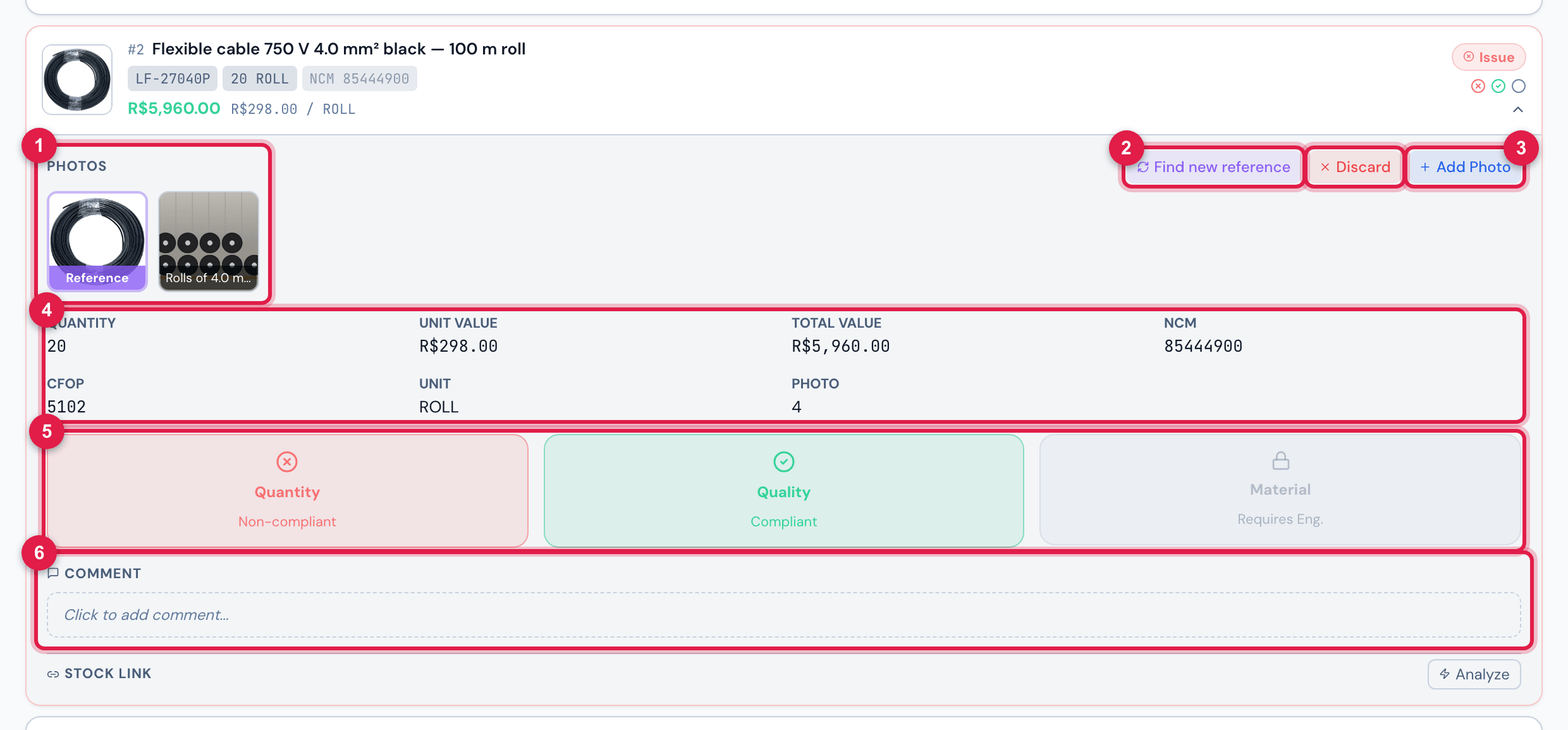
Figure 8. An item of invoice 4128 open: the photos, the tax data, the three check buttons and the comment.
- 1Photos: the Reference and the photos taken at receiving.
- 2Find new reference and Discard — the reference image (below).
- 3Add Photo.
- 4Quantity, Unit Value, Total Value, NCM, CFOP, Unit…
- 5Quantity, Quality and Material — each click changes the answer. For the receiver, Material shows the padlock and Requires Eng.
- 6The item’s Comment.
| Button | The question | Who marks it |
|---|---|---|
| Quantity | Is the received quantity in line with the requested quantity? | the storekeeper |
| Quality | Does the material have good appearance, no scratches, no warping, no defects? | the storekeeper |
| Material | Approved by engineering? | engineering (Approve (Eng.)) |
- Each click changes the answer: Not verified → Compliant → Non-compliant → Not verified. Hover over the button to see the question.
- The item badge becomes Compliant when the three answers are Compliant, Issue when any is Non-compliant, and Pending otherwise. The summary at the top counts as checked only the Compliant items.
- Comment: click Click to add comment…, write (Notes about this item…) and Save — Comment saved appears. Use it to record the mismatch: “48 arrived, the invoice says 50”, “2 bars warped”.
- Add Photo attaches one item photo at a time (JPEG, PNG, WEBP or GIF). Photograph above all what came out Non-compliant: the photo goes into the PDF.
- A wrong photo is removed with the X that appears over it (with Trash, up to Awaiting Engineering); the question is Delete this photo?.
- Click an image to enlarge it. The icon next to the product name copies the description (Copy name).
The reference image
Section titled “The reference image”The reference image is a photo of the product found on the internet, so the storekeeper can recognize what should have arrived — it is not a photo of the material received. It appears in the item list, in the open item (with the Reference label) and in the app, and it becomes the material’s photo when the material is created in the stock (chapter 8).
| Step | What H2O does |
|---|---|
| 1. barcode | if the item has a GTIN, it looks for the product photo by the barcode |
| 2. reuse | if another item with the same description already has a chosen image, it uses the same one |
| 3. search | artificial intelligence rewrites the invoice description into a clean search, without abbreviations and keeping brand and model, and the search engines bring up to 6 candidate images |
| 4. choice | artificial intelligence looks at the candidates and chooses the one that shows the product — or none |
- The search runs by itself in the minutes after the import, once per item. An item without an image shows a box icon instead.
- If an item ended up with more than one reference image (older invoices), the web and the app show the most recent one.
- No image is better than a wrong image: when no candidate shows the product, the item stays without a reference.
- The company has a daily limit of items searched with artificial intelligence. Past the limit, the search uses only the first image from a search engine.
When the image is no good — another product, another model, a photo that says nothing —, change it in the open item (with the invoice Receiving or Awaiting Engineering, whoever can check):
| Button | What it does | Result |
|---|---|---|
| Find new reference | searches again; if it finds a reliable image, it replaces the current one | New reference image found. or No reliable image was found; the current one was kept. |
| Find reference | the same, for an item that has no image | New reference image found. or the item stays without an image |
| Discard | asks Discard the current reference image? If no reliable one is found, the item stays without an image., searches again and removes the current one even if it finds no other | New reference image found. or Image discarded; no reliable reference was found. |
Was this page helpful?
Thanks for the feedback!
Got it — we will improve this page.