
Waste: inventory, PGRS, shipments and DMR
Manual — Environment · chapter 5 of 11
Under the PNRS (National Solid Waste Policy) the generator is responsible for the waste until its licensed and proven disposal. The cycle in H2O: Inventory (what the project generates) → PGRS published and signed → each shipment with an MTR issued in SINIR → CDF from the disposal facility → DMR from the history. The Waste — PGRS, MTR and disposal screen has four tabs and a site filter at the top, which applies to all of them.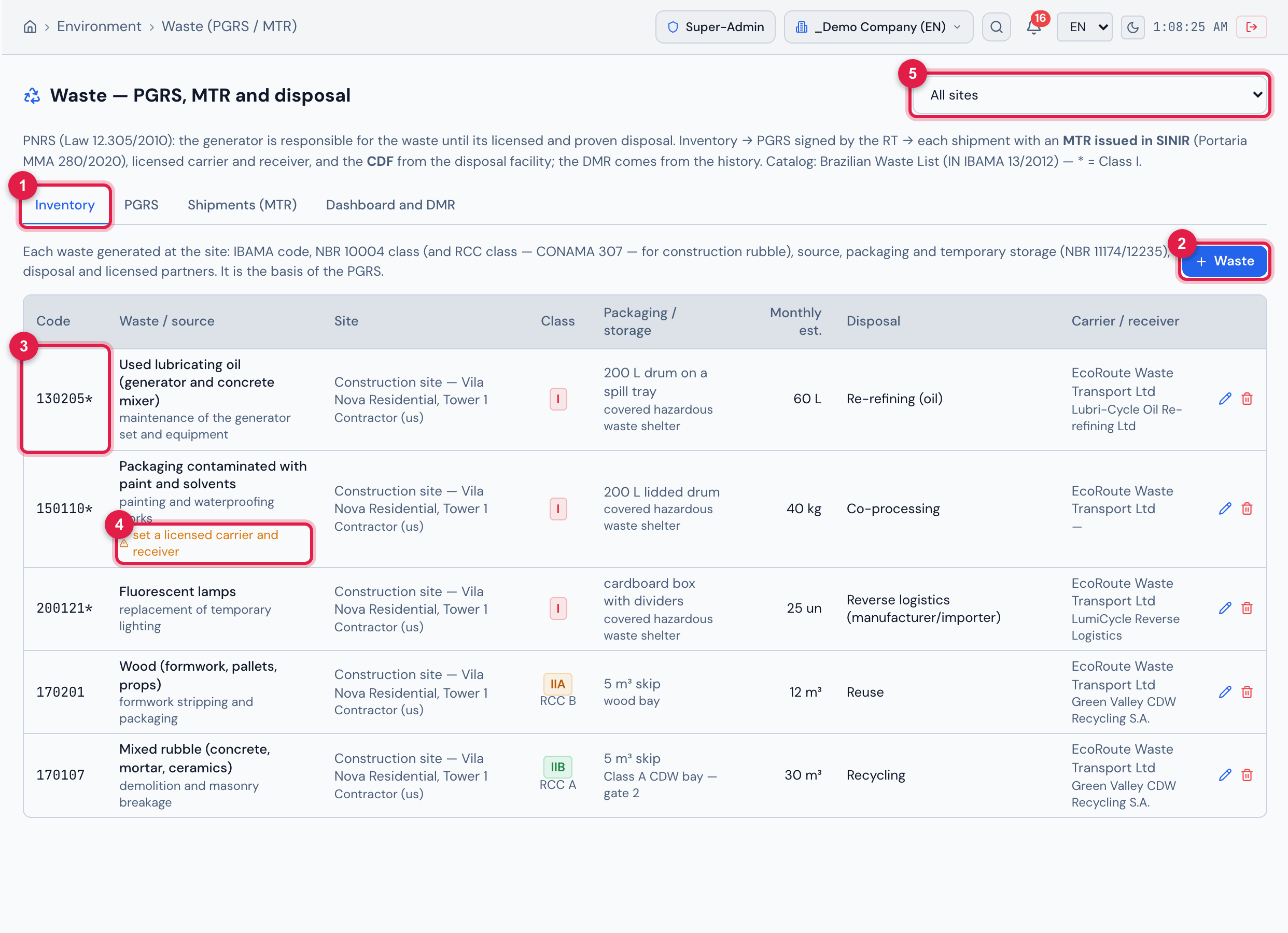
Figure 10. The Inventory tab with the site’s five wastes: the Brazilian Waste List code (IN IBAMA 13/2012 — the asterisk marks Class I), waste and source, site and generator, NBR 10004 class (I, IIA, IIB) and CONAMA 307 class for construction waste (RCC), packaging and storage, monthly estimate, disposal and the usual partners (carrier / receiver). The contaminated packaging (150110*) has no receiver yet and shows the orange warning.
- 1Screen tabs (Inventory, PGRS, Shipments (MTR), Dashboard and DMR).
- 2+ Waste.
- 3Code with an asterisk = Class I (hazardous).
- 4Warning “set a licensed carrier and receiver”.
- 5Site filter — applies to all four tabs.
In the Code field, search the Brazilian Waste List by number or description: the catalog already has 92 codes common in construction and facilities (the asterisk marks Class I — hazardous). When you choose the code, the description, the class, the RCC class, the physical state and the usual disposal are filled in. If the waste is not on the list, use not on the list — own code: describe it, say whether it is hazardous and click Create code (the system numbers them P-001, P-002…).
The inventory shows orange warnings on the item itself: carrier or receiver with an expired license, no carrier and receiver set, and Class I waste without a storage location (NBR 12235). They are only warnings — the item is saved.
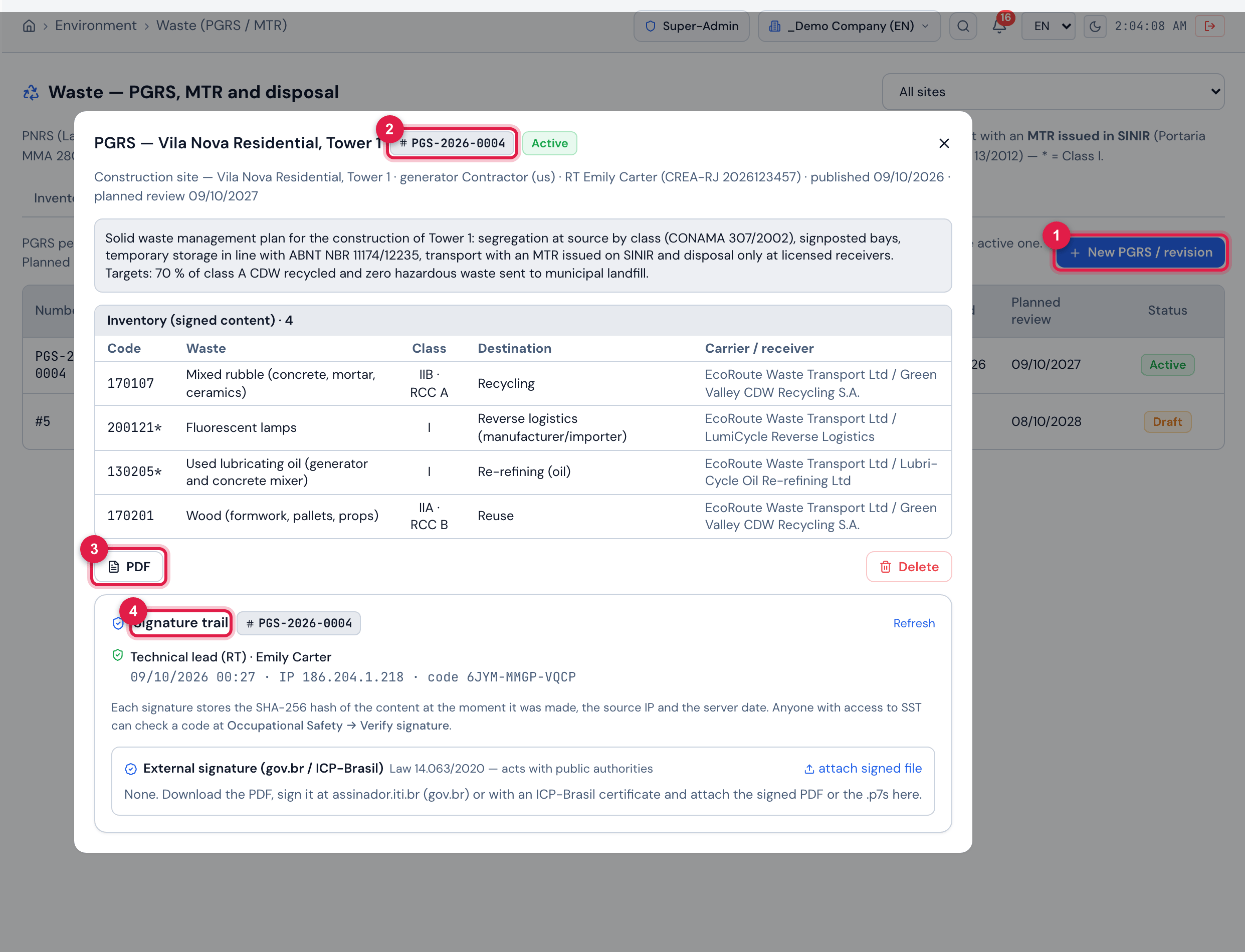
Figure 11. The PGRS tab with the active plan open: PGS-2026-0004 · rev. 1, Active, published on 09/10/2026 with planned review on 09/10/2027; the plan text, the Inventory (signed content) with the four wastes frozen at publication, the PDF button and the Signature trail with the signature of the person who published (date, IP and verifiable code). In the background, the list of plans, with a Draft of revision 2.
- 1New PGRS / revision.
- 2Plan number and revision, with the Active badge.
- 3PDF of the signed plan.
- 4Signature trail.
- Build the site’s inventory — without registered waste the PGRS cannot be published.
- In the PGRS tab, click New PGRS / revision: title (default “PGRS — site (rev. n)”), technical lead and registration (default: the site’s RT), Planned review, the external PGRS as a PDF (optional) and the plan text (diagnosis, targets and procedures). There is only one draft per site.
- Open the draft and click Publish and sign (RT). The current inventory is frozen as the content of the revision, the plan gets the number PGS-YYYY-0001, the registered signature of the person publishing goes into the trail (with hash, IP and verifiable code) and the previous revision becomes Superseded. Without a Planned review, the system uses 24 months.
- To change a published PGRS, create a new revision — the published one cannot be edited. Deleting the active revision (Trash right) invalidates its signature in the trail, and the most recent superseded revision becomes Active again.
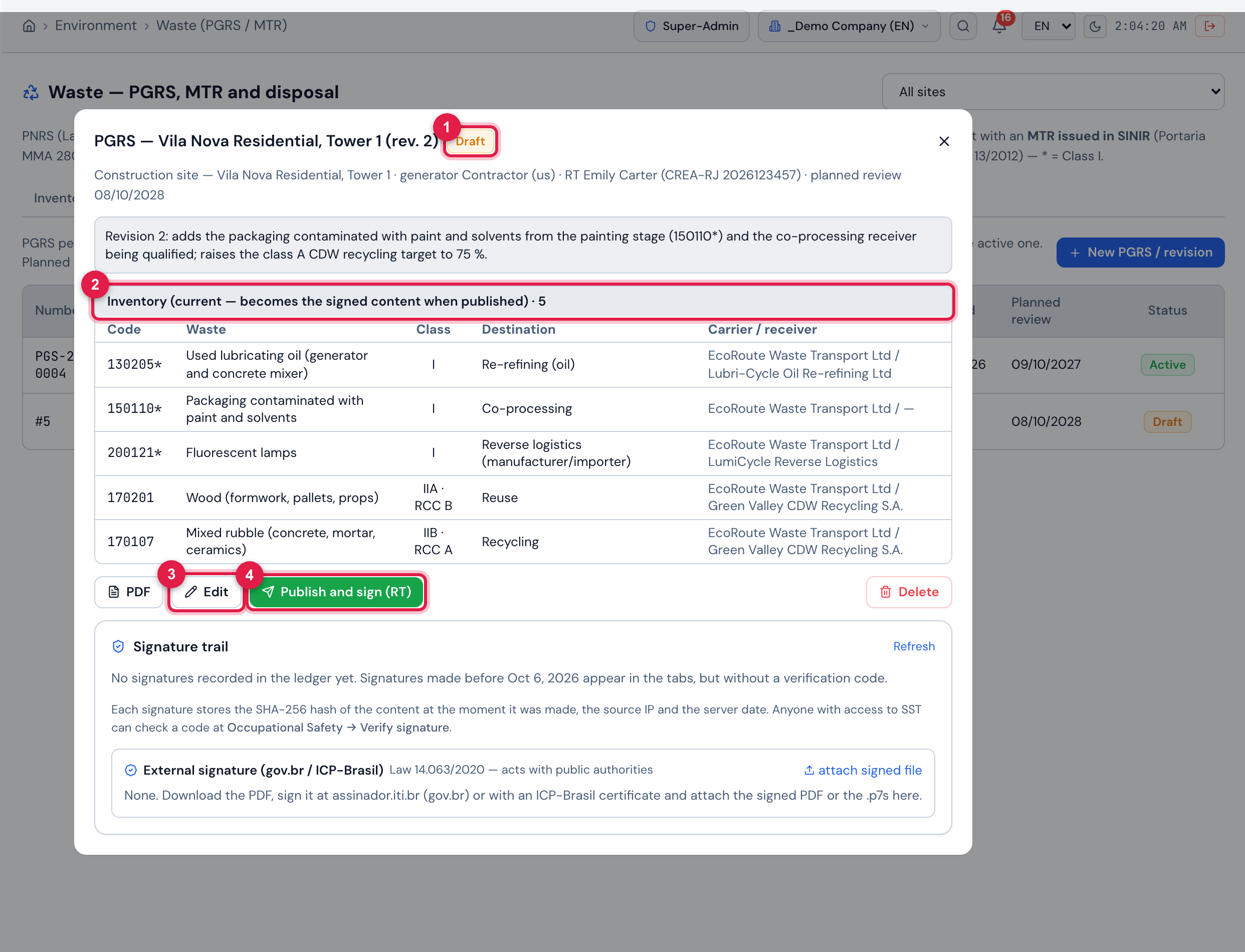
Figure 12. The draft of revision 2 open: Draft badge, the revision text, the Inventory (current — becomes the signed content when published) with today’s five wastes, the PDF, Edit, Publish and sign (RT) and Delete buttons and the trail still without signatures. When published, the plan gets its PGS number and the active revision becomes Superseded.
- 1Draft badge.
- 2Current inventory — this is what will be frozen and signed.
- 3Edit — title, RT, planned review, external PDF and text.
- 4Publish and sign (RT).
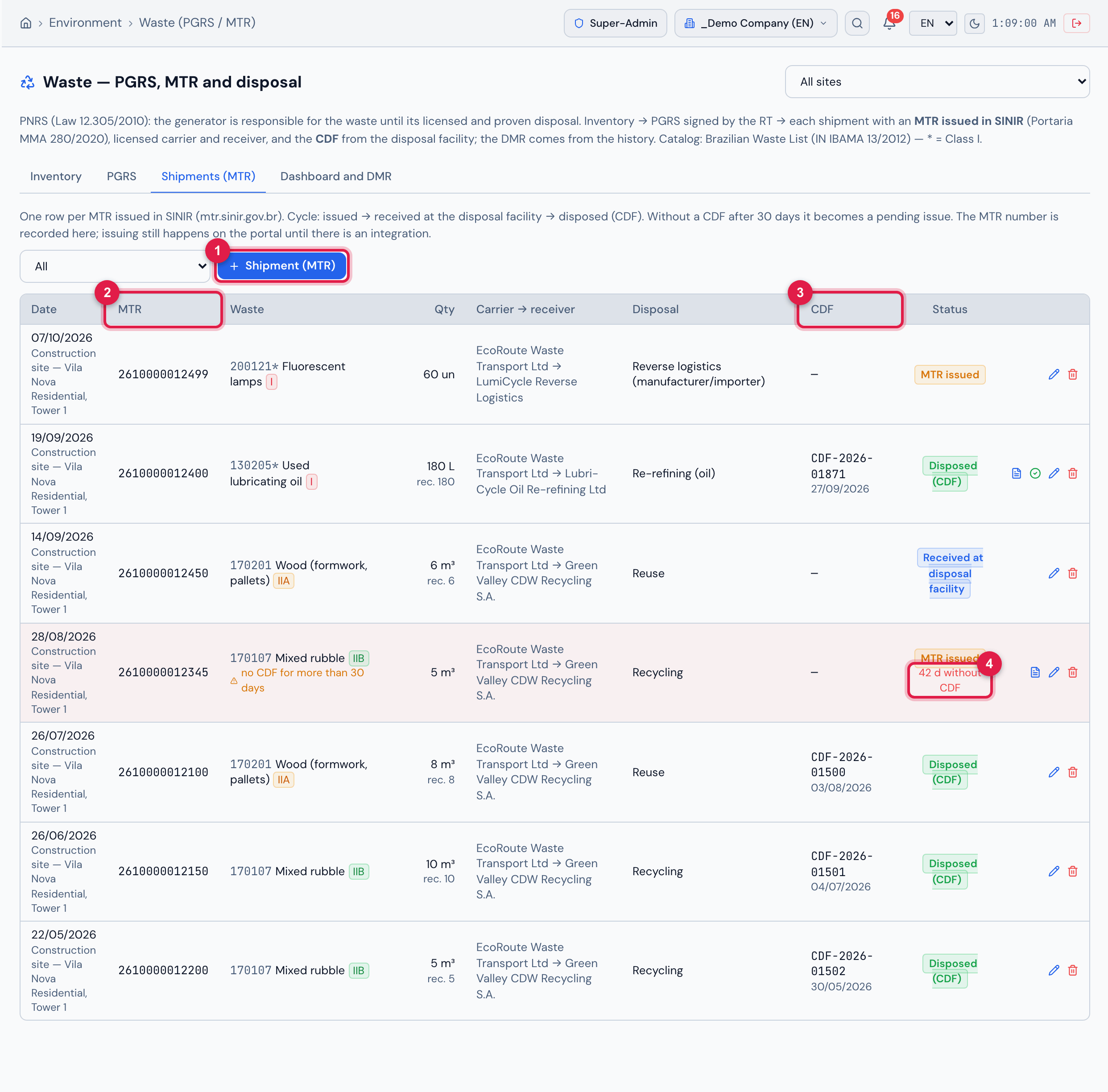
Figure 13. The Shipments (MTR) tab: seven shipments from the site, one row per MTR, with date, site, MTR number, waste and class, quantity (and quantity received), carrier → receiver, disposal, CDF and status — MTR issued, Disposed (CDF) with the CDF number and date, Received at disposal facility — and the rubble shipment of 28/08/2026 with a red background, the warning “no CDF for more than 30 days” and the count 42 d without CDF.
- 1+ Shipment (MTR).
- 2MTR column — the number issued in SINIR.
- 3CDF column — certificate number and date.
- 4Days without a CDF (more than 30 = pending issue).
- Issue the MTR on the SINIR portal (mtr.sinir.gov.br) and, in Shipments (MTR), click + Shipment (MTR): choose the Inventory waste (fills in code, class, unit, generator, partners and disposal), enter Quantity, Shipment date, MTR number (SINIR), plate and driver if you wish, and attach the MTR file.
- When the disposal facility receives it, click the shipment’s pencil, record Received on and Qty received and change the Status to Received at disposal facility.
- When the CDF arrives, edit it again: enter the CDF number and the date (CDF issued on), attach the CDF file and change the Status to Disposed (CDF). Choosing “Disposed” without the CDF number is not accepted.
- On creation, the “automatic” Status is calculated from what was filled in (with a CDF number = Disposed; with a receipt date = Received; otherwise, MTR issued). On editing, the status is whatever is selected in the field — so change it at each stage. Use Cancelled for an MTR cancelled in SINIR. The Cost field accepts a negative value when the waste generates revenue.
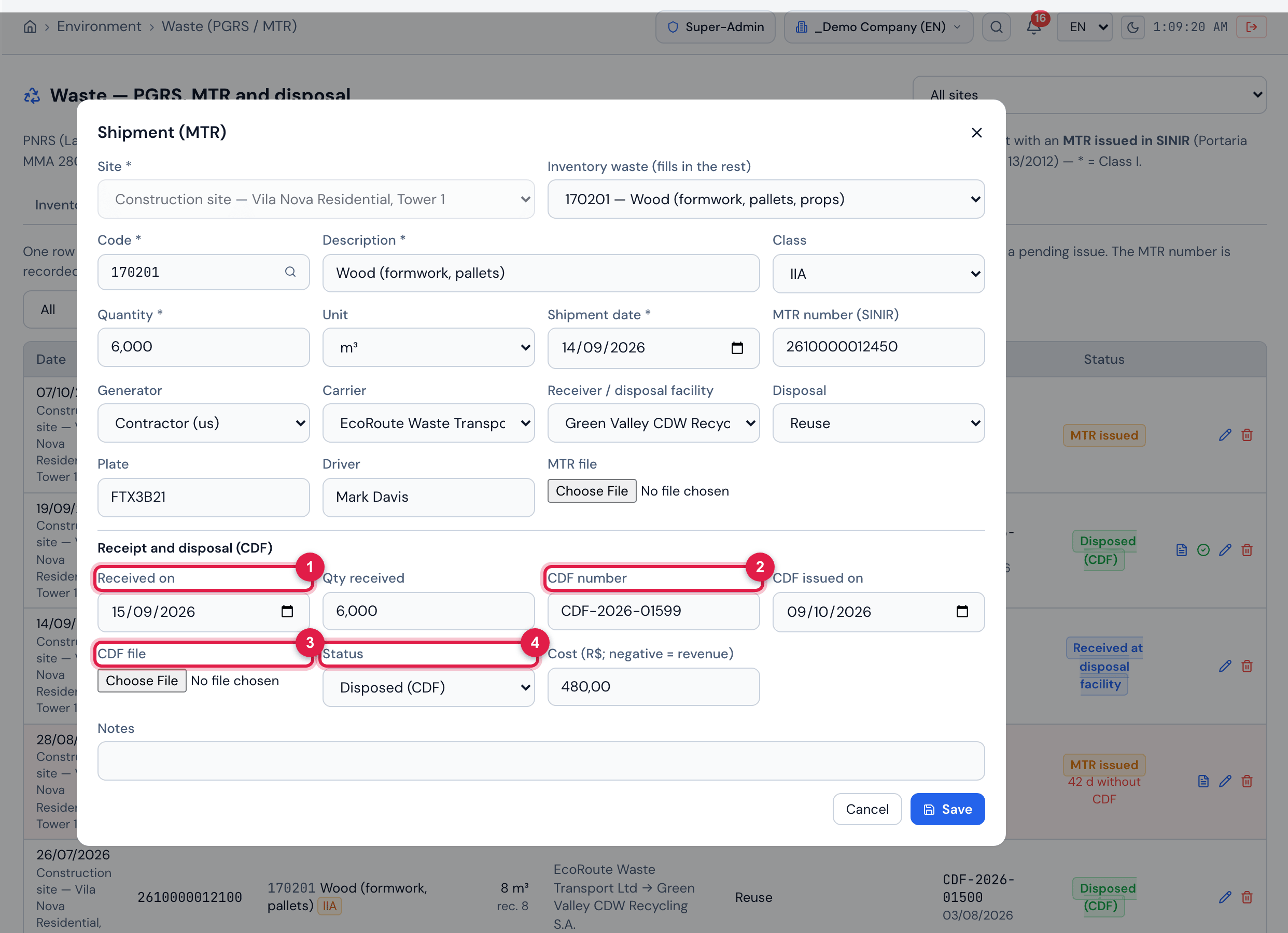
Figure 14. Recording the CDF: the pencil of the wood shipment (MTR 2610000012450, already Received at disposal facility) opens the Shipment (MTR) window. In the Receipt and disposal (CDF) block: Received on and Qty received already filled in, the CDF number, CDF issued on, the CDF file and the Status set to Disposed (CDF) — when editing, the status does not change by itself. Click Save.
- 1Received on — date the disposal facility received the waste.
- 2CDF number — required for Disposed.
- 3CDF file — recommended.
- 4Status — change it to Disposed (CDF).
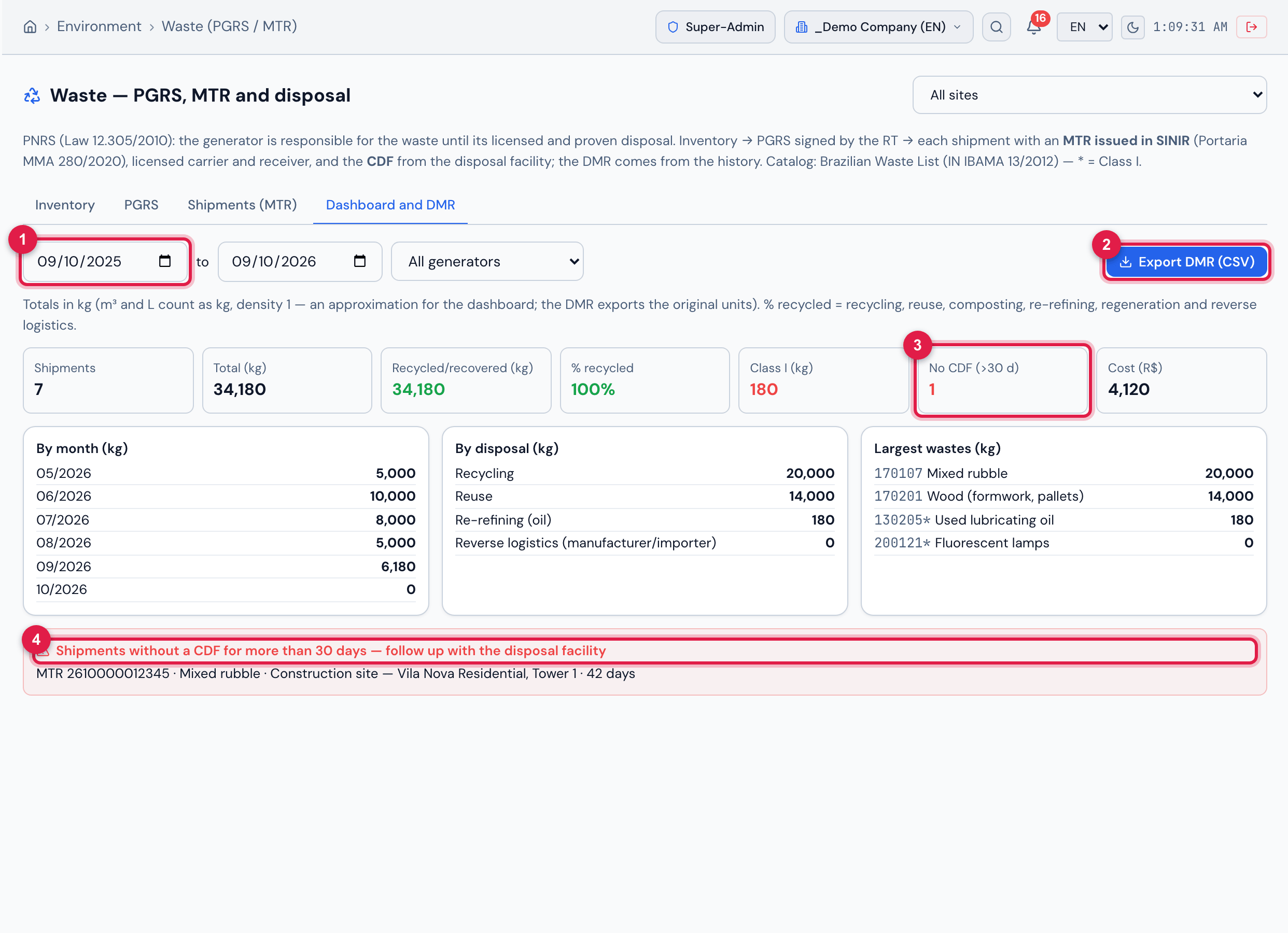
Figure 15. The Dashboard and DMR tab, last 12 months: 7 shipments, 34,180 kg in total, 100% recycled, 180 kg of Class I, 1 shipment with No CDF (>30 d) and the cost; the totals by month, by disposal and the largest wastes; and the list Shipments without a CDF for more than 30 days — follow up with the disposal facility (the rubble MTR, 42 days). The Export DMR (CSV) button downloads the period spreadsheet for the declaration in SINIR.
- 1Period (from / to) — default: last 12 months; next to it, the generator filter.
- 2Export DMR (CSV).
- 3No CDF (>30 d) indicator.
- 4List of shipments without a CDF for more than 30 days.
Was this page helpful?
Thanks for the feedback!
Got it — we will improve this page.