
Fixing, validating and closing
Manual — Punch list (GQE) · chapter 6 of 11
The normal path has four steps: Start fixing, fix, attach the closing photo and Request validation; Quality checks and completes. The detours — Reject, Block, Won’t fix and Reopen — are recorded with the reason.Fixing and requesting validation
Section titled “Fixing and requesting validation”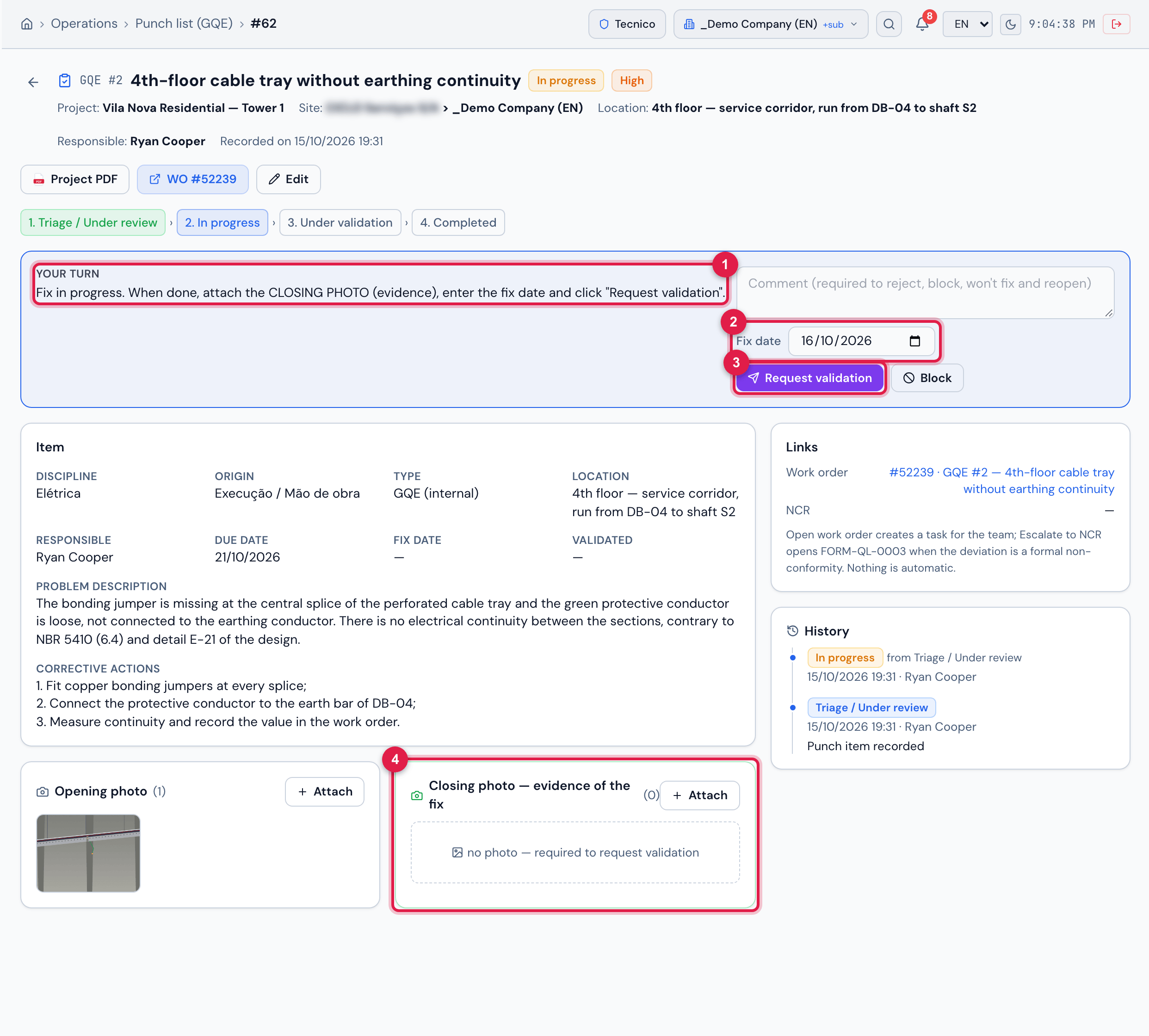
Figure 7. GQE #2 “4th-floor cable tray without earthing continuity”, In progress, seen by the responsible: the closing photo is still missing to request validation.
- 1The step text: attach the closing photo, enter the date and request validation.
- 2Fix date — comes with today’s date.
- 3Request validation.
- 4Closing photo — evidence of the fix — still no photo, with Attach.
- On the item page in Triage / Under review, click Start fixing. The item goes to In progress (message Fixing started).
- Carry out the fix.
- In Closing photo — evidence of the fix, click Attach and upload the photo(s) of the finished work — preferably from the same angle as the opening photo.
- Check the Fix date, write a comment if you wish, and click Request validation. The item goes to Under validation (message Sent to Quality for validation) and the decision passes to Quality.
When the fix was already done before anyone opened the item, there is no need to go through In progress: Request validation also shows in Triage / Under review and in Blocked.
Validating or rejecting (Quality)
Section titled “Validating or rejecting (Quality)”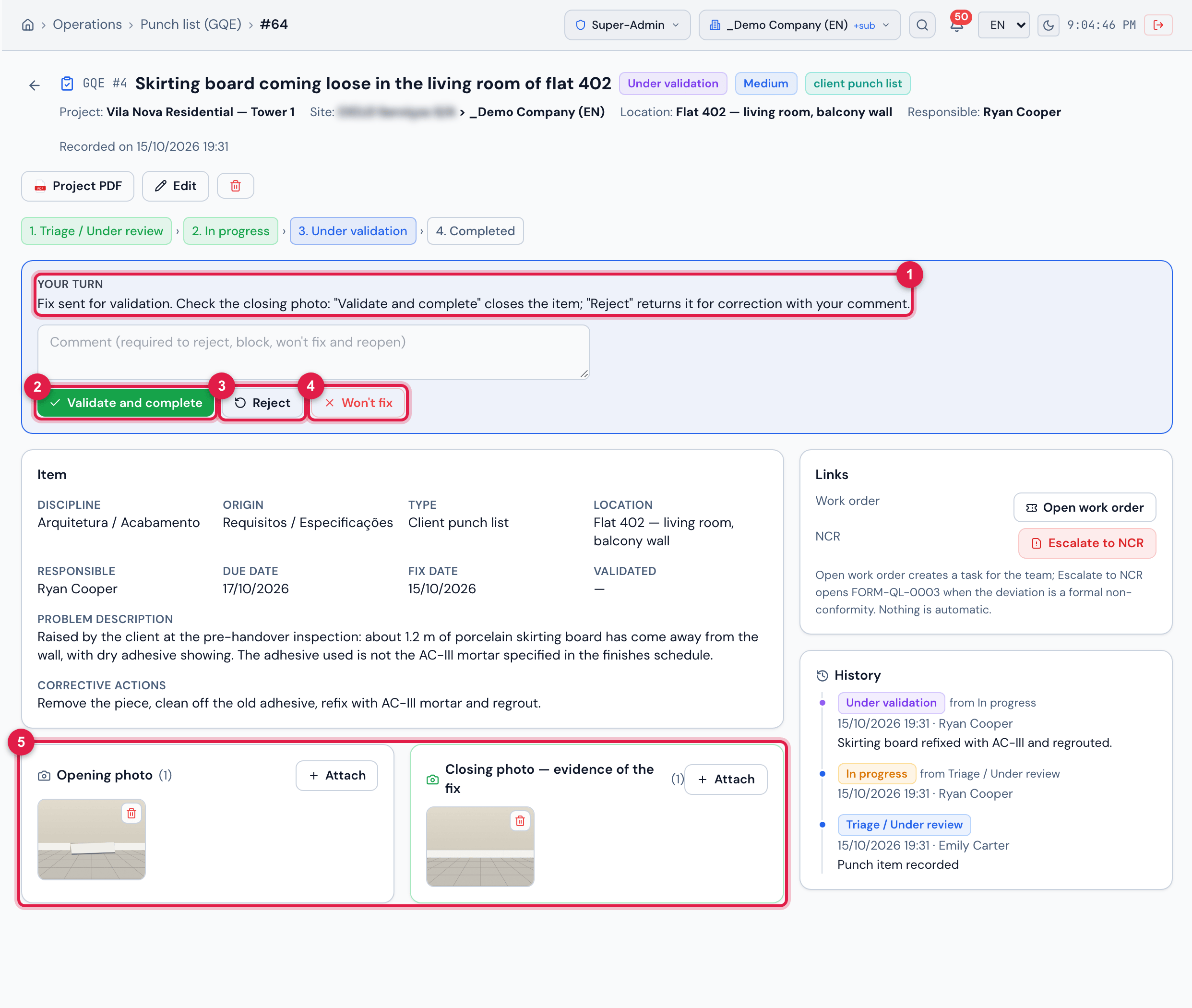
Figure 8. GQE #4 “Skirting board coming loose in the living room of flat 402” — client punch list — Under validation, seen by someone with Validate (Quality).
- 1The step text guides the check of the closing photo.
- 2Validate and complete.
- 3Reject — with the assessment in the comment.
- 4Won’t fix.
- 5The opening and closing photos, to compare.
- Validate and complete closes the item as Completed and records who validated and when (Validated field).
- Reject sends it back to In progress with the assessment — what is still missing — in the history. The responsible fixes it, attaches a new photo and requests validation again.
- Whoever does not have Validate (Quality) sees Current step — “Waiting for Quality to validate the fix.” — with no buttons.
- Quality is notified: the item appears in the bell of those with Validate (Quality) on the site, and the e-mail goes to them (see Notices in the bell and by e-mail, below).
Completed and Reopen
Section titled “Completed and Reopen”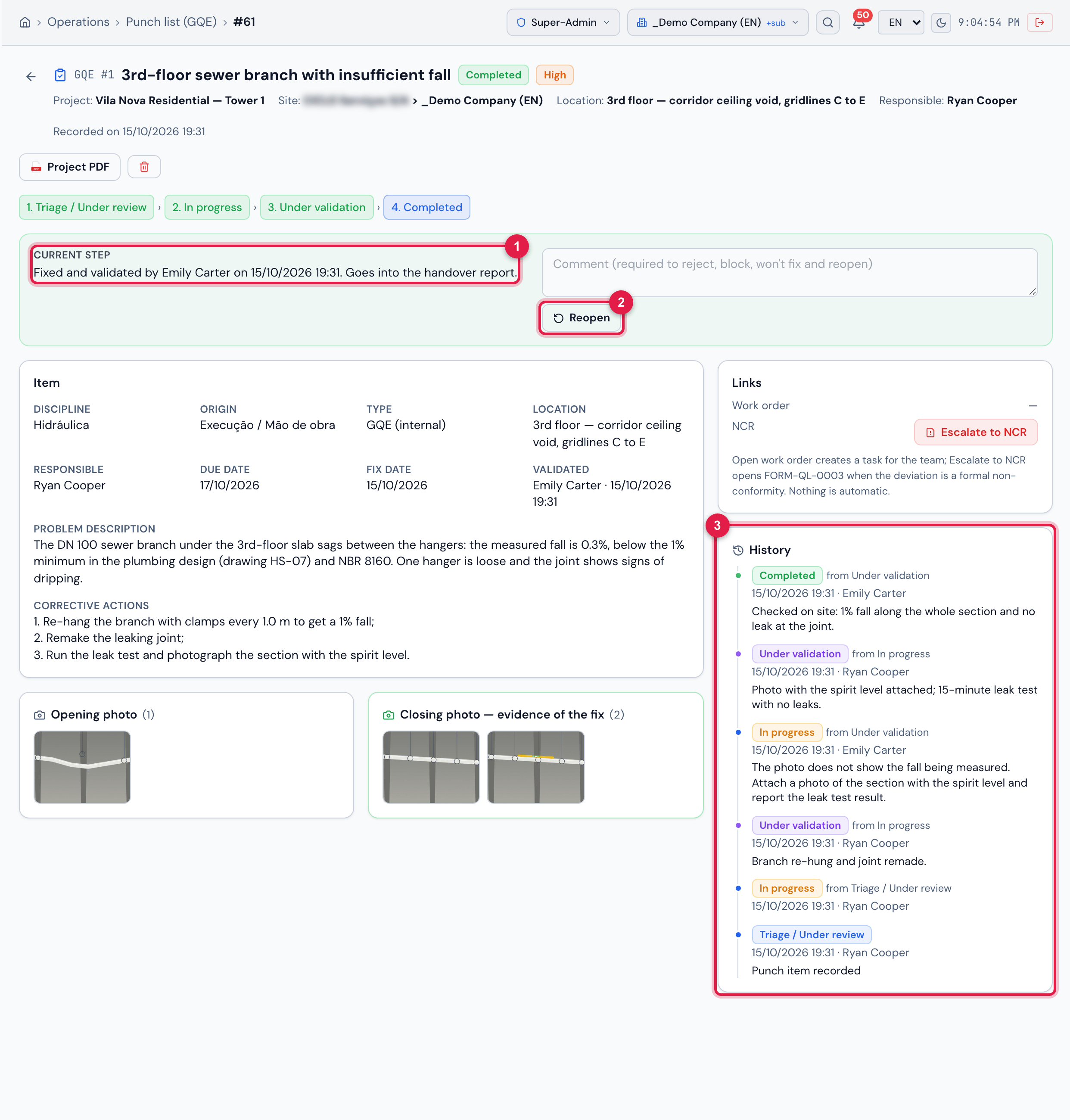
Figure 9. GQE #1 “3rd-floor sewer branch with insufficient fall”, Completed: the green box with who validated and when, the opening photo and the two closing ones, and the history with one rejection.
- 1Fixed and validated by … on … — with the date in the company format; goes into the handover report.
- 2Reopen (Quality only) — with the reason.
- 3The history, with all the back-and-forth (including a rejection).
A completed item cannot be edited or receive photos. If something needs to change, Quality clicks Reopen with the reason: it goes back to Triage / Under review, and the validation and the Fix date are cleared — the reopening stays in the history.
Blocking and resuming
Section titled “Blocking and resuming”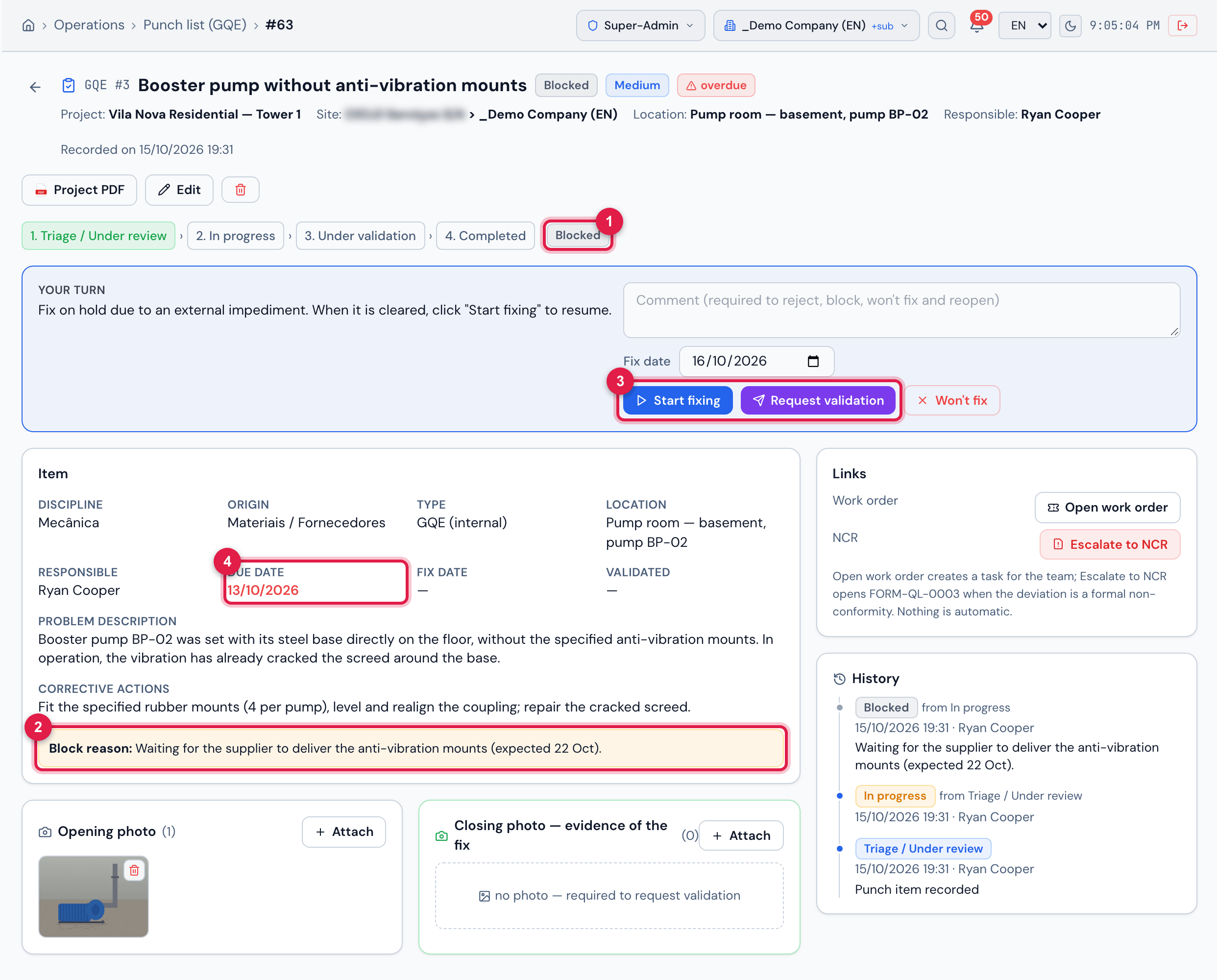
Figure 10. GQE #3 “Booster pump without anti-vibration mounts”, Blocked waiting for the supplier: the reason highlighted and the due date passed, in red.
- 1The Blocked badge next to the step bar.
- 2Block reason.
- 3Start fixing resumes the work; Request validation, if the fix has already been done.
- 4The Due date passed, in red.
- Use Block when the fix depends on something external: material, third parties, area clearance. The reason is required.
- Blocking does not stop the clock: a blocked item with the Due date passed counts as overdue. Adjust the date in Edit when the new deadline is agreed.
- When leaving the block, the reason leaves the item page and stays only in the history.
Won’t fix
Section titled “Won’t fix”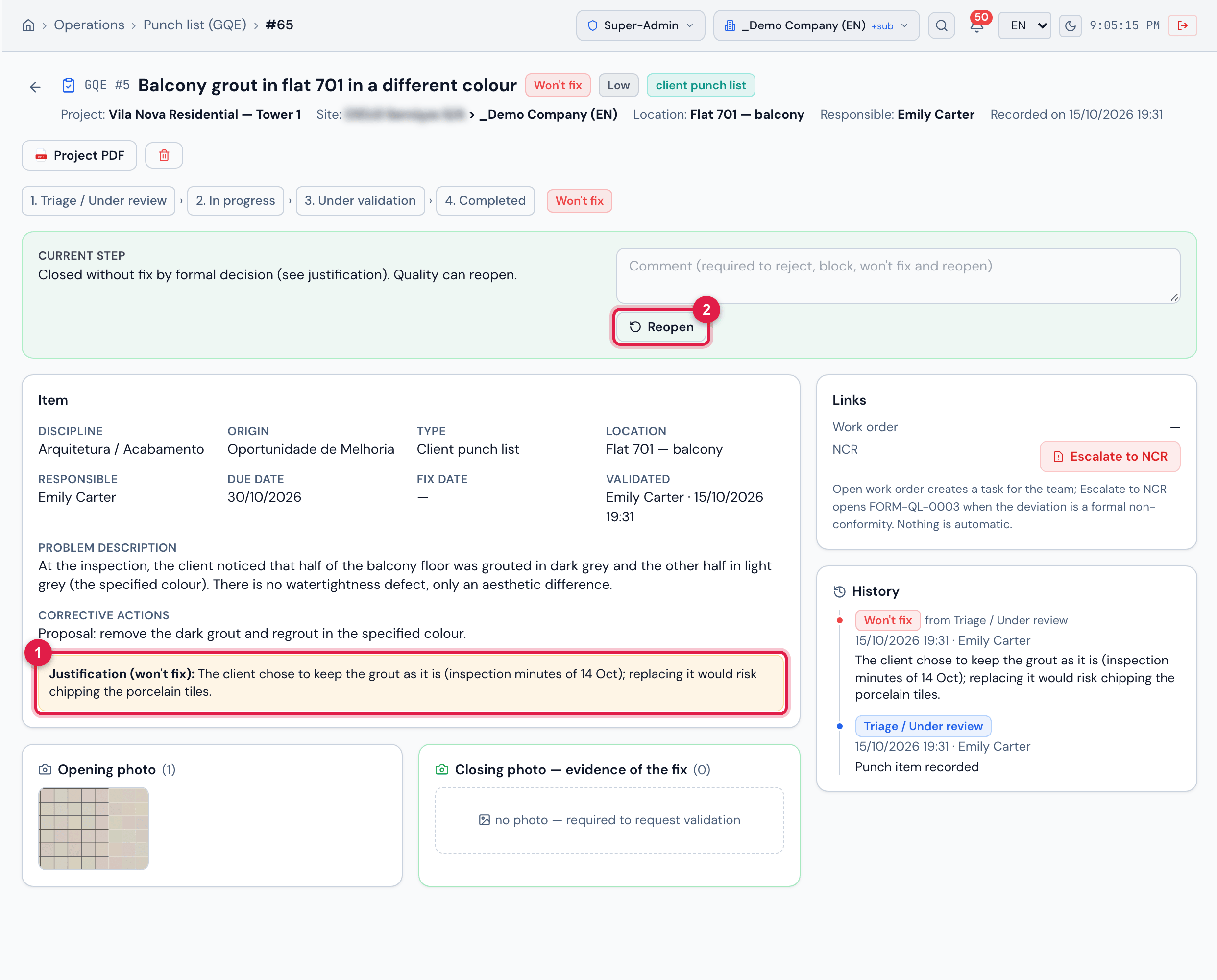
Figure 11. GQE #5 “Balcony grout in flat 701 in a different colour”, Won’t fix: closed without a fix, with the justification — a Quality decision.
- 1The Justification (won’t fix).
- 2Reopen, if the decision changes.
Use it when the deviation will not be fixed by formal decision: risk accepted by the client, an item that no longer exists in the design, an item that turned out to be false. The justification is required and goes into the PDF.
Notices in the bell and by e-mail
Section titled “Notices in the bell and by e-mail”| When | Who receives it | In the bell |
|---|---|---|
| a responsible is assigned — when recording with a responsible, when changing the responsible in Edit and when a commissioning failure opens the item with the technician | the new responsible | You are responsible for GQE punch item #n |
| Open work order | the responsible | WO #m opened for GQE punch item #n |
| Request validation | those with Validate (Quality) on the item’s site — except the requester | GQE punch item #n awaiting validation, while it is Under validation |
| Reject | the responsible, with the assessment | Validation rejected — GQE punch item #n |
| Validate and complete | the responsible | GQE punch item #n completed |
- The bell and the e-mail come in the recipient’s language. Whoever performed the action never receives their own notice — a responsible who records their own item, for example, is not notified about themselves.
- Clicking the bell notice opens the item page. Notices to the responsible stay in the bell for 7 days, while they make sense (they are still the responsible and the item is still in the status of the notice).
- The e-mails follow the notification rules of type Punch item (GQE) in System › Notifications — Apontamentos (GQE): responsável designado and the other four (rule names are shown in Portuguese) —, with the recipients Punch item responsible (GQE) and Validators (Quality) of the punch item site. The administrator can deactivate a rule or add recipients.
- The responsible only receives notices if they can see the item’s site.
Was this page helpful?
Thanks for the feedback!
Got it — we will improve this page.