
The user's profiles and groups
Manual — Users, groups and profiles · chapter 5 of 12
The Profiles and Groups tabs of the record show and change the person’s assignments and teams. The buttons appear with the Edit level on Users and the user’s site in the header (chapter 4).Profiles tab: the assignments
Section titled “Profiles tab: the assignments”The tab lists the Assigned Profiles: each row is an assignment, with the Profile, the Entity (the site), Recursive and Dynamic.
- Click Add Profile.
- Choose the Profile.
- Choose the Entity — it comes filled in with the header site.
- Turn on Recursive if the assignment should also apply to the sites below (it comes as No).
- Click Add. The list shows the new assignment.
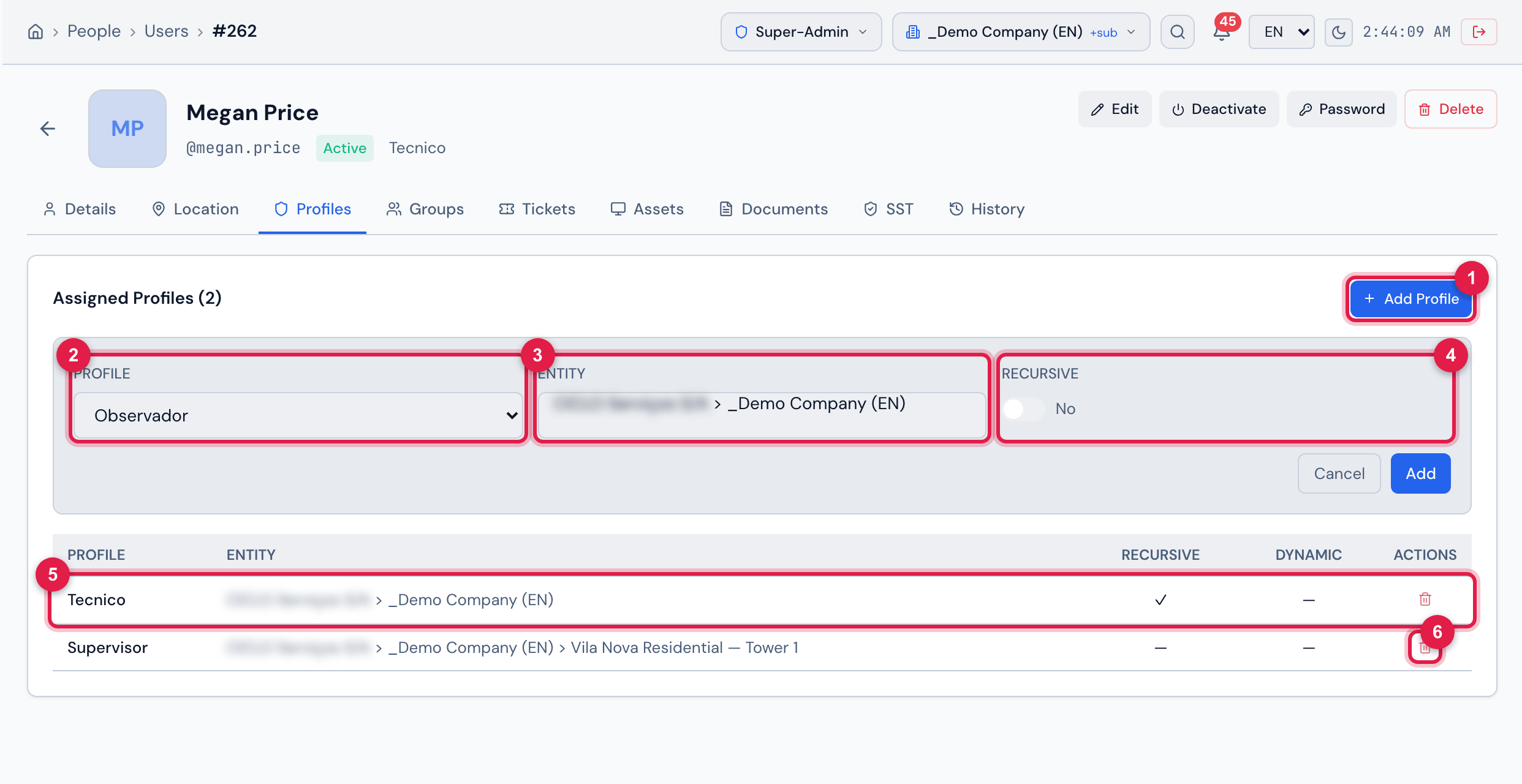
Figure 7. Profiles tab with the Add Profile panel open (nothing added yet) and the user’s two assignments: Tecnico on the company, recursive, and Supervisor only on Vila Nova Residential — Tower 1.
- 1Add Profile.
- 2Profile — the profiles registered in People › Profiles.
- 3Entity — the site of the assignment.
- 4Recursive — also applies to the sub-sites.
- 5A recursive assignment (✓ in the Recursive column).
- 6The trash removes the assignment, after confirming Remove this profile from user?
- The same profile cannot be repeated on the same site: H2O answers Profile already assigned on this entity.
- To change the recursive flag of an assignment, remove it and add it again.
- Dynamic assignments (✓ in Dynamic) are created automatically by H2O and have no trash.
- After adding or removing, the Default Profile and the Default Site are adjusted using the oldest assignment left. Whoever is left without any assignment reaches no site.
Nobody grants more than they have
Section titled “Nobody grants more than they have”So that a job site administrator cannot create, for example, a Super-Admin, H2O checks each new assignment (in registration and in the Profiles tab) against your active profile on that site:
| Rule | When H2O refuses | Message |
|---|---|---|
| Administration powers | the chosen profile has one of these levels that your profile does not have on the site of the assignment: Edit or Create on Users, on Profiles or on Sites / Entities, or Edit on General Config. A profile with all of them (a full administrator, like Super-Admin) is only granted by whoever has all of its levels on these rights or is a global administrator (recursive assignment on the Root with these powers). | This profile grants administration powers your active profile does not have (…). — in parentheses, the missing levels |
| Reach | the site of the assignment is outside your reach; with Recursive, one of its sub-sites is outside; recursive on the Root, if you do not reach the whole tree. | You do not reach this entity (or, for a recursive link, all of its sub-sites). |
| User above you | the person you want to change has administration powers that your active profile does not have. This applies to editing, changing the password, deactivating, deleting, changing assignments, groups and two-factor authentication. Your own account is not subject to this rule. | This user has administration powers your active profile does not have (…). Ask an administrator. |
The rights of the other modules (Tickets, Assets, SST…) do not count here: any profile without administration powers can be granted by whoever has Edit on Users, within their reach.
Groups tab
Section titled “Groups tab”The tab lists the groups the person belongs to, with the Manager, Delegate and Dynamic flags.
- Click Add Group.
- Choose the Group and, if you wish, turn on Manager and/or Delegate.
- Click Add.
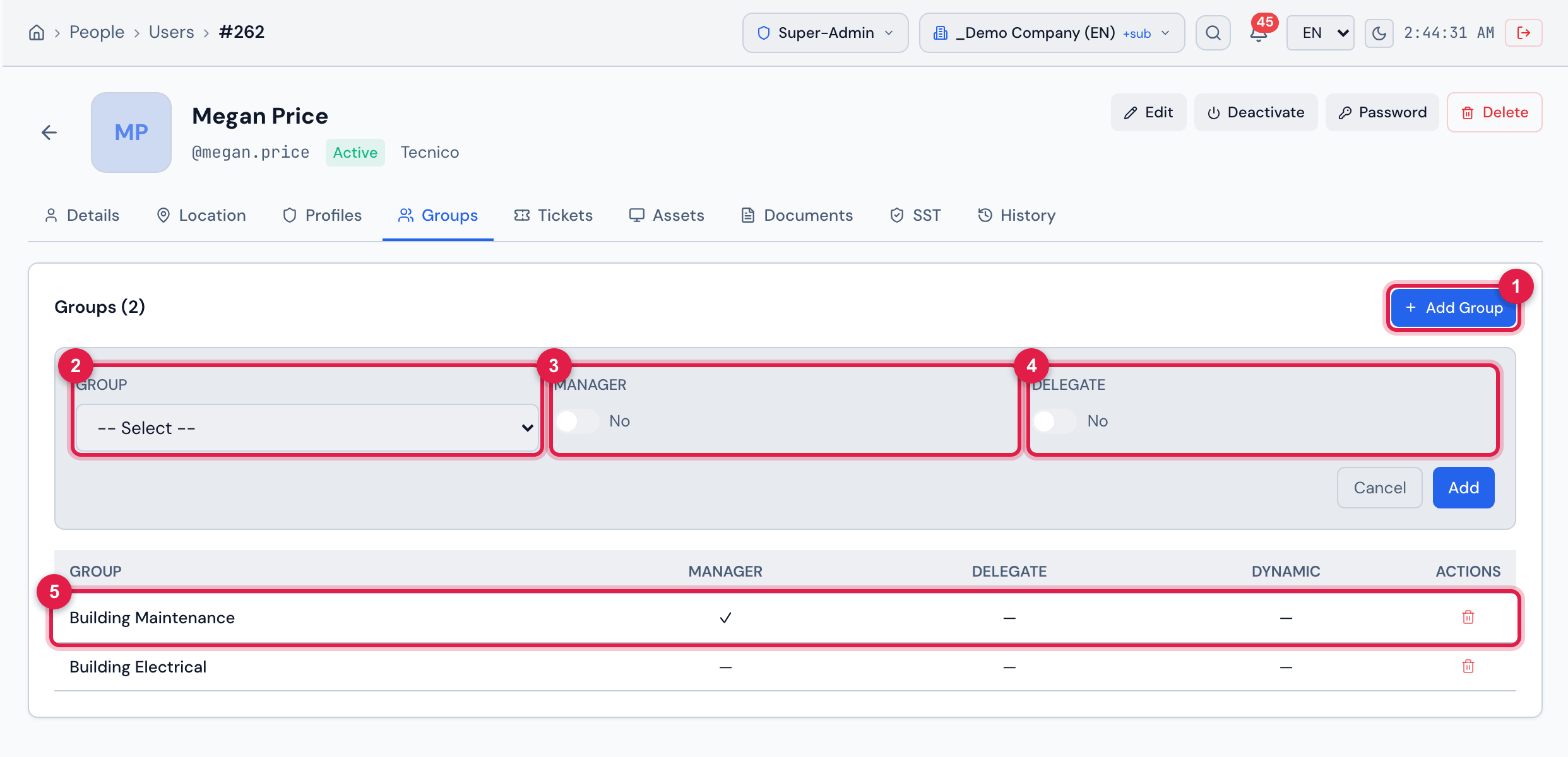
Figure 8. Groups tab with the Add Group panel open (nothing added yet). The user belongs to Building Maintenance, as Manager, and to Building Electrical.
- 1Add Group.
- 2Group — the groups within your reach.
- 3Manager.
- 4Delegate.
- 5One of the person’s groups, with the flags.
- The trash at the end of the row takes the person out of the group, after confirming Remove this group from user? It is the same as the X in the group’s Members tab (chapter 9).
- Dynamic groups (✓ in Dynamic) are created automatically by H2O and have no trash.
Was this page helpful?
Thanks for the feedback!
Got it — we will improve this page.