
Submitting and approving
Manual — Daily report · chapter 5 of 9
Once the day is filled in, the daily report follows a fixed path: engineering, management and client. Each approval carries the signature of whoever approves; any approver can send the daily report back for correction.| Current state | Who acts | Button | Right in Daily Reports | Signs? | Goes to |
|---|---|---|---|---|---|
| In progress | whoever filled it in | Submit for Approval | Edit | no | Awaiting Engineering |
| In progress | engineering, without waiting for the submission | Approve (Engineering) | Edit + Approve (Eng.) | yes | Awaiting Management |
| Awaiting Engineering | engineering | Approve (Engineering) or Reject | Edit + Approve (Eng.) | yes (when approving) | Awaiting Management / In progress |
| Awaiting Management | management | Approve (Management) or Reject | Edit + Approve (Mgmt.) | yes (when approving) | Awaiting Client / In progress |
| Awaiting Management, project with Daily report without client approval | management | Approve (Final) or Reject | Edit + Approve (Mgmt.) | yes (when approving) | Approved / In progress |
| Awaiting Client | the client | Approve (Client) or Reject | Edit + Approve (Client) | yes (when approving) | Approved / In progress |
| Approved | whoever manages the daily reports | Archive or Reopen | Edit | no | ACC File / In progress |
| ACC File | whoever manages the daily reports | Reopen | Edit | no | In progress |
Submit and approve
Section titled “Submit and approve”
Figure 13. A daily report In progress opened by someone with Approve (Eng.): the submission and engineering’s direct approval.
- 1Submit for Approval — takes the daily report to Awaiting Engineering.
- 2Approve (Engineering) — approves directly and takes it to Awaiting Management.
- 3The badge of the current state.
- Whoever filled it in clicks Submit for Approval. State → Awaiting Engineering appears.
- Engineering opens the daily report, checks the tabs and clicks Approve (Engineering).
- Management does the same with Approve (Management), and the client with Approve (Client). The daily report becomes Approved.
At each step, the Approval Workflow on the Information tab gets the user and the date/time of whoever approved, and the signature goes into the PDF (chapter 6).

Figure 14. A daily report Awaiting Engineering opened by someone without Approve (Eng.).
- 1The notice Awaiting Engineering approval — you do not have this permission.
The notice says whose turn it is: Engineering, Management or Client. No approve or reject button appears to whoever does not have the approval of the step.
The signature
Section titled “The signature”Every approval — engineering, management and client — requires the personal signature of whoever approves, registered in My Profile › Digital Signature (the Getting started — web manual, chapter 11). Submitting, rejecting, archiving and reopening do not ask for a signature.
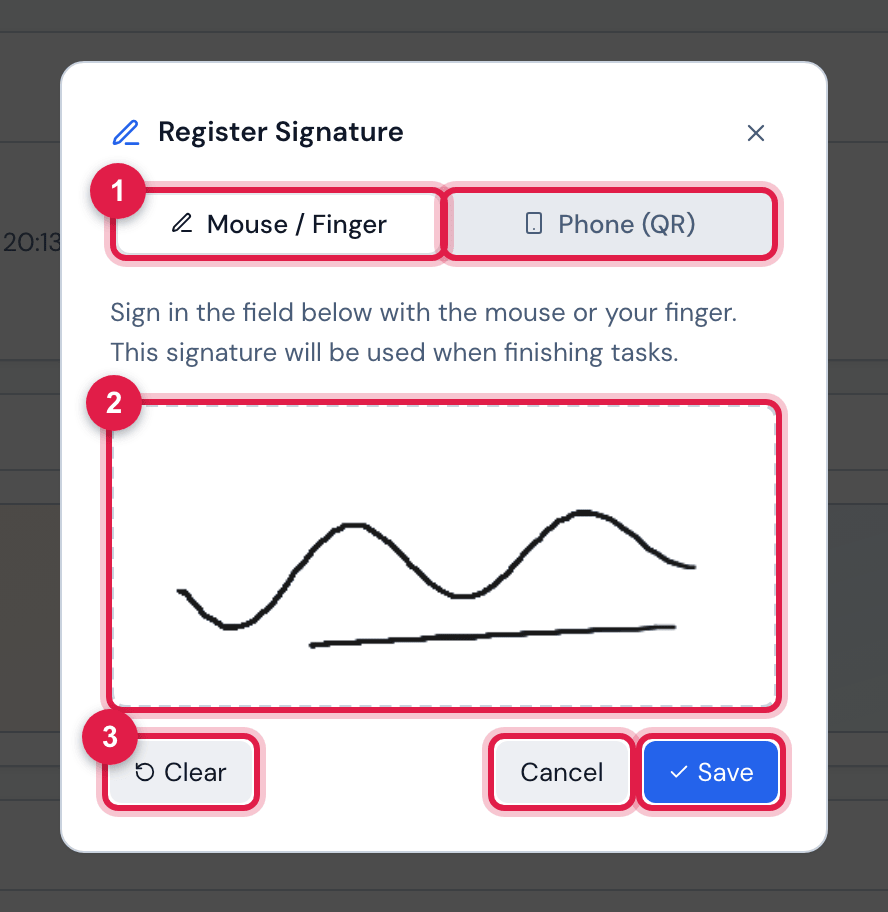
Figure 15. Whoever approves without a registered signature sees Register Signature when clicking Approve.
- 1Mouse / Finger and Phone (QR).
- 2The field to sign.
- 3Clear, Cancel and Save.
- Without a signature in the record, clicking Approve opens Register Signature: sign with the mouse or a finger, or in Phone (QR) generate the QR code and sign on the phone (the link is valid for 10 minutes). When saved, the signature stays in your record and the approval continues by itself.
- Cancel gives up the approval: the daily report does not change.
- At the moment of approval, H2O keeps a copy of your signature in the daily report. Changing the signature later, in My Profile, does not change the daily reports already signed.
Rejecting
Section titled “Rejecting”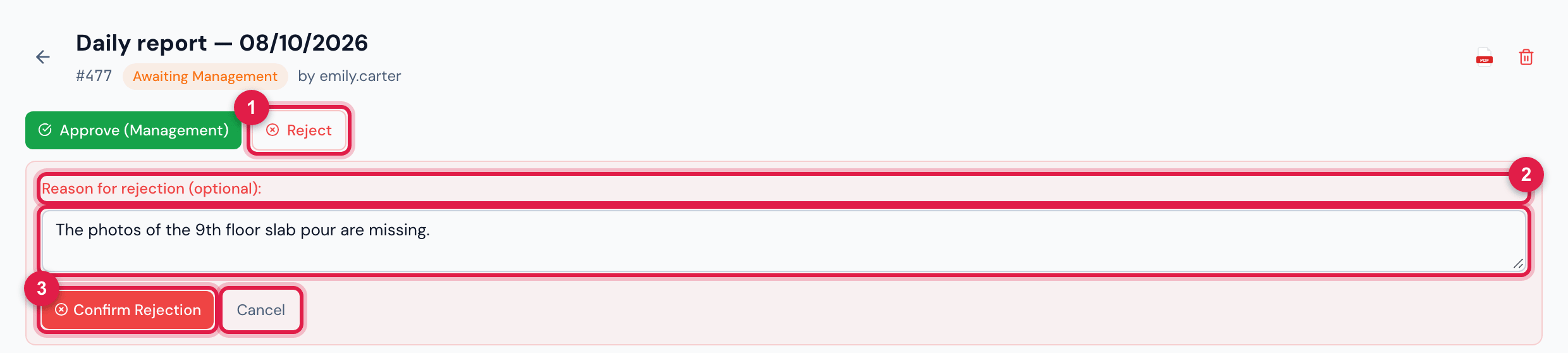
Figure 16. Management rejecting a daily report Awaiting Management, with the reason filled in.
- 1Reject.
- 2Reason for rejection (optional):.
- 3Confirm Rejection and Cancel.
- Reject appears to whoever can approve the step the daily report is in. The daily report returns to In progress (State → In progress) and whoever filled it in corrects it and submits it again.
- The reason is saved in Client observations — replacing the text that was there — and appears highlighted on the Information tab and in the PDF. Without a reason, the field stays as it was.
- When correcting, adjust Client observations before resubmitting, so that the reason for the rejection does not go into the final PDF.
- A daily report that an old version of the app left as rejected appears as In progress, with only the Reopen button: reopen it and follow the flow.
Daily report without client approval
Section titled “Daily report without client approval”When the client does not approve daily reports, turn on the Daily report without client approval switch in the project (Operations › Projects › project › Edit, Description & Options block — the Projects manual, chapter 4). Management then closes the daily report.
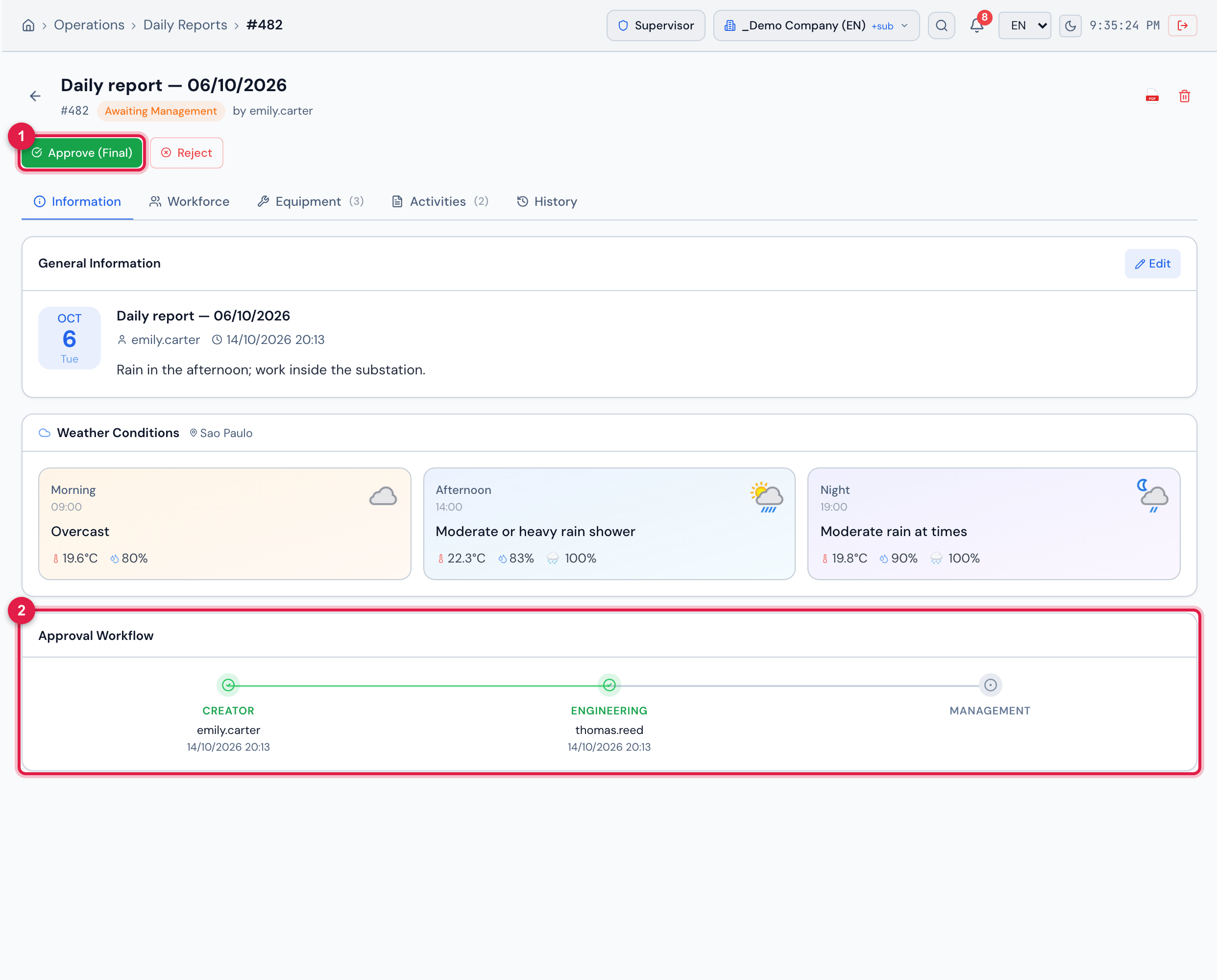
Figure 17. A daily report Awaiting Management of a project with Daily report without client approval: the Approve (Final) button and the Approval Workflow without the client step.
- 1Approve (Final) — instead of Approve (Management).
- 2Approval Workflow with Creator, Engineering and Management.
| Regular project | With Daily report without client approval | |
|---|---|---|
| management button | Approve (Management) | Approve (Final) |
| after management | Awaiting Client | Approved |
| signature saved | management’s | management’s |
| Approval Workflow | four steps | without Client |
| SIGNATURES in the PDF | Engineering, Management and Client | Engineering and Management |
- It applies to management approvals made after turning on the switch. A daily report that was already Awaiting Client keeps waiting for the client.
- Daily reports the client has already approved keep the client step and signature on screen and in the PDF.
- Turning the switch off makes the next management approvals wait for the client again.
Archiving and reopening
Section titled “Archiving and reopening”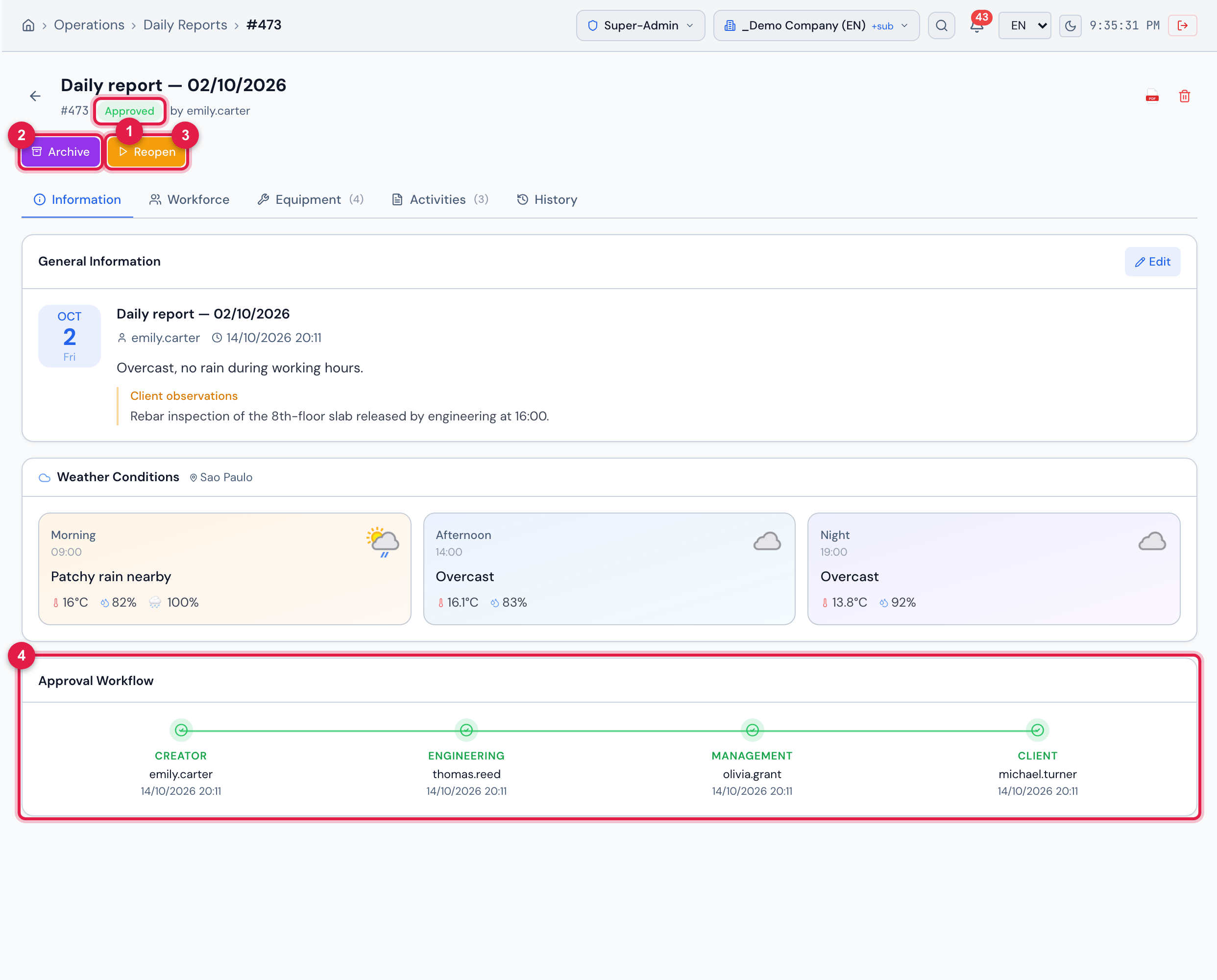
Figure 18. An Approved daily report: the four steps of the Approval Workflow completed — thomas.reed (engineering), olivia.grant (management) and michael.turner (client) — and the Archive and Reopen buttons.
- 1The Approved badge.
- 2Archive — takes it to ACC File.
- 3Reopen — returns it to In progress.
- 4The four steps with the user and the date/time.
- Archive takes the approved daily report out of the Approved group and keeps it in ACC File — use it to separate the daily reports already delivered or measured.
- Reopen (from Approved or from ACC File) returns the daily report to In progress: it must go through the whole flow again.
- As with rejection, reopening does not erase the previous approvals; each new approval replaces that of the same role.
Was this page helpful?
Thanks for the feedback!
Got it — we will improve this page.