
Tree mode
Manual — Locations and calendars · chapter 2 of 9
In Configuration › Locations, the top of the screen has the Tree / List choice and the New Location button (chapter 4). The chosen mode is kept in this browser.The screen shows the locations of the active site in the header — and, with Site + sub-sites, also those of the sites below it —, plus the recursive locations of the sites above it.
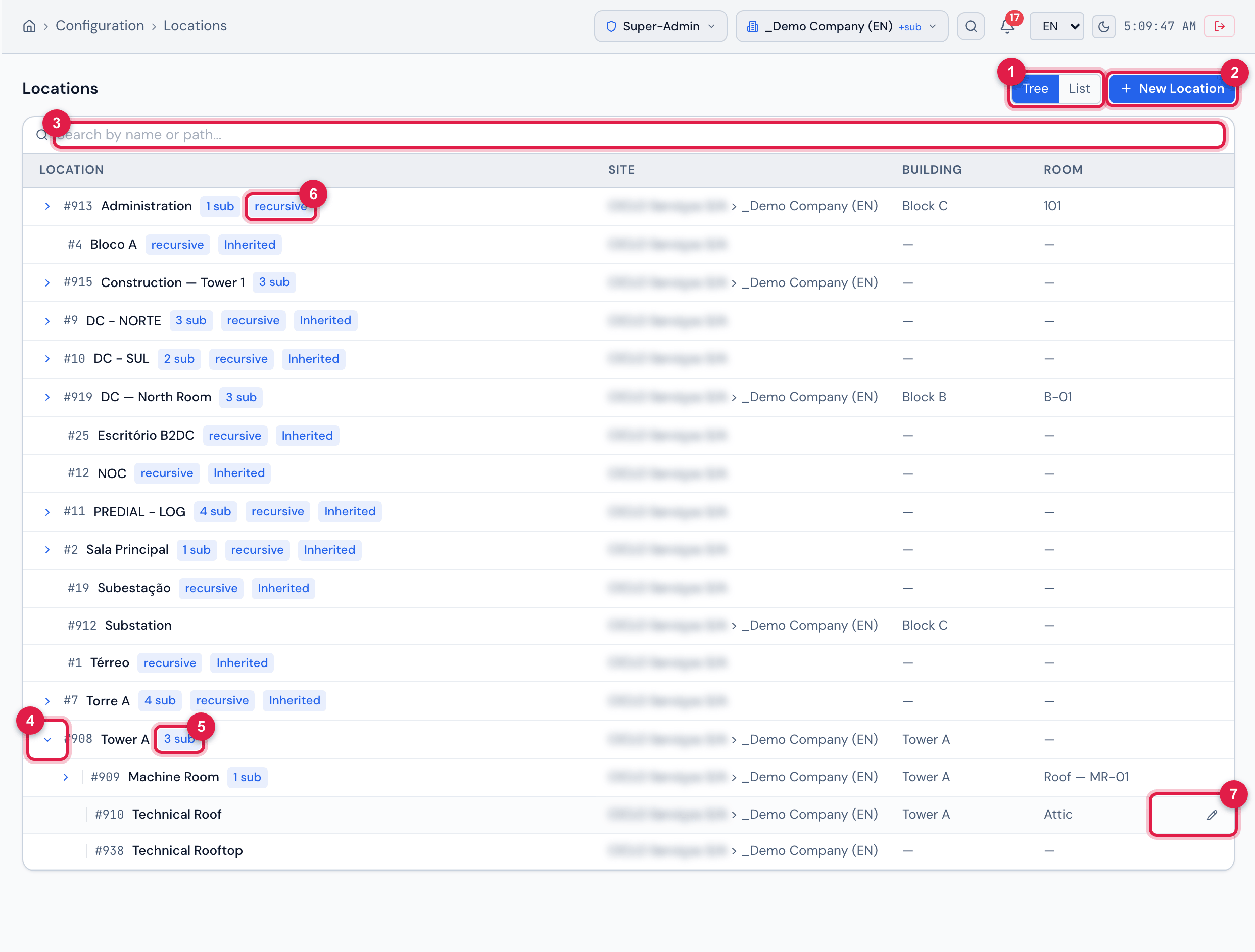
Figure 2. Configuration › Locations in Tree mode: the top-level locations, one of them open showing the indented sub-locations, the N sub and recursive badges, the Inherited badge on the locations that come from a site above and the Location, Site, Building and Room columns.
- 1Tree / List — how to view.
- 2New Location.
- 3Search — by name or path.
- 4Arrow — opens or closes the sub-locations.
- 5N sub badge — how many sub-locations appear right below, for the site in the header.
- 6recursive badge — the location also appears in the sites below its own site.
- 7Row actions (they appear on mouse-over): the pencil opens the record; the trash deletes (only with the Trash level).
- The first load brings only the top-level locations, 25 per page. When there are more than 25, the footer shows how many there are (N roots) and the pagination.
- The arrow next to the name opens the sub-locations, which H2O loads on the spot (Loading sub-locations…). The N sub badge counts the same sub-locations the arrow opens: those the site in the header can see.
- Each row shows the number (#), the name, the Site (full name of the location’s site), the Building and the Room.
- A location from a site above (recursive) shows the Inherited badge and is read-only — no pencil and no trash; it is changed in the site it belongs to.
- Click the row (or the pencil) to open the location record (chapter 5).
- The trash asks Delete location “name”? and deletes for good (chapter 6).
- With no location within the reach of the header, No locations registered. appears.
Searching the tree
Section titled “Searching the tree”Type in the Search by name or path… field. H2O loads the whole tree and shows only the branches that contain the term, already open, with the locations found in yellow and the total next to the field (N results).
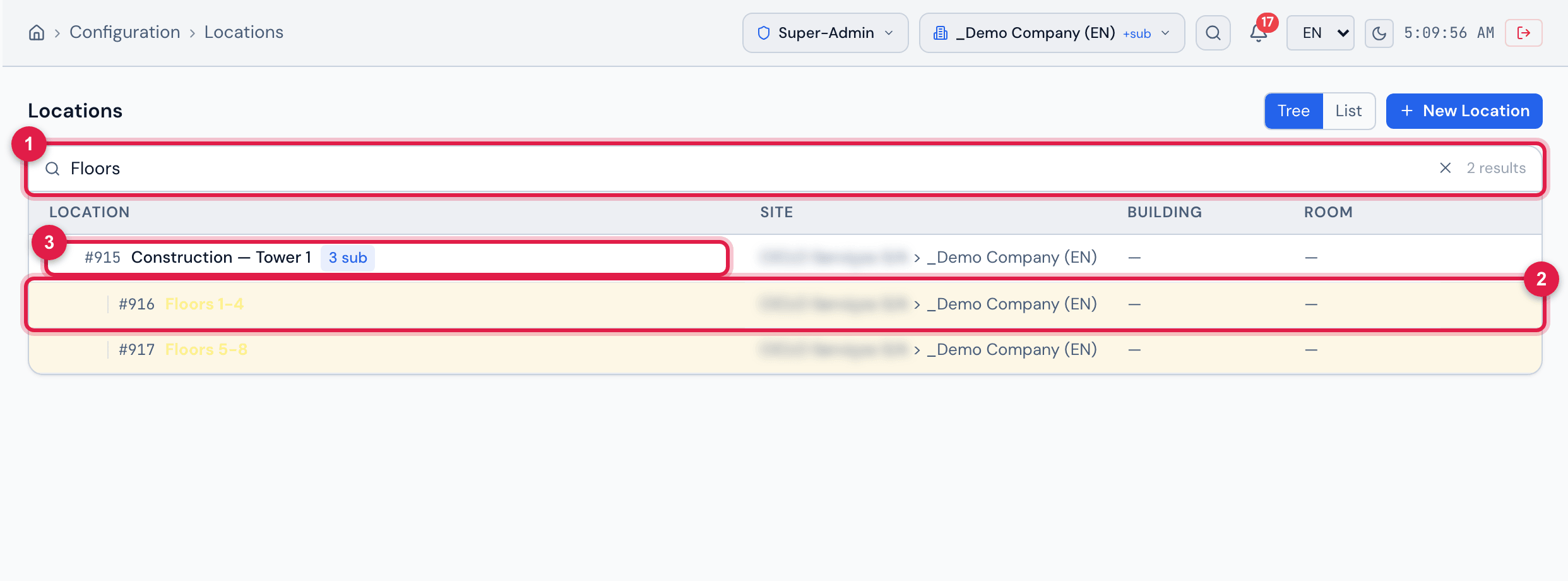
Figure 3. Search in Tree mode: the typed term, the result count and the branches opened down to each location found, highlighted in yellow.
- 1Search term and N results.
- 2Location found, in yellow.
- 3The path to it, opened automatically.
- The search looks in the name and in the full path: searching for the name of a building also highlights every room inside it.
- The ✕ in the field clears the search and goes back to the paginated tree.
- Nothing found: No results for “term”.
Was this page helpful?
Thanks for the feedback!
Got it — we will improve this page.