
Registering and editing a supplier
Manual — Suppliers, contacts and workforce · chapter 3 of 8
In the list, click New Supplier. The supplier is created in the site selected in the header and not recursive (only for that site and its sub-sites); the Active switch comes on. Only the Name is required.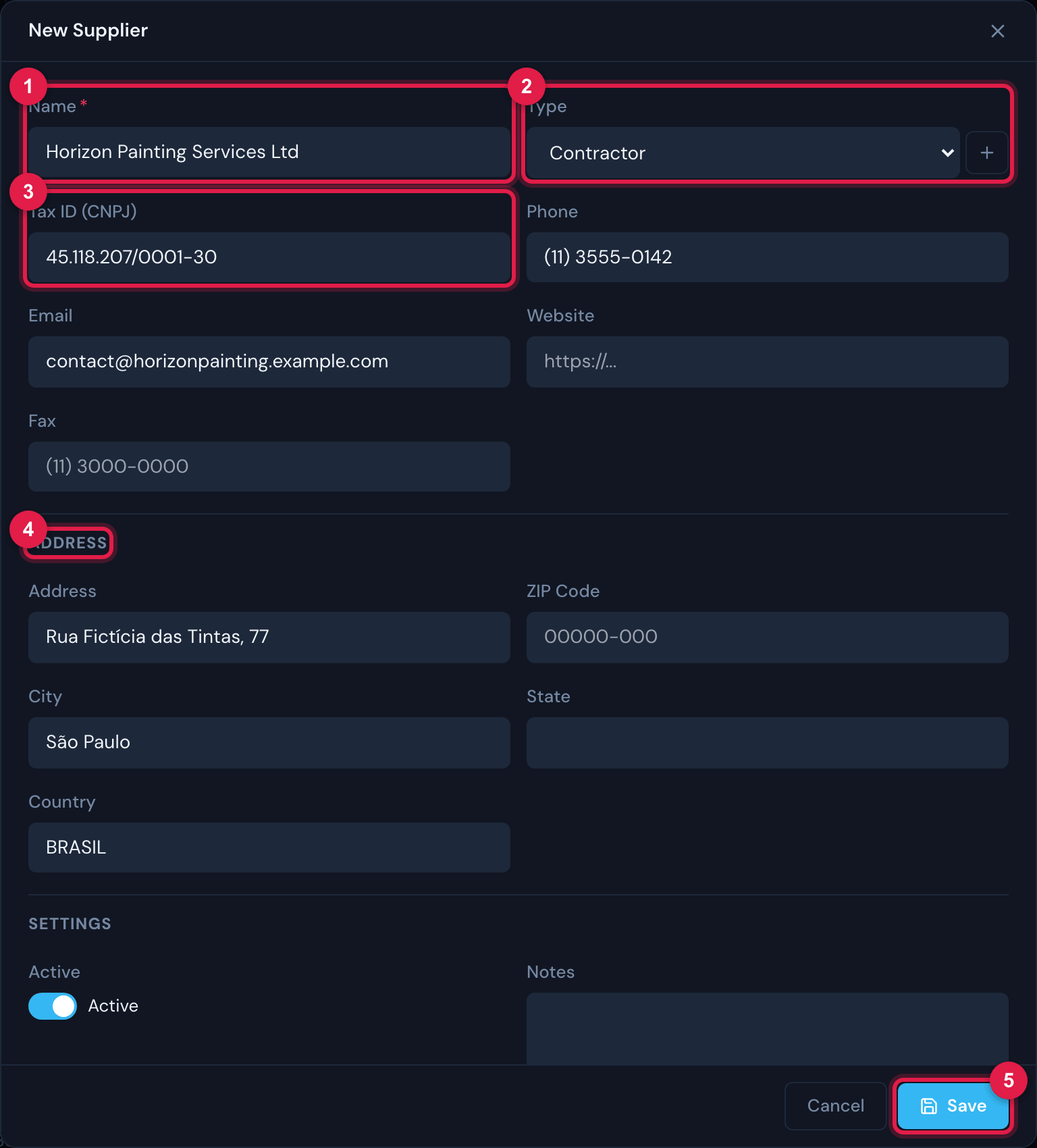
Figure 3. The New Supplier form: Name, Type (with the + to create a type), Tax ID (CNPJ), Phone, Email, Website and Fax; the Address section; and Settings with Active and Notes.
- 1Name (required).
- 2Type — the + creates a new type right there.
- 3Tax ID (CNPJ) — free text.
- 4Address section (Country comes as BRASIL).
- 5Save.
| Field | Note |
|---|---|
| Name | Required — without it the form marks “Required”. |
| Type | Free classification of the company (subcontractor, manufacturer, rental company…). The list belongs to the whole company and grows with the +. |
| Tax ID (CNPJ) | Free text: H2O does not check the number nor look up the company data by the CNPJ (the Brazilian company tax ID). Type it in the format you prefer; the list search finds it by the text typed. |
| Phone, Email, Website, Fax | In the registration, the e-mail must be a valid address. |
| Address, ZIP Code, City, State, Country | Country comes filled in with BRASIL. |
| Active | It comes on. When switched off, the supplier is already created inactive; an inactive supplier stays in the list, in the 🔴 Inactive tab. |
| Notes | Free text. |
Editing
Section titled “Editing”There are two ways: Edit in the list’s row menu (the same form as the registration) or Edit on the supplier record. On the record, editing also shows the Status (the button toggles Active / Inactive) and the Entity — the site the supplier belongs to, which can be changed to another site that you reach and where your profile allows editing. Click Save; without a name, the record warns Name required.
Suppliers created by the invoice
Section titled “Suppliers created by the invoice”When the electronic invoice (NF-e) is approved by Engineering (or has its stock entry approved), H2O processes the stock and looks for the supplier by the issuer’s CNPJ, comparing only the digits (with or without dots and slashes). If it finds no supplier with that CNPJ, it creates one, with the name, address and phone from the invoice, at the company root and recursive — that is why it appears in all sites, as inherited. To change that supplier, select the company root in the header.
Was this page helpful?
Thanks for the feedback!
Got it — we will improve this page.