
Generating tickets in a batch
Manual — Commissioning · chapter 4 of 10
With the phases set up, the test tickets do not need to be opened one by one. In the Commissioning tab of the project, Generate tickets creates at once a ticket (or a task) for each asset in each chosen phase, already with the test template, the asset, the technician and the due date, and already linked to the phase.1 and 2 — Phases and assets
Section titled “1 and 2 — Phases and assets”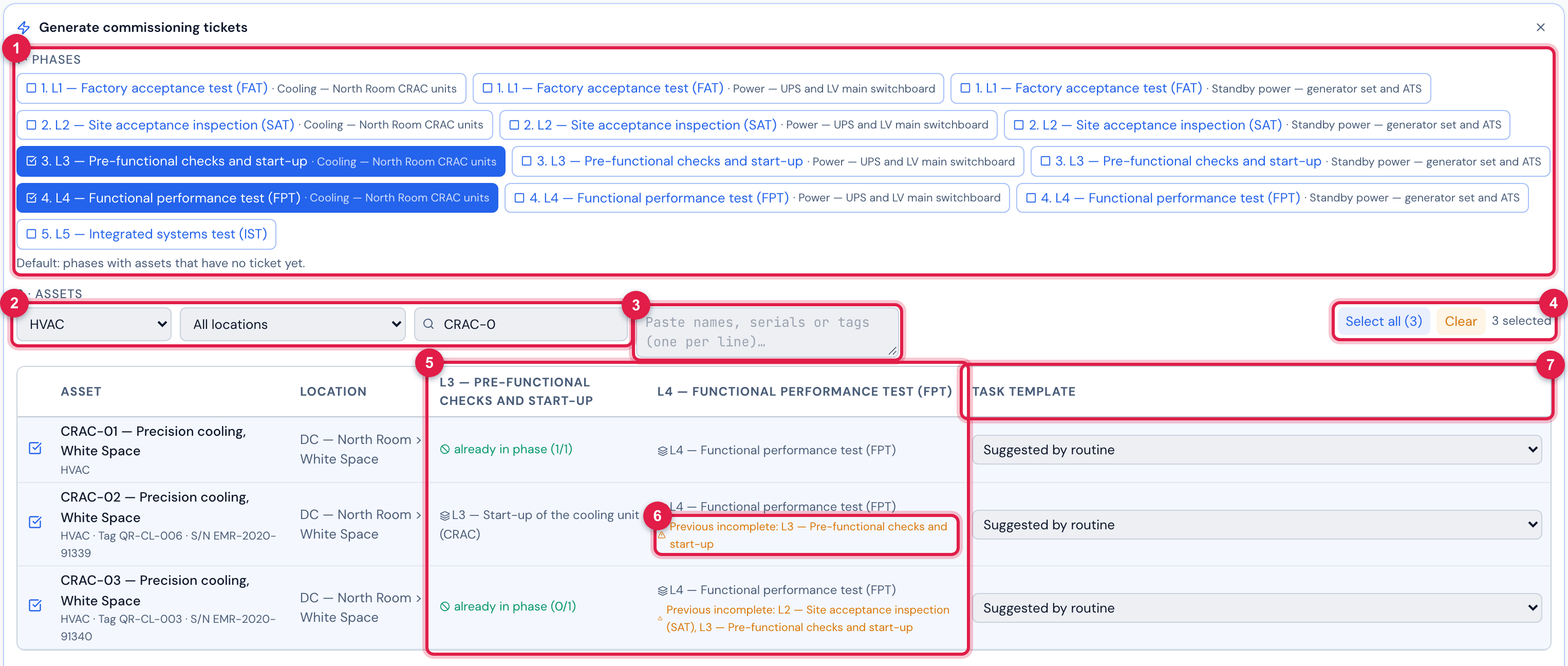
Figure 8. The Generate commissioning tickets panel with phases L3 and L4 of Cooling — North Room CRAC units selected and the three CRAC units selected. In L3, CRAC-01 and CRAC-03 are already in the phase; in L4, the column shows the template suggested by the routine and the Previous incomplete warning on CRAC-02 and CRAC-03.
- 11 · Phases — select the phases. Those that still have an asset without a ticket come selected.
- 2Filters: asset type (here HVAC), location (All locations) and search (here “CRAC-0”).
- 3Codes box: paste names, serials or tags, one per line.
- 4Select all (N), Clear and how many are selected.
- 5The column of each phase: the template suggested by the routine, already in phase or no routine — pick a template.
- 6Previous incomplete warning — only a warning, it does not prevent anything (chapter 6).
- 7Task template — changes the template of this asset only; Suggested by routine uses the grid of chapter 2.
- The list shows all the assets in the project scope (chapter 3), with no limit, filtered by what you chose. Select all (N) selects those in the filtered list; you can filter by type, select all, change the filter and select more.
- The codes box finds the asset by its exact tag or serial, or by the name starting with the code (“CRAC-01” finds “CRAC-01 — Precision cooling, White Space”), regardless of case. Those that do not match appear in Codes not found.
- The template of each phase × asset pair is, in this order: the one chosen in the Task template column; otherwise the routine one (chapter 2). With neither, the pair is skipped (“no task template”).
- The template chosen on the row applies to every selected phase. With more than one phase selected and a template chosen, the panel warns: The template chosen on the row applies to every selected phase; leave “Suggested by routine” to use each phase’s template. For different templates per phase, use the routines or generate one phase at a time.
3 and 4 — Grouping, options and title
Section titled “3 and 4 — Grouping, options and title”
Figure 9. Steps 3 and 4: One ticket per asset, the technician Emily Carter, priority High, due date, and the title with the preview “L3 — Pre-functional checks and start-up — CRAC-01 — Precision cooling, White Space”.
- 13 · Grouping — One ticket per asset or One ticket per system.
- 2Technician, Technician group and Category — optional.
- 3Priority and Due date.
- 44 · Ticket title — the mask, with the placeholders.
- 5Preview — how the title will look.
| Grouping | What is created | When to use |
|---|---|---|
| One ticket per asset | one ticket per phase × asset, with one task | the default: each test has its own ticket, technician, service report and signature. |
| One ticket per system | one ticket per phase, with one task per asset | tests done together by the same team, such as the L5 (IST) of a system or the receiving inspection of a batch of equipment. |
| Option | Effect on the generated ticket |
|---|---|
| Technician | becomes the technician of the ticket and of each task. The list only brings those who can be assigned on the project site (who have a profile there); if someone is missing, they lack a profile on the site. With no technician, the default technician of the template applies to the task. |
| Technician group | technician group of the ticket and of the tasks. |
| Category | the ticket category. With no category, the ticket goes to the classification queue, like a ticket opened by hand. |
| Priority | from Very low to Critical. Blank = Medium. |
| Due date | becomes the solution due date of the ticket and the planned end of the tasks. |
| Placeholder | Becomes |
|---|---|
| {phase} | the phase name |
| {asset} | the asset name (in a ticket per system: “N assets”) |
| {system} | the name of the parent task of the phase (no parent: the project name) |
| {project} | the project name |
| {type}, {tag}, {serial}, {location} | type, tag, serial number and location of the asset (only in a ticket per asset) |
Left blank, the title is {phase} — {asset} (per asset) or {phase} — {system} (per system). The hint below the mask shows the placeholders in the screen language — in Portuguese {fase} {ativo} {sistema} {projeto} {tipo} {patrimonio} {serial} {local}; in Spanish {fase} {activo} {sistema} {proyecto} {tipo} {patrimonio} {serie} {ubicacion} — and those of any language work on any screen.
Preview and Generate
Section titled “Preview and Generate”
Figure 10. Preview: the plan with the tickets to create and the skipped pairs, with the reason — nothing has been saved yet.
- 1Preview — builds the plan without saving.
- 2Plan: how many tickets, tasks and skipped.
- 3Tickets to create (N) — the title of each one and how many tasks.
- 4Skipped (N) — phase · asset — reason.
- 5Generate — creates the tickets.
| Skip reason | Why | What to do |
|---|---|---|
| already in phase | the asset already has a ticket task linked to this phase (a cancelled or deleted ticket does not count) | nothing: the batch never duplicates. To test again, use the retest (chapter 7). |
| no task template | neither a routine nor a chosen template | pick the template on the row or fill in the routine (chapter 2). |
| out of project scope | the asset is not on the project site (nor below it), or no longer exists | check the site of the asset. |
- Generate creates everything at once (in blocks of 50 tickets). The panel shows Tickets generated with the link to each one and the list of skipped pairs; the matrix reloads by itself.
- If something fails midway, what was already created stays and the message says how many: The batch stopped: N of T ticket(s) created. Check the log and run again — tickets already created are not repeated. Generate again with the same selection: the pairs already created fall into “already in phase”.
- Shortcut from the matrix: on a row of an asset that is already in commissioning, clicking a No ticket cell opens the panel with that phase and that asset already selected.

Figure 11. The result: Tickets generated, with the number and title of each ticket created — here, phase L4 of Standby power — generator set and ATS generated with One ticket per system: one ticket with the tasks of GMG-01 and QTA-01.
- 1Tickets generated; right below, the counts: tickets, tasks and skipped.
- 2Each ticket created — click to open.
- 3Close.
What each ticket is created with
Section titled “What each ticket is created with”| Field | Value |
|---|---|
| Title | from the mask of step 4. |
| Modality | Comissionamento (the modality name comes from the environment catalog and is shown in Portuguese). |
| Site and location | the project site; the asset location (in a ticket per system, only when all the assets are in the same location). |
| Requester | whoever generated the batch. |
| Status | New; Assigned when there is a technician or technician group. |
| Description | “Commissioning — project … (#N) — phase …” and the list of assets. |
| Tasks | one per asset, with the template (the checklist comes from it at execution), the asset linked to the task and the to do state. |
| Material requests | with the Create material requests on the work order switch on in the template (the default), each material planned in the template becomes a material request on the ticket, in the planned quantity, through the usual approval flow. The requester is the task technician (without a technician, whoever generated the batch); the comment reads “Planned in template: <name>”, in the system language. With the switch off, nothing is requested. |
| Phase | the ticket is born linked to the phase: it appears under Tickets in the phase task and counts in its %. |
Was this page helpful?
Thanks for the feedback!
Got it — we will improve this page.