
The item page
Manual — Punch list (GQE) · chapter 5 of 11
The item page gathers everything about the item, on a single page: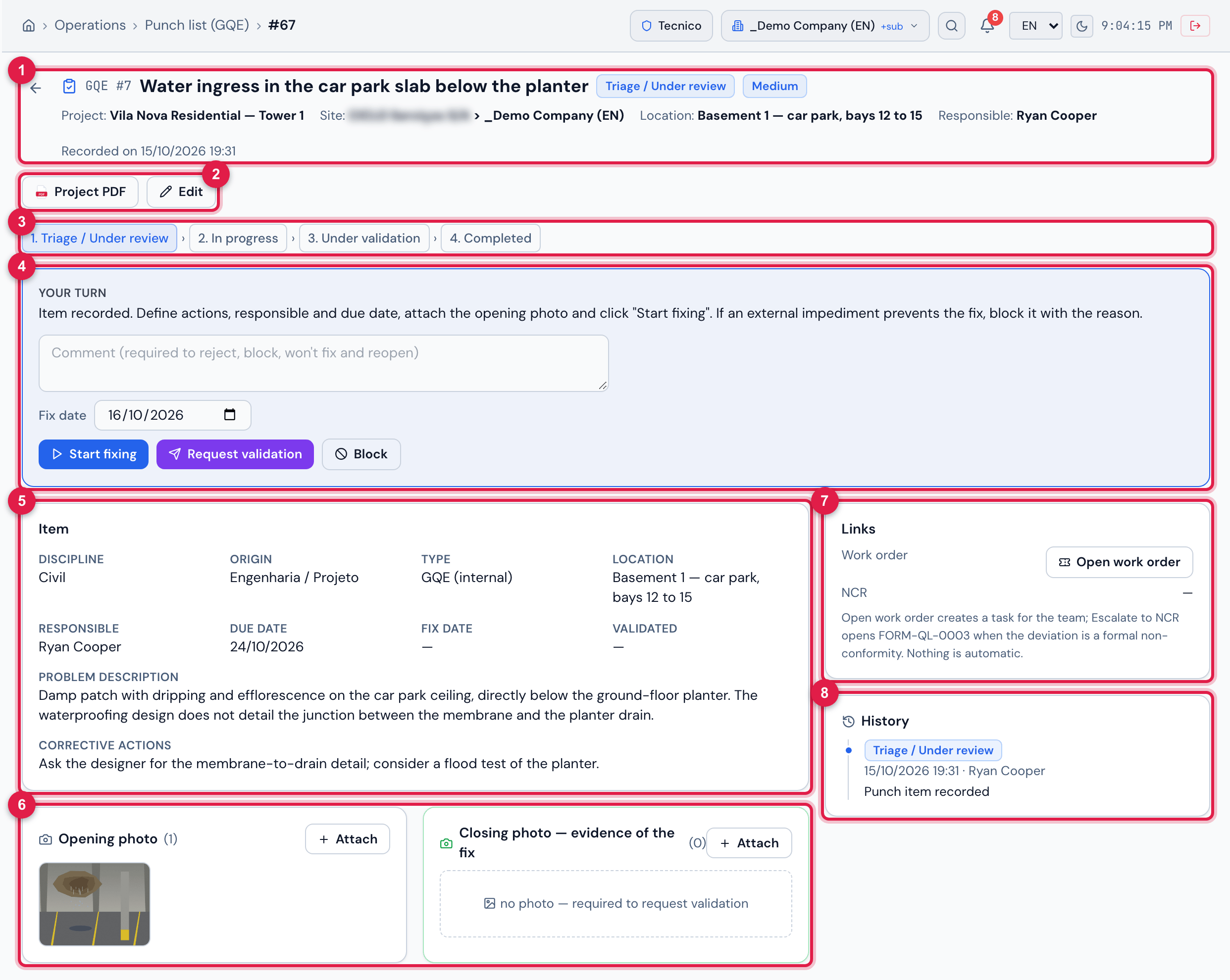
Figure 5. The page of GQE #7 “Water ingress in the car park slab below the planter”, in Triage / Under review, seen by the responsible, Ryan Cooper.
- 1The header: GQE #n, the title, the status, the priority and, when that is the case, overdue and client punch list; below, Project, Site, Location, Responsible and Recorded on.
- 2Project PDF and Edit (and the trash icon, for those with Trash).
- 3The step bar: 1. Triage / Under review › 2. In progress › 3. Under validation › 4. Completed.
- 4The Your turn (or Current step) box: what to do now, the comment and the buttons.
- 5The item data.
- 6Opening photo and Closing photo — evidence of the fix, side by side, with Attach.
- 7Links: the work order and the NCR (chapter 7).
- 8History: every status change, with date, person and comment.
The box at the top says Your turn when the next step is yours — and shows the buttons your profile allows. When the step belongs to someone else, it says Current step and explains who is being waited for (e.g. “Waiting for Quality to validate the fix.”).
The statuses and who acts
Section titled “The statuses and who acts”| Status | What it means | Who acts | Button → new status | Right |
|---|---|---|---|---|
| Triage / Under review | recorded; assessing priority, responsible and due date | team or responsible | Start fixing → In progress · Request validation → Under validation · Block → Blocked | Edit or being the responsible |
| In progress | fix being carried out | team or responsible | Request validation → Under validation · Block → Blocked | Edit or being the responsible |
| Under validation | fixed; waiting for the check | Quality — another person, not the one who requested | Validate and complete → Completed · Reject → In progress | Validate (Quality) |
| Completed | fixed and validated; goes into the handover | Quality | Reopen → Triage / Under review | Validate (Quality) |
| Blocked | fix stopped by an external impediment | team or responsible | Start fixing → In progress · Request validation → Under validation | Edit or being the responsible |
| Won’t fix | closed without a fix, by formal decision | Quality | Reopen → Triage / Under review | Validate (Quality) |
| Button | Comment |
|---|---|
| Reject | required — the assessment: what is still missing |
| Block | required — the reason (material, third parties, clearance…) |
| Won’t fix | required — the justification (management decision, accepted risk, false positive) |
| Reopen | required — the reason |
| Start fixing, Request validation, Validate and complete | optional — if written, it goes into the history |
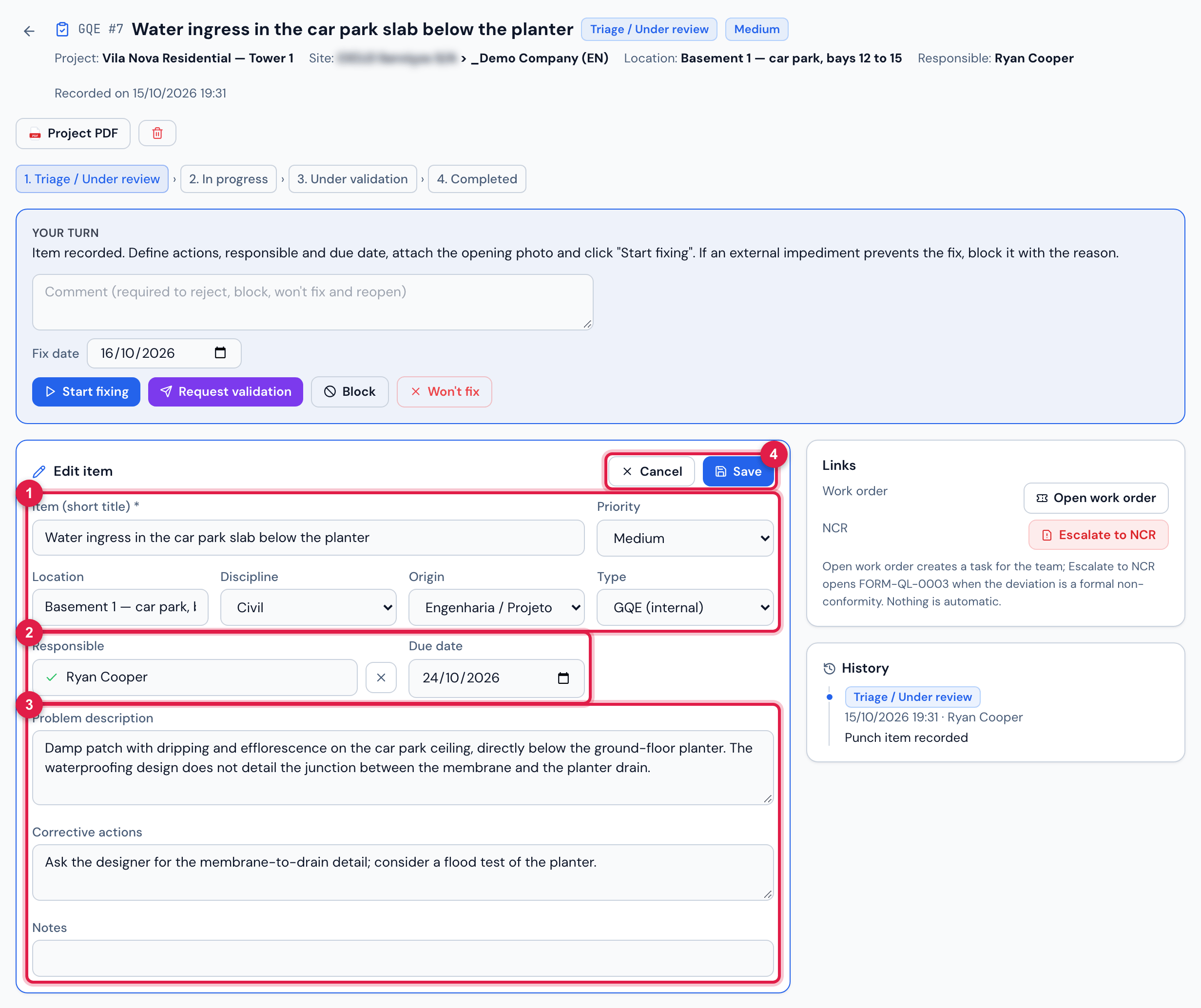
Figure 6. Edit opens the fields on the item page itself.
- 1Title, Priority, Location, Discipline, Origin and Type.
- 2Responsible and Due date.
- 3Problem description, Corrective actions and Notes.
- 4Cancel / Save.
- Edit shows for those with Edit and for the responsible, while the item is not Completed or Won’t fix. To change a closed one, Quality reopens it first.
- The Project cannot be changed — nor the site, which comes from it: an item recorded on the wrong project is deleted and recorded again.
- Field changes go to the H2O audit log; the History of the item page shows only status changes (and the escalation to NCR), with date and time in the company format. The texts H2O itself writes in the history (Punch item recorded, Opened automatically…, Escalated to NCR…) appear in the reader’s language.
- A discipline or origin that was deactivated still shows on the item that already uses it.
Photos and attachments
Section titled “Photos and attachments”- Attach accepts images and PDF, several at once, in both panels — while the item is open, for those with Edit and for the responsible, with no right needed on documents. The files belong to the site of the item.
- The number in brackets is the number of files in the panel. Click a photo to open it at full size; a PDF shows by its name.
- In the report, images come out in pairs (opening × closing) and attached PDFs by file name (chapter 9).
Delete and the trash
Section titled “Delete and the trash”The trash icon in the header (Trash right) asks Move this punch item to the trash? Anyone with the Trash right can restore it later. The item leaves the list, the indicators, the PDF, the spreadsheet and the asset dossier, and H2O records who deleted it and when. Its number is not reused.
- The Trash button, at the top of the punch list screen (Trash right), shows the deleted items of the sites you can see — only those of the chosen project, if there is one —, with No., Project, Item, Status, Responsible, Deleted by and Deleted on, and the search. Back to punch items returns to the list.
- Restore brings the item back to the list with the status it had, with photos, history and links.
- Delete permanently (Delete box of the profile) removes the item from the trash for good: before deleting, H2O keeps the item, its history and photos in the purged records archive. The work order opened from it remains, and the photos go to the document trash only if they are not linked to anything else.
Was this page helpful?
Thanks for the feedback!
Got it — we will improve this page.