
Registering and editing an asset
Manual — Assets · chapter 3 of 12
In the type’s list, New opens the New asset — <type> page. The asset is created in the site selected in the header; check the site before registering. Only the Name is required. When you click Create, H2O saves and opens the record of the new asset.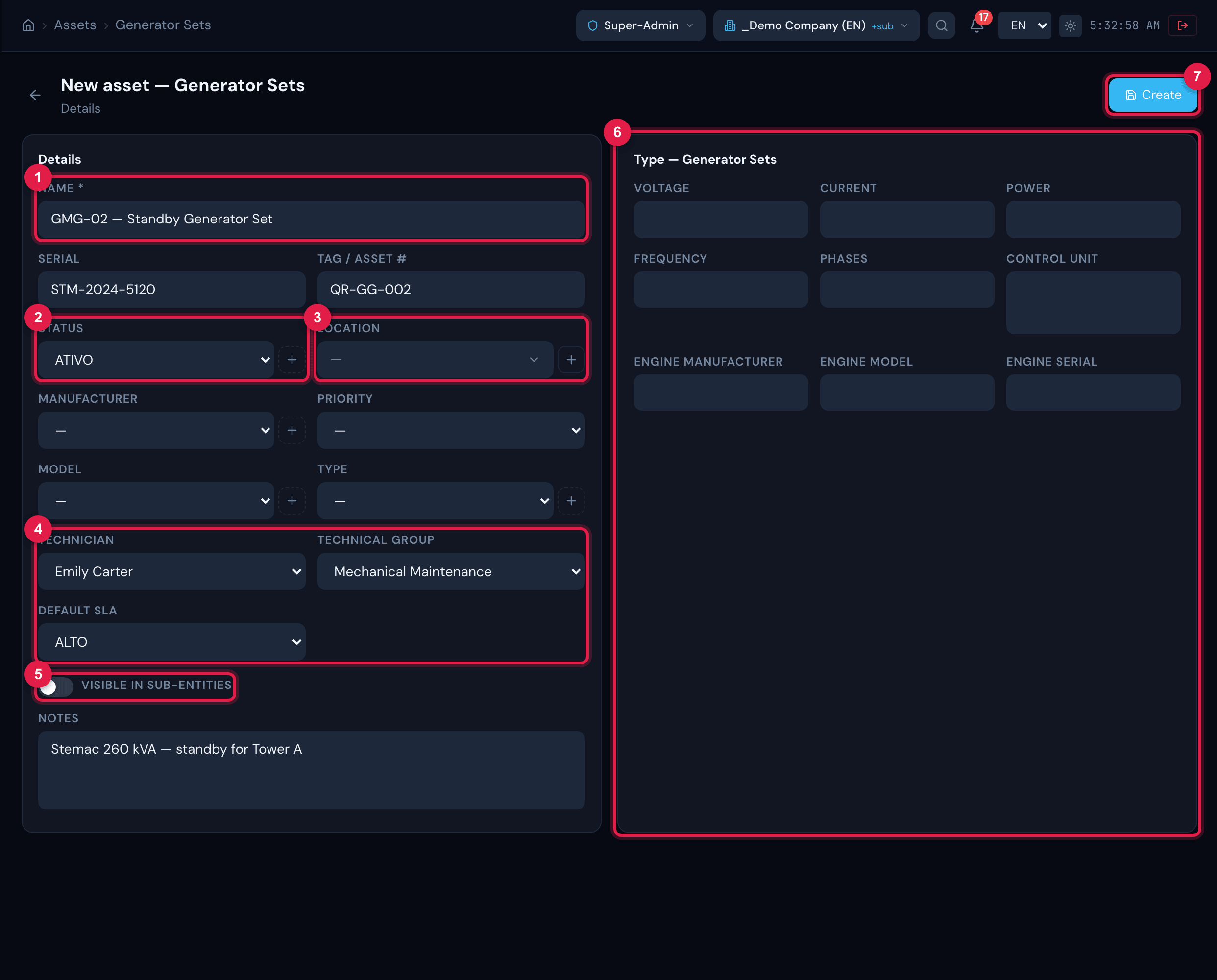
Figure 6. The New asset — Generator Sets page: on the left the fields common to all types; on the right the additional fields of the type, in sections. The Create button is at the top right.
- 1Name (required).
- 2Status with the +, which creates a new status without leaving the page (also for Manufacturer, Model and Type).
- 3Location with the +, which opens New location.
- 4Technician, Technical Group and Default SLA.
- 5Visible in sub-entities.
- 6Additional fields of the type, grouped by section.
- 7Create.
| Field | What it is for |
|---|---|
| Name | How the asset appears in lists, tickets and on the label. Required. |
| Serial and Tag / Asset # | The manufacturer’s serial number and your company’s code (tag plate, asset number). The tag is highlighted on the label and is included in the search. |
| Status | Registration status (in use, inactive, under maintenance…). The list belongs to the company and grows with the +. |
| Location | Where the asset is in the site. The list shows the locations of the asset’s site and those of the sites above marked as recursive. The + opens New location (Name, Parent location, Building, Room, Address and Comment) — see the Locations and calendars manual. |
| Manufacturer | Company list, common to all types; grows with the +. |
| Priority (on the record, Criticality) | From Very low to High; the fifth level appears as Urgent in the registration and as Critical on the record — it is the same value. |
| Model and Type | Lists of each asset type, which grow with the +. The Type subdivides the family (for example, within HVAC). |
| Technician and Technical Group | Those responsible for the asset. The ticket opened from the public QR page is already assigned to them, and they receive the asset’s expiry alerts (expiry, inspection, calibration, insurance, CA). |
| Default SLA | The SLA used in the ticket opened from the asset’s QR. The record shows the response and resolution times of the chosen SLA. |
| Visible in sub-entities | When on, the asset also appears in the sites below its own — there, in read-only mode. |
| Notes | Free text. It is included in the list search. |
The asset record
Section titled “The asset record”The record opens on the Details tab. The header shows the photo, the name, the serial, the tag, the status and the type; on the right, the Label (chapter 10), Edit and Delete buttons — each one only appears with the corresponding right of the type (Edit and Trash).
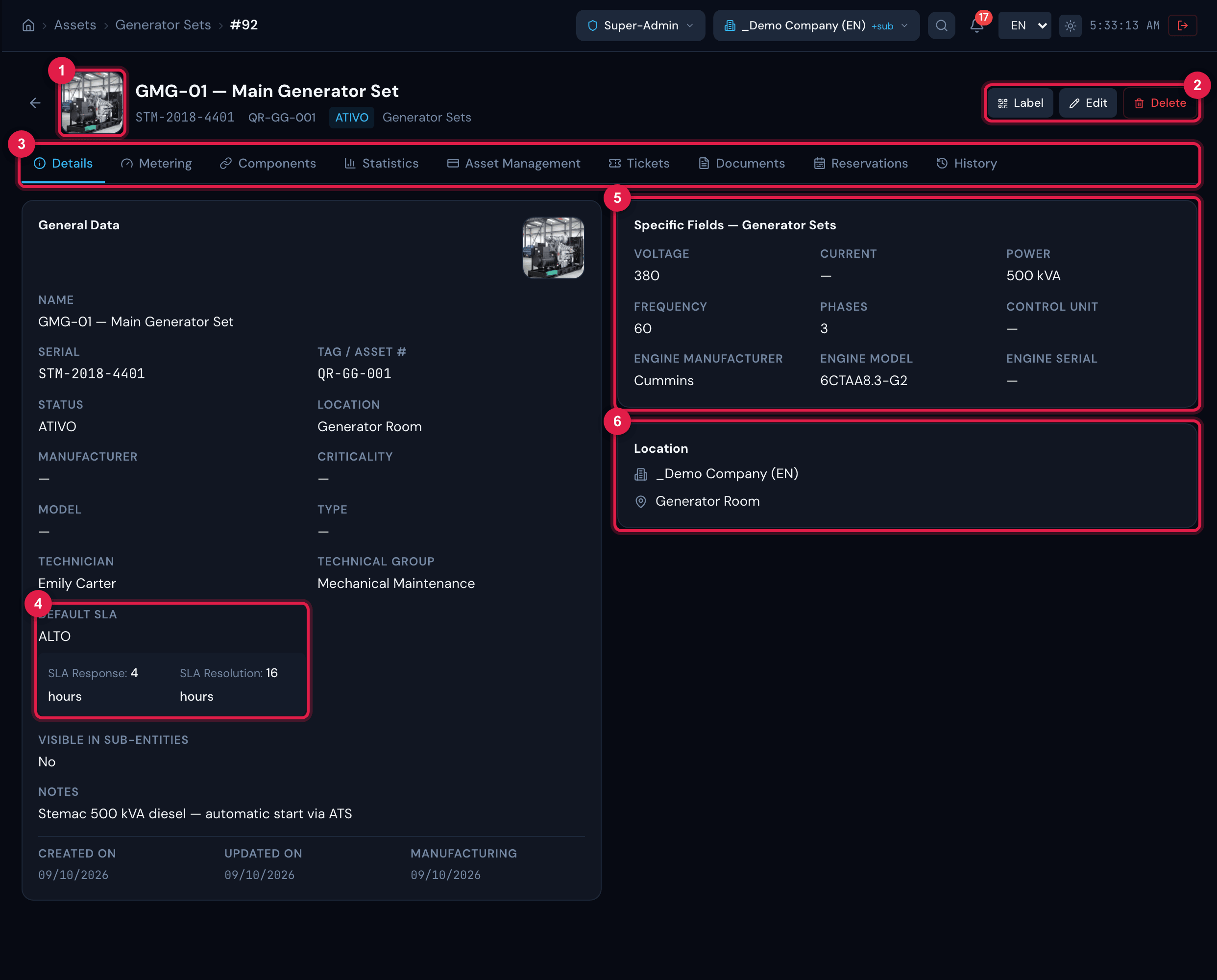
Figure 7. Record of the generator set GMG-01 — Main Generator Set, Details tab: the General Data card on the left and, on the right, the additional fields of the type and the Location card with the site and the location.
- 1Photo — click to change it.
- 2Label, Edit and Delete buttons.
- 3Record tabs.
- 4Default SLA with the response and resolution times.
- 5Additional fields of the type.
- 6Location card: site and location of the asset.
- Click Edit: the record goes back to the Details tab and the fields become a form.
- Change what you need. Status, Manufacturer, Model and Type have the + to create a new option; the Location has the + that opens New location. In the General Data card, Manufacturing also becomes a field: the asset is created with the registration date in it; enter the real manufacturing date (the PPE lifespan is counted from it).
- Click Save (or Cancel to discard). The change is recorded in the History tab.
| Record tabs | Chapter |
|---|---|
| Details | this one |
| Calibrations (Tools only) | 4 |
| Metering | 6 |
| Components | 5 |
| Statistics | 9 |
| Asset Management | 7 |
| Tickets | 9 |
| Documents | 9 |
| Reservations | 8 |
| History | 9 |
Asset photo
Section titled “Asset photo”Click the photo (in the header or in the General Data card) and choose an image of up to 4 MB (JPEG, PNG, GIF or WebP). The new photo replaces the previous one and appears in the list, on the record, in the app and on the public QR page (the label carries the logo, not the photo). Photos that came from the previous system, stored as a list of files, are also displayed.
PPE/CPE: the record badges
Section titled “PPE/CPE: the record badges”On a PPE record, above the additional fields, three badges summarize the situation: the Usage Status (🟢 Available, 🔵 In use, 🔧 Maintenance or ⛔ Discarded), the CA (CA Valid, CA expiring — within 60 days — or CA Expired, with the date; No CA when there is neither number nor expiry) and the Lifespan (Lifespan OK, Lifespan expiring or Lifespan expired, when there is a manufacturing date).
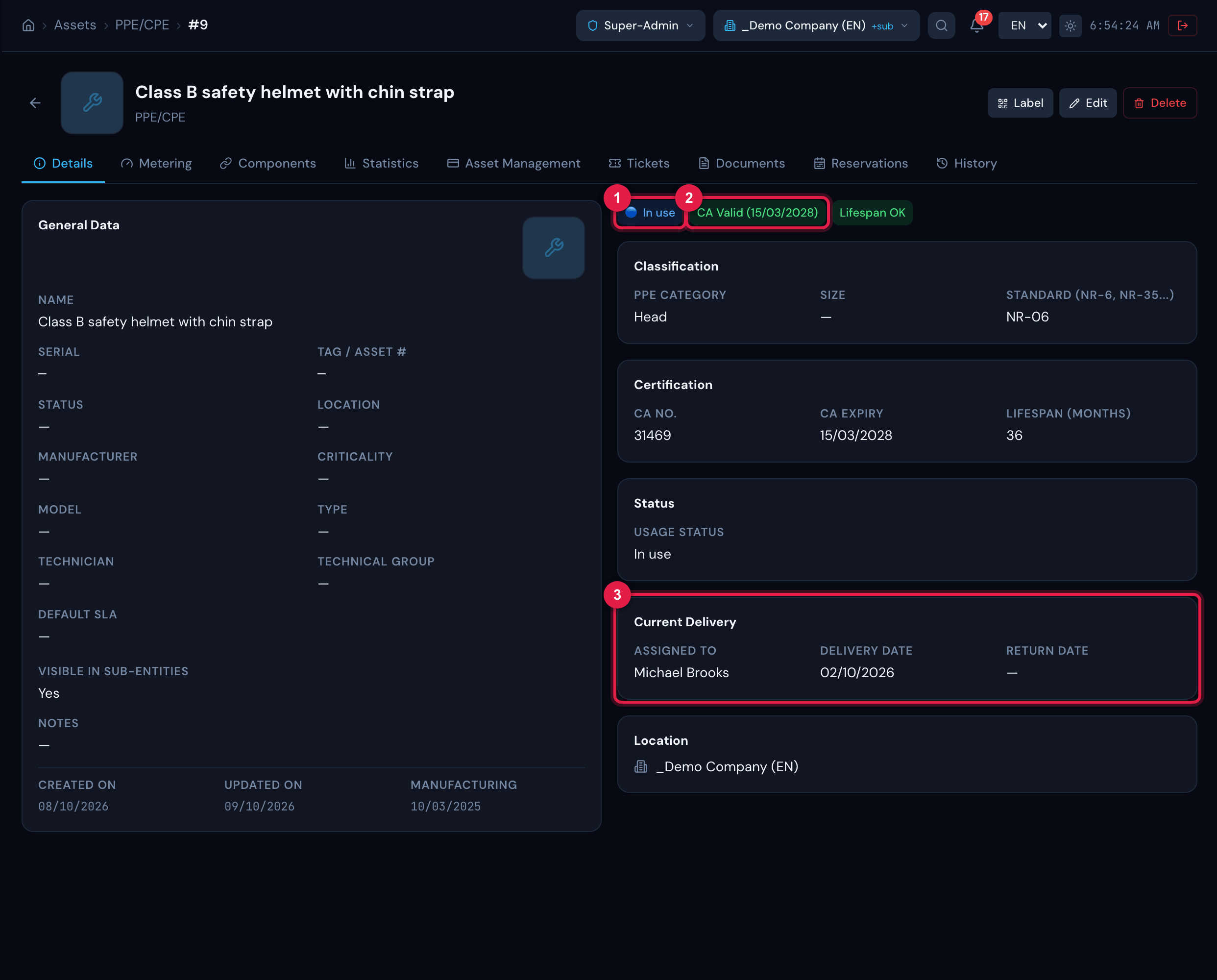
Figure 8. Record of a PPE item in use: the 🔵 In use and CA Valid badges and the Classification, Certification, Status and Current Delivery sections (Assigned to, Delivery date, Return date).
- 1Usage status badge.
- 2CA badge with the expiry date.
- 3Current Delivery section, filled in by the PPE delivery in SST.
Asset of another site and deletion
Section titled “Asset of another site and deletion”The record is only editable when the site selected in the header is the asset’s site (or the company root). When you view an asset of another site — a recursive asset of a site above, or one of a sub-site while you are in the site above —, the record shows the yellow bar This asset belongs to another site. Read-only view. and, instead of the buttons, Read-only. To change it, select the asset’s site in the header.
Delete asks for confirmation (Delete this asset?) and sends the asset to the trash: it leaves the lists, and the record is kept.
The rights that apply on the record are those of the profile you have at the asset’s site. An asset of a site you do not reach does not open even through the direct address: H2O shows Error loading asset and goes back to the list.
Was this page helpful?
Thanks for the feedback!
Got it — we will improve this page.