
Site documents
Manual — Companies and hierarchy · chapter 6 of 9
The Documents tab of the record keeps the site files — articles of incorporation, CNPJ card, permits, ART, licenses, certificates, floor plans. Each document can have a legal type and an expiry date, and can also apply to the sub-sites.Uploading a document
Section titled “Uploading a document”- In the site record, open the Documents tab and click Upload (the button only appears with the Create level).
- Choose the file on your computer (up to 200 MB). A box opens with the file name.
- Adjust the Name (the file name comes in).
- Choose the Type: Common document or one of the legal types in the table below.
- If the document expires, fill in the Expiry.
- Tick Visible in sub-sites (recursive) if the document also applies to the sites below this one.
- Click Send. Document uploaded appears and the document goes into the list.
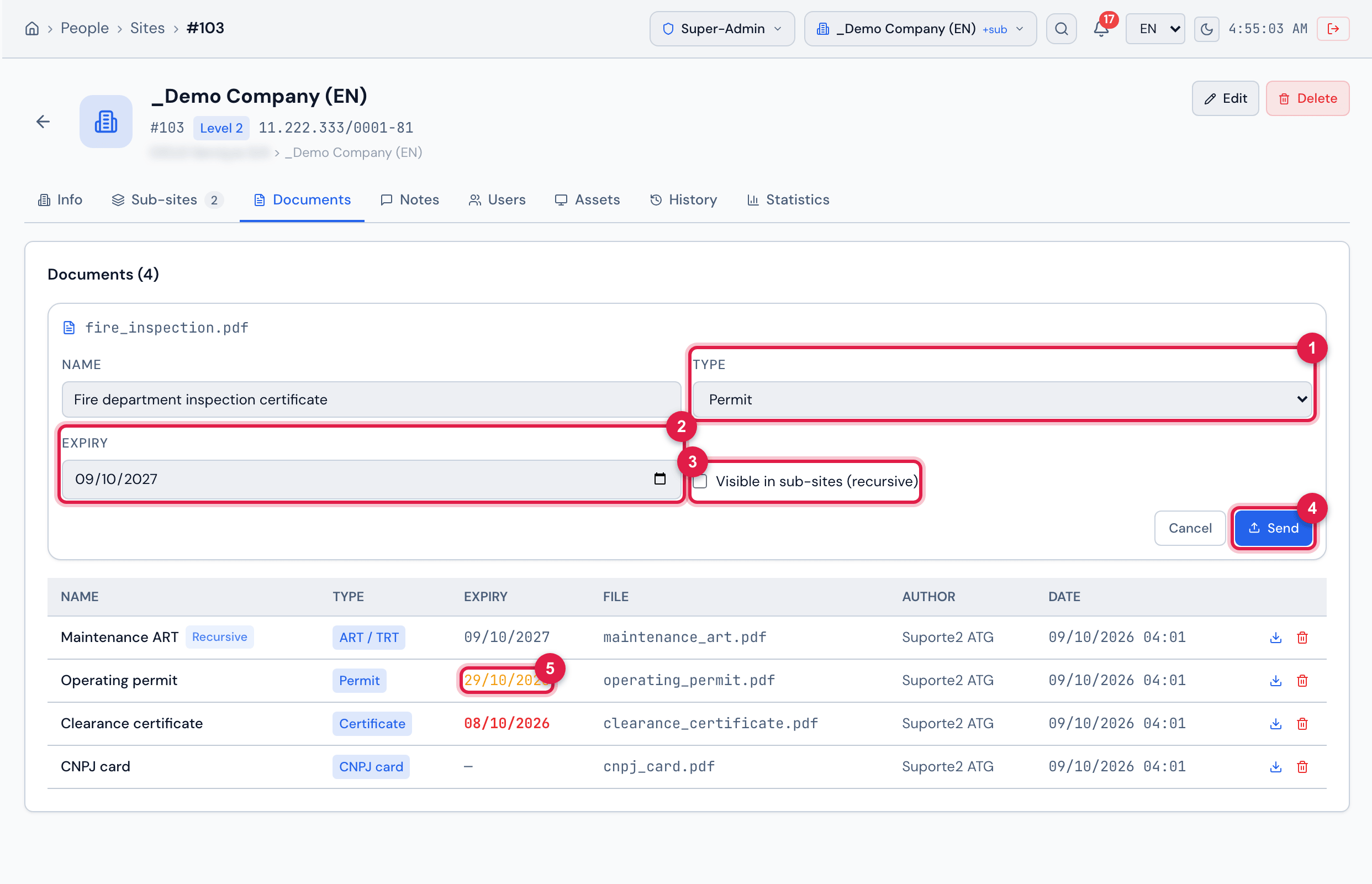
Figure 9. Documents tab with the upload box open: the name of the chosen file, the Name, Type and Expiry fields, the Visible in sub-sites (recursive) box and the Cancel and Send buttons; below, the list with the documents already uploaded.
- 1Type — Common document or a legal type.
- 2Expiry — optional; it colors the date in the list.
- 3Visible in sub-sites (recursive) — the document also appears in the sites below.
- 4Send.
- 5In the list, the Expiry date in amber: it expires in less than 30 days.
| Legal type | What it is |
|---|---|
| ART / TRT | Technical Responsibility Record (CREA/CAU). One per activity/contract; there may be several. |
| CNPJ card | Proof of Registration and Registration Status (Brazilian Federal Revenue). |
| Permit | Operating, construction or municipal permit. |
| Environmental License | Environmental license (LP, LI, LO) or equivalent document. |
| Articles of Incorporation | Articles of incorporation or latest amendment. |
| Certificate | Clearance certificate (CND) or equivalent. |
The document list
Section titled “The document list”- Columns: Name, Type, Expiry, File, Author and Date (of the upload), plus the download and remove icons.
- Expiry in red: the date has arrived (including on the expiry day itself). In amber: it expires within the next 30 days. Without an expiry date, “—” appears.
- The Recursive badge next to the name marks the document of this site that also applies to the sub-sites.
- The Inherited badge marks the document that came from a site above (uploaded there as recursive). It can be downloaded here, but has no trash icon.
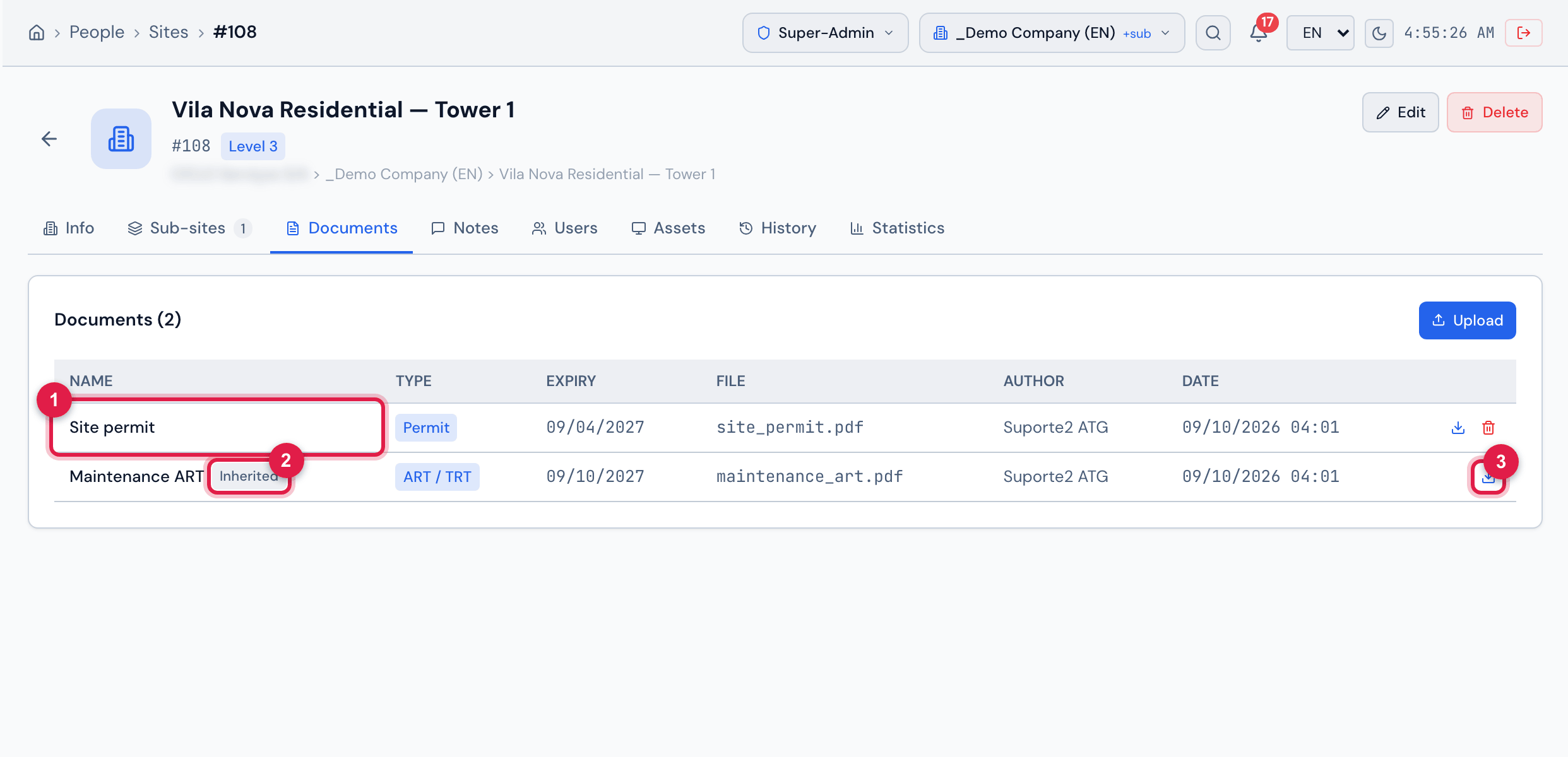
Figure 10. Documents tab of a sub-site: one document of its own and, right below, the document that came from the company, with the Inherited badge and without the trash icon.
- 1Document of the sub-site itself.
- 2Inherited badge — the document belongs to the site above.
- 3Download — also available for the inherited one.
To remove, click the trash icon and confirm Remove this document? (the trash icon only appears with the Trash level). The document leaves this site and every sub-site that inherited it, and is no longer offered in the Report documents box. There is no screen to bring it back: to correct it, upload the file again.
Was this page helpful?
Thanks for the feedback!
Got it — we will improve this page.