
Licenses and conditions
Manual — Environment · chapter 3 of 11
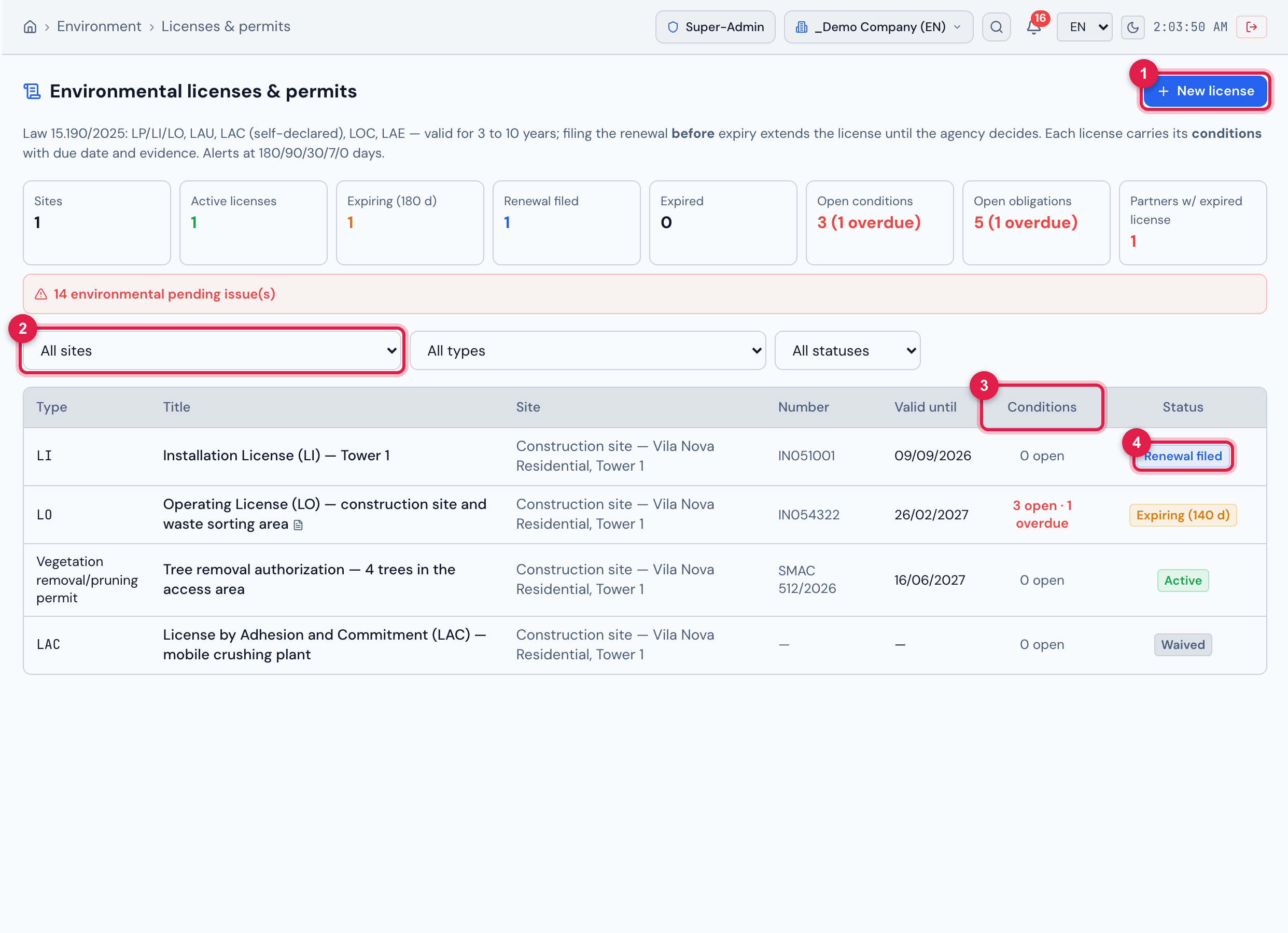
Figure 5. The Environmental licenses & permits screen: the module indicators and pending-issues bar, the filters (site, type and status) and the list of the site’s four licenses, with number, expiry date, open/overdue conditions (the LO has 3 open, 1 overdue) and the calculated status: Renewal filed, Expiring (140 d), Active and Waived.
- 1New license.
- 2Filters: site, type and status.
- 3Conditions column — open and overdue conditions of each license.
- 4Status badge (here, Renewal filed).
The status is calculated by the system: Active; Expiring (180 days or less left — the badge shows the days); Renewal filed (the renewal filing date was recorded — Law 15.190/2025 extends the license until the agency decides when the request is filed before expiry); Expired (expiry date passed and no renewal recorded); No expiry date (license without an expiry date). Two statuses are set by hand, in the Manual status field: Waived (requires the waiver reason) and Closed.
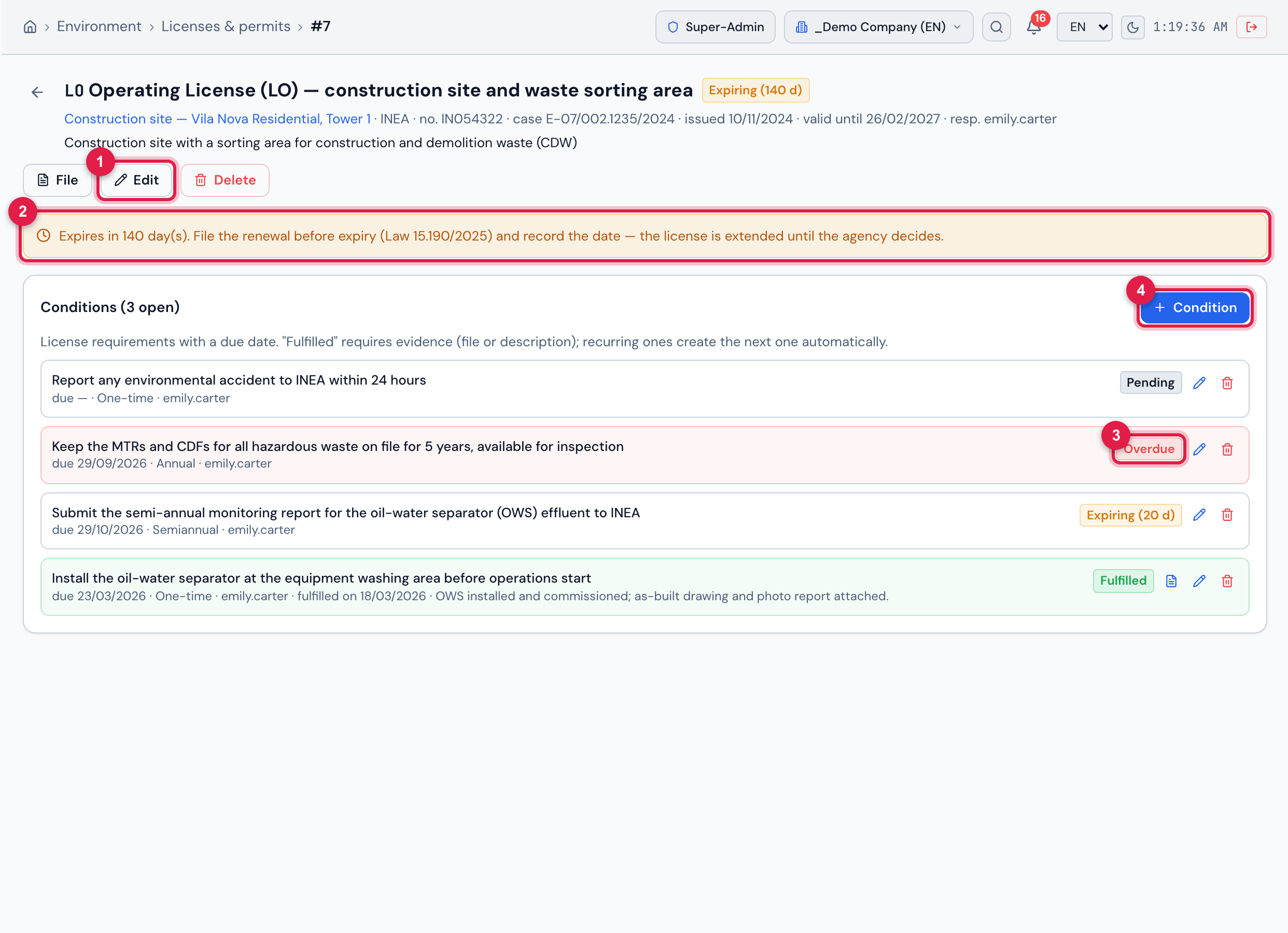
Figure 6. Record of the site’s Operating License: header with site, agency, number, case number, issue date, expiry date and responsible person and the Expiring (140 d) badge; the File (opens the license PDF), Edit and Delete buttons; the automatic warning “Expires in 140 day(s). File the renewal before expiry (Law 15.190/2025) and record the date…”; and the Conditions (3 open) with due date, frequency, responsible person and status — Pending (no due date), Overdue with a red background, Expiring (20 d) and Fulfilled with a green background and the icon of the attached evidence.
- 1Edit — where the filed renewal and the manual status are recorded.
- 2Automatic expiry warning (while no renewal is recorded).
- 3Overdue condition (due date passed, not fulfilled).
- 4+ Condition.
- In Licenses & permits (or on the site record), click New license; choose the site and the type (LP, LI, LO, LAU, LAC, LOC, LAE, water use permit, vegetation removal permit, CTF/APP, municipal permit, AVCB/CLCB or other) and fill in title, issuing agency, number, case number, activity, issue date and expiry date; attach the license file (PDF or image).
- On the record, click + Condition for each requirement of the license: description, due date, frequency (one-time, monthly, quarterly, semiannual, annual), the number of the work order that carries it out and a note.
- When you fulfill a condition, click the pencil (Edit / fulfill), change the Status to Fulfilled, enter Fulfilled on and attach the Evidence (file) or write the Evidence / note — without one of the two the system does not accept it. If the condition is recurring and has a due date, the next one is created automatically, with the due date moved forward by the frequency.
- When you file the renewal with the agency, click Edit and enter Renewal filed on and the Filing number: the status changes to “Renewal filed” and the pending issue disappears.
- If the activity does not require a license, use Manual status: Waived and write the Waiver reason; when the license is no longer valid, use Closed.
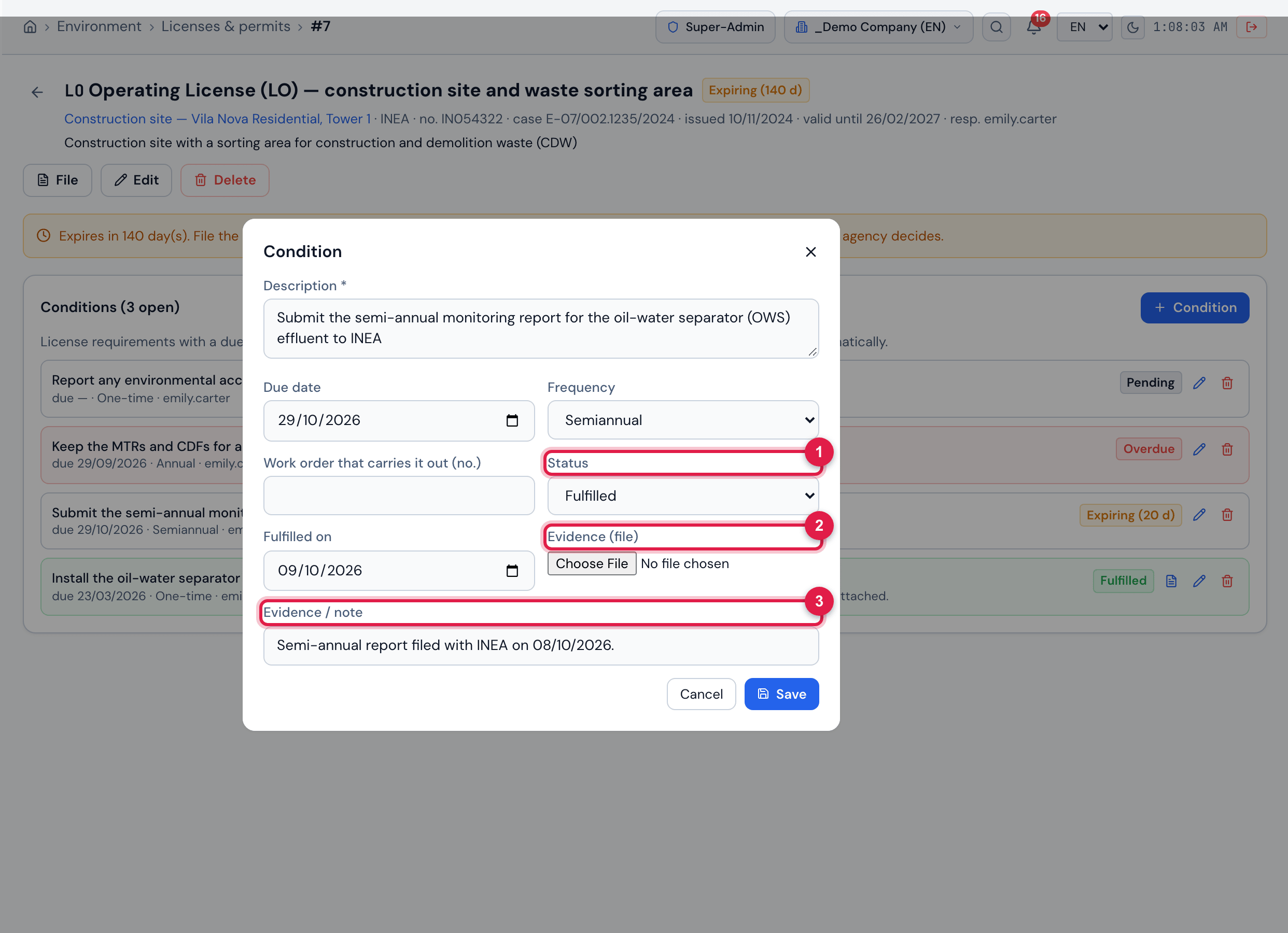
Figure 7. Fulfilling a condition: the pencil (Edit / fulfill) of the condition “Submit the semi-annual monitoring report for the oil-water separator (OWS) effluent to INEA” opens the Condition window. With Status set to Fulfilled, enter Fulfilled on (it defaults to today), attach the Evidence (file) or write the Evidence / note and click Save. As it is semi-annual and has a due date, saving creates the next one, due six months later.
- 1Status — choose Fulfilled.
- 2Evidence (file) — the proof (PDF or image).
- 3Evidence / note — one of the two (file or text) is enough.
Was this page helpful?
Thanks for the feedback!
Got it — we will improve this page.